Setting Up Your New Account
How to activate your DFM products, complete your business profile, connect your accounts, register for SMS, and get found online.
What you can do in your DFM dashboard
Your DFM dashboard is where you manage your business info, talk with customers, and track how your business is performing online. Each setup step below unlocks more of it.
Your setup checklist
Activate Your Account
After confirming your subscription, you will receive a welcome email. Use it to set your password and activate your DFM dashboard.

For future logins, visit: app.thedfmagency.com/login
Your Home screen
Once you're logged in, your Home screen gives you an at-a-glance view of:
- Key metrics — performance data organized into impressions, engagement, and leads
- Recent activity — a live feed of messages, calls, and customer interactions
- Business profile — quick access to your location info
The Complete Setup Tab
Once logged in, look for the Complete Setup tab in the top right of your screen. Work through each step — the steps you see will vary based on the products you've subscribed to. Finishing them means you'll see results in your reports sooner, respond faster to reviews and messages, and collect more leads.

Depending on your products, your checklist may include:
- Meeting your AI Workforce — personalize the AI assistants that capture leads and answer customers
- Connecting your Google Business Profile — collect and respond to Google reviews and sync your profile
- Setting up Web Chat — add an AI chat widget to your website (see Step 5)
- Connecting your business system — import existing customers from tools like QuickBooks or your CRM
- Registering for SMS — required before you can text customers (see Step 6)
- Enabling push notifications — mobile app only
AI Workforce
If you have AI products, you'll be guided through personalizing your AI assistants — setting their name, purpose, and capabilities. For a full walkthrough of AI setup, see the AI Workforce Guide.

Integrations: Connect Your Google & Facebook Profiles
One of the most important steps is connecting your Google Business Profile and Facebook. This unlocks powerful integrations and gives you access to your review, search, and social data all in one place.
When you reach the Integrations section in the Complete Setup tab, select Find Integrations.

Connecting integrations outside of Complete Setup
You can add integrations at any time, even after you've finished the checklist:
- Go to Administration › Integrations.
- Select the Browse tab.
- Search for the integration you need, such as Google Business Profile or QuickBooks.
- Select the integration and follow the sign-in and authorization steps.
Connecting QuickBooks Online lets you import existing customers and automatically request reviews from customers you've invoiced.
If you want to connect a CRM for review generation but don't see it listed, you can:
- Select the CSV Upload via FTP option
- Or contact DFM support using the chat button in the bottom left of your screen
Managing your integrations later
Go to Administration › Integrations › Manage to see all active integrations, reconnect ones whose sign-in has expired, or disconnect a platform.
Update Your Business Profile
Your Business Profile is the source of truth for your business name, address, hours, services, and descriptions. Other features — including your listings, AI responses, automations, and reports — pull from it, so complete it early.
- Go to Administration › Business Profile.
- Fill in the Primary Info, Hours, and Descriptions tabs.
- Select Save.
Invite Your Team (Optional)
Give teammates their own login so more than one person can respond to leads, messages, and reviews. You control exactly which tabs each person can see.
- Go to Administration › User Management.
- Select Invite user.
- Enter the person's name, email, and (optionally) phone number.
- Under Permissions, choose which tabs they can access. All tabs are selected by default, so uncheck anything you don't want them to see.
- Select Send. They'll receive a welcome email to set up their own login.
Set Up AI and Web Chat
Your AI Workforce can answer customer questions and capture leads 24/7. The Web Chat widget puts that AI on your website and sends every lead straight to your Conversations inbox.
Configure your AI Workforce
- Go to AI › AI Workforce.
- Start a chat with an AI employee to see what it can do.
- Configure your Chat Receptionist or Voice Receptionist to match your business.
For more detail, see the AI Workforce Guide.
Install Web Chat on your website
- Go to Conversations AI › Conversations AI Settings.
- Select Configure Web Chat and add your business knowledge.
- Copy the installation code and add it to your website — or, if your site runs on WordPress, use the WordPress plugin.
Register for SMS (A2P 10DLC)
If you have Reputation Management, Webchat AI, or Conversations AI products, SMS registration is required before you can send text messages to customers.
Phone carriers in the United States require businesses to register their phone numbers to prevent spam (this is called A2P 10DLC). A third-party agency verifies your business details against government databases on behalf of the carriers. One registration covers every SMS feature on your account.
Before you start: what you'll need
Most failed registrations come down to missing website requirements. Have these ready before you submit:
- Your legal business name and EIN, matching your IRS records exactly
- A privacy policy page on your website that includes SMS-specific language
- SMS terms and conditions on your website describing your text program
- Web forms with opt-in checkboxes — separate, unchecked boxes for customer care messages and marketing messages
Example language for your website
Below are examples of the kind of language carriers look for. Replace everything highlighted with your own business details before using it.
Privacy policy: SMS section
Add a section like this to your existing privacy policy. It must say that you don't share mobile opt-in data, explain how consent works, and include opt-out, help, and rates language.
Text Messaging (SMS)
If you provide your mobile phone number and opt in to receive text messages from [Business Name], you consent to receive SMS messages at the number you provided. Consent to receive text messages is not a condition of purchase.
We do not sell, rent, or share your mobile phone number or SMS opt-in data and consent with third parties or affiliates for their marketing or promotional purposes. We may share this information only with the service providers that help us deliver our text messages.
Message frequency varies. Message and data rates may apply. You can opt out at any time by replying STOP to any message. Reply HELP for help, or contact us at [email address] or [phone number].
SMS terms and conditions
This can be its own page or a clearly labeled section of your existing terms. It needs a program description, the STOP/HELP/rates language, and your contact information.
[Business Name] SMS Terms and Conditions
Program description: By opting in, you agree to receive text messages from [Business Name] about [e.g., appointment reminders, service updates, review requests, and responses to your inquiries]. If you separately opt in to marketing messages, you may also receive [e.g., promotions and special offers].
Message frequency: Message frequency varies.
Costs: Message and data rates may apply.
Opting out: Reply STOP to any message to unsubscribe. You'll receive one final message confirming you've been unsubscribed.
Help: Reply HELP for assistance, or contact us at [email address] or [phone number].
Carriers: Mobile carriers are not liable for delayed or undelivered messages.
Privacy: See our Privacy Policy at [privacy policy URL].
Contact: [Legal Business Name], [business address], [phone number], [email address].
Opt-in checkboxes for your web forms
Any form that collects phone numbers needs two separate checkboxes — one for customer care messages and one for marketing. Both must be unchecked by default and optional to submit the form.
I agree to receive customer care text messages from [Business Name] at the phone number provided, such as appointment reminders and replies to my inquiries. Message frequency varies. Message and data rates may apply. Reply STOP to opt out or HELP for help. [Privacy Policy link] | [Terms link]
I agree to receive marketing and promotional text messages from [Business Name] at the phone number provided. Consent is not a condition of purchase. Message frequency varies. Message and data rates may apply. Reply STOP to opt out or HELP for help. [Privacy Policy link] | [Terms link]
How to submit your registration
The last step of the Complete Setup funnel walks you through the form. You can also get there directly:
- Go to Administration › Conversations Settings › Phone & SMS.
- Complete the carrier verification form.
- Add the URLs for your privacy policy and terms and conditions.
- On the review step, select Check with AI to flag potential issues before you submit.
- Select Submit Registration.
Common reasons registrations fail
- The privacy policy doesn't mention SMS or text messaging
- A consent checkbox is missing, pre-checked, or required to submit the form
- Business name, address, or EIN doesn't exactly match IRS records
- A newly issued EIN hasn't reached verification databases yet — this can take up to 90 days
SMS Registration FAQs
Connecting Your Social Media Accounts
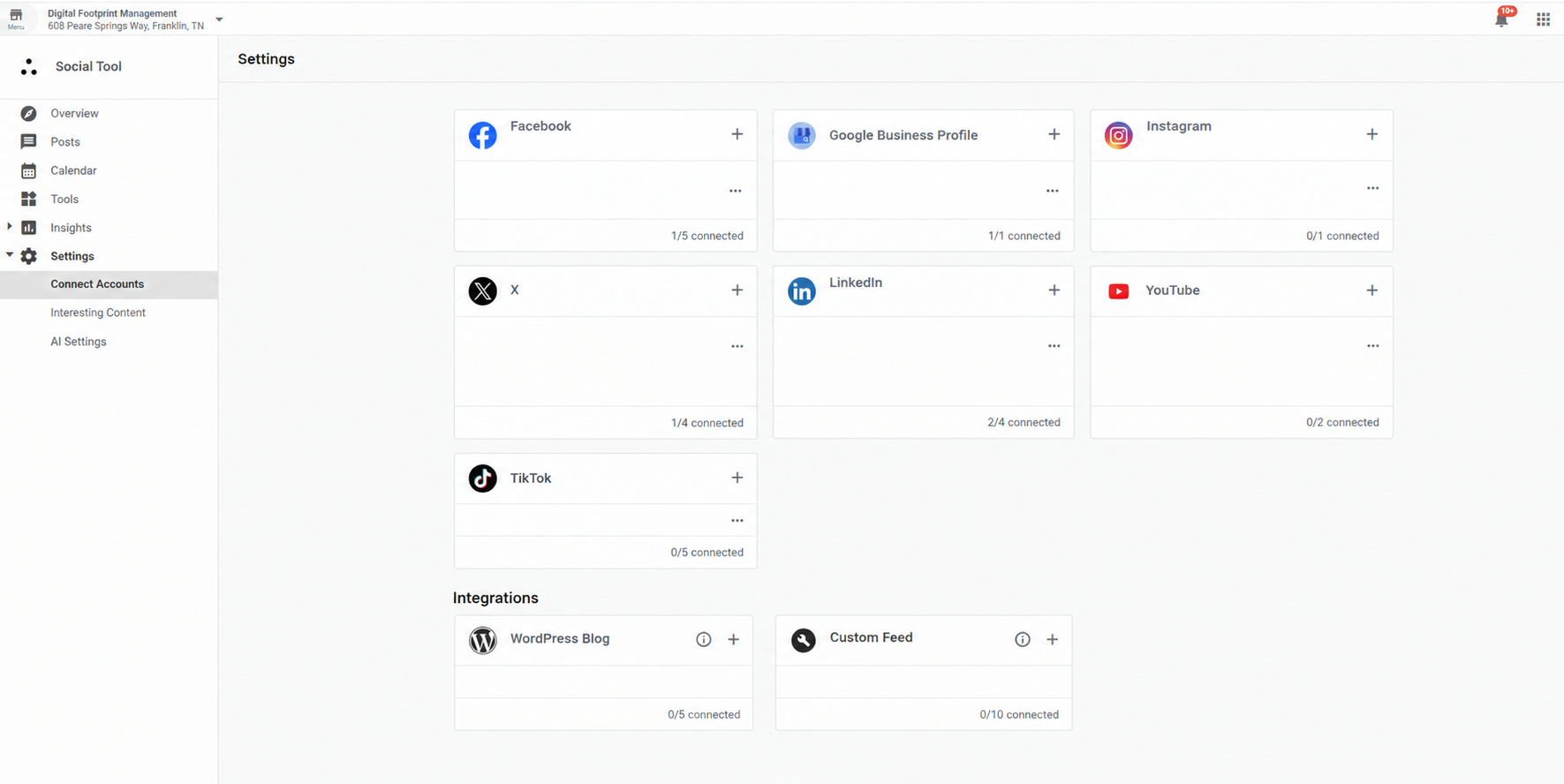
If you've subscribed to the Social Tool, follow these steps to connect your accounts and start posting and replying to messages without switching between apps.
- Open the Social tool in your DFM account.
- Go to the Overview tab and select Connect accounts.

- Select the + next to each account you want to add.
- Sign in and grant permissions, then repeat for each additional platform.
To start posting and learn everything the Social Tool can do, see the Social Marketing Guide →
Customize Notifications and Language
Choose which notifications you get
- Go to Settings › Notification Settings.
- Choose instant emails, a daily digest, or both.
- Expand each product section to choose which events send you a notification.
If you use the mobile app, turn on push notifications so you're alerted to new customer messages right away.
Change your language
- Select your profile name in the top right corner.
- Select the current language.
- Choose your preferred language from the list.