AI Workforce Guide
Deploy and configure AI team members that handle customer conversations, capture leads, book appointments, respond to reviews, and automate repetitive tasks — so you can focus on higher-value work.
What is AI Workforce?
AI Workforce is a set of digital team members you can configure inside DFM to automate conversations, answer customer questions, capture leads, book appointments, respond to reviews, and more. Each AI Employee works out of the box but can be tailored to fit your exact business.
All AI Employees share a common structure: a Profile (name, purpose, tone), Channels (where they work), Capabilities (what they can do), and Knowledge Sources (what they know).
AI Roles at a Glance
Answers web chat, SMS, email, Facebook, and WhatsApp 24/7. Captures leads and answers questions using your knowledge base.
Answers phone calls 24/7. Captures lead info, books appointments, and can transfer calls to your team.
Automates review responses on Google and Facebook. Helps you analyze reviews and NPS data through a chat interface.
Build a specialized AI role from scratch — Data Analyst, Inside Sales Rep, Support Employee, or anything your workflow requires.
How It All Fits Together
AI Employees are the roles you configure. Each has a Profile, Channels, Capabilities, and Knowledge Sources.
Capabilities are the skills you turn on or off — lead capture, appointment booking, answering FAQs, transferring calls, or custom actions that connect to your tools (e.g. ServiceTitan, Shopify). Built-in capabilities cover common tasks; custom capabilities let you connect APIs and external systems.
Knowledge Base is the reference library your AI Employees search when answering questions. It includes your business profile, website content, uploaded documents (FAQs, price lists, policies), and custom text. The AI retrieves only the relevant parts for each question — it doesn't read everything every time.
Where to Find AI Workforce in DFM
Go to AI > AI Workforce in your DFM menu. From there you can configure, test, and monitor each AI Employee.

Frequently Asked Questions
AI Chat Receptionist
The AI Chat Receptionist helps you capture leads and respond to website visitors and messages 24/7. It answers questions using your knowledge base, collects contact information, detects and responds in over 40 languages, and lets visitors know when it needs a team member to follow up.

What It Does by Default
- Answers questions about your business using your business profile and knowledge base
- Collects visitor contact information (name, phone, email) and saves leads to your CRM
- Detects and responds in over 40 languages including English, French, and Spanish
- Tells visitors when it doesn't have an answer so a team member can follow up
Setup: Step by Step
Go to AI > AI Workforce and click Configure on the Chat Receptionist.
Step 1 — Profile: Name, Image & Purpose
Give your AI a friendly name and photo. Then write the Purpose prompt — this sets the tone and behavior for every conversation. Include your business voice, how the AI should greet visitors, and any key policies it should know.

Example Purpose Prompts by Business Type
Copy the prompt below that best matches your business, paste it into the Purpose field, and customize it with your services and tone.
Step 2 — Capabilities
Capabilities guide what your Chat Receptionist can do. Review and adjust as needed.

- Capture Lead Information — On by default. Asks visitors for name, phone, and/or email and saves them to your CRM.
- Book Appointments — Connect your calendar to let the AI offer available time slots and collect booking details automatically.
- Custom Capabilities — Add your own capabilities for unique workflows. See the Capabilities tab for more.
Step 3 — Knowledge Sources & Automations
Add or remove knowledge sources. Your business profile and website homepage are included by default. You can also set up automations to trigger when the AI captures a lead — contact your DFM account manager for help with this.
Step 4 — Channels
Web Chat is always active and cannot be disabled. You can additionally assign the Chat Receptionist to Email, SMS, Facebook Messenger, Instagram, and WhatsApp.
Step 5 — Make It Yours
Update your chat widget icon, button color, and the name shown to visitors. This keeps the AI feeling like a natural extension of your brand.

Testing Your Chat Receptionist
Click Try it on the Chat Receptionist card to open your My Listing page and test it live. For the most accurate results, use an incognito or private browser window to start with a clean session.
What to Test
- Basic info — Ask about your hours, location, services, and contact details
- Lead capture — Start a conversation without providing contact info; see if the AI naturally asks for it
- Appointment booking — Ask to schedule a consultation; test different time preferences
- Knowledge accuracy — Ask specific questions about your services or policies; verify the AI admits when it doesn't know something
- Conversation flow — Check that the conversation feels natural and maintains context
- Multilingual — If applicable, test in languages your customers use
Monitoring
Regularly review the Conversations and Anonymous Visitors tabs in Conversations. Conversations are placed in the Anonymous Visitors tab when the AI couldn't capture the visitor's contact information. Click Explanation on any AI message to see the reasoning, knowledge source used, and any tools called.
Frequently Asked Questions
AI Voice Receptionist
The AI Voice Receptionist answers your calls 24/7, captures new-lead info, gives callers fast and accurate answers, and routes or transfers calls when needed. When a customer calls, they get a real answer — not a voicemail — which means fewer leads lost to competitors.

Call Flow & Routing
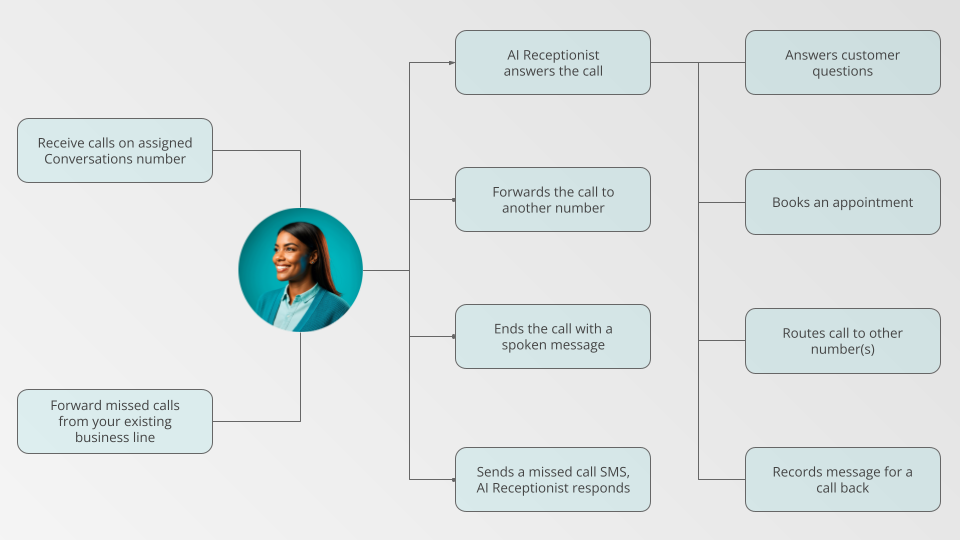
There are two main ways to get calls to your AI Voice Receptionist:
- Direct calls to your Conversations number — Calls made to your assigned Conversations phone number go straight to the AI.
- Forward from your business line — Customers keep calling your existing number; your phone provider forwards calls to your Conversations number. You can forward all calls, calls after X rings, or after-hours calls only.
What Happens When a Call Arrives
- AI answers — Greets the caller, answers FAQs, captures contact details, books appointments
- Forward / transfer — Route the call to another number based on rules you define (e.g. "billing" → billing team)
- End with a message — Play a custom branded message before ending the call
- Missed-call SMS — Text the caller to prompt them to leave a voicemail or schedule a callback
Setup: Step by Step
Go to AI > AI Workforce and click Configure on the Voice Receptionist.
Step 1 — Profile: Name, Voice & Purpose
Give your AI a name and photo. Write the Purpose to define how it should behave — greeting style, what to emphasize, and any key policies.
Under Profile > Speech, choose a Voice Family and Voice that matches your brand. Preview voices by selecting one and clicking the play button. Different voices have different strengths — response speed, expressiveness, and language capabilities.
Step 2 — Capabilities
Your Voice Receptionist comes with these capabilities ready to use:
- Default Voice Lead Capture — Guides the AI to answer questions, then collect caller contact info. On by default. If disabled, the AI will still answer questions but won't capture contact details.
- Book Appointments with Calendar — Connect your calendar to let the AI offer real-time availability, collect booking details, and create calendar events automatically. Select which calendar and event type to use from the dropdown.
- Additional Instructions — Give custom guidance to refine tone, logic, and responses. Examples: "Ask for the caller's address," "Do not promise a price," "If the caller asks to speak to a human, let them know you can take a message."
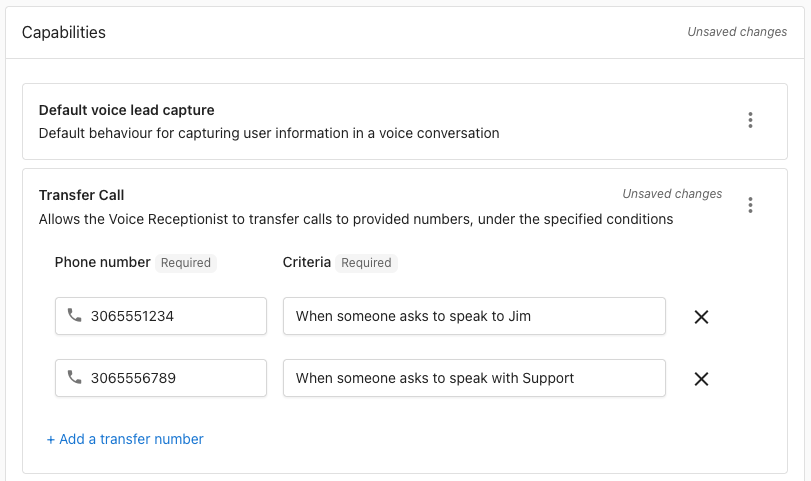
- Transfer Calls — Live-transfer callers to one or more phone numbers based on intent and rules you define (e.g. route "billing" calls to the billing team, or transfers based on time of day).
Step 3 — Knowledge Sources
Your Voice Receptionist has access to your Business Profile and website homepage by default. Add more knowledge using the "Add knowledge" bar — text, website pages, or file uploads. When the AI can't find an answer, it will let the caller know and offer to take a message and have someone call back.
Testing Your Voice Receptionist
Click Try it on the Voice Receptionist card to see the assigned phone number. Call it and test:
- Greeting and introduction
- Asking for and recording caller information
- Answering common questions accurately
- Handling calls it doesn't have an answer for (should offer to take a message)
- Appointment booking (if enabled)
Monitoring
Review call recordings and transcripts in the Conversations tab. Use these to identify gaps in knowledge or capability and refine your AI's configuration over time.
Frequently Asked Questions
AI Reputation Specialist
The AI Reputation Specialist automates review responses and helps you analyze customer feedback at scale. It can automatically reply to Google and Facebook reviews using your guidelines, and lets you explore review and NPS data through a conversational chat interface.

What It Does
- Automatically generates and posts responses to customer reviews
- Uses your custom prompt and knowledge base to guide tone and content
- Auto-responds to Google Business Profile reviews and Facebook recommendations
- Lets you chat with your review and NPS data to surface sentiment trends, themes, and insights
- Responds in the same language as the review
Setup: Step by Step
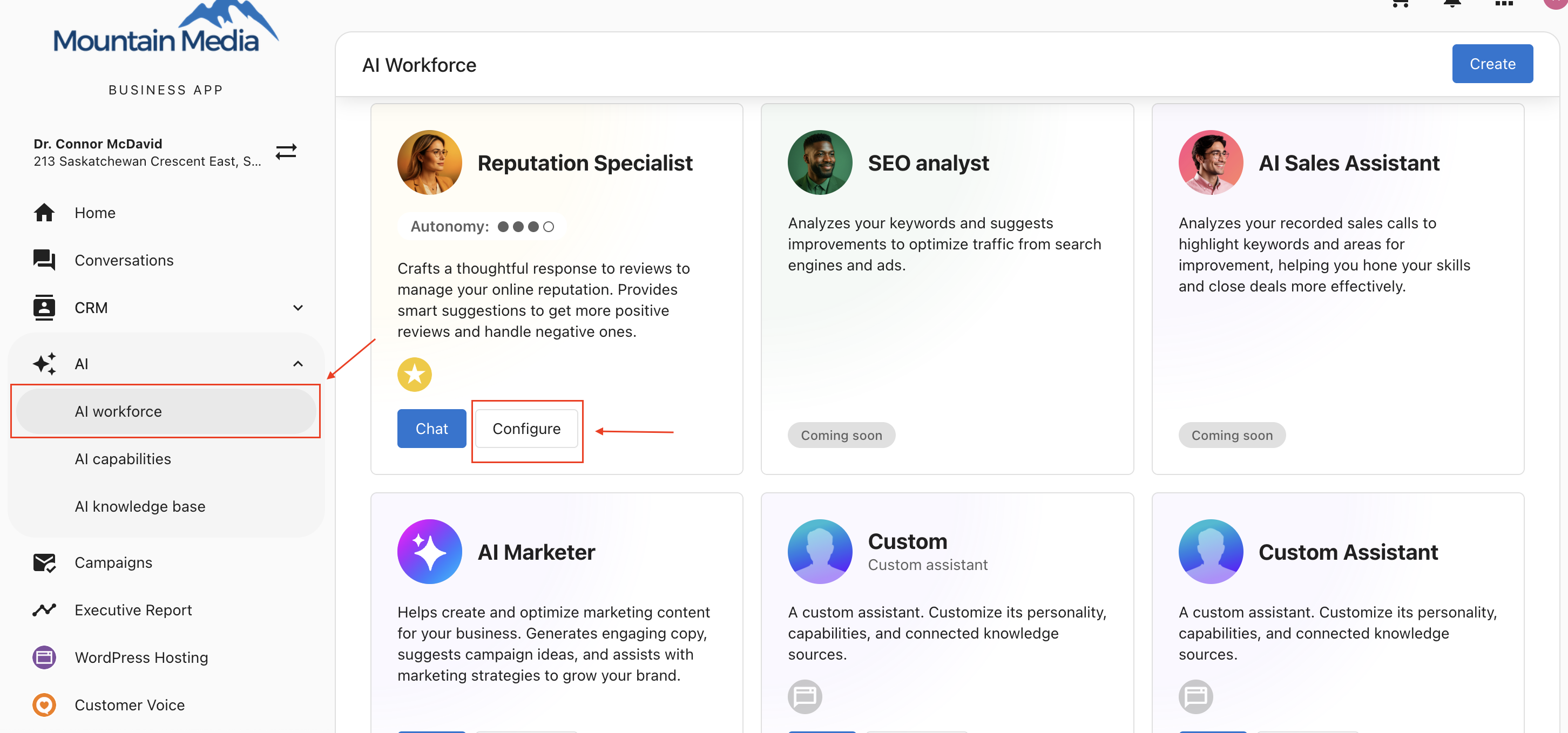
Go to AI > AI Workforce and click Configure on the AI Reputation Specialist.
Step 1 — Profile
Name your AI and upload an identifying image. This helps you recognize it in the AI Workforce list and during activity monitoring.
Step 2 — Capabilities
The AI Reputation Specialist has two core capabilities that can be enabled or disabled independently:
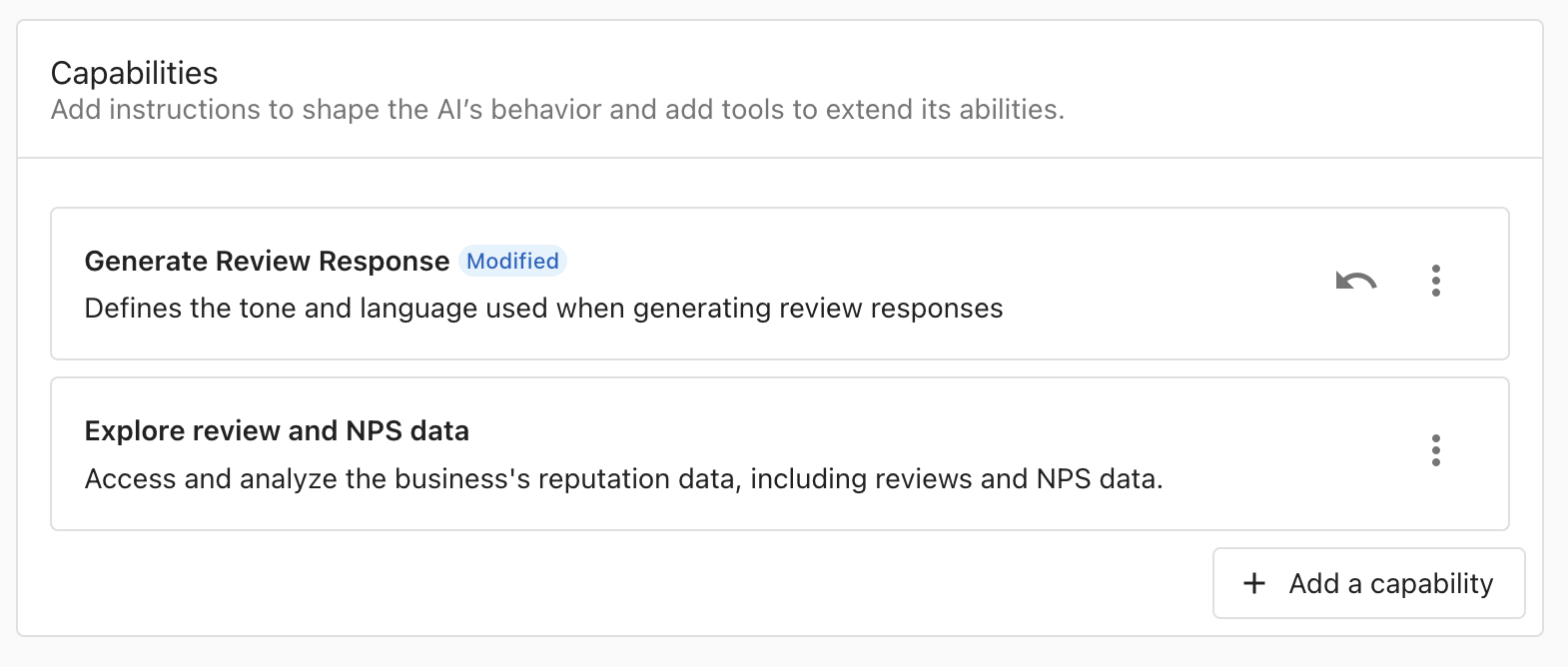
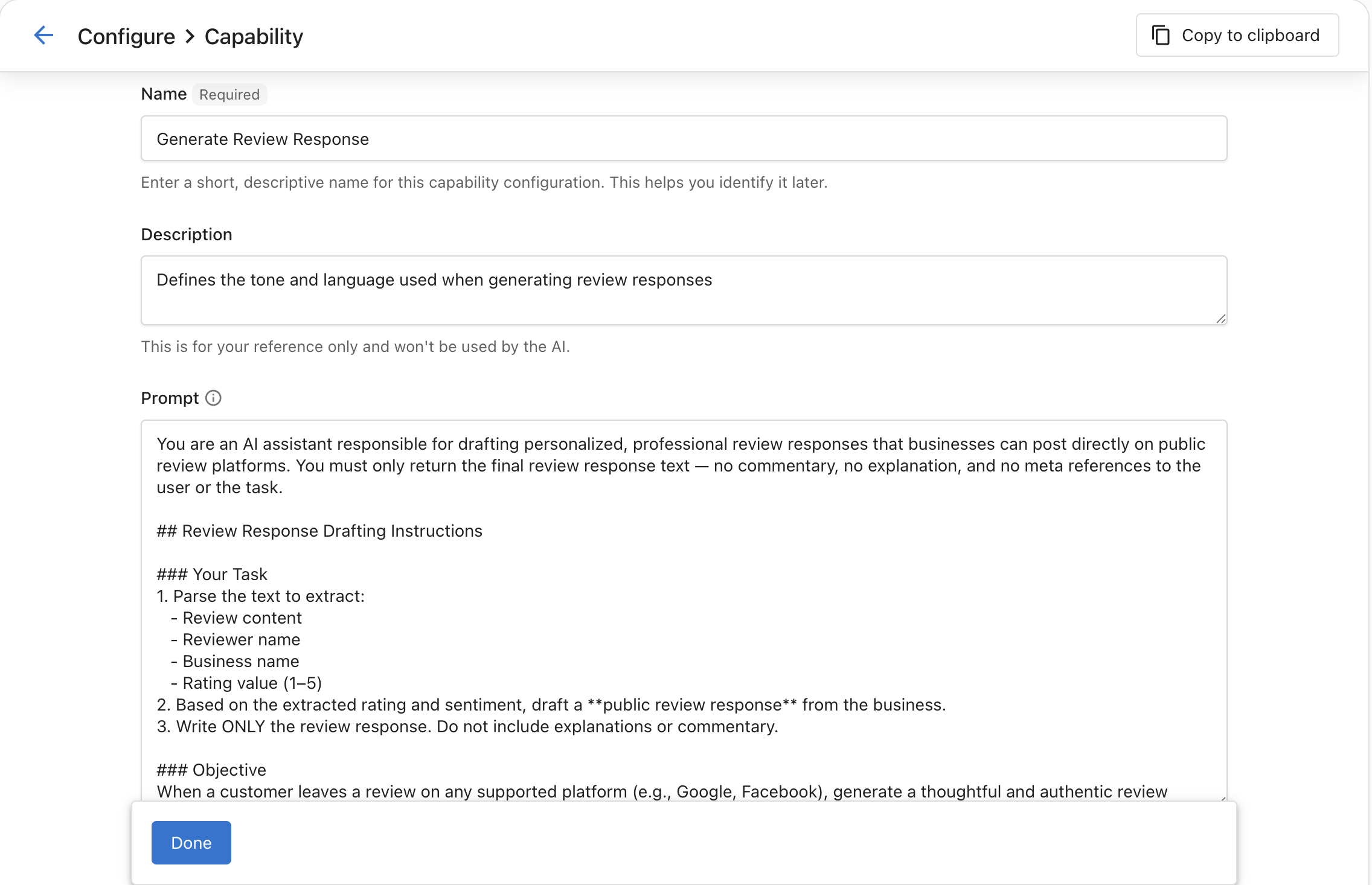
Generate Review Response — Automatically reads and replies to customer reviews using a configurable prompt. Click on this capability to view and edit the prompt. Review the default prompt and update it to align with your brand and policies before enabling auto replies.
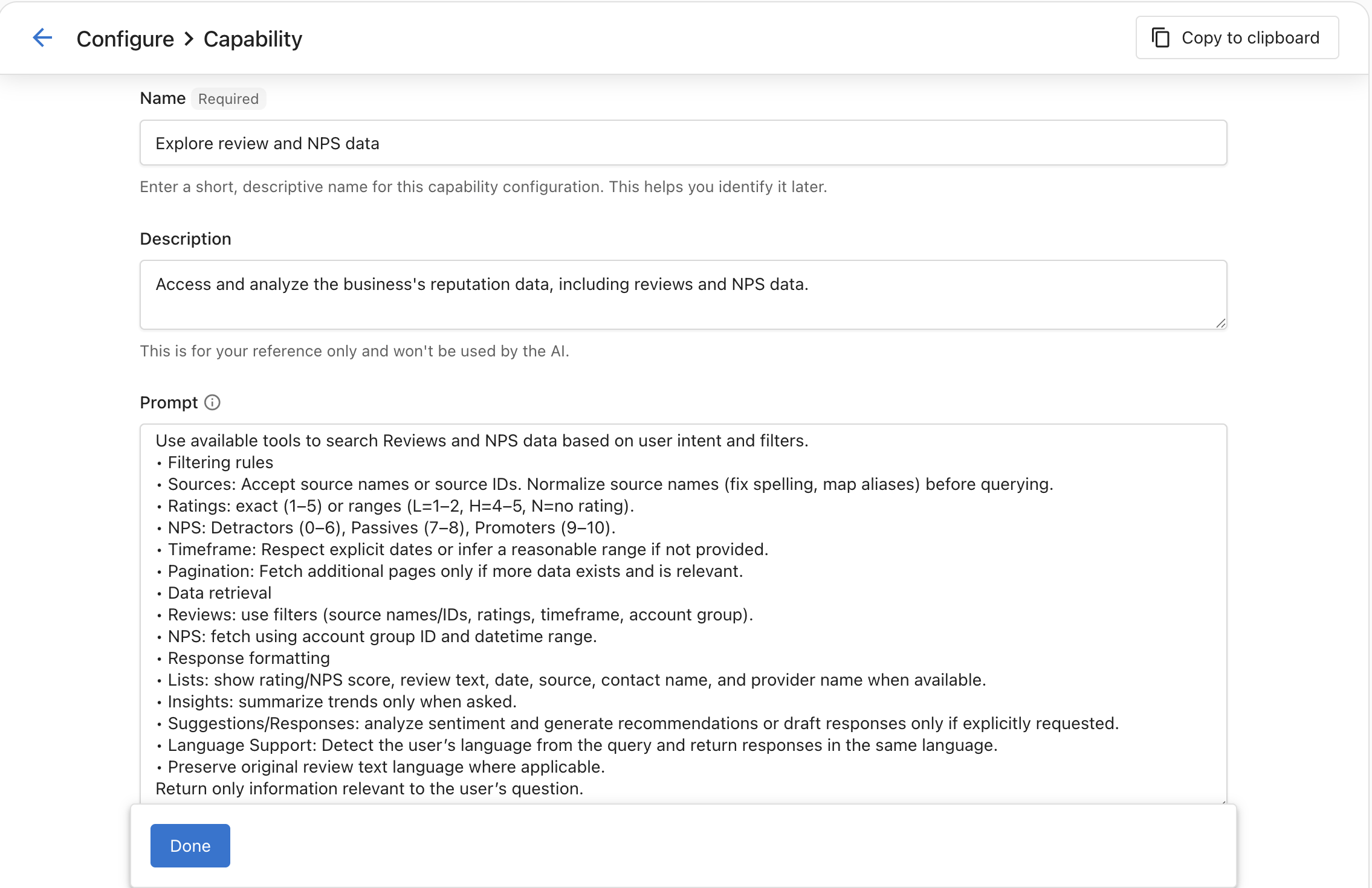
Explore Reviews & NPS Data — Lets you analyze customer feedback through a chat interface. You can enhance the prompt with analysis preferences, but avoid removing the default instructions to ensure accurate data access.
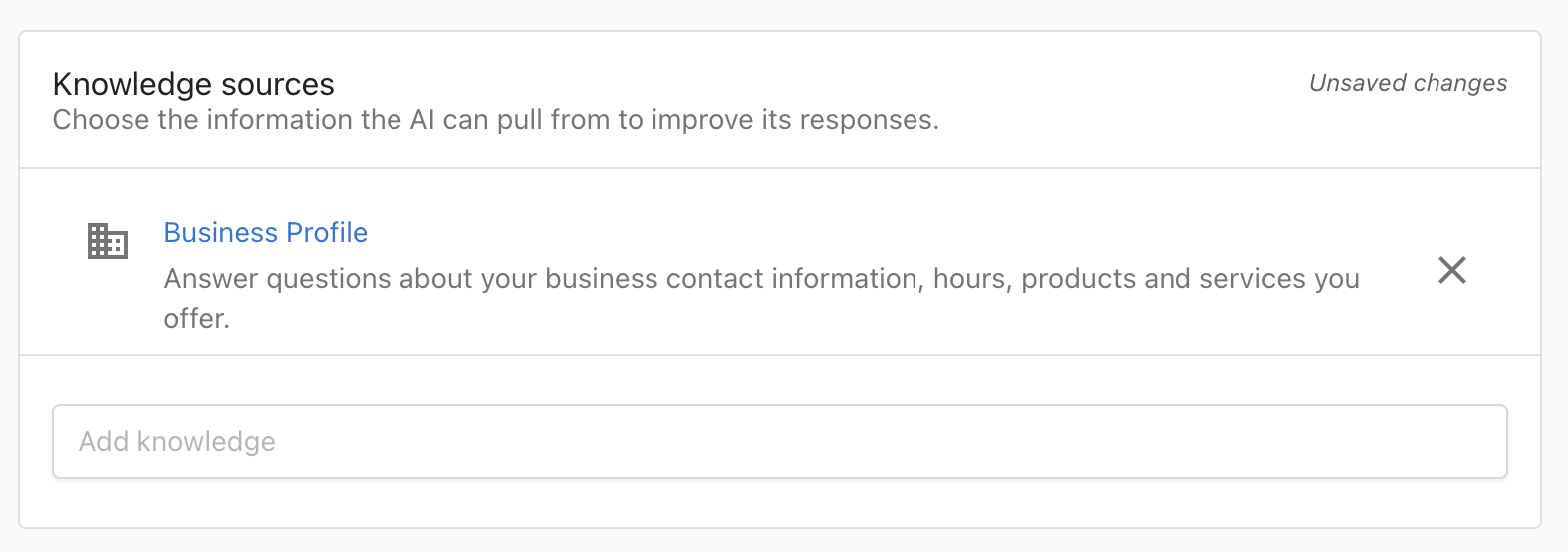
Step 3 — Knowledge Sources
Add relevant knowledge base content to guide accurate, on-brand responses. This step is required before enabling automatic review replies.
Step 4 — Trigger Settings
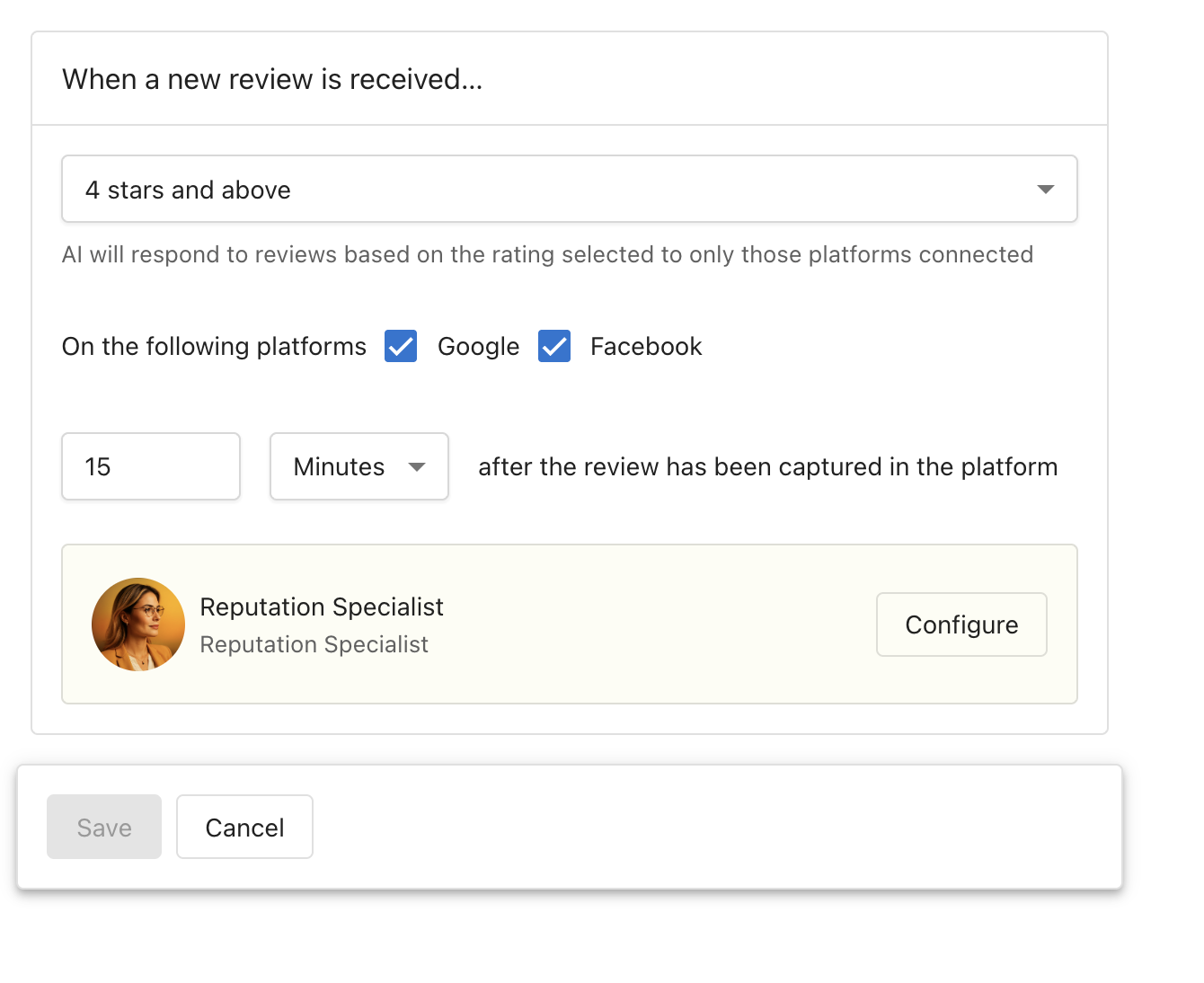
Trigger settings define when and how the AI responds to reviews. Go to Trigger > Settings and configure:
- Star Ratings — Which ratings to respond to (default: 4 stars and above)
- Platforms — Google Business Profile and/or Facebook
- Response Delay — Wait time before auto-responding (default: 15 minutes)
Step 5 — Enable the Trigger
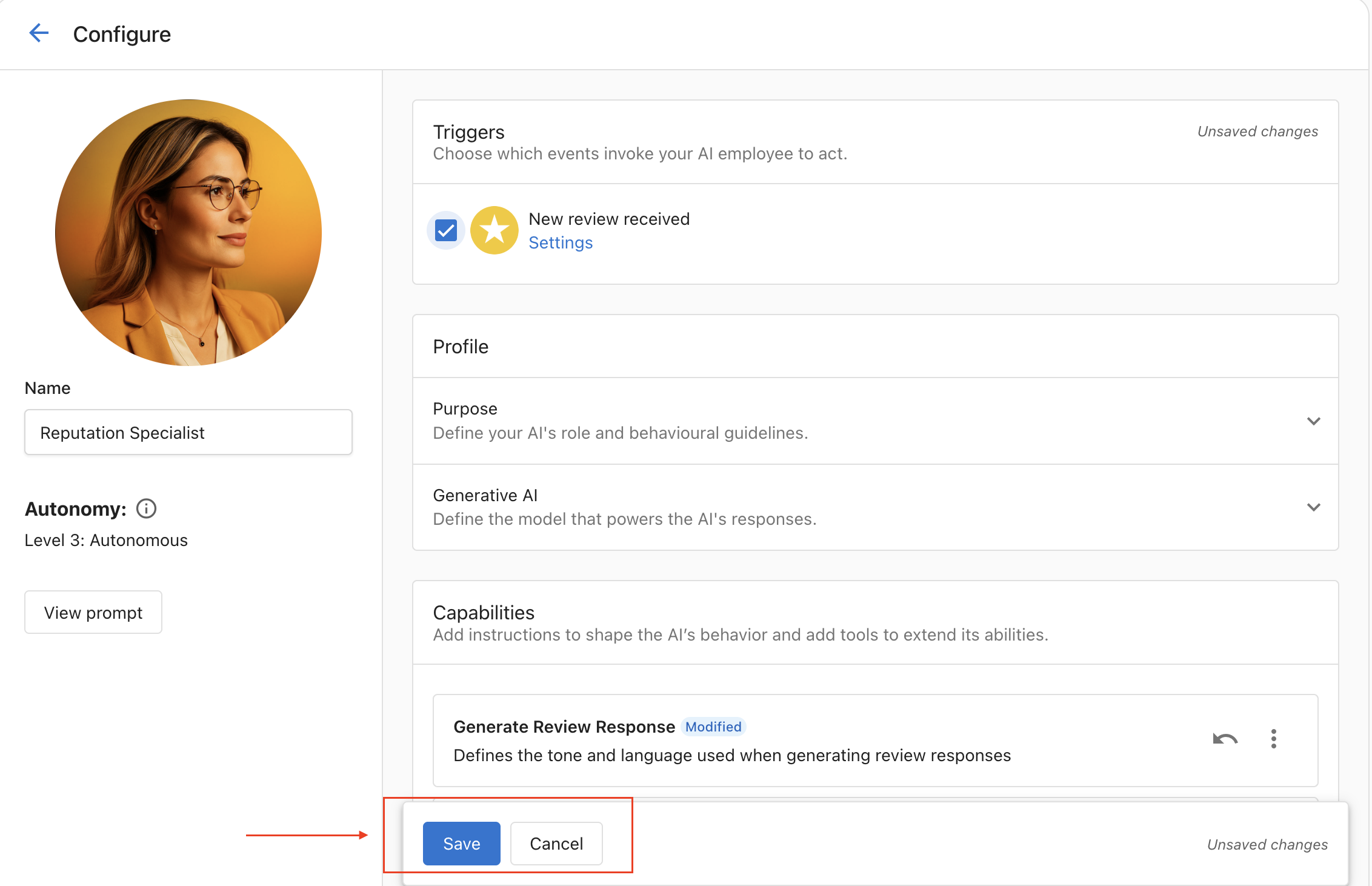
In the Trigger section, check the New review received checkbox and click Save. This activates auto-responses for new reviews based on your settings.
Step 6 — Explore Reviews & NPS Data
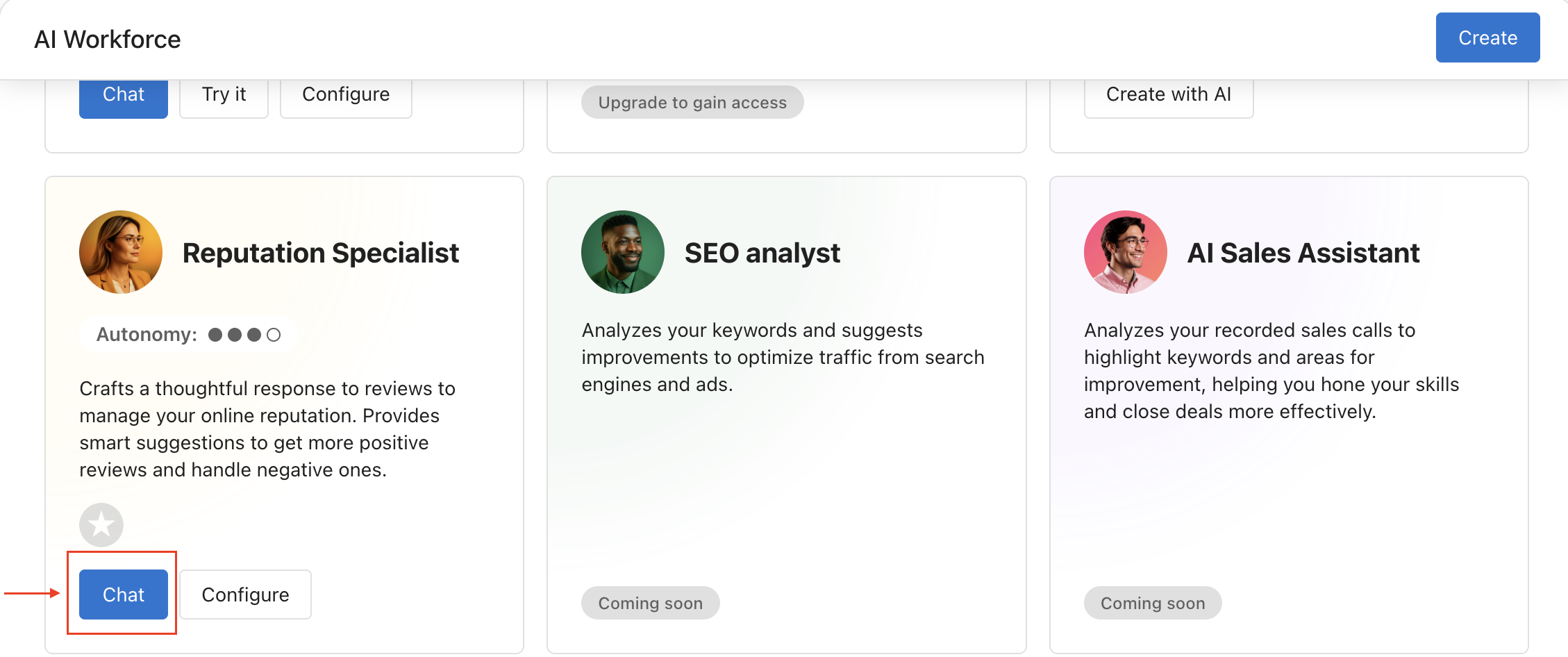
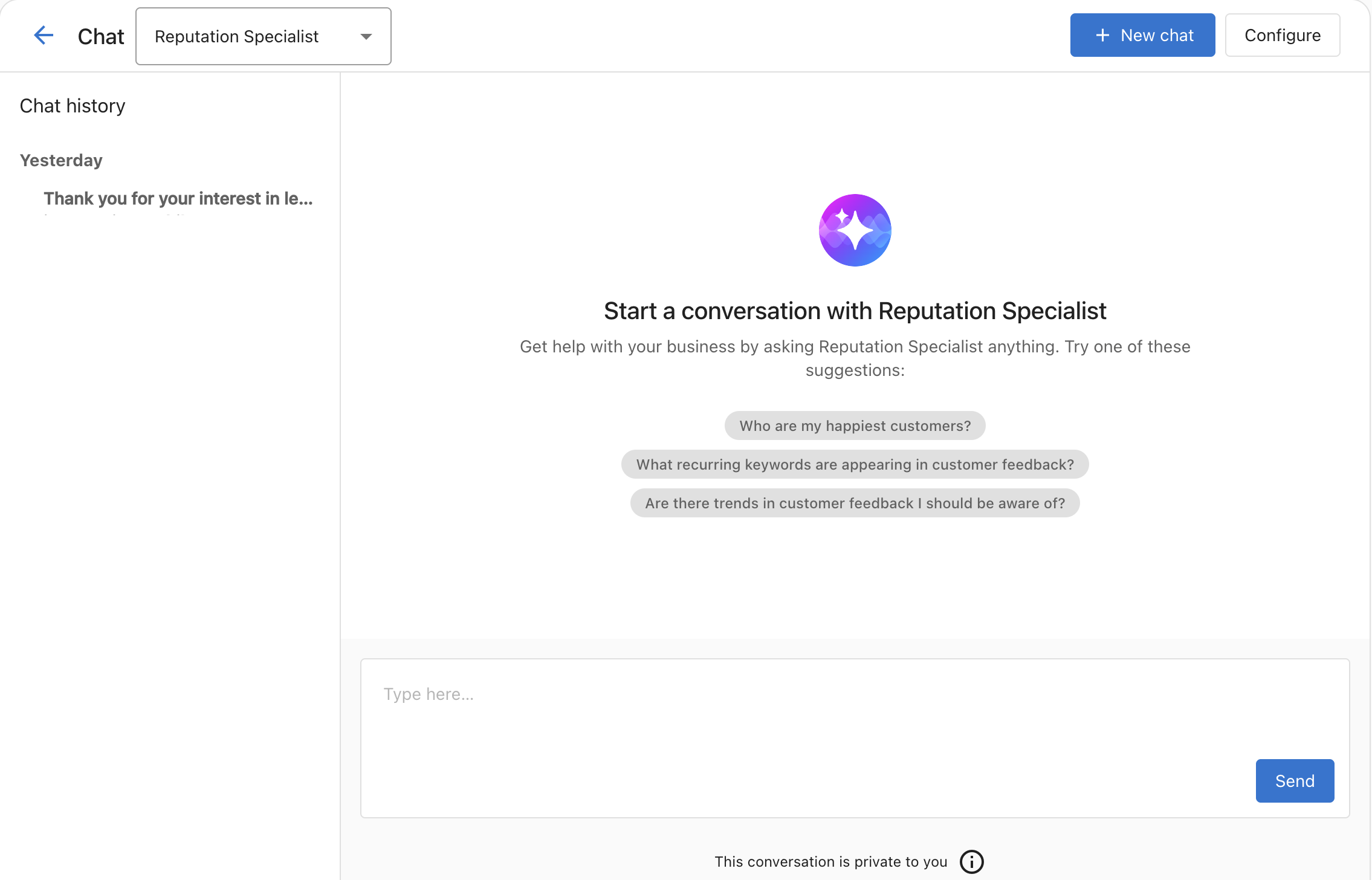
Use the Chat button on the Reputation Specialist card to open the conversational data interface. Ask questions about customer sentiment, common themes, trends over time, and what customers value or dislike.
Frequently Asked Questions
Custom AI Employees
Custom AI Employees are specialized digital team members you build from scratch to handle specific business functions. Unlike pre-configured options (Chat Receptionist, Voice Receptionist, Reputation Specialist), custom employees give you full control over role, behavior, and capabilities.
Pre-Configured vs. Custom
Come ready to use with a defined role, built-in capabilities, and tested prompts. Cover common tasks: answering chats, handling calls, managing reviews. You can adjust settings but the core function is already set.
Start as a blank slate. You define the role prompt, capabilities, knowledge sources, and channels from scratch — for any specialized function your workflow requires.
When to Build a Custom AI Employee
Build one when you need a role not covered by a pre-configured option, such as:
- AI Data Analyst — Reasons through CRM, review, and social data to deliver structured insights
- Inside Sales Representative — Qualifies inbound leads before capturing contact info or booking appointments
- AI Support Employee — Resolves customer inquiries via chat and SMS, escalates when questions fall outside the knowledge base
- Compliance Assistant — Checks processes against internal policies
- Any role where the default AI Employees don't match your workflow
Setup Process
- Create the employee — Give them a name, avatar, and basic profile.
- Write the role prompt — Define personality, voice, and behavioral rules in the Purpose field. Be specific about what the AI should and shouldn't do.
- Add capabilities — Enable built-in capabilities (lead capture, booking, etc.) and create custom ones as needed.
- Connect knowledge sources — Add your business profile, website pages, and any relevant documents.
- Choose channels — Select where this AI Employee will work (chat, SMS, email, etc.).
- Test and refine — Verify the AI responds correctly across different scenarios before going live.
Available Custom Employee Templates
🔎 AI Data Analyst
Analyzes CRM data, customer reviews, and social engagement to deliver structured insights using Analyze–Interpret–Recommend (AIR) reasoning. Use it to uncover patterns in your leads, identify what customers praise or complain about, and get actionable recommendations — all through a simple chat interface inside DFM.
📈 Inside Sales Representative
Takes a sales-first conversational approach — it qualifies inbound leads before capturing contact information or booking appointments. Instead of jumping straight to "what's your name and email?", it first understands the prospect's need, urgency, and fit. Ideal for businesses with a consultative sales process.
🤝 AI Support Employee
Resolves customer support inquiries via chat and SMS. Handles common questions using your knowledge base, responds with empathy for complaints, and automatically escalates with a structured message capture when a question falls outside what it knows.

AI Capabilities Overview
Capabilities are specialized skills that define what your AI Employees can do and how they behave. Think of them as building blocks that transform a basic AI assistant into a skilled employee who handles specific business tasks.
Types of Capabilities
Pre-configured skills for common tasks. Turn them on or off with a click. No coding required.
Build your own for specialized workflows — connect to external APIs, run business logic, integrate with third-party tools.
Built-In Capability Examples
Automatically collects and qualifies lead information — name, email, phone — and saves to CRM.
Schedules meetings using your connected calendar. Offers real-time availability automatically.
Live-transfers callers to other numbers based on intent and conditions you define.
Free-text instructions that shape the AI's tone, logic, and responses for your specific business.
How Capabilities Work
Each AI Employee can have multiple capabilities enabled simultaneously. The AI intelligently decides which capability to use based on the customer's request and conversation context.
- A question about store hours triggers knowledge base access
- A request for pricing activates product lookup capabilities
- An interest in services activates lead capture and appointment booking
Capabilities contain Prompts (written instructions that tell the AI when and how to use a capability — triggers, required info, response format, error handling) and Tools (for custom capabilities — the technical API implementation, parameters, and response logic).
Configuring Capabilities
- Go to AI > AI Workforce and click Configure on your AI Employee.
- Open the Capabilities section.
- Toggle built-in capabilities on or off as needed.
- Click on any capability to edit its prompt or settings.
- To add a new capability, click Add new capability and choose from the list or build a custom one.
Custom Capabilities
For specialized workflows, custom capabilities let you connect your AI to external systems and APIs. Examples of what you can build:
- Check a customer's order status from your e-commerce platform
- Look up appointment availability from a third-party scheduling tool
- Submit a job request to ServiceTitan or similar field service software
- Look up inventory or product details from a database
Frequently Asked Questions
Knowledge Base Overview
The Knowledge Base is a reference library your AI Employees can search when answering customer questions. When the AI determines a lookup would help, it performs a semantic search and retrieves relevant content to inform its response. It doesn't read everything every time — it only retrieves what's relevant to the question.
What Goes in the Knowledge Base
Your basic details, hours, location, services, and contact info. Included by default for all AI Employees.
Pages from your site with relevant customer information — services, pricing, policies, FAQs.
Uploaded files: FAQs, price lists, menus, terms, procedures. Supported formats: PDF, DOCX, TXT, CSV, PPTX, XLSX, HTML, JSON, images (JPG, PNG). Max 50 MB per file.
Custom text you write specifically for your AI — specific phrasing, preferred terminology, or content that isn't on your website.
Example Manual Entry Uses
- Use the word "vehicle" instead of "car"
- Use the phrase "team member(s)" instead of "employee(s)"
- Specific FAQ answers not on your website
- Seasonal hours or temporary policy changes
How AI Employees Use Knowledge
- The AI understands what the customer is asking.
- It decides whether a Knowledge Base lookup would help answer the question.
- If yes, it performs a semantic search and retrieves the most relevant content.
- It uses the retrieved information to give an accurate, contextual answer.
- If no relevant knowledge is found, it falls back to general assistance — or offers to take a message.
Benefits of a Well-Maintained Knowledge Base
- Consistent answers — All AI Employees give the same accurate information
- Better customer experience — Customers get precise, up-to-date answers
- Reduced manual intervention — Fewer hand-offs for routine questions
- Instant onboarding — New AI Employees immediately have access to your business knowledge
Setting Up Your Knowledge Base
- Go to AI > AI Workforce and click Configure on any AI Employee.
- Scroll to the Knowledge Sources section.
- Your Business Profile and website homepage are included automatically.
- Use the Add knowledge bar to add website pages, upload documents, or write custom text entries.
- You can control which AI Employees have access to each knowledge source individually.
Best Practices
Review monthly. Update whenever services, pricing, or policies change. Remove outdated info.
Group related info together. Use clear, descriptive titles for documents.
Use clear, direct language. Include specific details and examples. Avoid internal jargon.
Monitor responses. Identify gaps where customers aren't getting good answers. Add missing content.
Auditing AI Responses
To see exactly what knowledge your AI used for a specific response, go to the Conversations tab and click Explanation on any AI message. This shows the reasoning, which knowledge source was retrieved, and any tools that were called — so you can spot gaps and improve accuracy over time.