Social Tool Guide
DFM's Social Tool tool lets you create, schedule, and publish content across all your social networks — with AI to help you write, design, and bulk-schedule in minutes.
Getting Started with Social Tool
Social Tool helps you publish content across multiple social networks, schedule posts, and track performance — all from one dashboard. Follow this checklist to get up and running.
Getting Started Checklist
- Connect your social accounts — Link Facebook, Google, Instagram, and other platforms.
- Create your first post — Use the Composer to write and add media.
- Schedule or publish — Choose when your post goes live.
- View performance in Insights — Track reach, engagement, and link clicks.
- Configure AI and content settings (optional) — Customize how AI generates content and add knowledge sources.
Step 1: Connect Your Social Accounts
Before you can post, Social Tool needs access to your social profiles. Launch the Social tool in your DFM account, open the Overview tab, and select Connect Accounts.

Select the + next to each account you want to add and follow the authentication steps.

For detailed steps, go to Social Tool > Settings > Connect Accounts. Click the platform you want to connect, sign in, and grant the required permissions.
Step 2: Create Your First Post
Open the Overview tab, select Create, and choose the type of content you want to make:
Content published directly to your profile's page.
Visible for 24 hours on Facebook or Instagram.
Use AI to bulk-schedule multiple posts in advance.
Create long-form content with or without AI assistance. No blog connected? Use AI to draft content and copy/paste.
Choose the channels to publish on, upload your media, write a caption, add emojis and hashtags, then preview and post right away or schedule for later.

Step 3: Schedule or Publish
In the Composer, choose Post Now to publish immediately, Schedule to set a date and time, or Save as Draft to finish later. View and manage all scheduled posts in Social Tool > Calendar.

Step 4: View Performance in Insights
Once posts are live, go to Social Tool > Insights > Post Performance to see reach, engagement, and impressions by post. Pro users can also track link clicks via Link Performance.
Step 5: Configure AI Settings (Optional)
- Go to Social Tool > Settings > AI Settings to add business knowledge and customize how AI writes posts.
- Open Interesting Content to add RSS feeds for post inspiration.
Standard vs Pro
| Feature | Standard | Pro |
|---|---|---|
| Facebook & Google Business Profile | ✓ | ✓ |
| Instagram, LinkedIn, X (Twitter), TikTok | — | ✓ |
| AI text generation (Write with AI) | — | ✓ |
| AI image generation | — | ✓ |
| Link tracking (Clickable.bio) | — | ✓ |
| Scheduled posts | Up to 20 | Unlimited |
| Post campaigns (bulk scheduling) | ✓ | ✓ |
| Insights & analytics | Basic | All platforms |
Frequently Asked Questions
Creating a Post
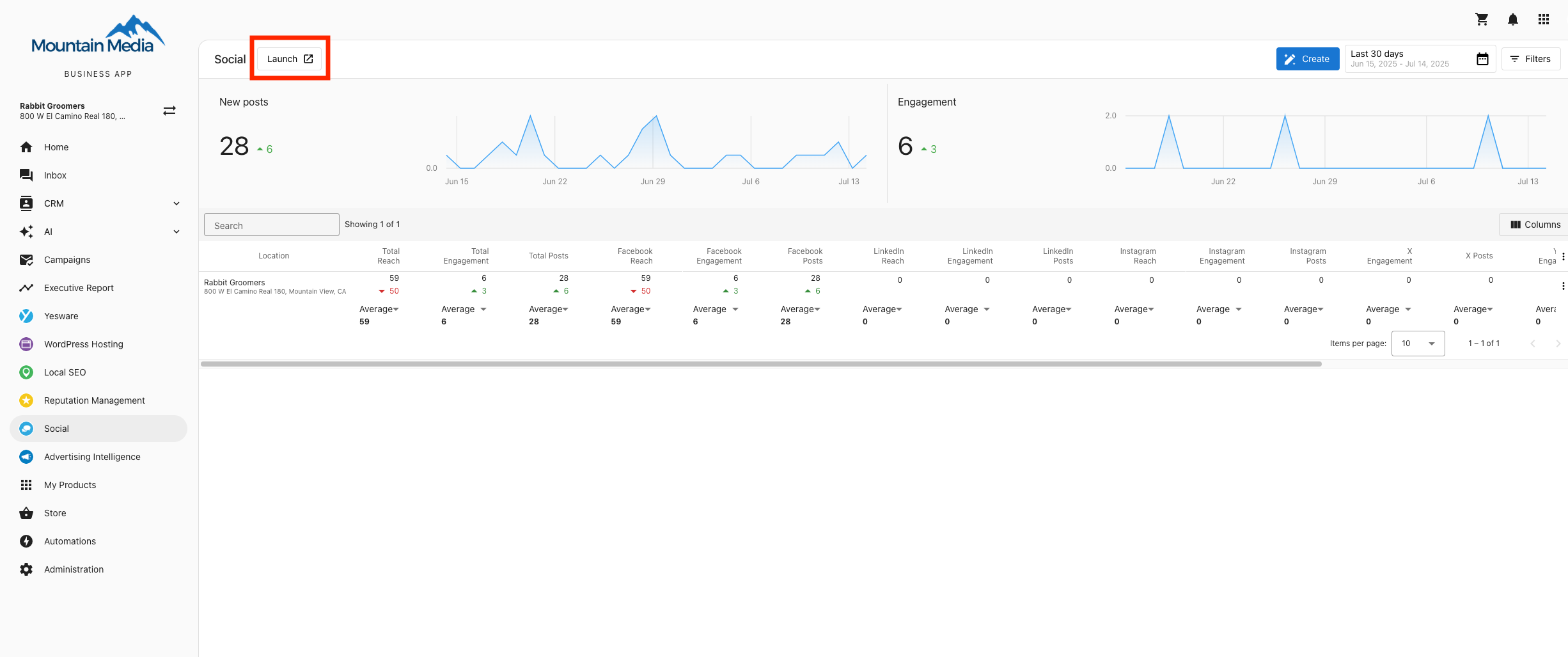
The Social Tool Composer lets you create, schedule, and manage content across multiple platforms in one place. Launch the Social tool, open the Overview tab, and select Create.
Step 1: Select Accounts
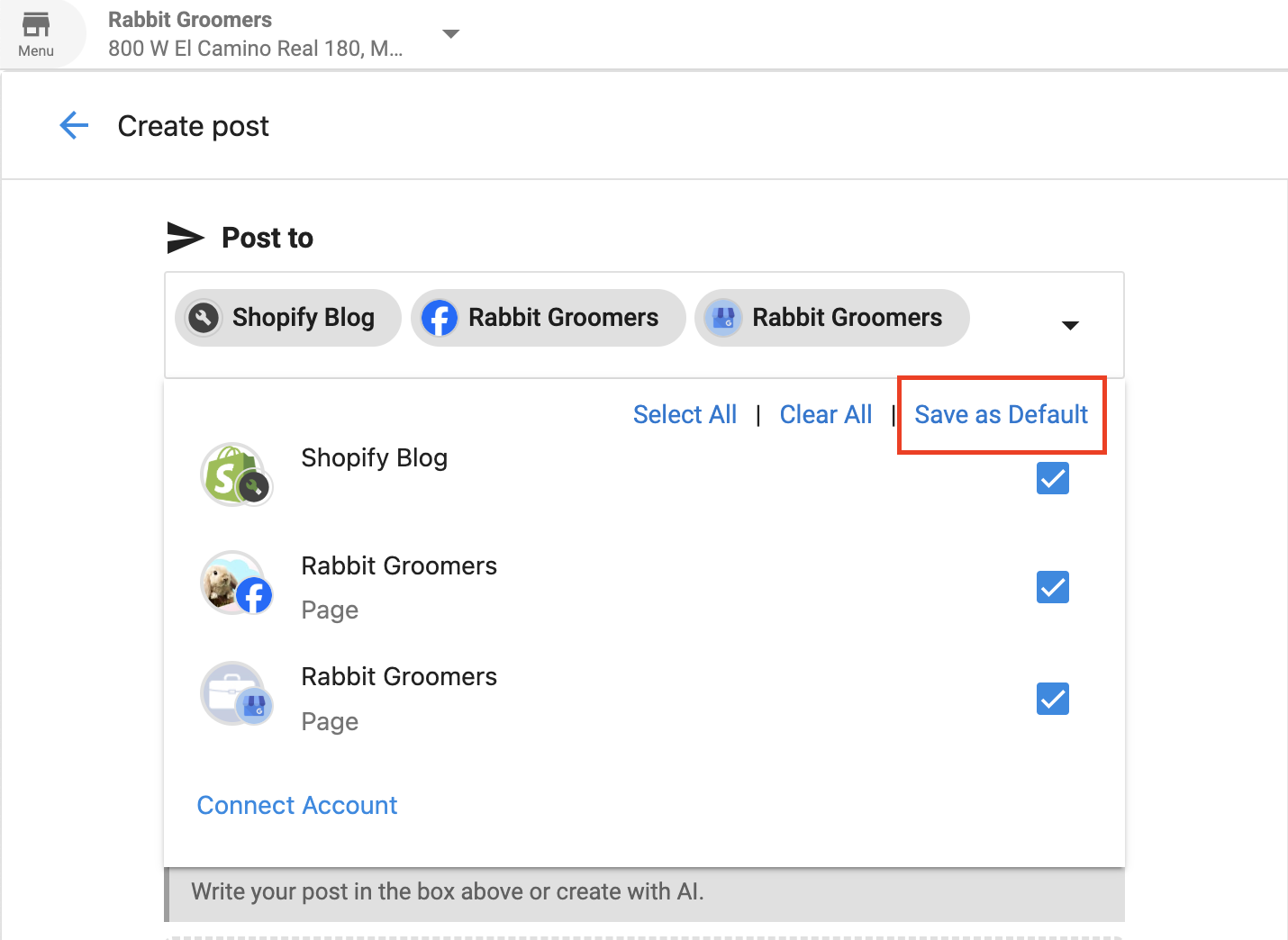
In the Composer, choose which social accounts to post to from the dropdown. You can Save as Default if you plan to post to the same accounts regularly.
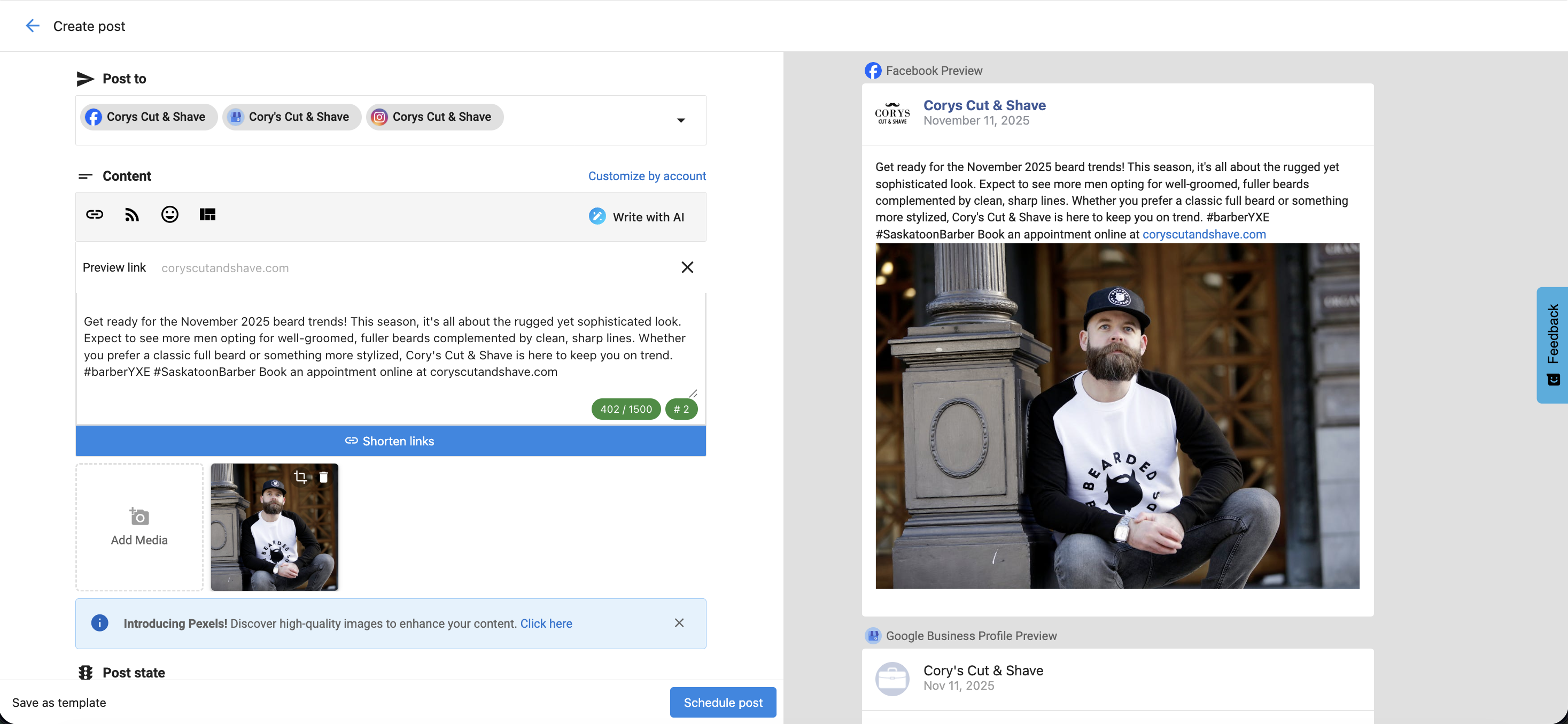
Step 2: Write Your Caption
- Type your message in the text editor.
- Add hashtags (type
#to see recent suggestions), emojis, and @mentions. - Use Write with AI (Pro) to generate ideas or captions.
- Use Customize by Account to tailor text for different platforms (e.g., shorter for X).
- Shorten links to track engagement and save character space.
- Insert content from templates or RSS feeds.
Step 3: Add Media
- Upload images or videos from your device, use Stock Imagery (Pixabay), or Generate Image with AI (Pro).
- Instagram requires an image. TikTok requires a video. YouTube requires a video and a title.
Step 4: Publish or Schedule
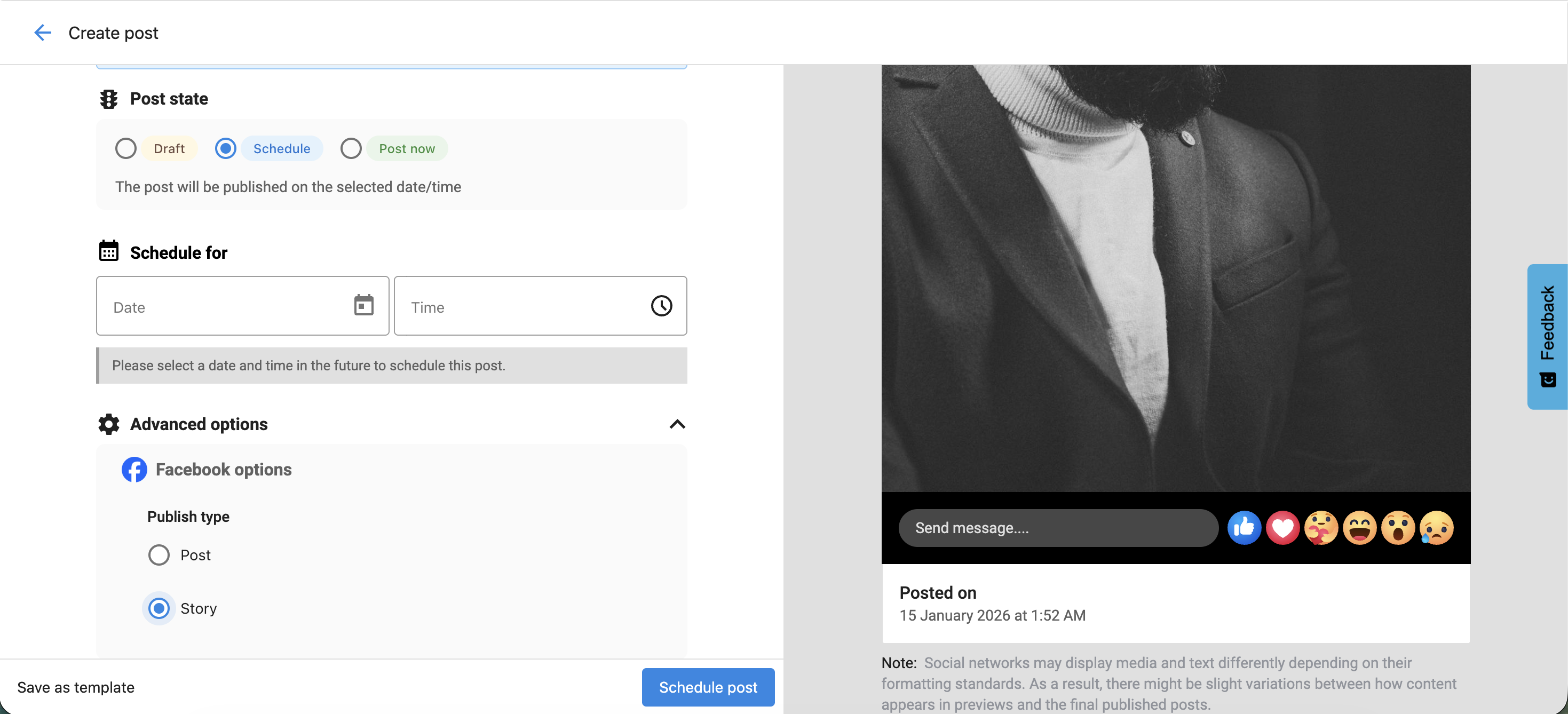
Choose Post Now, Schedule, or Save as Draft. To save for reuse, choose Save as Template.
Platform-Specific Options
Choose between Post or Story in the Composer. Videos posted to Instagram automatically publish as Reels.
Open Advanced Options to choose Post, Story, or Reel. The preview updates in real time based on your selection.
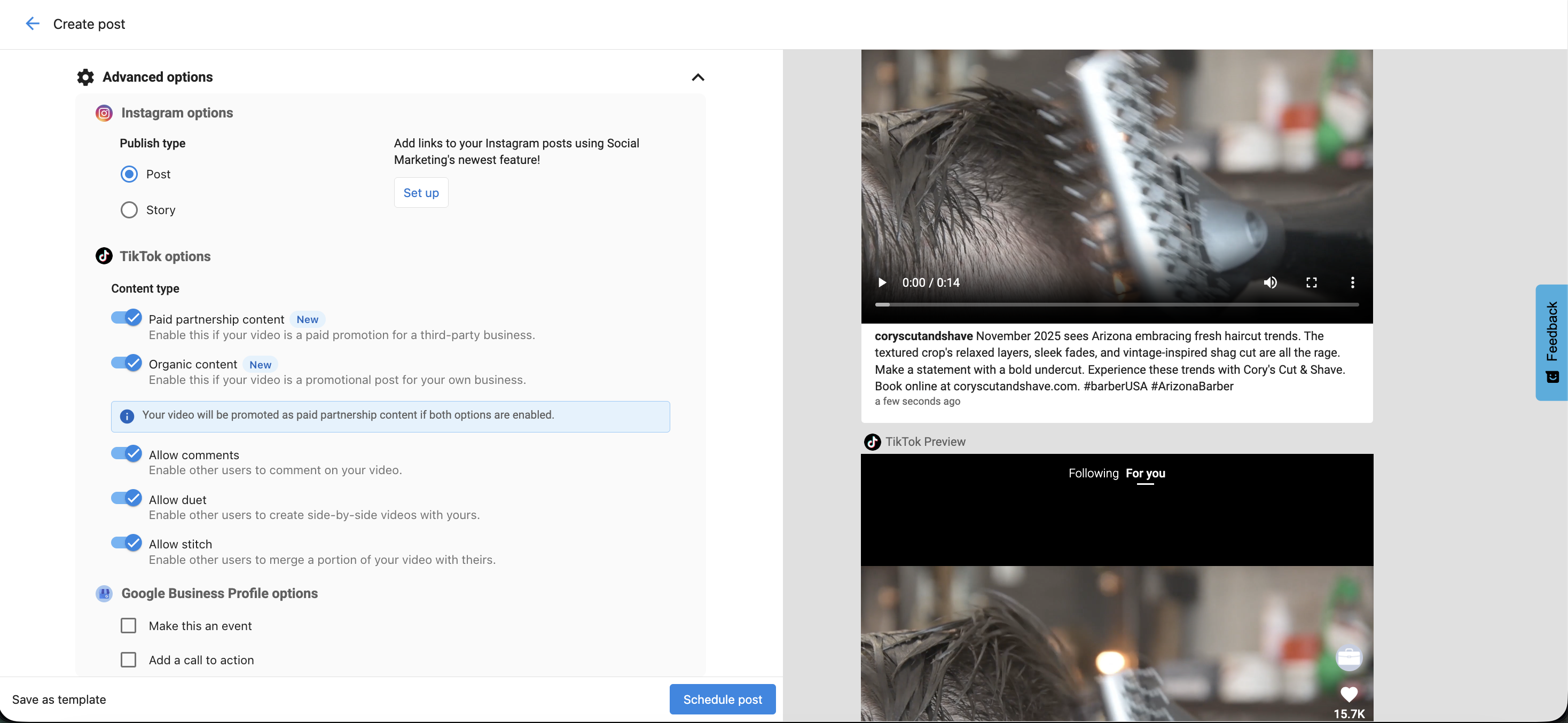
TikTok
- Paid Partnership Content — Enable if promoting a third-party business.
- Organic Content — Enable if promoting your own business.
- Choose whether to allow Comments, Duet, or Stitch.
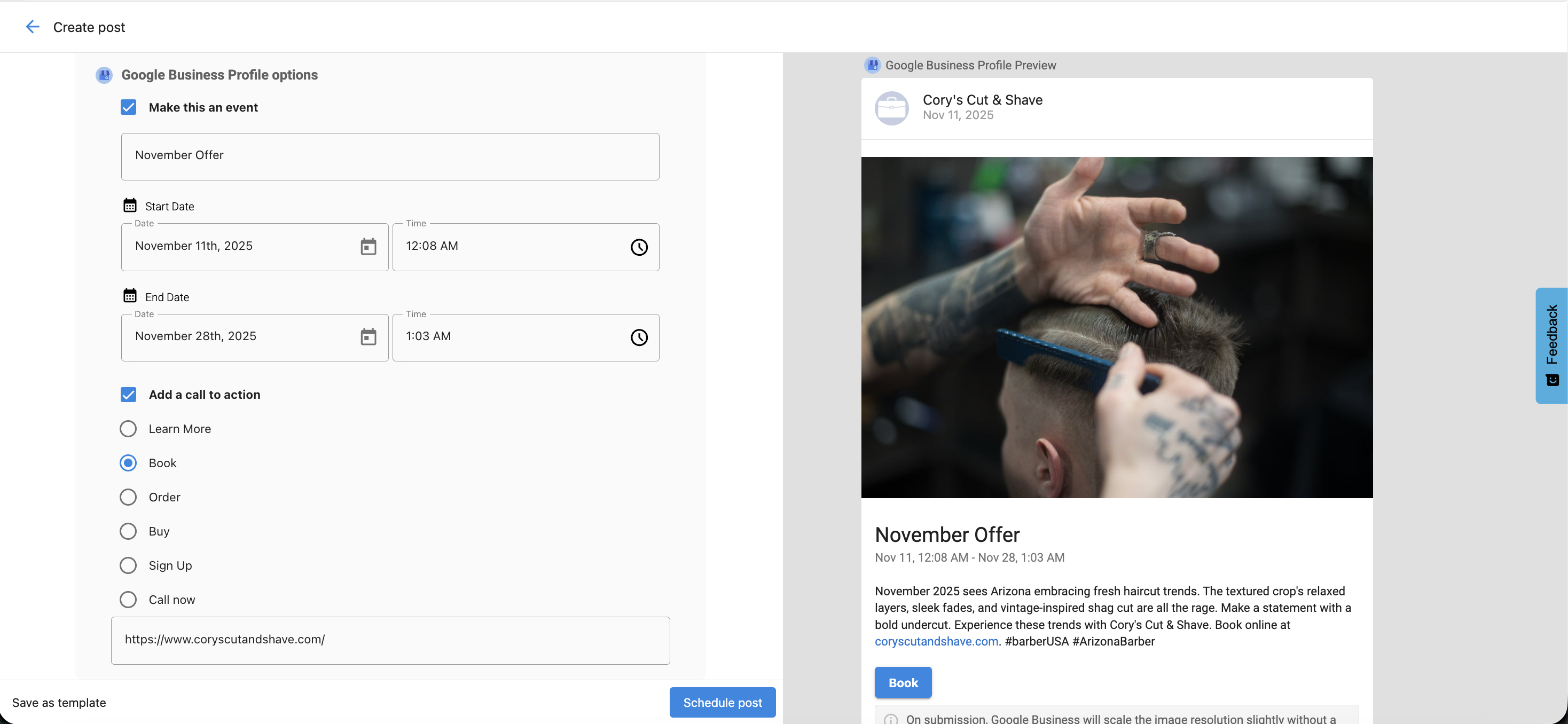
Google Business Profile
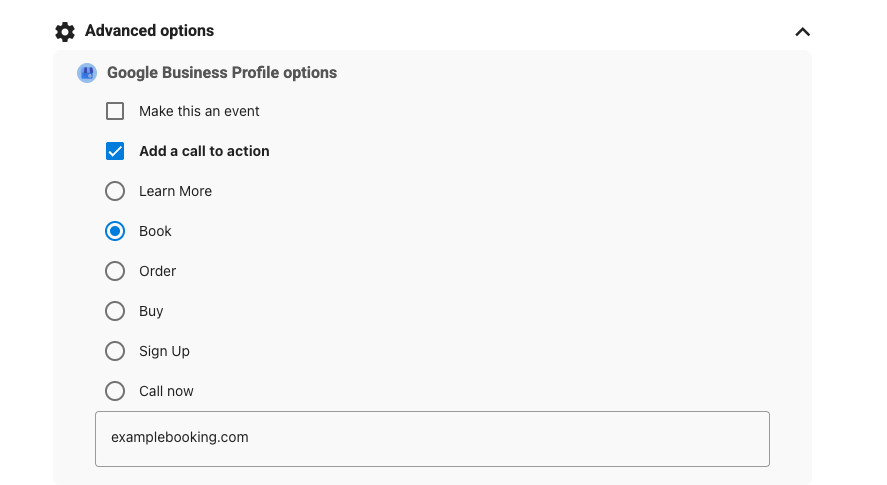
Add a Call to Action (CTA) — Book, Order, Shop, Learn More, Sign Up, or Call. You can also add a Start Date and End Date to make it an event.
YouTube
Requires a video upload and a Video Title (set in Advanced Options). Choose privacy settings: Public, Unlisted, or Private.
Character Limits by Platform
| Platform | Character Limit |
|---|---|
| 63,206 | |
| X (Twitter) | 280 (Standard) / 25,000 (Premium) |
| 3,000 | |
| 2,200 | |
| TikTok | 2,200 |
| Google Business Profile | 1,500 |
| YouTube Description | 5,000 |
| YouTube Title | 100 |
Recommended Image Dimensions
- Square 1200 × 1200
- Vertical 1080 × 1350
- Landscape 1200 × 630
- Links 1200 × 628
- Stories / Reels 1080 × 1920
- Square 1080 × 1080
- Vertical 1080 × 1350
- Landscape 1080 × 566
- Stories / Reels 1080 × 1920
- Recommended 1080 × 1920
- Minimum 720 × 1280
- Formats MP4, MOV
- Landscape 1200 × 627
- Square 1080 × 1080
- Portrait 1080 × 1350
Hashtags & Tagging
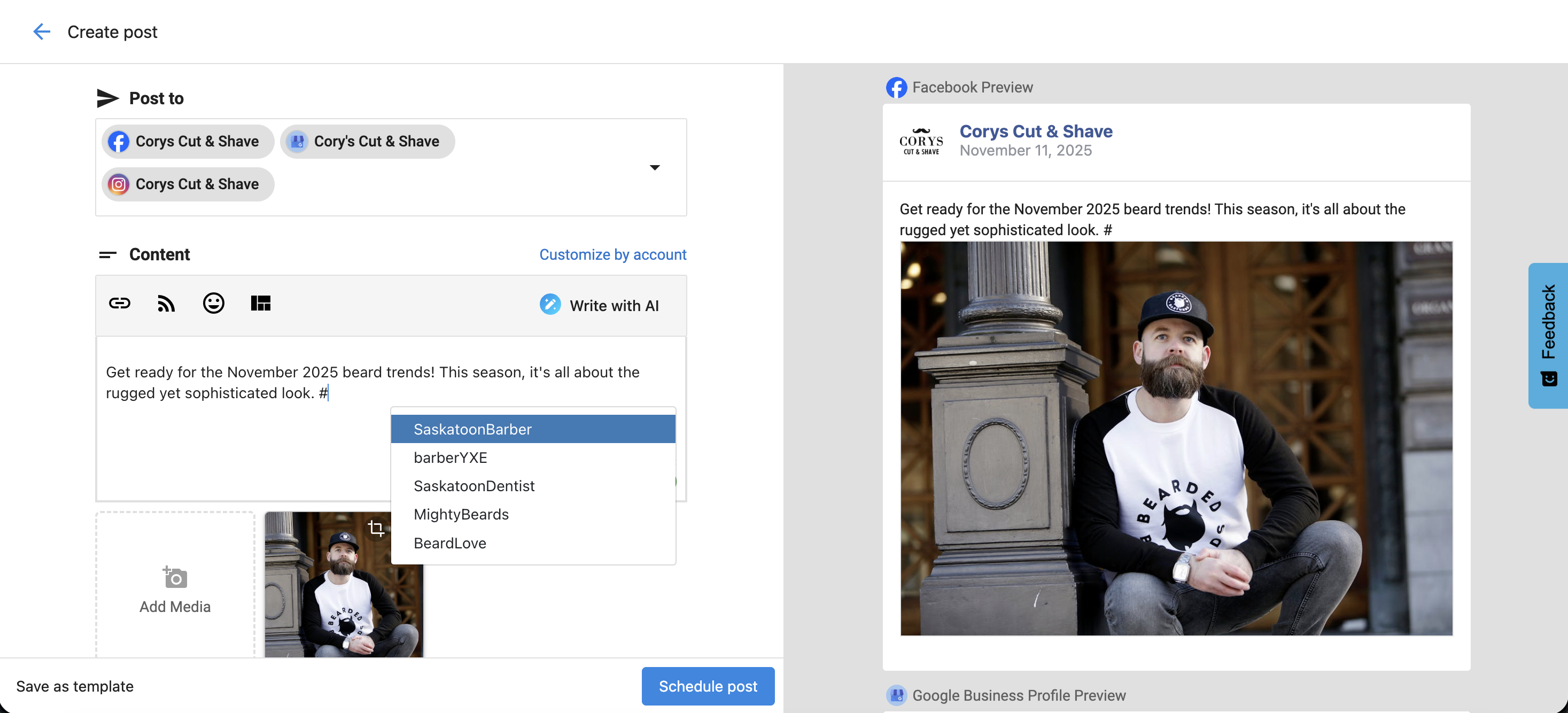
Type # in the Composer to see recent hashtag suggestions and autocomplete. Frequently used hashtags are remembered for next time.
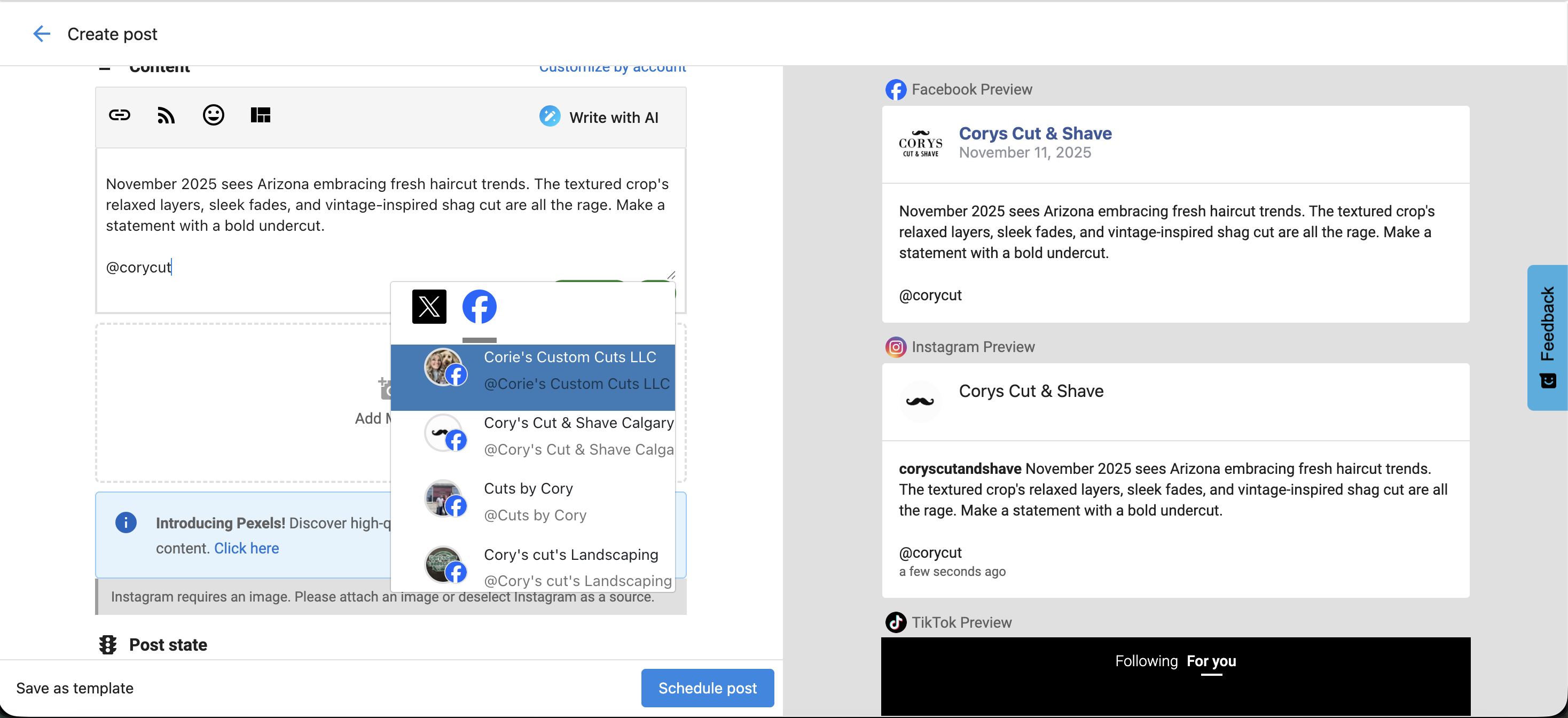
Tag other accounts on Facebook Business Pages and X (Twitter) by typing @ followed by the account name.
Link Previews
When you add a URL, Facebook, LinkedIn, and X (Twitter) show a link preview with image and title. LinkedIn allows preview image selection. Instagram and Google Business Profile do not support link previews — use a CTA on Google posts instead.
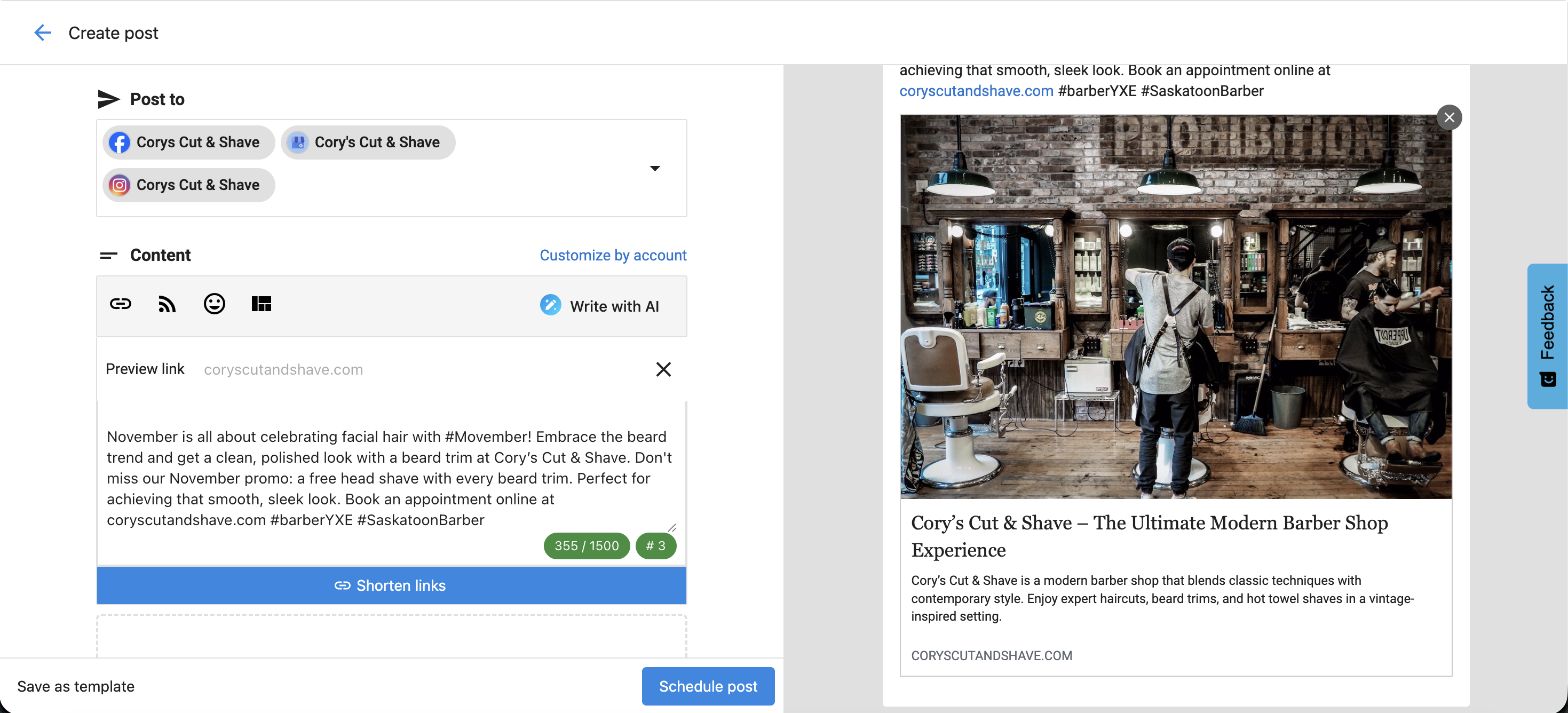
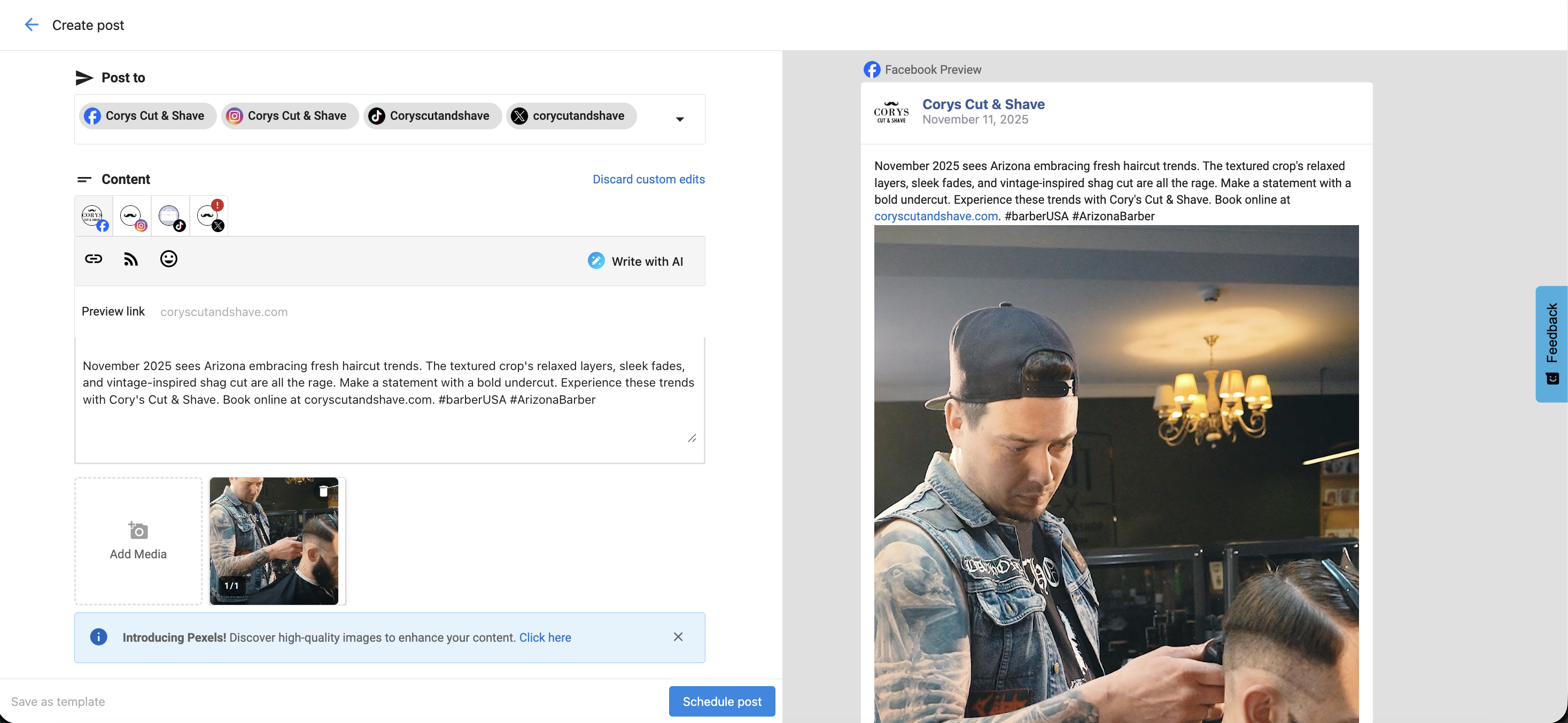
Customize by Account
Use Customize by Account to tailor text, hashtags, and visuals per platform — avoiding errors with image size or character limits automatically.
Templates
Create a recurring post or keep content on hand for your team. When composing a post, instead of scheduling, choose Save as Template.

Common Uses for Templates
- Product or service promotions
- Educational tips and how-to content
- Behind-the-scenes company culture
- Customer spotlights
- Event announcements
- Holiday or recurring seasonal content
Finding and Using Templates
Launch the Social tool, select Tools, then select Templates.


To use a template, start a new post and click the Templates button in the Composer. Choose your template, edit if needed, then schedule or post.

Frequently Asked Questions
AI Post Creation
Social Tool's AI tools help streamline content creation — from generating a single caption to building an entire month of scheduled posts. AI features are available on Social Tool Pro.
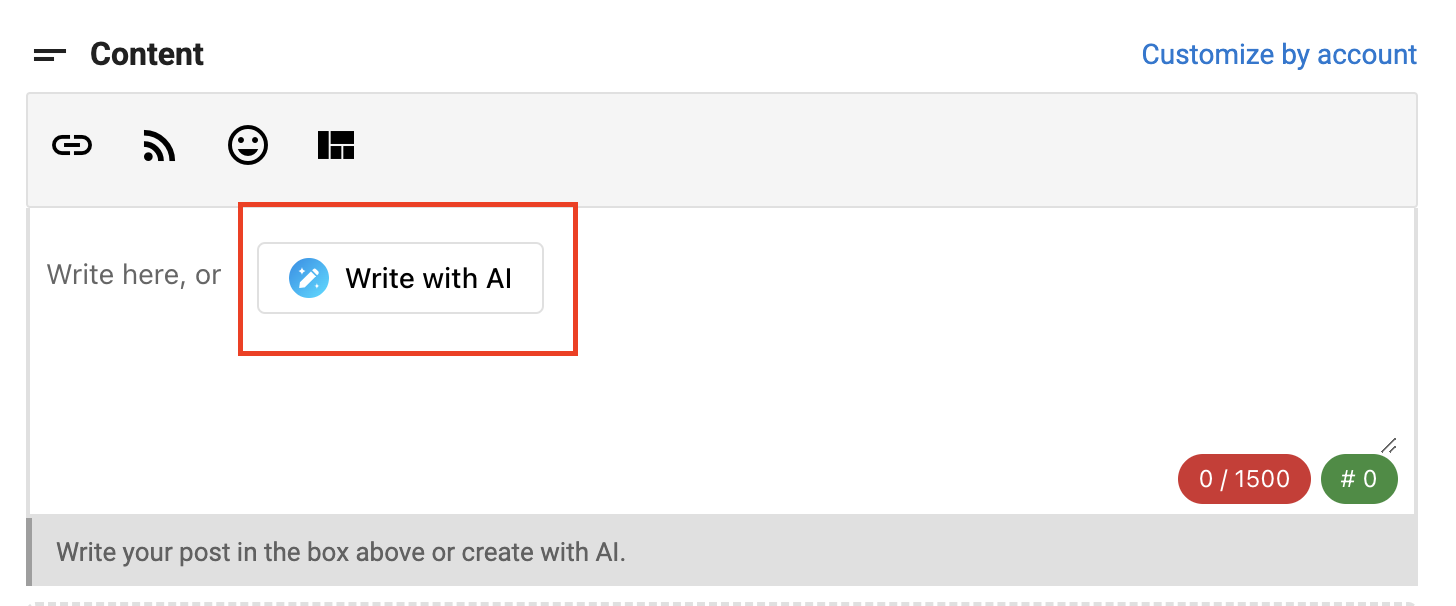
Generate post text in the Composer using a prompt, topic, or tone of voice.
Chat with AI to shorten, lengthen, fix grammar, or change tone of existing text.
Generate an entire campaign of posts at once — ideal for promotions and events.
Automatically generate location-specific content for multiple business locations.
Write with AI in the Composer
- Click the AI icon in the Social Composer.
- Set your parameters — topic, tone, key points, target audience.
- Click Generate. The AI creates a post based on your input.
- Review and edit the result to match your brand.
- Insert it directly into the Composer.
Conversational Refinement (Edit Instructions with AI)
Instead of starting over, use a chat-style interface to iterate and improve existing content. Available in Social Tool Pro.
- Write a post or click Write with AI in the Composer.
- Open the Conversation Box to refine your content.
- Choose from options: Improve writing, Shorten, Lengthen, Fix spelling/grammar, Change tone.
- When satisfied, click Insert to place the result into the Composer.
- Click Retry if you want another variation.
Bulk Post Campaigns with AI
Generate an entire campaign of posts in one workflow — perfect for promotions, seasonal events, and product launches.
- Open the Overview tab, select Create, then Post Campaign.
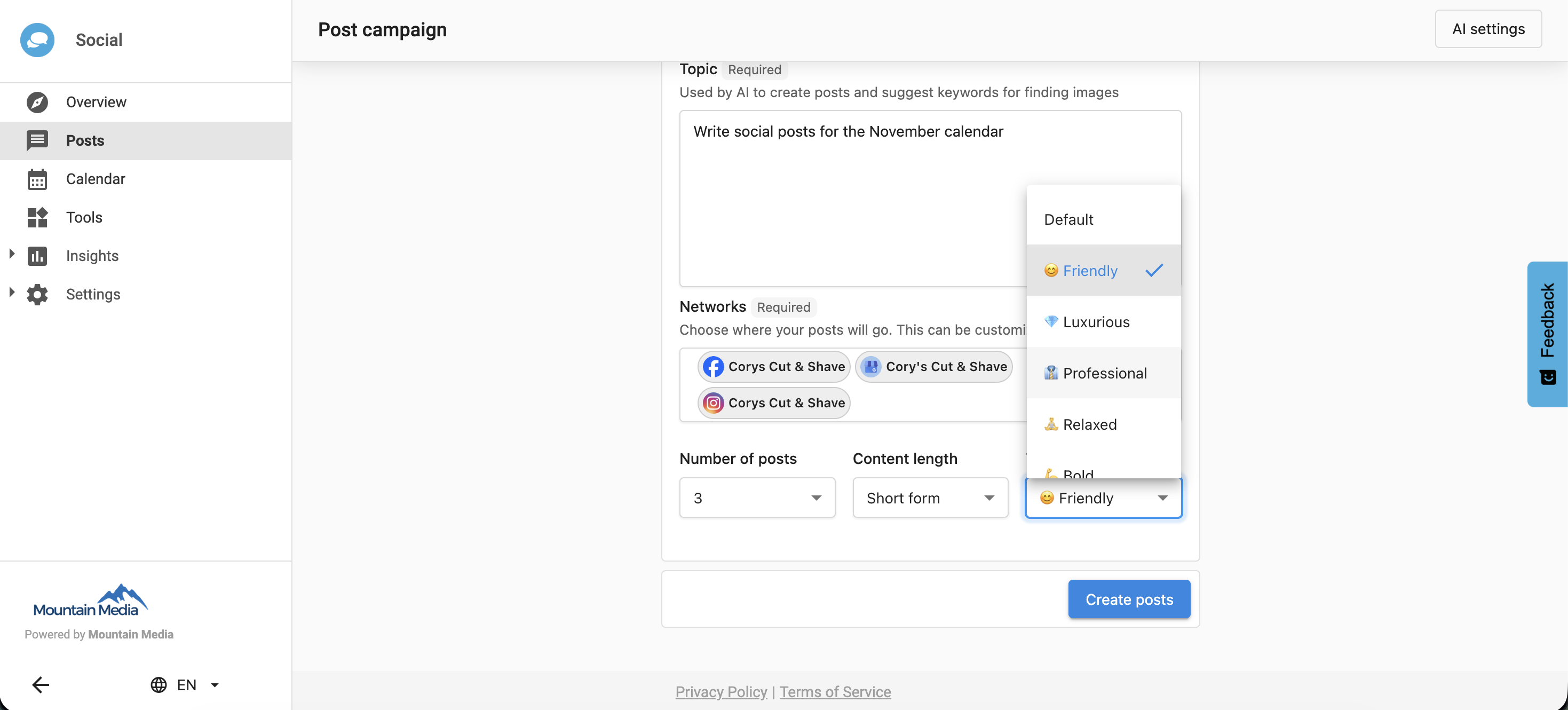
- Enter your topic or subject. Tell the AI what you want to post about.

- Choose the networks/channels to publish on.
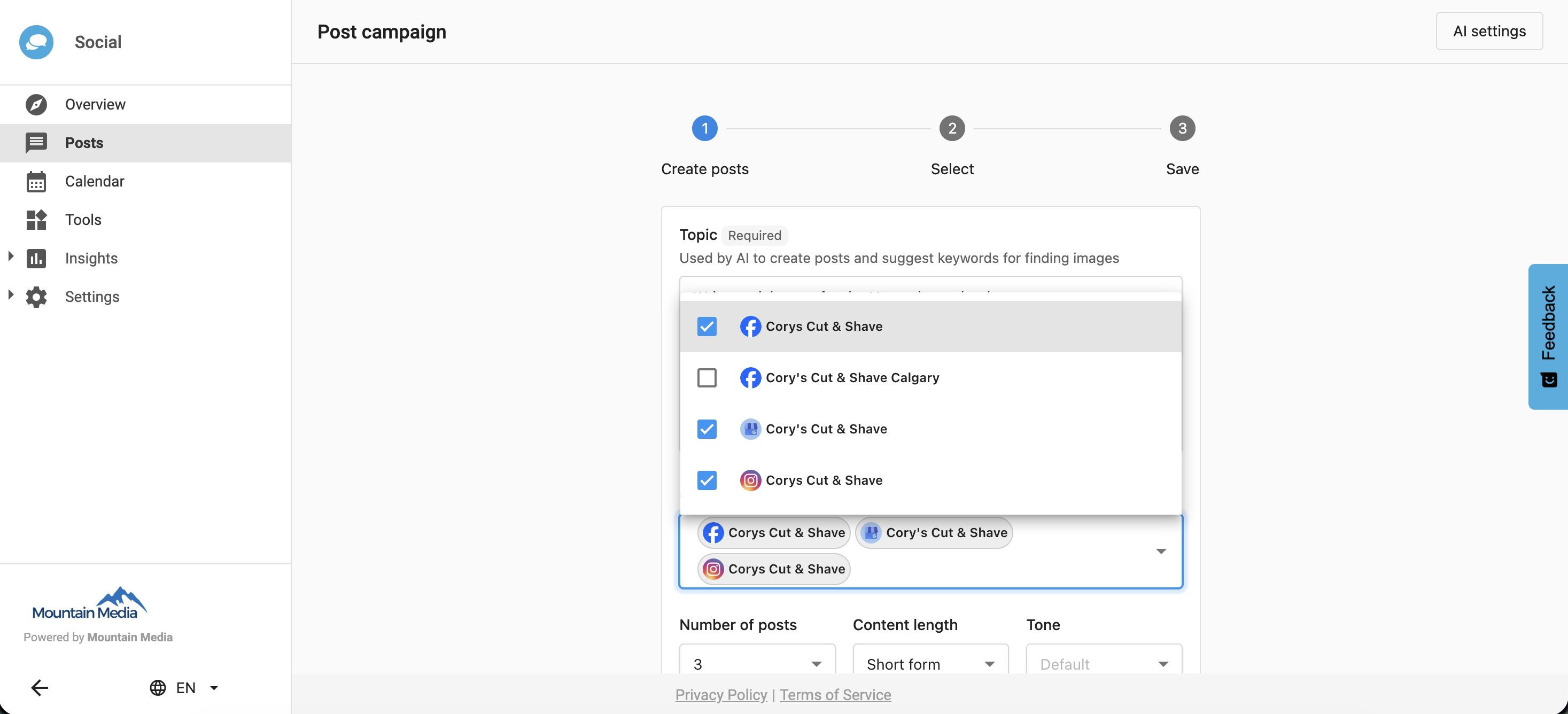
- Select the number of posts (3, 6, 9, or 12), the content length and tone. The AI generates your first set of posts.
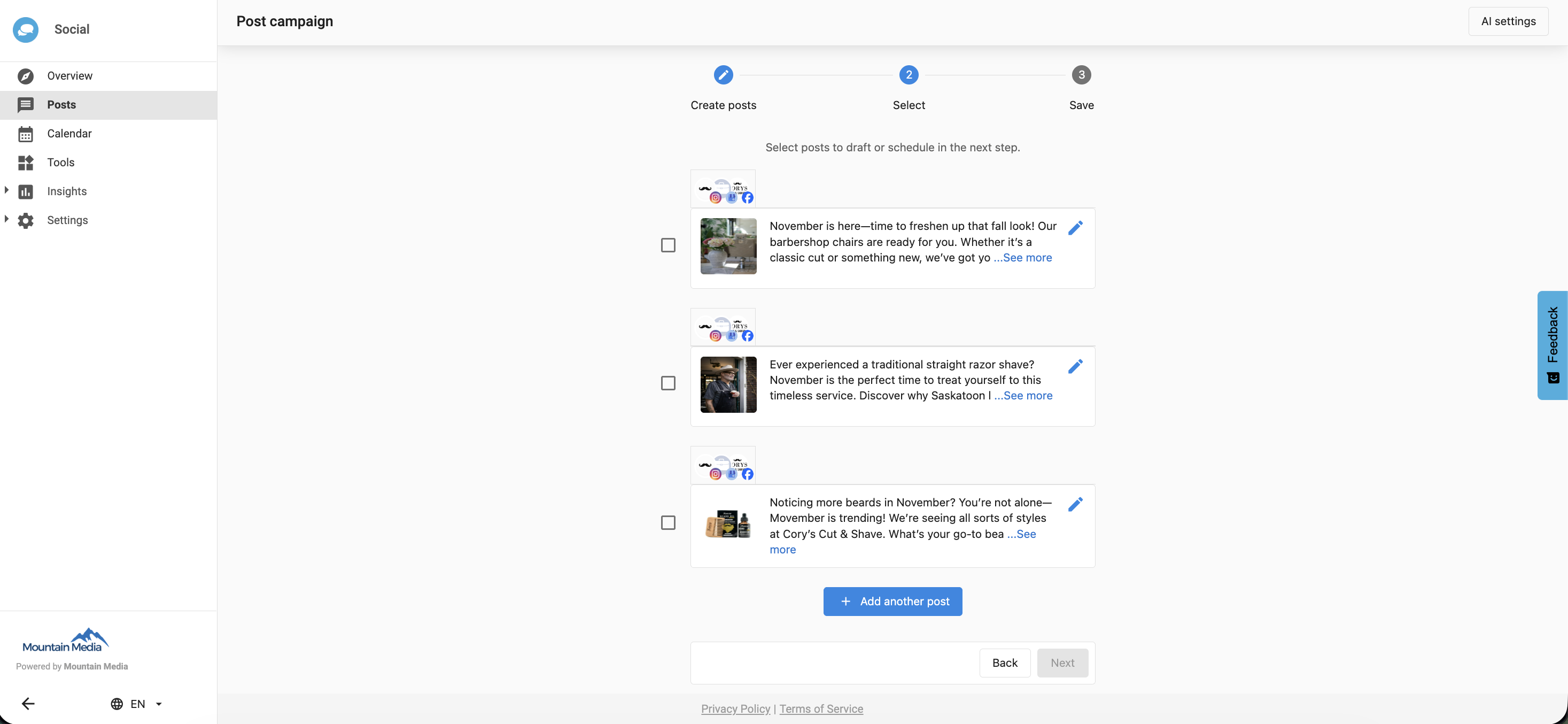
- Select the pencil icon to edit each post — update captions, change images, and set the publish date.

- Hit Save on each post. Once done, select every post and click Next.

- Schedule your posts and click Save.

After scheduling, posts appear in your content calendar. You can edit any post before it publishes by selecting it in the calendar.

Adding More Posts to a Campaign
Need more than your initial batch? Click Add Another Post in Step 2 of the workflow to generate additional posts using the same topic. You can go up to a maximum of 20 posts per campaign.
Sharing a Campaign for Approval
Select the Create Report button at the top of your calendar to share your scheduled posts with anyone via a link — great for client approval before publishing.
Frequently Asked Questions
Using Images in Social Tool
Visually engaging posts perform better across all social networks. Social Tool gives you multiple ways to source and add images to your posts.
Search and add free stock images directly in the Composer.
Generate professional, brand-aligned images from a text prompt (Pro).
Drag and drop or browse to upload PNG, JPEG, or GIF files.
Post up to 10 images or videos in a single swipeable Instagram post.
Royalty-Free Images via Pixabay
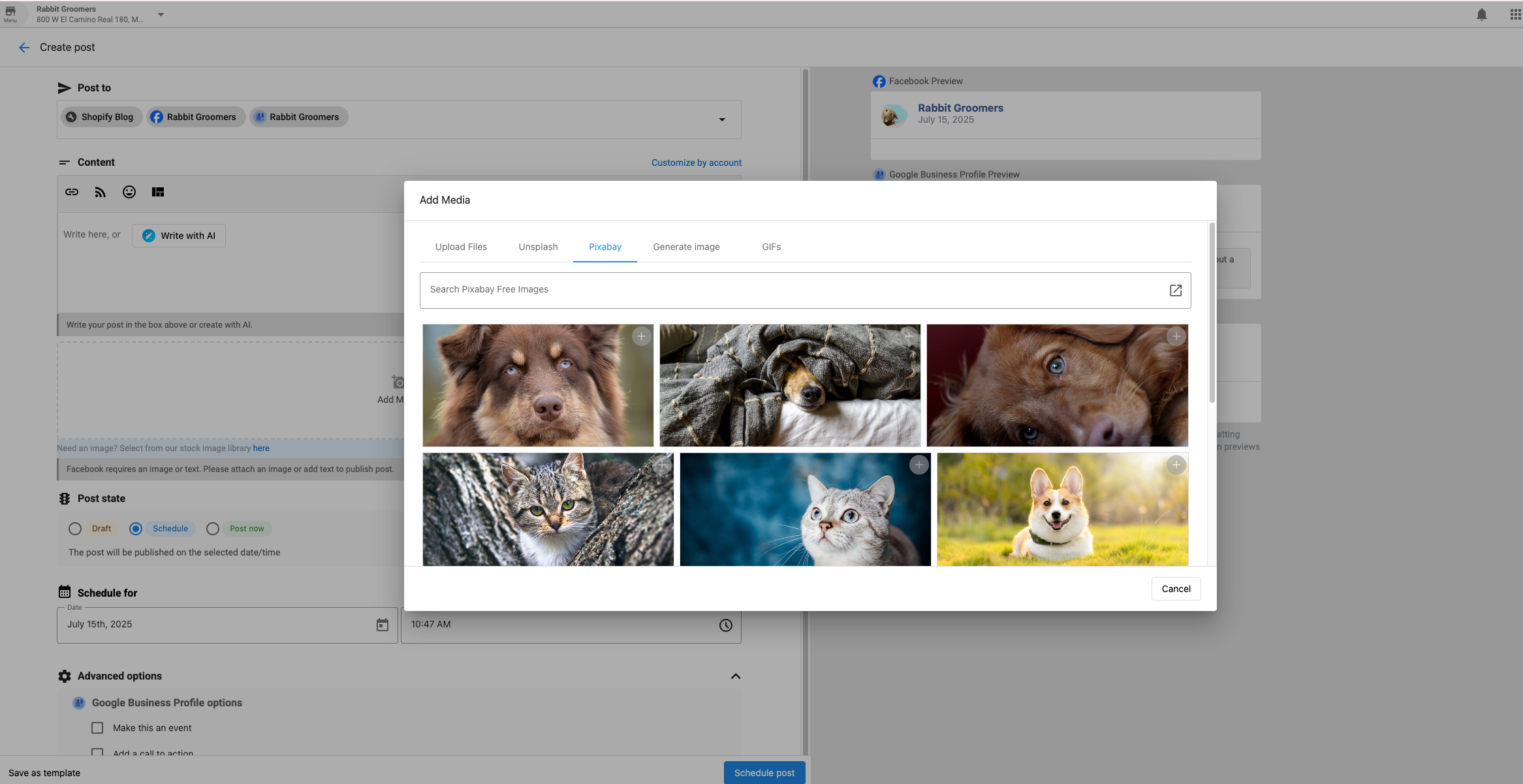
- In the Composer, scroll to the Media section and click Add Media.
- Select Pixabay.
- Search using keywords, choose an image, and insert it into your post.
AI-Generated Images (Pro)
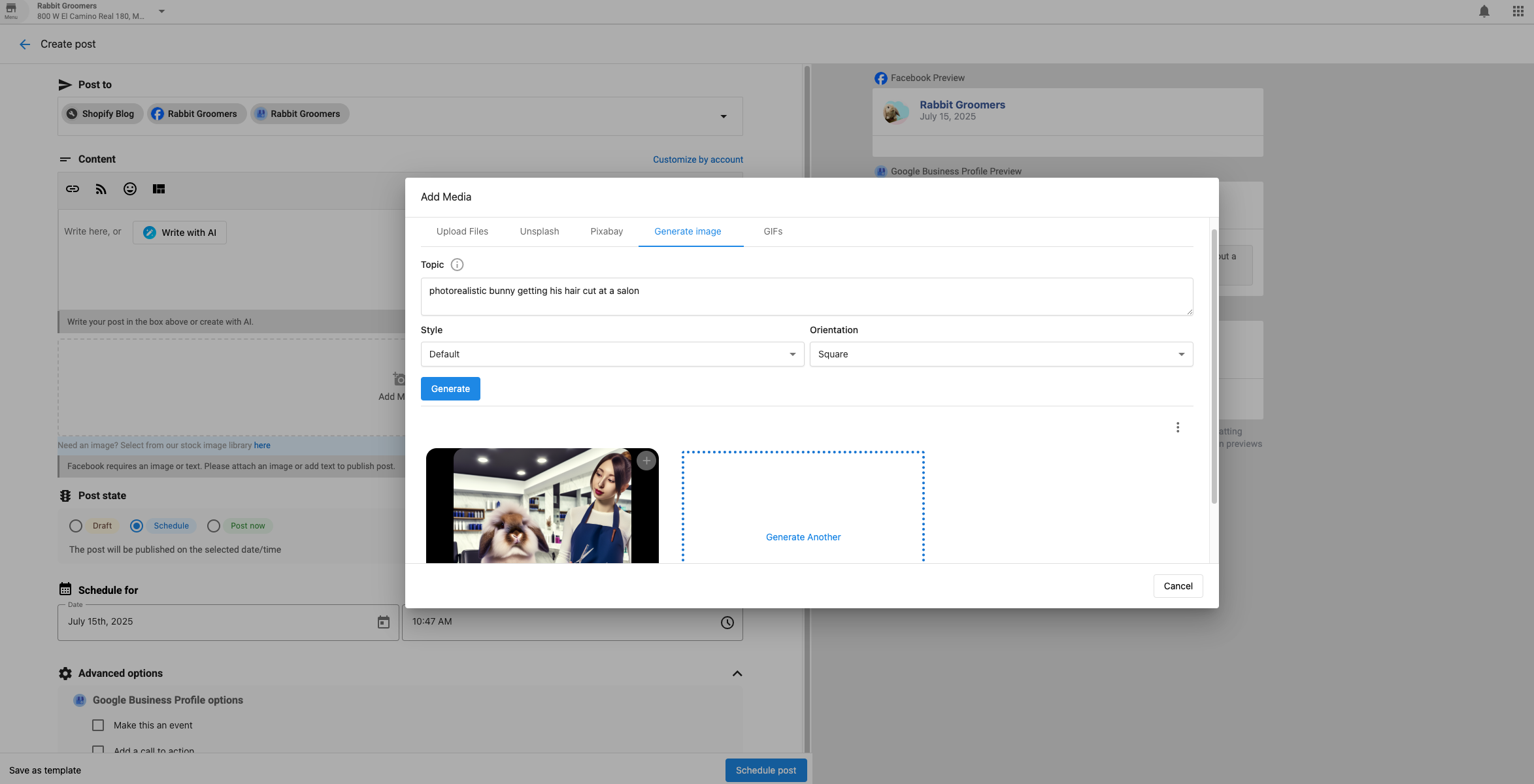
- Click the AI icon in the Composer and select Image Generation.
- Enter a detailed description of the image you want.
- Choose your preferred style.
- Review the result and insert it into your post.
Instagram Carousel Posts
- Go to Posts > Create > Post and choose Instagram.
- Upload up to 10 images or videos.
- Rearrange items using drag and drop.
- Add a caption and schedule or publish.
Instagram Stories
- Click Create > Story.
- Select your Instagram accounts.
- Upload a vertical 9:16 image or video.
- Choose Publish Now, Schedule, or Save as Draft.
Story requirements: Images — JPG or PNG, max 4MB. Videos — MP4 or MOV, max 30MB, 15 seconds max.
Image Requirements by Platform
| Platform | Recommended Size | Max File Size | Notes |
|---|---|---|---|
| 1200×1200 (square) / 1080×1350 (vertical) | 4 MB | Supports up to 10 images per post. PNG files should be under 1MB. | |
| 1080×1080 (square) / 1080×1350 (portrait) | 30 MB | Supports up to 10 images via carousel. PNG files under 1MB recommended. | |
| Google Business Profile | 720×720 (square) | 5 MB | 1 image per post. Cannot be less than 10KB. No heavy filters. |
| X (Twitter) | 1200×675 (landscape) | 5 MB (PNG/JPEG) / 15 MB (GIF) | Supports up to 4 images per post. |
| 1200×627 (landscape) | 10 MB | Supports up to 9 images per post. |
Cropping & Optimization
If an image doesn't meet the platform's required aspect ratio, you'll be prompted to crop it. The cropping tool offers:
- Freeform
- Square (1:1)
- Vertical (4:5)
- Horizontal (1.91:1)
Frequently Asked Questions
Posting Videos
Video content generates significantly higher engagement across all platforms. You can upload, schedule, and publish videos to Facebook, Instagram, LinkedIn, X, and TikTok from one place. Note: posting videos to Google Business Profile is not currently supported.
General Steps
- In Social Tool, click Compose.
- Click Add Media and upload your video file (drag and drop, or browse).
- Select your social media platforms.
- Add your post caption.
- Choose Post Now, Schedule, or Save as Draft.
Requirements by Platform
- Formats: MP4, MOV
- Max file size: 10 GB
- Max length: 4 hours
- Aspect ratio: 9:16 to 16:9
Videos posted to Instagram automatically publish as Reels.
- Formats: MP4, MOV
- Max length: 60 seconds
- Max file size: 500 MB
- Bitrate: 5 Mbps
- Thumbnail selection not available — generated from first frame
- Format: MP4
- Length: 3 seconds to 30 minutes
- File size: 75 KB – 200 MB
X (formerly Twitter)
- Formats: MP4, MOV
- Max length: 60 seconds
- Max file size: 1 GB
- Max bitrate: 25 Mbps
TikTok
- Formats: MP4, MOV, WEBM
- Max file size: 1 GB
- Duration: 3 – 600 seconds (10 minutes)
- Min resolution: 360 × 360 px
- Frame rate: 23 – 60 FPS
- Posting limits: Max 2 posts per minute, 20 per day
- Caption: Up to 2,200 characters, supports #hashtags and @mentions
Video Requirements Table
| Platform | Formats | Max Size | Max Length | Bitrate |
|---|---|---|---|---|
| MP4, MOV | 10 GB | 4 hours | — | |
| Instagram (Reels) | MP4, MOV | 500 MB | 60 sec | 5 Mbps |
| Instagram Reels | MP4, MOV | 500 MB | 15 mins | 25 Mbps max |
| X | MP4, MOV | 1 GB | 60 sec | 25 Mbps max |
| MP4 | 200 MB | 30 mins | 25 Mbps max | |
| TikTok | MP4, MOV, WEBM | 1 GB | 10 mins | — |
Frequently Asked Questions
Managing Posts
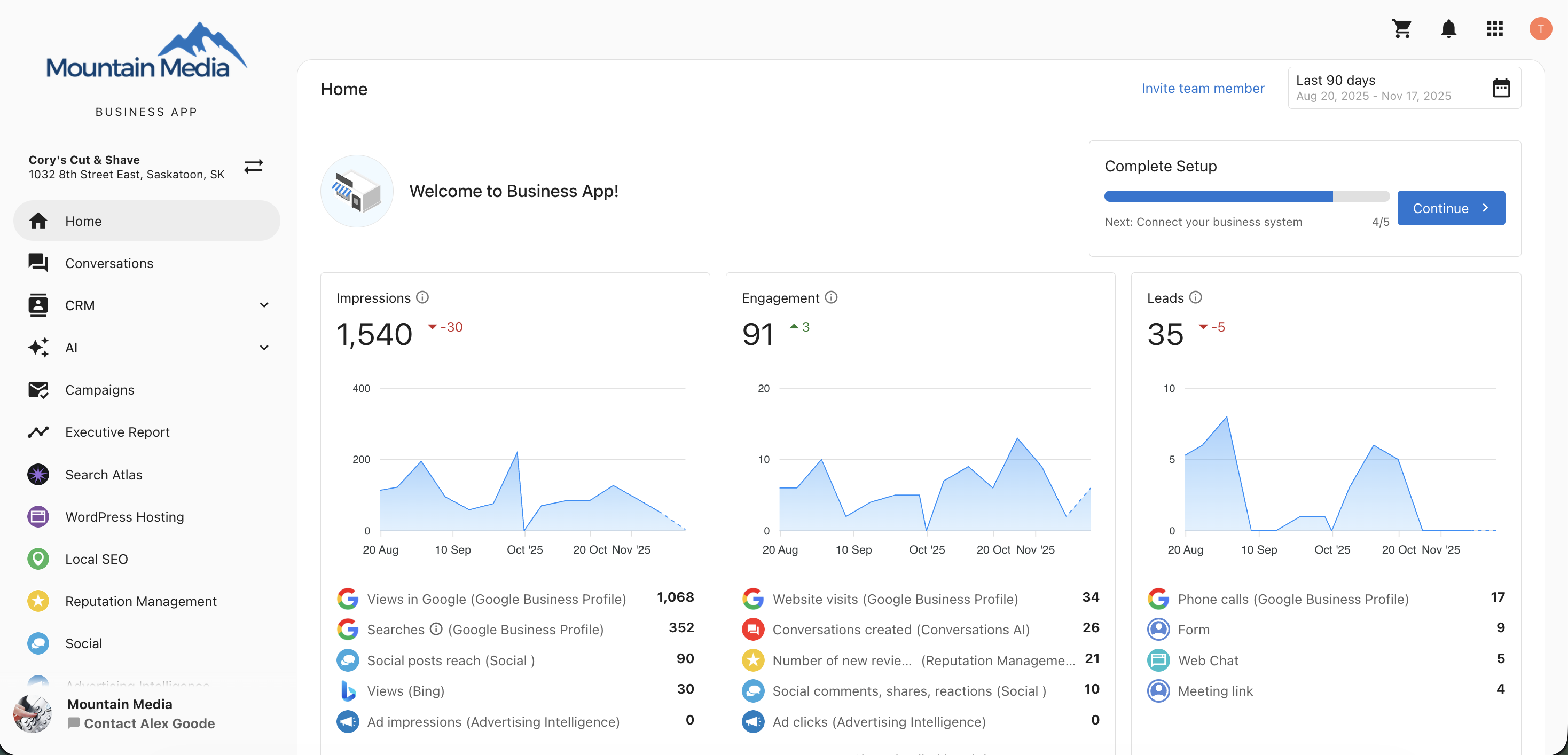
View and manage all your social and blog posts — drafts, scheduled, and published — directly from the Business App without needing to launch Social Tool.
How to Access Manage Posts
- Sign in to DFM.
- From the left-hand navigation menu, go to Social.
The Three Tabs
Posts currently being created or awaiting approval.
Posts planned for future publication. Filter by future date.
Posts already live. Includes engagement metrics like likes, shares, reach, and comments.
View post-level engagement metrics for published posts.
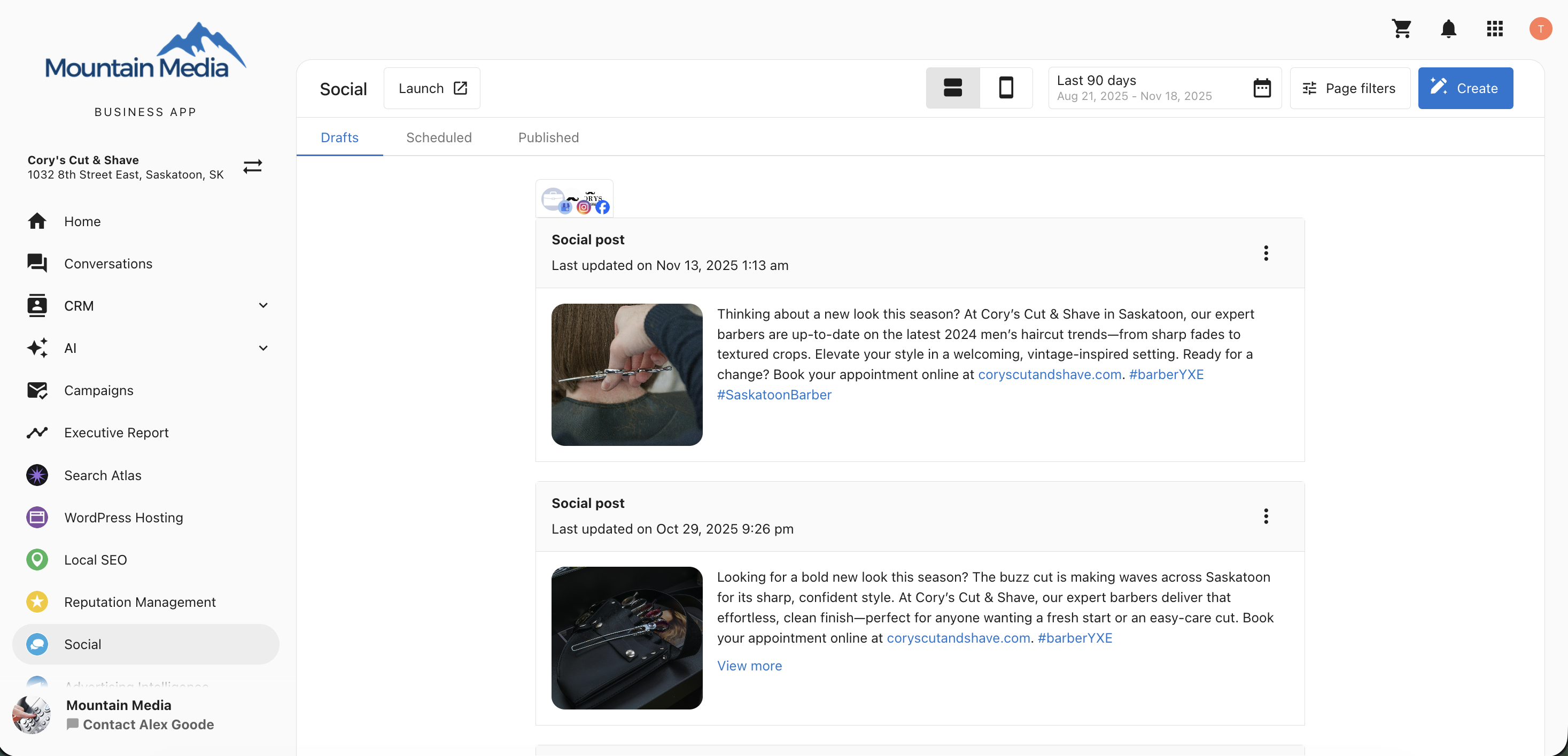
Filtering Posts
Use filters to refine your post list by Social Network, Connected Account, or Date Range.
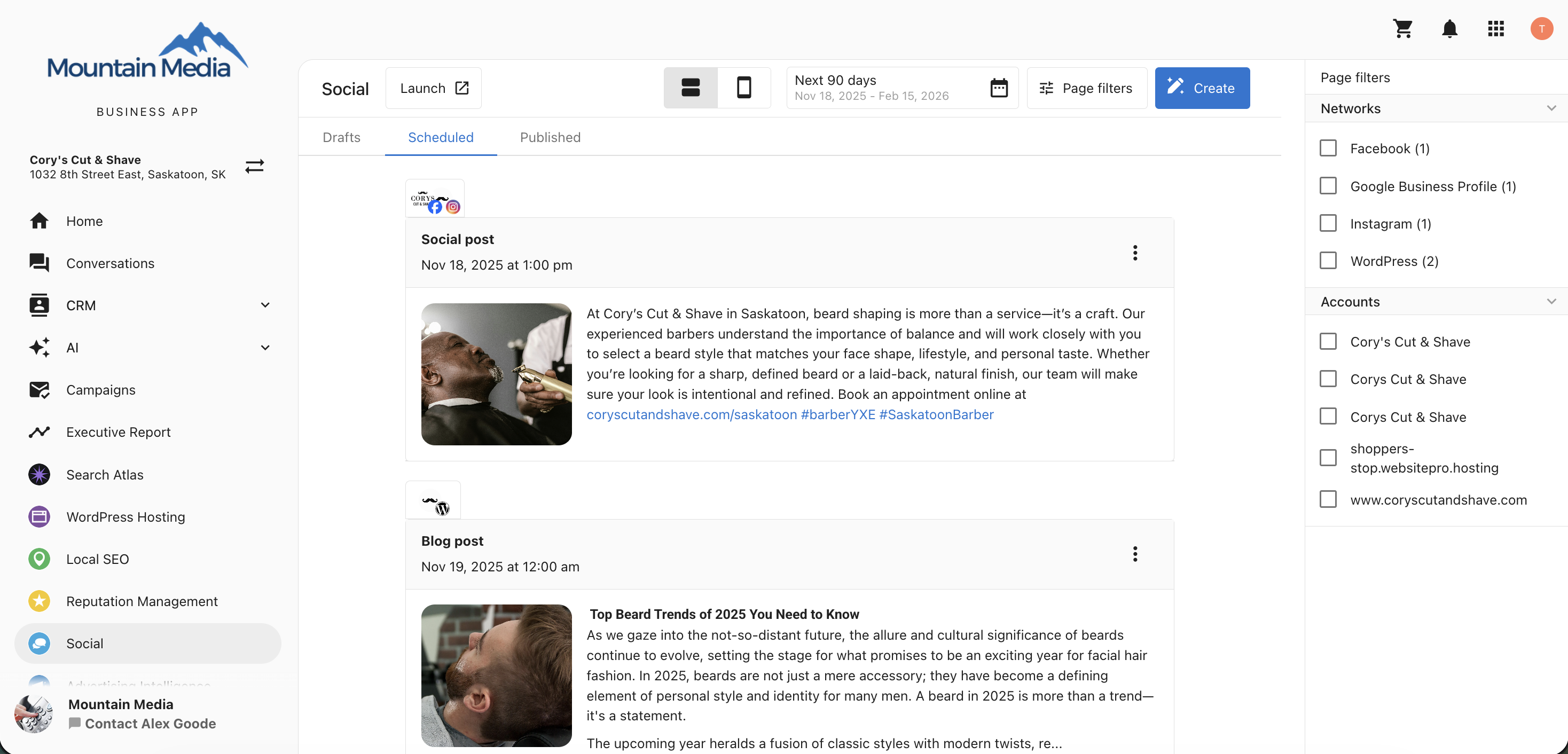
Preview Posts
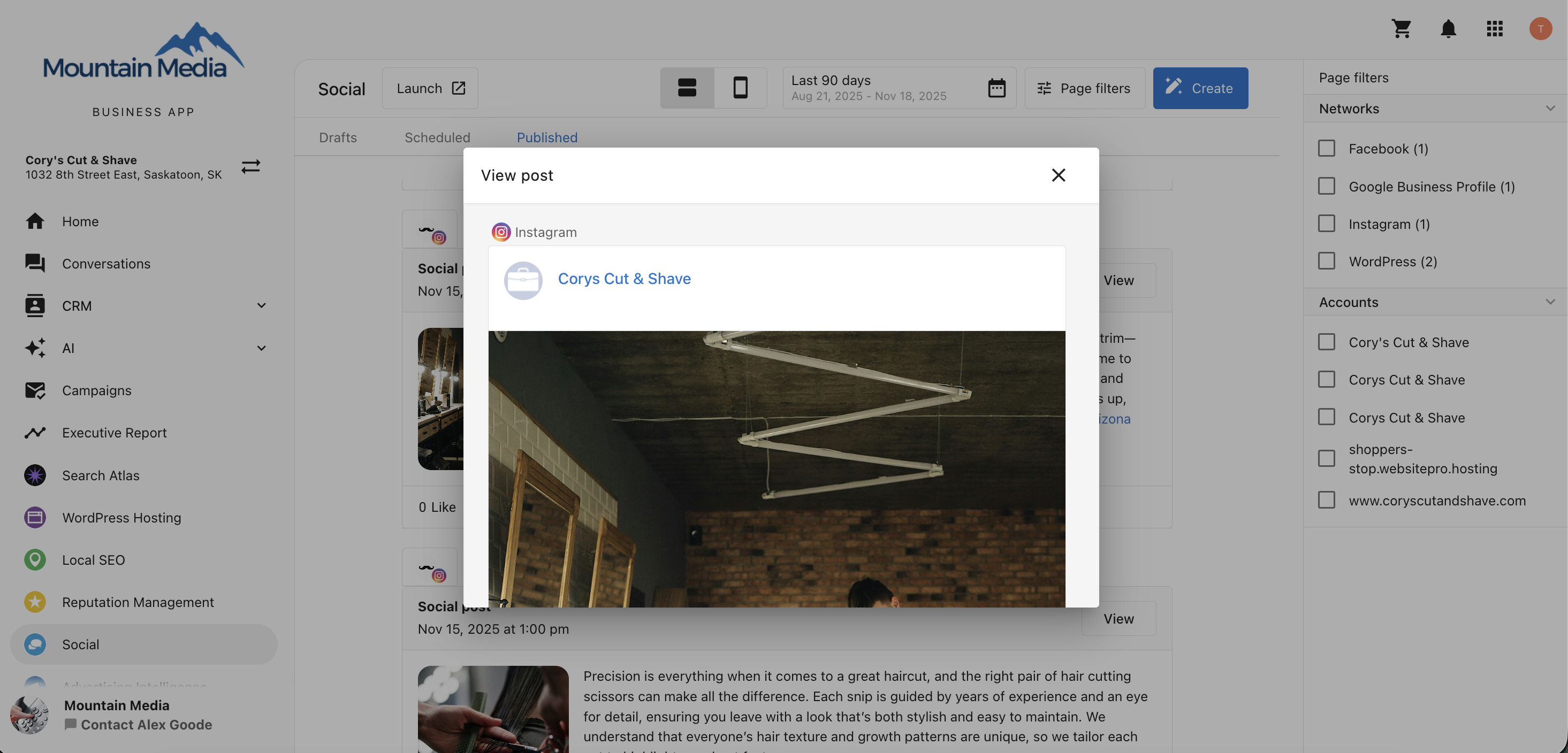
Preview each post in Web View (desktop) or Mobile View before it goes live.
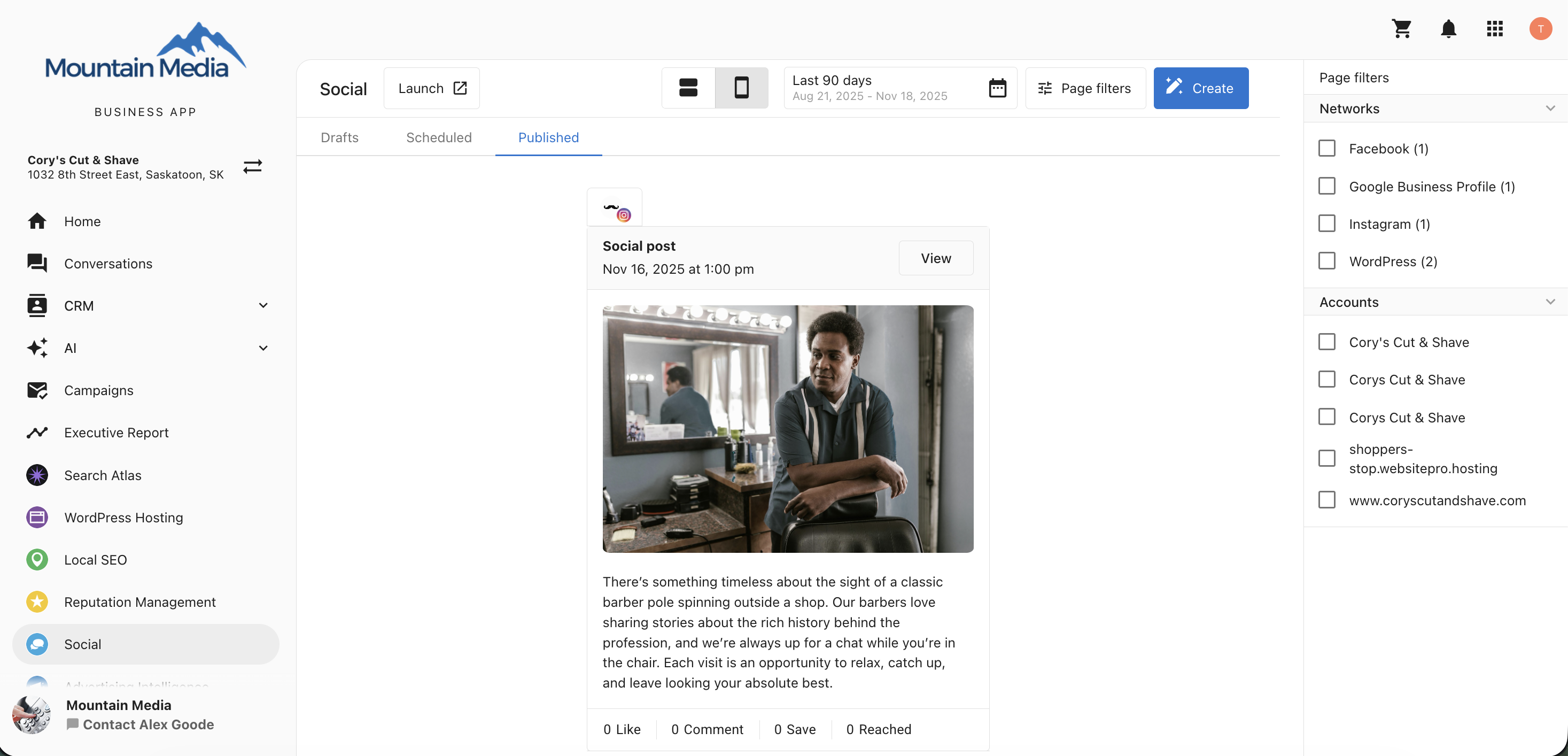
Published Post Performance
Deleting Posts
You can delete draft, scheduled, and published posts directly from the Business App. Deleted posts are removed from all connected networks.

Sharing Reviews as Social Posts
If you use both Reputation AI and Social Tool, you can share positive customer reviews directly as social posts. In Reputation AI, click the Share button on any review and select Share on Social.
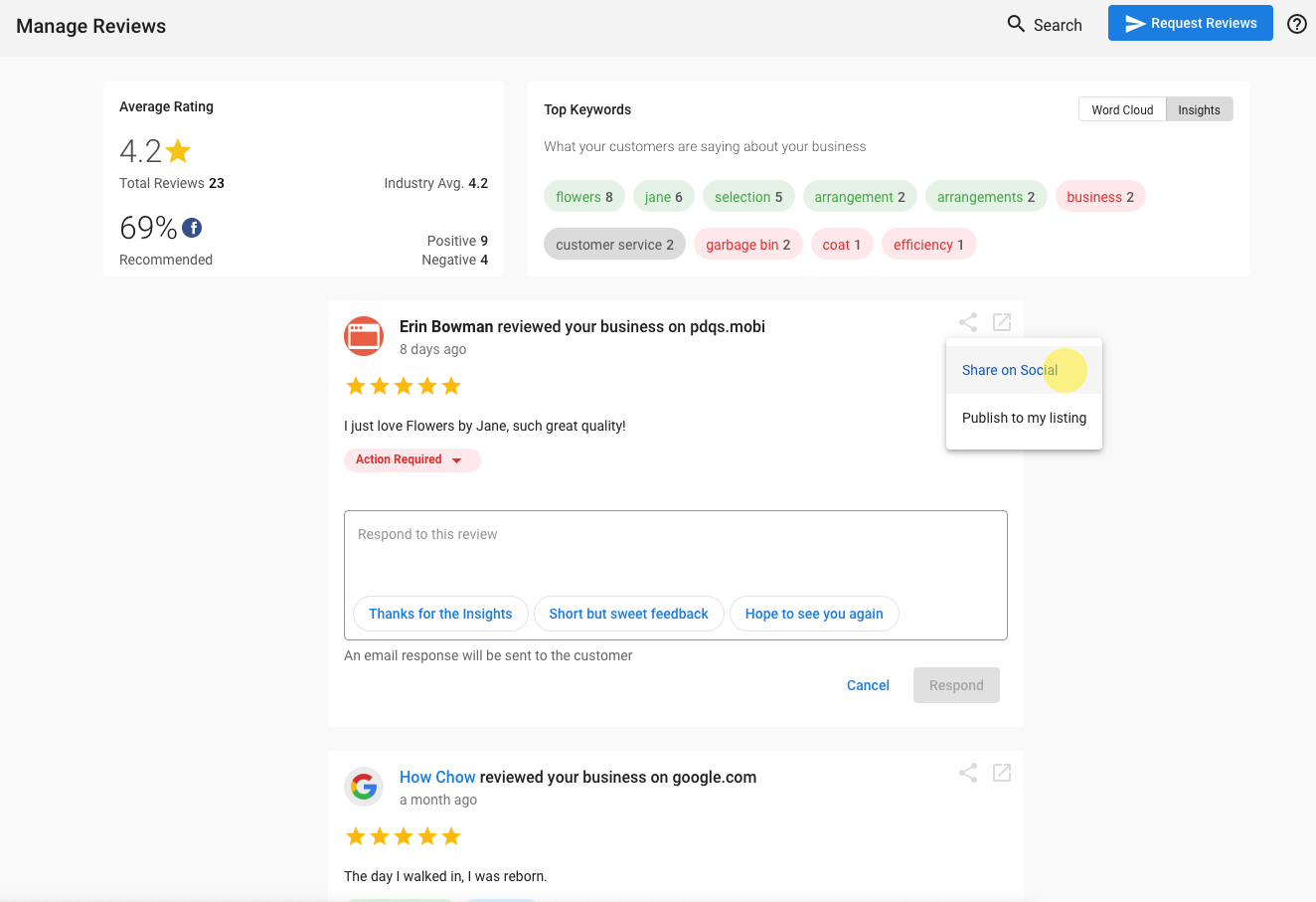
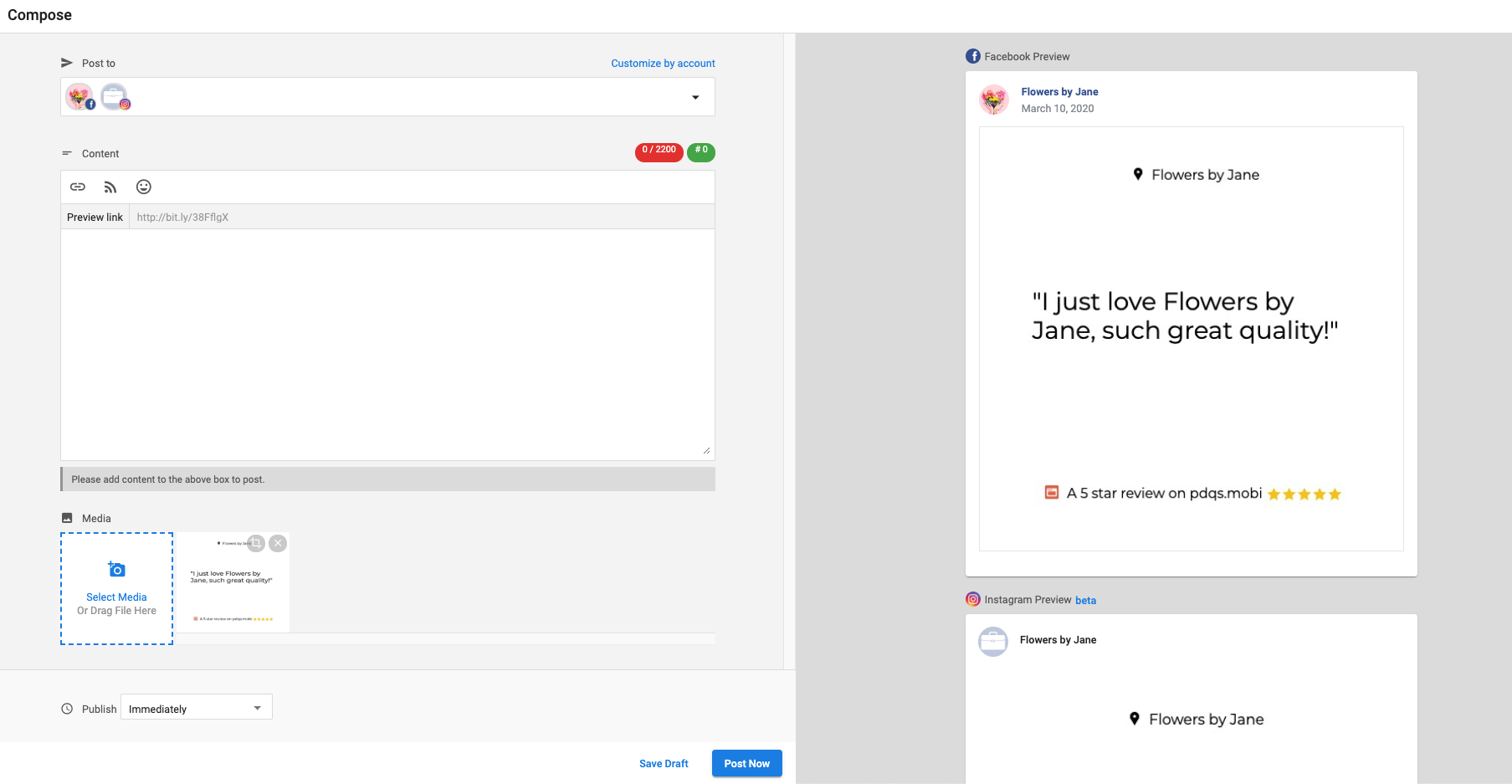
This opens Social Tool with the review pre-loaded as an image in the Composer.
Long-Form Blog Content
Create and publish blog posts directly from Social Tool.
- Go to Social tool > Overview > Create Blog.
- Fill out the prompts — title, content, and publishing options.
- Use the rich text editor with headings, lists, links, and media.
- Preview and publish when ready.

Frequently Asked Questions
Calendar Overview
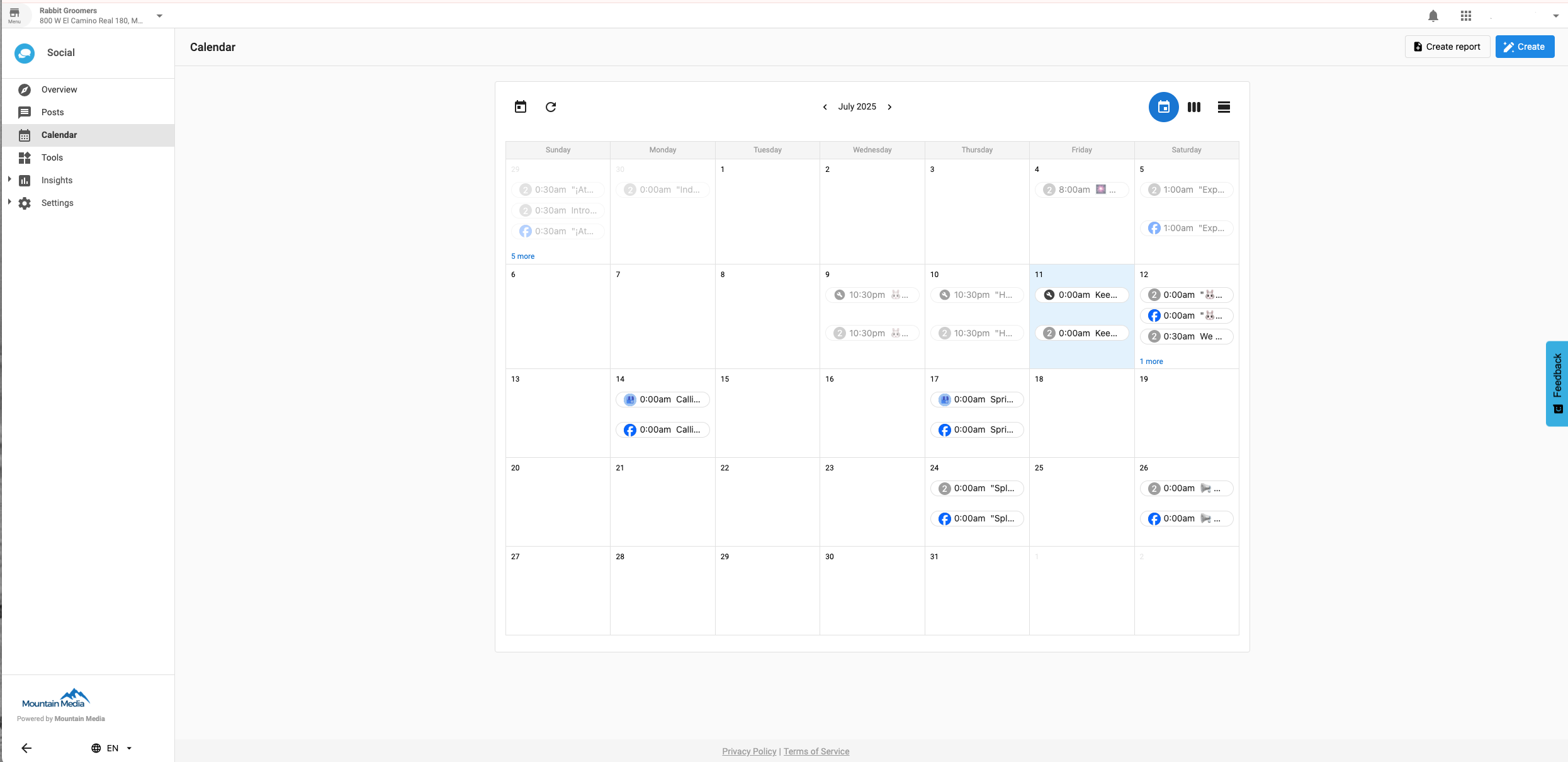
The Calendar tab in Social Tool gives you a visual, month-long overview of all your social content — scheduled posts, drafts, and everything in between. It helps you stay organized and confident in your publishing strategy.
What You Can Do in the Calendar
See all scheduled and draft posts in one month-long view. Spot gaps and plan ahead.
Click any date on the calendar to open the post editor and create a new post instantly.
Generate a shareable link to send your content schedule to clients or teammates for review.
Switch between Monthly, Weekly, and Daily views depending on your planning horizon.
Scheduled & Draft Posts
The calendar displays both scheduled posts (with exact publish times) and draft posts so you can track what's in progress and quickly spot gaps in your content plan.
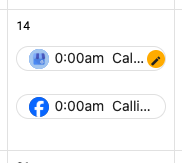
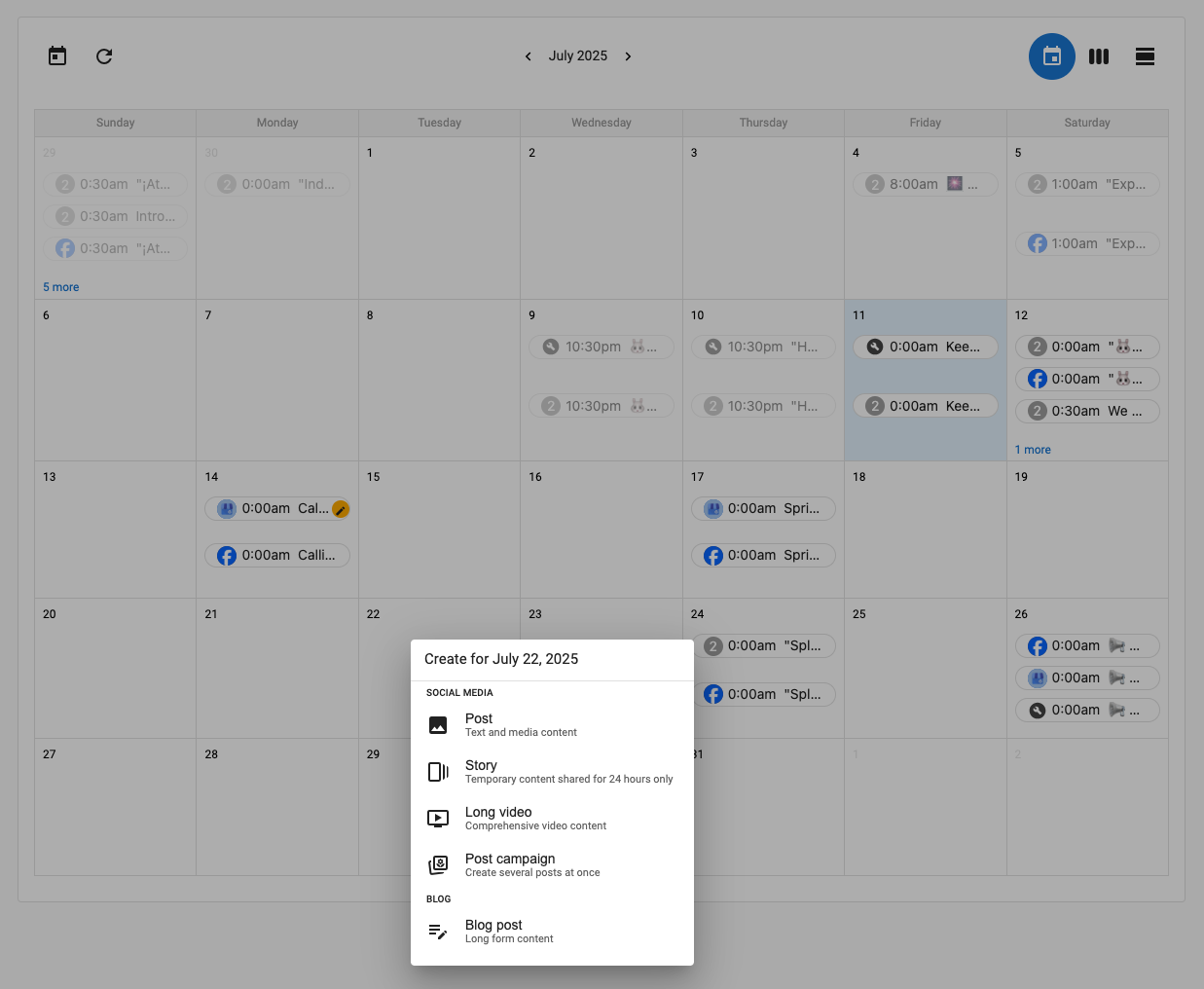
Create a Post from the Calendar
Click on any date in the calendar to open the post editor. Choose your platform(s), add content and media, then schedule immediately or save as a draft — all without leaving the calendar view.
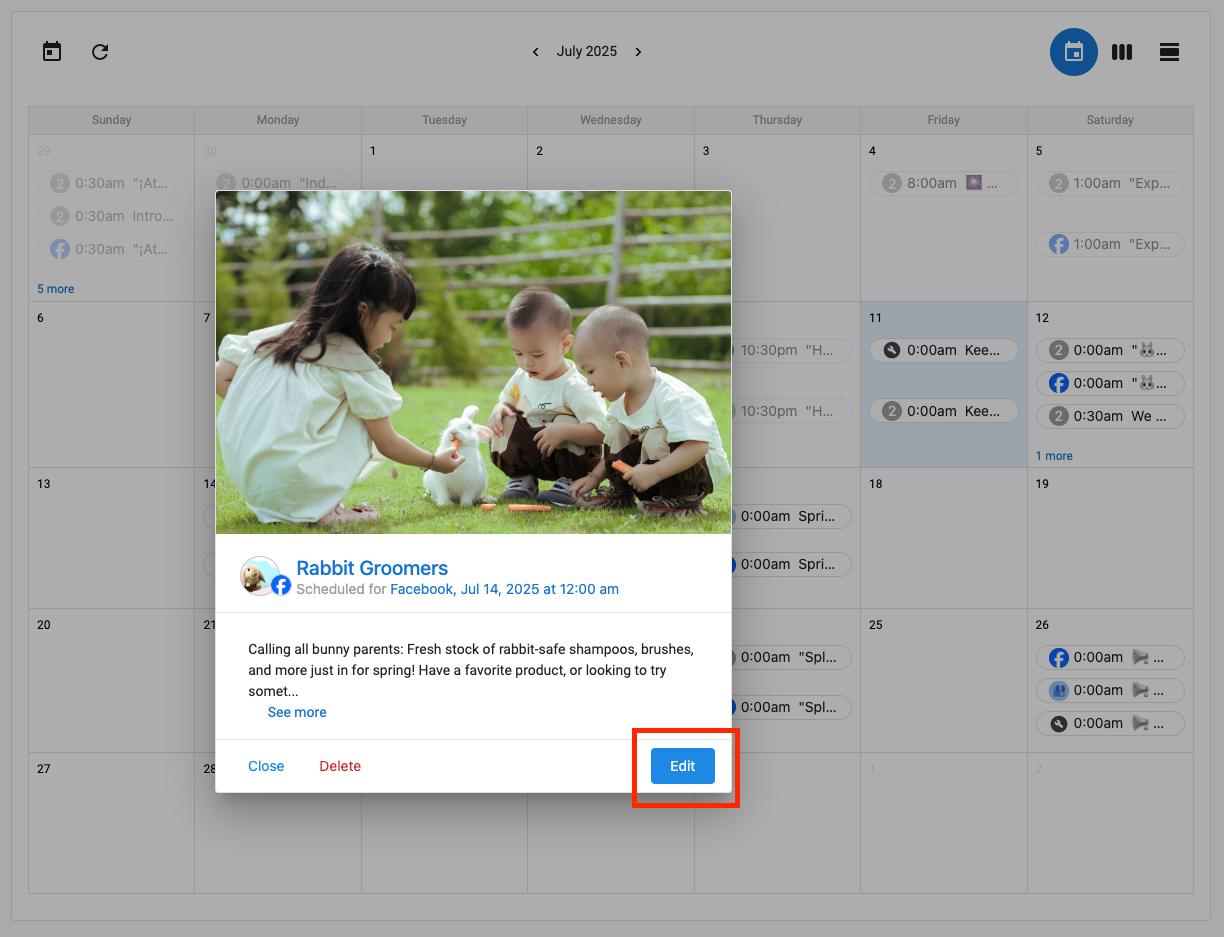
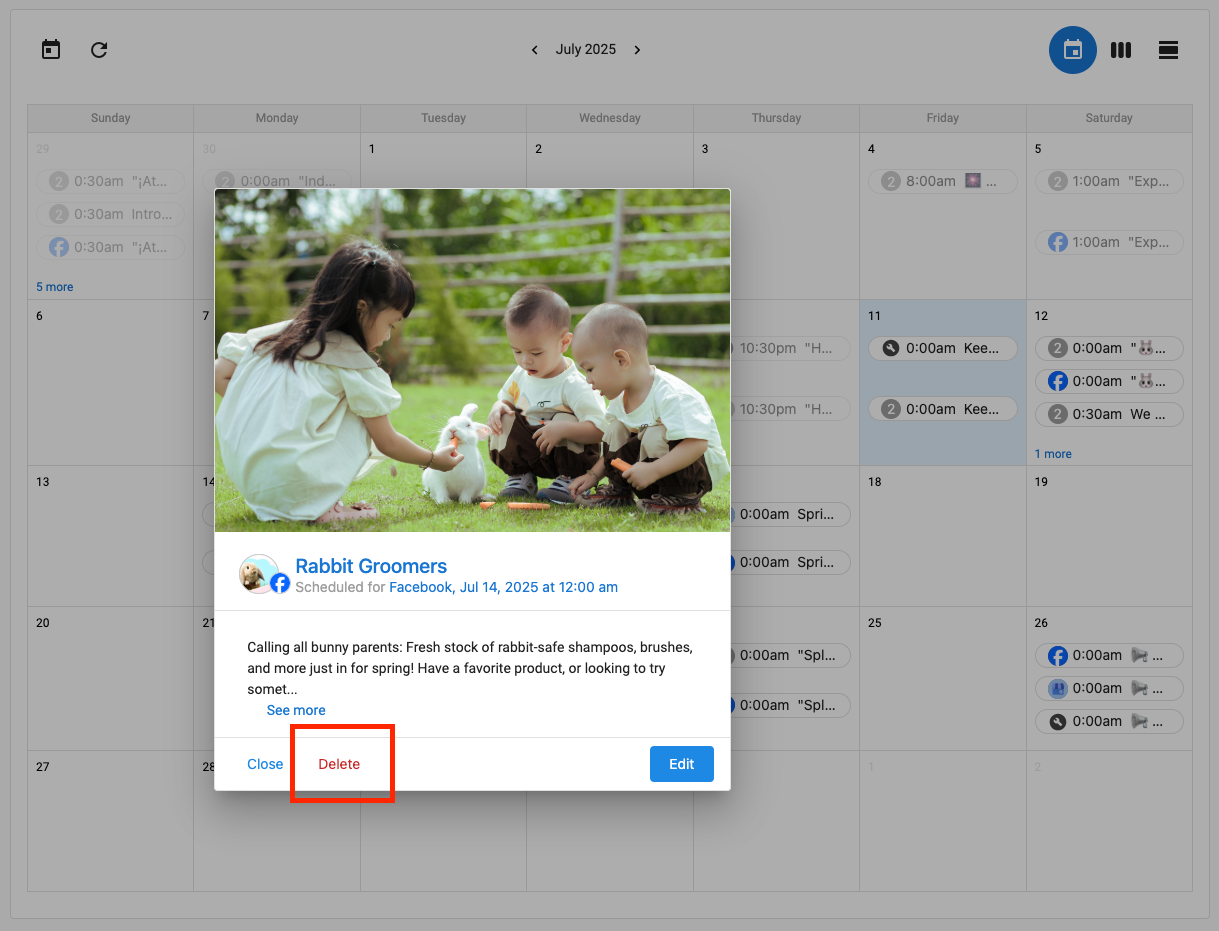
Edit or Delete a Post from the Calendar
Click any post in the calendar to open it, then click Edit to open it in the Composer for changes, or choose the Delete option to remove it.
Share Your Calendar (Create a Report)
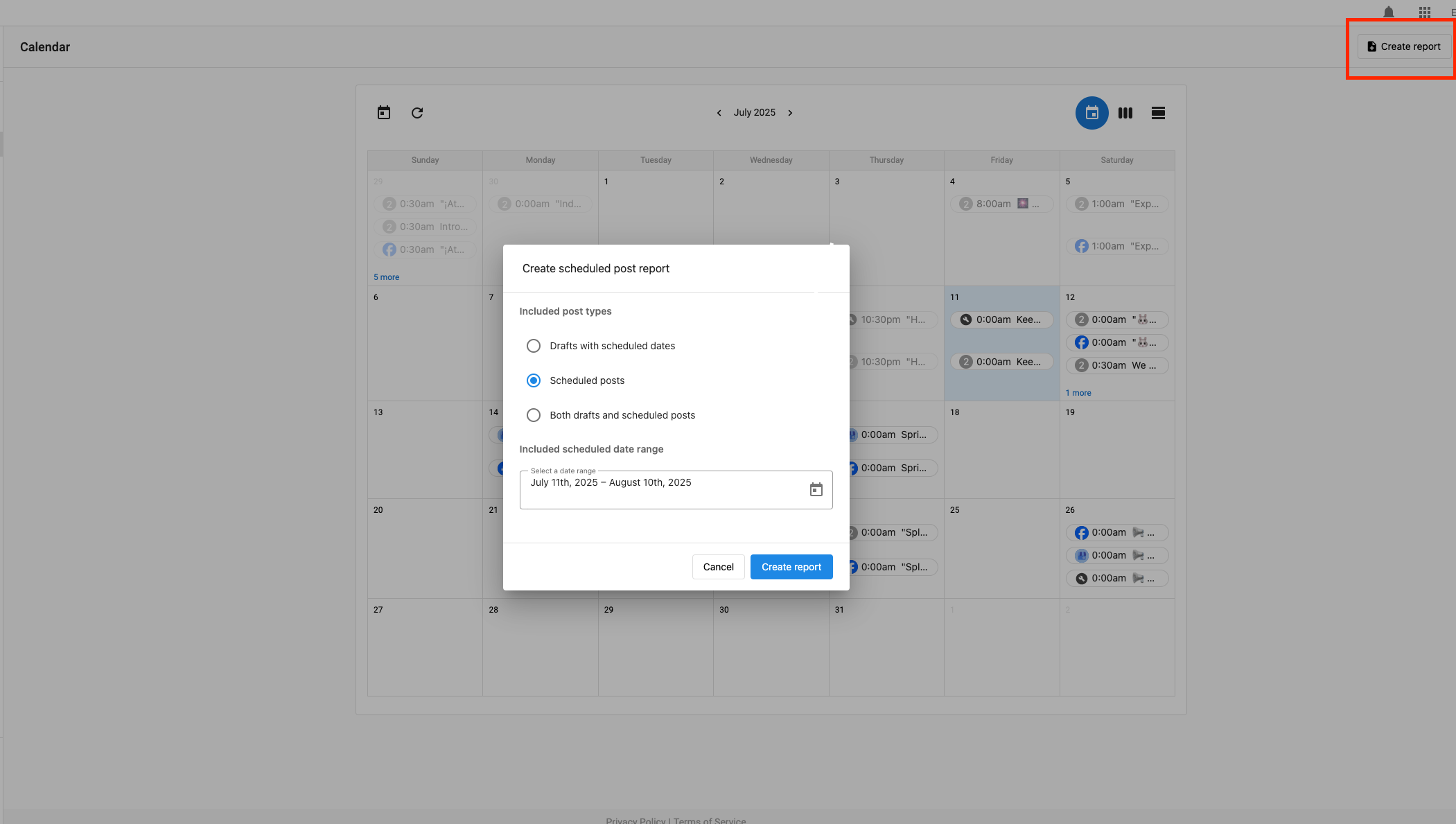
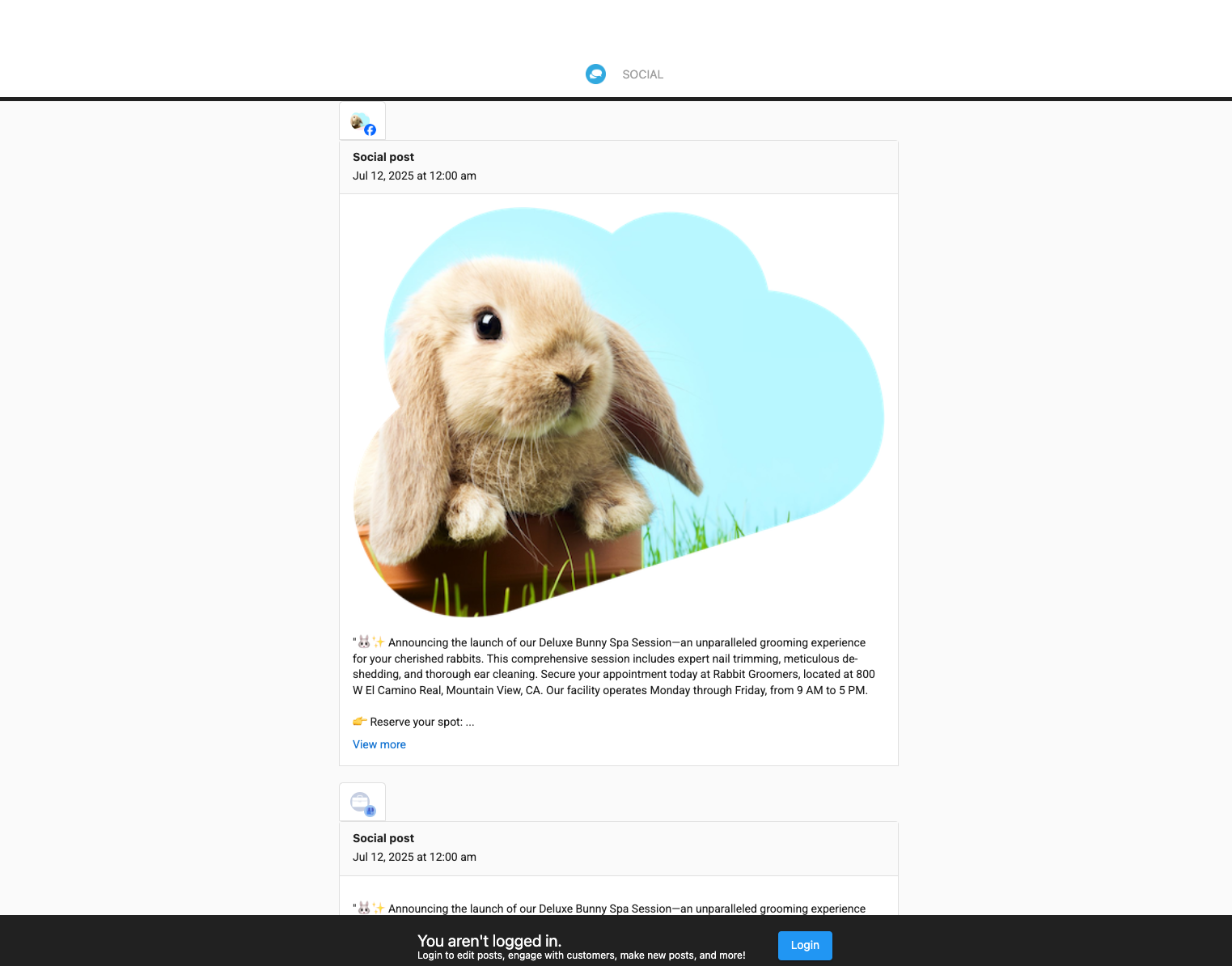
Need to share your content plan with a client, team member, or stakeholder? Click Create Report in the top-right corner of the calendar. This generates a shareable live link — anyone with the link can view the report, even without access to Social Tool.
How to Create a Report
- Go to Social Tool > Posts > Calendar and click Create Report.
- Select your date range for the report.
- Choose which post types to include — scheduled, drafts, or both.
- Click Create Report to generate it.
- Copy the generated link and share it with anyone who needs to review the content.
Content Calendar Templates by Industry
Need inspiration for what to post? Below are ready-to-customize 4-week social calendars for six common business types. Each includes post ideas, platform recommendations, suggested media, CTAs, and goals.
How to Use These Templates
- Choose the industry tab that best matches your business.
- Replace "Day" numbers with actual dates from your calendar.
- Customize bracketed placeholders like
[Product Name],[Staff Name], or[City]with your actual information. - Adjust tone, timing, and platforms to fit your audience.
- Add UTM parameters to links to track performance.
🐾 Pet Services
Best for: Pet groomers, veterinary clinics, pet daycares, pet stores, dog trainers.
Focus: Gentle education, visible care standards, cute moments (with consent), and trust-building through team spotlights and reviews.
| Day | Platforms | Caption Idea | Media | CTA | Goal |
|---|---|---|---|---|---|
| 1 | Facebook, Instagram | 🐾 Meet [Pet Name], our star client this week! What's your pet's favorite treat? #PetOfTheWeek | Cute portrait with owner consent | Book a grooming spot | Engagement |
| 3 | Google Business Profile | 3 signs your pet needs a nail trim: clicking sounds, snagging on carpet, or visible overgrowth. Book in [City]! | Photo of clippers and paws | Ask about our add-on | Educate & upsell |
| 5 | Instagram Reels | Watch how we keep every pup calm during grooming ✂️ Our gentle approach makes all the difference. | Short video of staff handling with care | DM to book | Drive bookings |
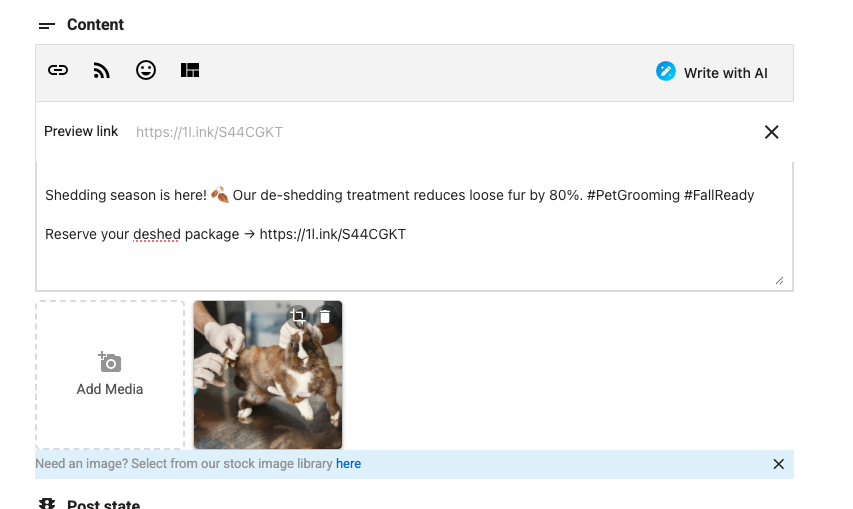
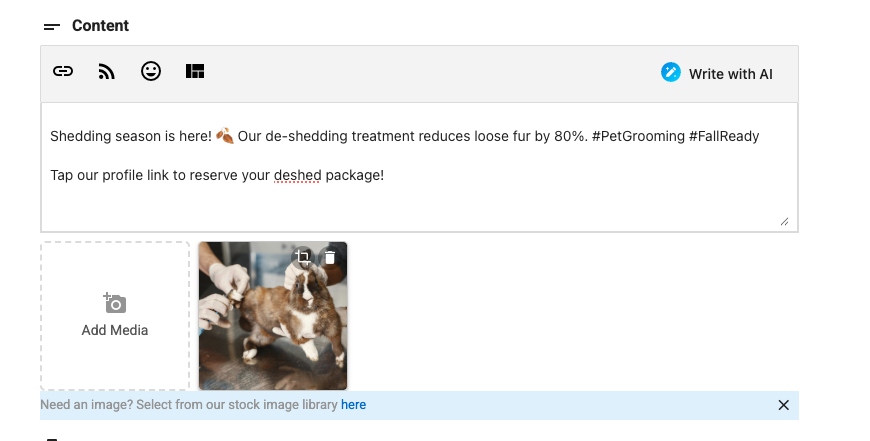
| 6 | Facebook, Instagram | Shedding season is here! 🍂 Our de-shedding treatment reduces loose fur by 80%. Here's what's included... | Carousel: deshed service steps | Reserve your package | Seasonal promo |
| 8 | Google Business Profile | ⭐⭐⭐⭐⭐ Thank you [Customer Name] for this amazing review! "Best grooming experience in [City]!" | 5-star graphic with paw icons | See more reviews | Social proof |
| 11 | Facebook, Instagram | Meet [Staff Name]! 👋 Certified in [certification] with [X] years of experience. | Portrait with short bio | Book with our team | Trust |
| 13 | Google Business Profile | 🎉 New Client Special! $[X] off your first full grooming. Limited spots this week. | Offer card with terms | Claim offer | Acquire new clients |
| 16 | Facebook, Instagram | Transformation Tuesday! ✨ From seriously matted to absolutely magical in 60 minutes. #BeforeAndAfter | Before-after carousel | Book a tidy-up | Bottom-funnel proof |
| 20 | Instagram, Facebook | 📅 Weekend availability alert! Just opened [number] spots for Saturday and Sunday. | Openings card with phone/link | Reserve now | Fill gaps |
💇 Personal Services
Best for: Hair salons, nail salons, spas, estheticians, massage therapists, barbershops.
Focus: Transformations, education, offers, and team expertise to drive bookings and showcase results.
| Day | Platforms | Caption Idea | Media | CTA | Goal |
|---|---|---|---|---|---|
| 1 | Facebook, Instagram | ✨ Transformation Tuesday! Before & after [service]. Swipe to see the magic ➡️ #BeforeAndAfter | Split-screen transformation photo | Book your transformation | Showcase results |
| 3 | Google Business Profile | Fall refresh special! [Service details] — limited appointments available this month in [City]. | Service highlight photo | Book now | Seasonal promotion |
| 5 | Instagram Reels | Make your [service] last longer with these pro tips! 💁 Try these at home. | Short tutorial video | Try it and tag us | Engagement |
| 8 | Google Business Profile | ⭐⭐⭐⭐⭐ "[Quote from review]" — [Client Name]. Thank you for trusting us! | Review screenshot with photo | Read more reviews | Social proof |
| 11 | Facebook, Instagram | Meet [Stylist Name]! 💇 Specializing in [specialty] with [X] years of experience. | Team member portrait | Book with [Name] | Build trust |
| 13 | Google Business Profile | ⏰ This week only: [X]% off [service]! Limited spots at our [City] salon. Expires [date]. | Offer graphic with expiry | Claim your spot | Fill schedule |
| 16 | Facebook, Instagram | [Season]'s hottest color trends are HERE! 🎨 From [trend 1] to [trend 2]. Which would you rock? | Color swatch carousel | Consult for free | Generate inquiries |
| 20 | Instagram, Facebook | 📅 Last-minute openings! Spots available [this Saturday] from [time]. Tag someone who needs this. | Openings calendar graphic | Book same-day | Fill gaps |
🔧 Home Services
Best for: HVAC, plumbing, electrical, roofing, landscaping, cleaning, handyman services.
Focus: Proof, education, and fast booking CTAs with seasonal reminders and quality standards.
| Day | Platforms | Caption Idea | Media | CTA | Goal |
|---|---|---|---|---|---|
| 1 | Facebook, Instagram | Project complete! ✅ Just finished this [project type] in [Neighborhood]. Swipe to see the transformation. | Before-after split | Get a free quote | Showcase work |
| 3 | Google Business Profile | [Season] is here! Time to schedule your [seasonal service]. Booking [City] homes now. | Seasonal service photo | Schedule now | Seasonal bookings |
| 5 | Instagram Reels | Quick fix alert! 🔧 Here's how to [solve common problem]. When it's bigger than DIY, we're here 24/7. | Short tutorial video | Call for bigger issues | Establish expertise |
| 6 | Facebook, Instagram | Licensed ✓ Insured ✓ Trusted since [Year] ✓ Here's why that matters for YOUR home. | License/certification photo | Why it matters | Build trust |
| 11 | Facebook, Instagram | Meet [Technician Name]! 👷 [X] years in [specialty]. Licensed, certified, ready to help in [City]. | Team member photo | Request [Name] | Humanize brand |
| 13 | Google Business Profile | 💰 Limited time: [X]% off [service] this week! Satisfaction guaranteed in [City]. | Offer graphic with terms | Claim your discount | Fill schedule |
| 16 | Facebook, Instagram | 🚨 Warning signs you need [service] ASAP: [3 signs]. We offer 24/7 emergency service in [City]. | Warning signs checklist | Call 24/7 | Drive emergency calls |
| 20 | Instagram, Facebook | Same-day service available! 📞 Just got openings for today and tomorrow in [City]. | Same-day badge | Call or text now | Fill gaps |
🚗 Automotive Services
Best for: Auto repair shops, car dealerships, tire shops, body shops, oil change services.
Focus: New arrivals, service tips, behind-the-scenes content, and preventive maintenance education.
| Day | Platforms | Caption Idea | Media | CTA | Goal |
|---|---|---|---|---|---|
| 1 | Facebook, Instagram | 🚗 JUST IN! [Year Make Model] • $[Price] • Stop by our [City] dealership for a test drive! | Multiple vehicle photos | Schedule test drive | Drive showroom traffic |
| 3 | Google Business Profile | Why our [X]-point inspection matters: catches problems early, saves money, keeps your family safe. | Service bay photo | Book your service | Drive service bookings |
| 5 | Instagram Reels | Watch us [perform service] in real-time! ⚙️ Full transparency — that's our promise. | Time-lapse video | Book online 24/7 | Transparency/trust |
| 8 | Google Business Profile | ⭐⭐⭐⭐⭐ "[Quote]" — [Customer Name]. Thank you for trusting us with your vehicle! | Customer + vehicle photo | See more reviews | Social proof |
| 11 | Facebook, Instagram | Meet [Technician Name]! 🔧 [Specialty] certified with [X] years experience. | Team member portrait | Ask for [Name] | Build trust |
| 16 | Facebook, Instagram | 🚨 PSA: Check if your vehicle has an open recall! Enter your VIN at [link]. We handle most recalls. | Recall checker info | We can help | Public service/trust |
| 18 | Google Business Profile | [Season] is coming! Is your car ready? • [Item] • [Item] • [Item] • Schedule your prep service today. | Seasonal prep checklist | Schedule service | Seasonal bookings |
| 20 | Instagram, Facebook | 🔥 Fresh inventory alert! Just added [X] vehicles. Browse online or visit our [City] location. | Inventory collage | Browse online | Drive online traffic |
🏡 Real Estate
Best for: Real estate agents, brokers, property managers, real estate teams.
Focus: Just listed properties, market insights, process education, and agent credibility building.
| Day | Platforms | Caption Idea | Media | CTA | Goal |
|---|---|---|---|---|---|
| 1 | Facebook, Instagram | 🏡 JUST LISTED! [Address] • [X] bed, [X] bath • $[price] • [Standout feature]. Schedule your showing! | Property highlight photos | Schedule showing | Generate leads |
| 3 | Google Business Profile | [Neighborhood] Market Update: [Key stat]. Thinking of selling in [City]? Get your FREE home valuation! | Market data graphic | Get your home's value | Lead generation |
| 5 | Instagram Reels | Take a tour! 🎥 [Address] walkthrough. [Highlight best feature]. Which room is your favorite? | Walk-through video | Full details in bio | Drive engagement |
| 6 | Facebook, Instagram | First-time buyer? 🏠 Here's what you need to know before you start: [Key tips]. | Educational carousel | Download our guide | Lead magnet |
| 11 | Facebook, Instagram | Meet [Agent Name]! 🏡 [X] years helping [City] families. [X] homes sold in [year]. | Agent portrait + bio | Schedule consultation | Build trust |
| 13 | Google Business Profile | 🎉 SOLD in just [X] days! [Address]. Our proven marketing strategy gets results. | Sold property photo | Thinking of selling? | Seller leads |
| 19 | Instagram, Facebook | 🏠 OPEN HOUSE this weekend! [Address] • [Day, Date] • [Time] • [X] bed, [X] bath, $[price] | Open house flyer | RSVP or drop in | Drive attendance |
🏢 General Business
Best for: Retail shops, restaurants, professional services, consultants, and any business not covered above.
Focus: Product spotlights, how-to guides, team culture, and versatile content that works across industries.
| Day | Platforms | Caption Idea | Media | CTA | Goal |
|---|---|---|---|---|---|
| 1 | Facebook, Instagram | ✨ Introducing [Product/Service]! [Key benefit]. Available now in [City] or online! | Hero product photo | Shop now / Learn more | Drive sales/awareness |
| 3 | Google Business Profile | ⭐⭐⭐⭐⭐ "[Quote]" — [Customer Name]. We love serving our [City] community! | Review + product photo | Try it yourself | Social proof |
| 5 | Instagram Reels | How to use [Product] like a pro! 💡 Follow these steps for best results. | Demo video | Get yours today | Drive sales |
| 6 | Facebook, Instagram | 🔥 [X]% OFF [Product/Service] this week only! Use code: [CODE]. Valid through [date]. | Offer graphic | Use code: [CODE] | Drive conversions |
| 11 | Facebook, Instagram | Meet [Team Member]! 👋 [Role] here at [Business]. Locally-owned and proudly serving [City]! | Team member portrait | Learn about our team | Humanize brand |
| 15 | Instagram Reels | Behind the scenes! 🎬 See how we [make/do/create] [product/service]. Got questions? Ask away! | BTS video | Questions? DM us | Engagement |
| 18 | Google Business Profile | 🎉 NEW ARRIVAL: [Product] now available at our [City] location! Limited quantities. | Product announcement photo | Be the first to try | Drive early adoption |
| 20 | Instagram, Facebook | Weekend plans? 🎉 We're open [hours] Saturday & Sunday at our [City] location. See you soon! | Weekend-themed visual | Visit us / Order now | Weekend traffic |
CTAs by Platform
How you include a call-to-action depends on the platform:
- Facebook: Links are clickable in captions. Include the CTA close to your link. Use the link shortener to keep posts clean. Example: "Book now → https://example.com/book"
- Instagram: Links in captions are not clickable. Use "Tap our profile link to book" or "DM us to book." Use Clickable.bio to route followers to your site based on a specific post.
- Google Business Profile: Choose one built-in button: Book, Call, Order online, Buy, Learn more, or Sign up. Add the destination URL or phone — this button is your primary CTA.
Frequently Asked Questions
Tools Overview
The Tools tab in Social Tool offers a suite of utilities to improve workflow efficiency, drive audience engagement, and streamline your social media operations.
Turn your Instagram posts into a clickable gallery that drives followers to your website, booking page, or store. (Pro)
Save reusable post formats with text, hashtags, media, and CTAs for faster, consistent content creation.
View and respond to comments across all connected platforms from one unified dashboard.
Monitor posts that tag your business on Instagram, Facebook, and X — all in one place. (Pro)
Display your latest social posts directly on your WordPress website using a simple shortcode.
Clickable.bio (Pro)
Clickable.bio transforms your Instagram posts into a clickable gallery of images that link directly to your site or store — helping convert followers into customers. Instagram has the highest user engagement rate among social platforms, and 83% of users discover new products and services there. Clickable.bio makes every post shoppable or bookable.
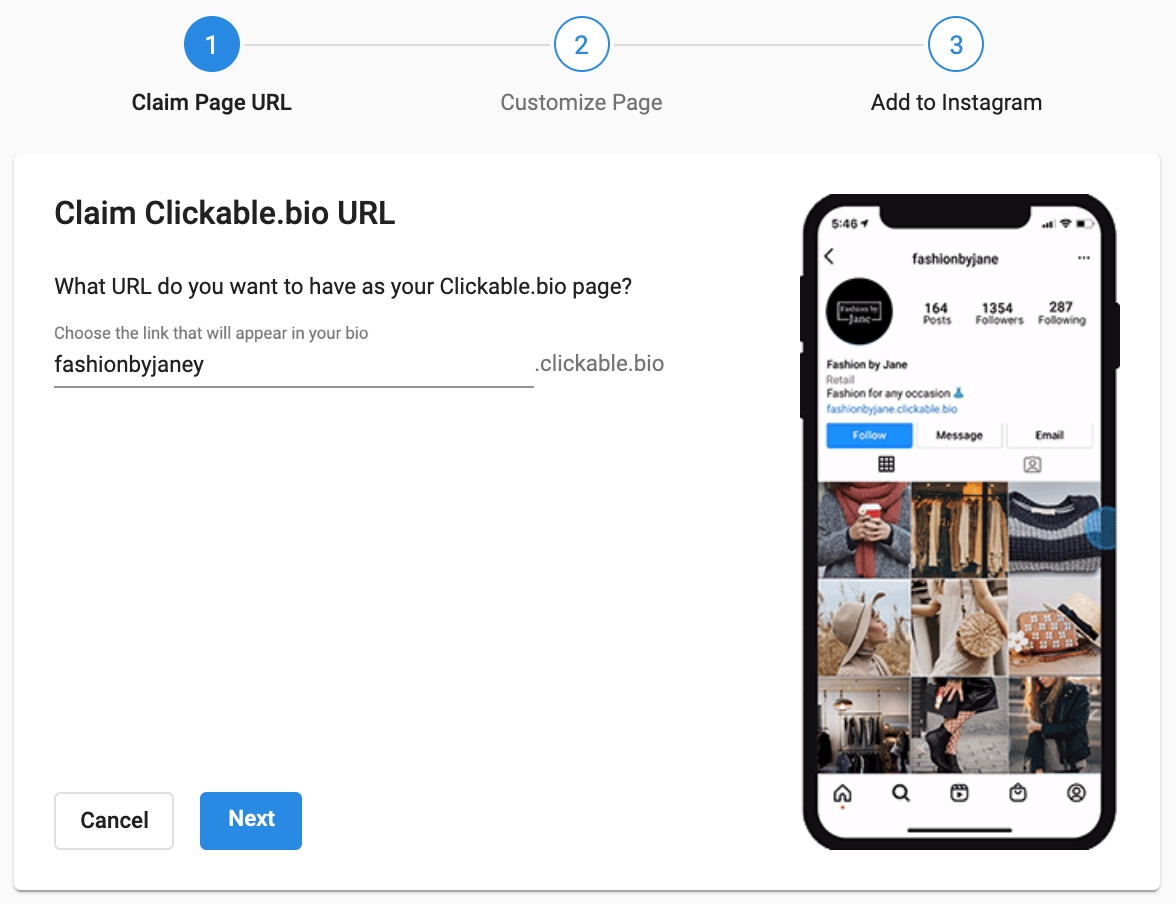
Step 1: Claim Your Clickable.bio URL
- Make sure your Instagram account is connected in Settings > Connect Accounts.
- Go to Tools > Clickable.bio and click Set up.
- Enter your preferred URL (format:
businessname.clickable.bio). You can change this later. - Click Next.
Step 2: Customize Your Page
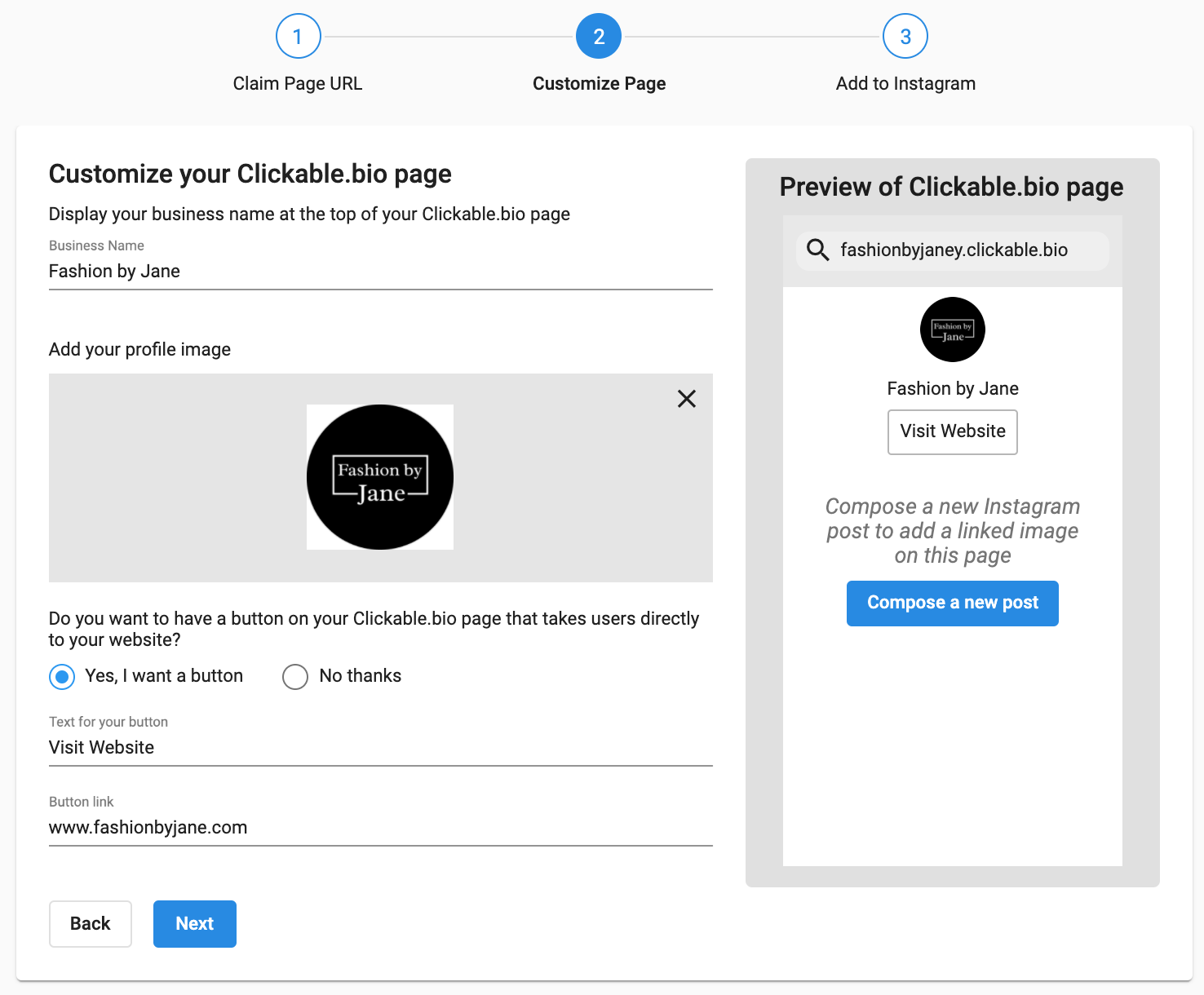
Add your business name (displayed at the top) and profile image (use your Instagram profile image for consistency). Optionally add a button with text and a destination URL (e.g., "Visit website").
Step 3: Add the URL to Your Instagram Bio
- Click Copy link.
- Click Go to Instagram Profile (opens new tab).
- On Instagram, click Edit Profile and paste the URL in the Website field.
- Return to Social Tool and click Finish.
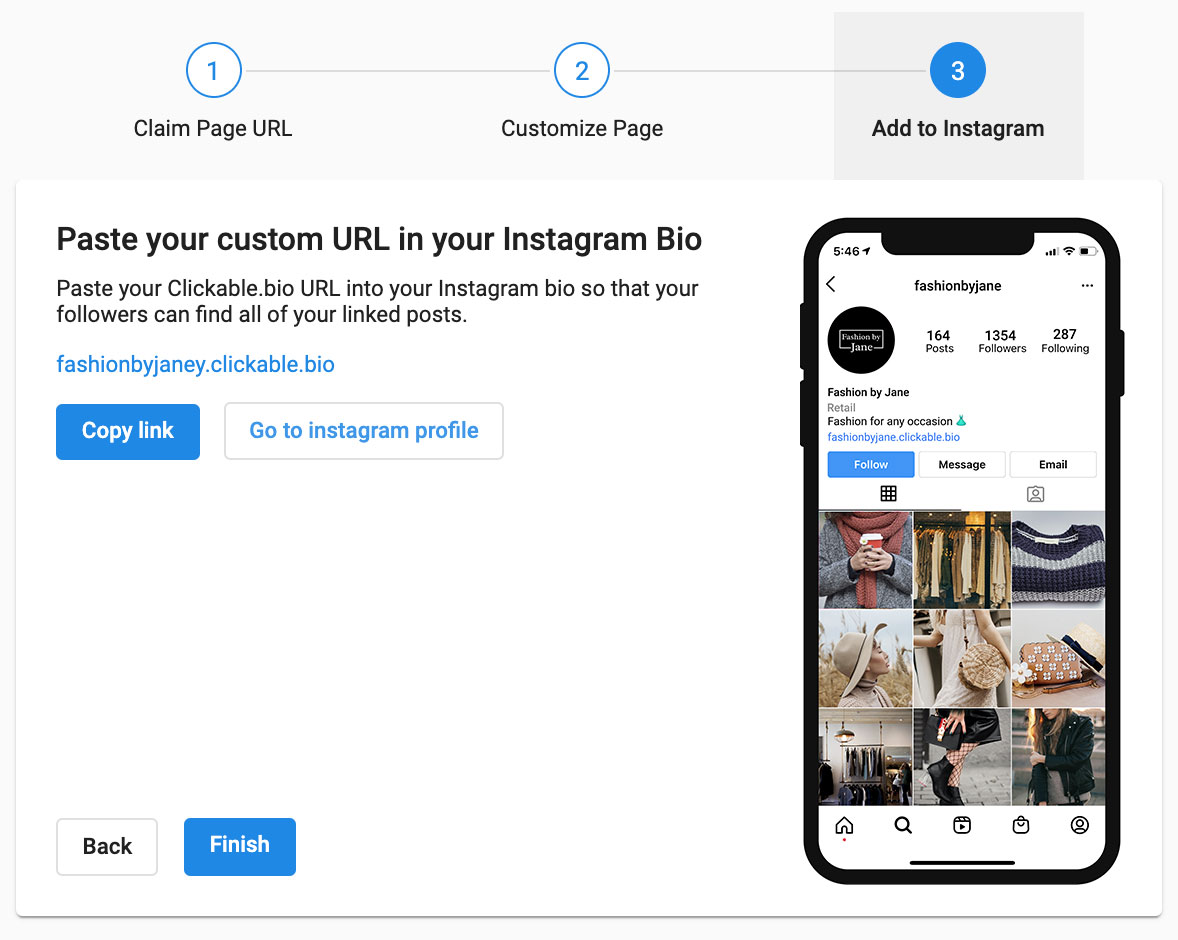
This is also covered step-by-step in the DFM existing guide — see the Getting Started tab for those screenshots.
Posting with Clickable.bio
When composing an Instagram post, use the Instagram Options section in the Composer to add a URL to that post. After publishing, the Clickable.bio page updates automatically — tapping your bio link will show a gallery where each image links to its associated URL.
Customer Comments
The Comments tool centralizes comment management across all connected social platforms so you can engage without switching between apps. Access it via Social Tool > Tools > Comments.
What You Can Do
- View threaded conversations from any connected platform.
- Reply, like, or react to comments without leaving DFM.
- Use AI Suggestion to generate a reply, review it, then post.
- Manage comments from Facebook, LinkedIn, Instagram, and X in one unified inbox.

How to Use AI Reply Suggestions
- Go to Social Tool > Tools > Comments.
- Select a comment.
- Click the AI Suggestion button.
- Review and edit the proposed reply.
- Post the response to the platform.
Best Practices for Responding
- Timeliness: Aim to respond within 24 hours.
- Personalization: Use the commenter's name or relevant context.
- Tone: Stay on-brand — casual, playful, or professional.
- Encourage conversation: Ask follow-up questions or show appreciation.
- Negative comments: Respond quickly, apologize, and invite them to resolve offline.
Character Limits by Platform

| Platform | Character Limit | Best Practice |
|---|---|---|
| No strict limit | Keep under 200 characters for clarity | |
| 2,200 characters | Concise, expressive language | |
| X (Twitter) | 280 characters | Be direct; use threads for longer replies |
| 3,000 characters | Professional and informative tone | |
| Google Business | 3,500 characters | Clear, detailed, helpful replies |
Instagram Brand Mentions (Pro)
Social Tool Pro automatically monitors posts that tag your business handle on Instagram, Facebook, and X — in captions or comments — so you don't have to log into each platform separately.
- Go to Social Tool > Settings > Connect Accounts and connect your Instagram, Facebook, or X business profile.
- Once connected, tagged posts appear automatically under Tools > Comments, in your Activity Stream in DFM, and as tasks in Task Manager (if enabled).
Post Render Plugin (WordPress)
The Post Render Plugin lets you display your latest social media posts directly on your WordPress website using a simple shortcode — keeping your site automatically updated with fresh social content.
Requirements
- WordPress 6.5+
- PHP 7.4+
How to Install
- Download the SM Post Render plugin ZIP file from DFM.
- In your WordPress admin, go to Plugins > Add New > Upload Plugin.
- Select the ZIP file and click Install Now, then Activate Plugin.
- Go to Settings > SM Post Render and enter your AGID (e.g.,
AG-RPFPXXXX) and Feed Identifier (e.g.,CCA-7382163276224411A72DA97140000000). - Click Save Changes.

How to Display Posts on Your Site
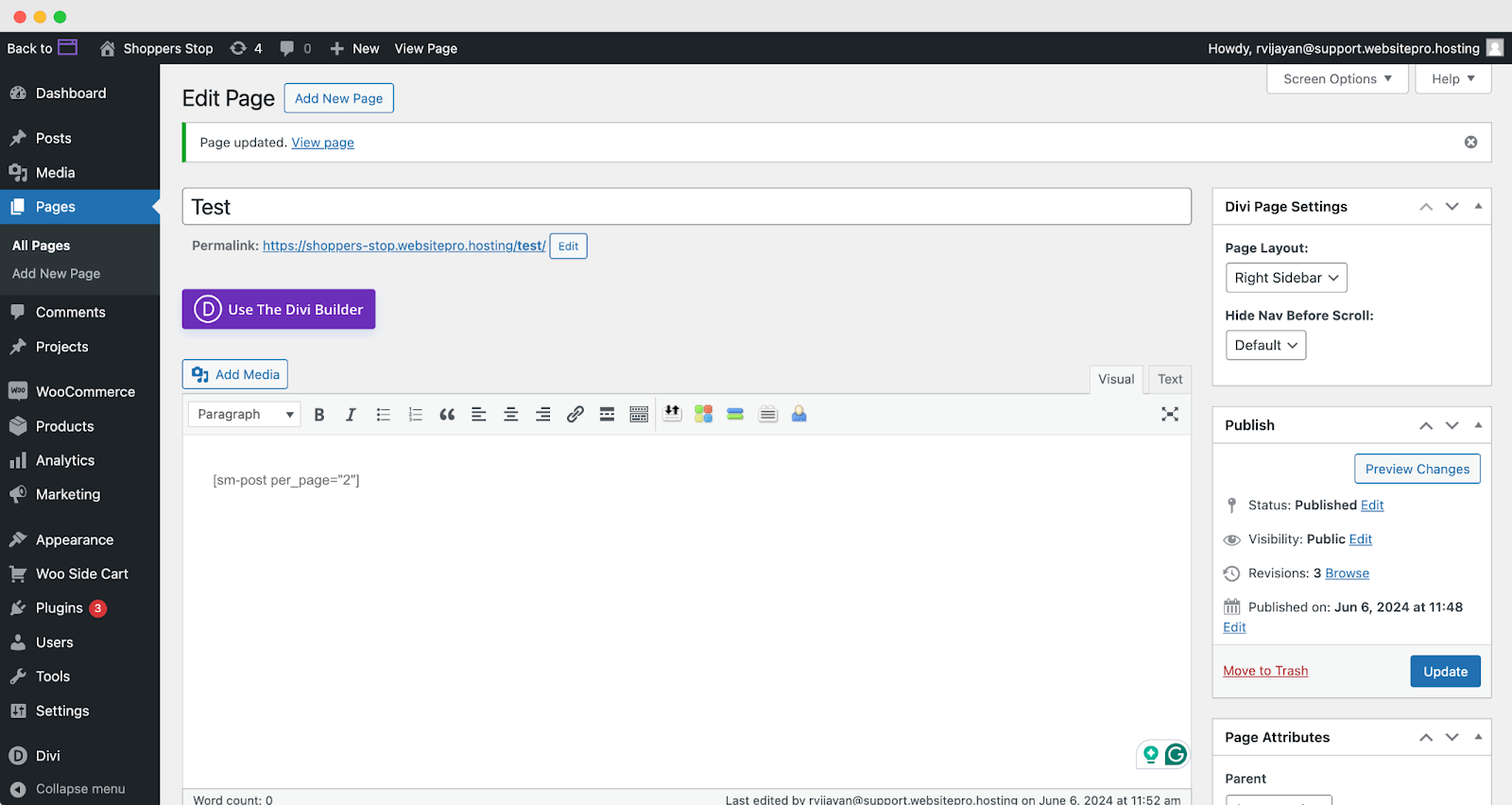
Add the [sm-post] shortcode to any WordPress page or post. Customize how many posts show per page:
[sm-post per_page="2"]The plugin fetches posts from your specified social profile and displays them in a styled format with text and images.

assets/css/custom.css file in the plugin directory. If there's an issue fetching posts, an error message will display in place of the posts.Frequently Asked Questions
Insights Overview
The Insights tab gives you a detailed look at your content performance across all connected social platforms. Use it to understand reach and engagement, identify top-performing content, prove ROI, and optimize your posting strategy.
See reach, engagement, impressions, and click-through rates for every post you've published.
Track clicks on shortened URLs by platform — including traffic from email, DMs, and other sources. (Pro)
Understand exactly what historical data is tracked for each connected platform and what limits apply.
Identify what types of content and posting times generate the best results and refine your calendar.
Access everything at Social Tool > Insights.
Post Performance
Go to Insights > Post Performance to view comprehensive analytics on posts published through Social Tool — and in many cases, posts published organically outside the platform.
Key Metrics Tracked
The number of unique users who saw your post.
Likes, comments, shares, clicks, and reactions.
Total number of times your post was displayed (including repeat views).
Percentage of viewers who clicked or engaged with your content.
Link Performance (Pro)
Link Performance tracks how many clicks your shortened links receive, broken down by platform. Use it to prove performance and see exactly what's driving traffic — including clicks you might not expect.
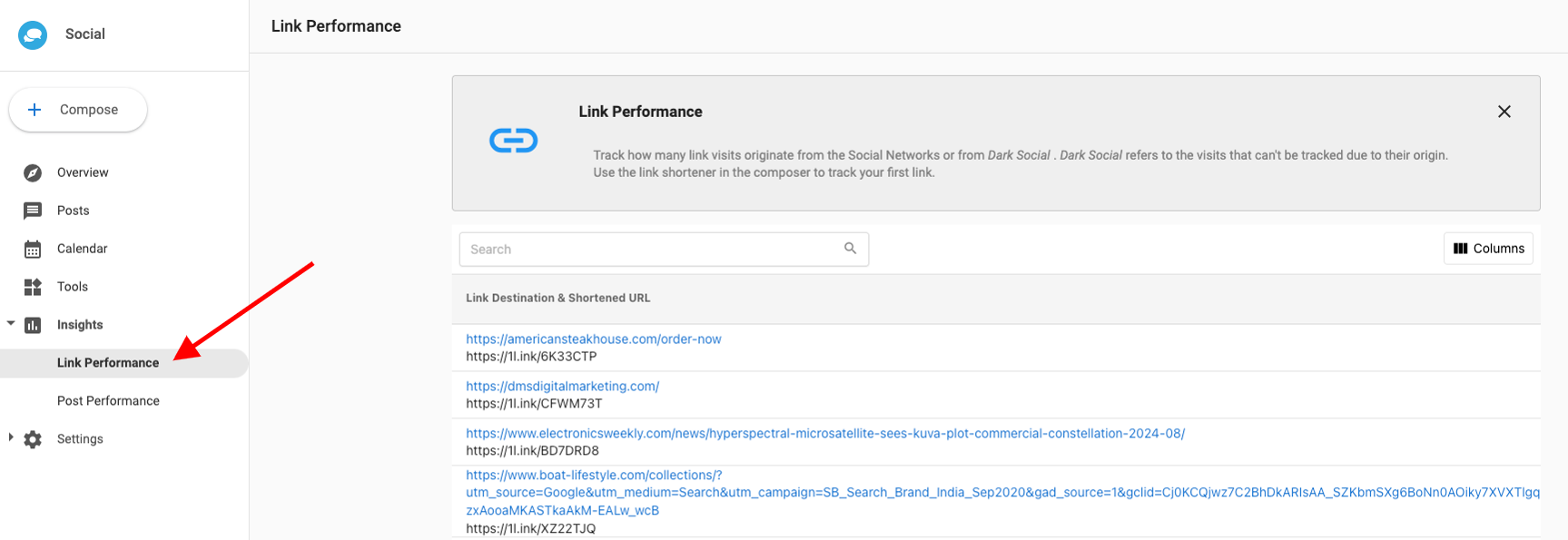
The Other category shows clicks from sources like email forwards, private messages, and other websites — this is known as Dark Social. These clicks still count toward your total even though the referral source can't be precisely identified.
Content & Data Monitored
Social Tool tracks reach and engagement on all posts made through the app, and in some cases posts made outside of it. What data is available depends on the platform and whether the account was recently connected.
Historical Data for Newly-Connected Accounts
When you first connect an account, Social Tool automatically pulls in historical post data. Here's what it can retrieve:
| Platform | Previous Posts | Reach & Engagement | Customer Replies | Limits |
|---|---|---|---|---|
| ✓ | ✓ | ✓ | Last 100 posts only | |
| ✓ | ✓ | ✓ | From when profile became a business account | |
| X (Twitter) | ✓ | ✓ | — | Last 10 posts (active users only) |
| Google Business Profile | ✓ | ✓ | — | Reach/engagement limited to 530 days before connection |
| — | — | — | No historical data available |
Posts Published Through Social Tool
| Platform | Post Content | Reach & Engagement | Customer Replies | Notes |
|---|---|---|---|---|
| ✓ | ✓ | ✓ | Full data | |
| ✓ | ✓ | ✓ | Full data | |
| X (Twitter) | ✓ | ✓ | — | Engagement only (reposts and favorites). Last 10 posts for active users. |
| Google Business Profile | ✓ | ✓ | — | No customer replies |
| ✓ | ✓ | — | No replies for posts made outside Social Tool |
Frequently Asked Questions
Settings
The Settings tab is your control hub for configuring integrations, AI content behavior, content feeds, and account-level preferences. Select a section below to jump straight to what you need.
Connecting Social Media Accounts
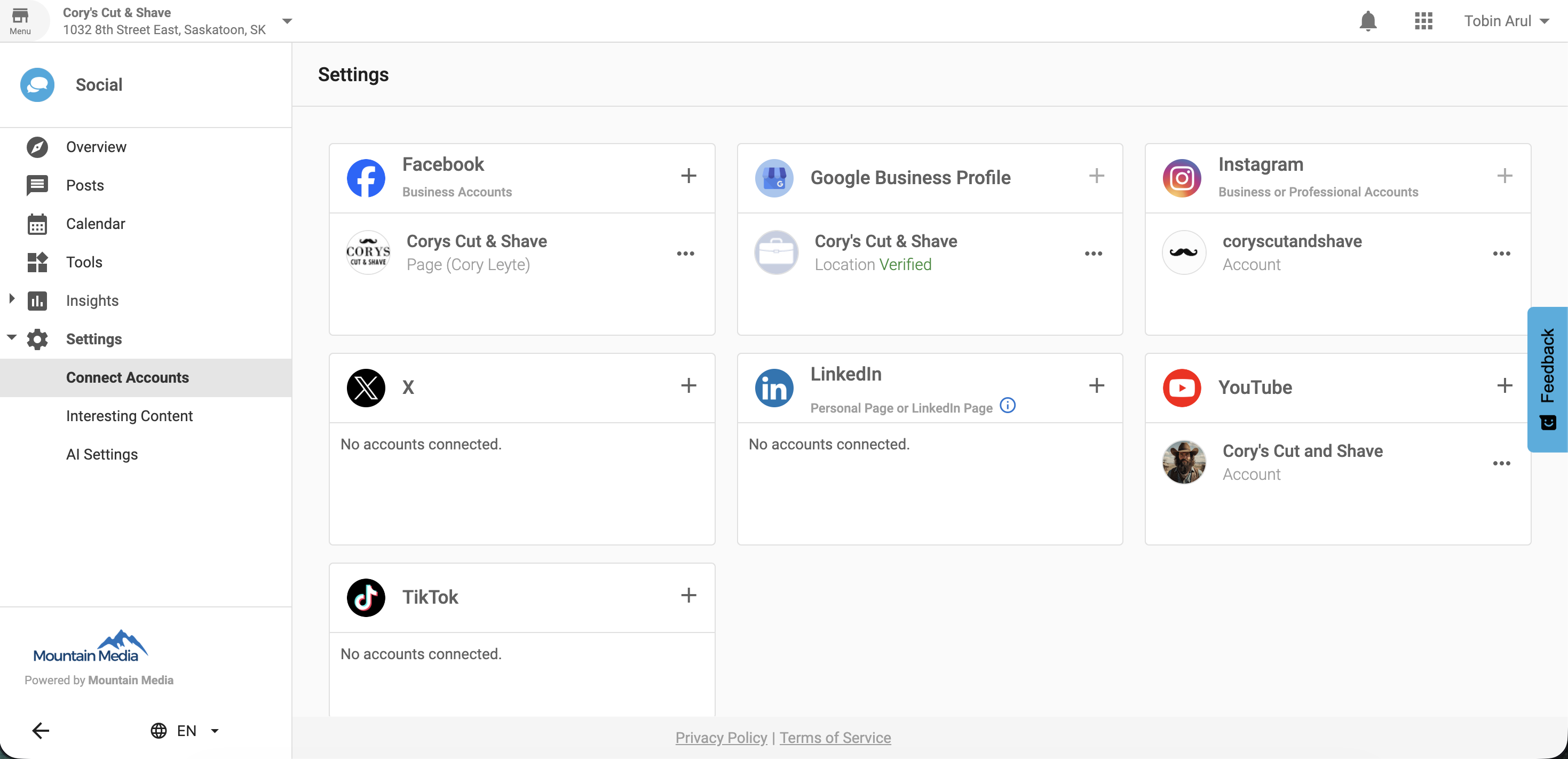
Go to Social Tool > Settings > Connect Accounts. Select the platform, authenticate, grant permissions, and verify the connection. Repeat for each platform you want to use.
Supported platforms: Facebook, Instagram, LinkedIn, X (Twitter), Google Business Profile, TikTok, and WordPress.
Account Connection Limits by Plan
| Platform | Standard | Pro |
|---|---|---|
| 1 | 5 | |
| Google Business Profile | 1 | 1 (only one GBP at a time) |
| — | 1 | |
| — | 4 | |
| X (Twitter) | — | 4 |
| TikTok | — | 5 |
Important Platform Notes
- Instagram: Must be a Business or Creator account, and must be linked to a Facebook Page. Social Tool cannot post to personal Instagram accounts.
- LinkedIn: You can remove a LinkedIn business page without affecting the personal account, but removing the personal account will also remove the business page. Reconnection required every 60 days.
- Google Business Profile: Only one GBP location can be connected at a time. To switch, remove the current connection first, then connect the new one.
- TikTok: Business and Creator accounts are fully supported. Personal accounts may have limited functionality.
- WordPress: Connect via Settings > Integrations > WordPress. Enter your blog's URL and configure auto-share settings.
- Password changes: Changing your password on any connected platform will invalidate the connection token — you'll need to reconnect in Social Tool.
Converting Instagram to a Business Account
If you see "User is not an Instagram business" error:
- Open the Instagram mobile app and go to your Profile.
- Tap the three lines (☰) > Settings and Privacy > Account Type.
- Tap Switch to Professional Account.
- Return to Social Tool, disconnect Instagram, and reconnect it.
AI Settings (Pro)
AI Settings help Social AI understand your business so it can generate posts that are relevant, on-brand, and consistent — with fewer editing rounds. Go to Social Tool > Settings > AI Settings.
1. Common Instructions
Common Instructions guide AI content generation for single posts and bulk campaigns. They act as a standing brief that the AI applies every time it writes content.
- Navigate to Settings > AI Settings.
- Find the Common Instructions text box.
- Write descriptive, full-sentence instructions about your business, tone, and audience.
- Click Save.
Once saved, these instructions are automatically applied in Write with AI prompts and all Post Campaign (Bulk Create) workflows.
2. AI Knowledge Base
The AI Knowledge section lets you enrich the AI with specific business information from multiple sources, dramatically improving personalization and relevance.
Sources you can add:
Hours, services, contact info — suggested automatically.
Crawl up to 100 pages from your website via Single Page, Follow Links, or Site Map mode.
Add pricing, seasonal promotions, FAQs, or any other specific knowledge manually.
How to add AI Knowledge:
- Go to Settings > AI Settings > AI Knowledge and click Add Knowledge.
- Choose your source: Business Profile, Website URL, or Custom Text.
- For websites: enter the URL, choose a crawl mode, review the pages found, select which to train on, and click Save.
- Return to AI Settings and confirm your changes.
YouTube Integration (Pro)
Connect your YouTube channel to publish, draft, and schedule video content directly from Social Tool — without switching tools. You can connect up to two YouTube channels per account.
How to Connect YouTube
- Go to Settings > Connect Accounts and click the + icon next to YouTube.
- You'll be redirected to Google OAuth. Select the Google account with an associated YouTube channel.
- Review and click Allow to grant permissions.
- Your YouTube channel will appear under Settings > Connect Accounts.
Managing Your YouTube Connection
- Re-authenticate: Go to Settings > YouTube > Edit connection.
- Remove: Go to Settings > YouTube > Delete connection. You'll need to reconnect to publish again.
Interesting Content & Custom Feeds
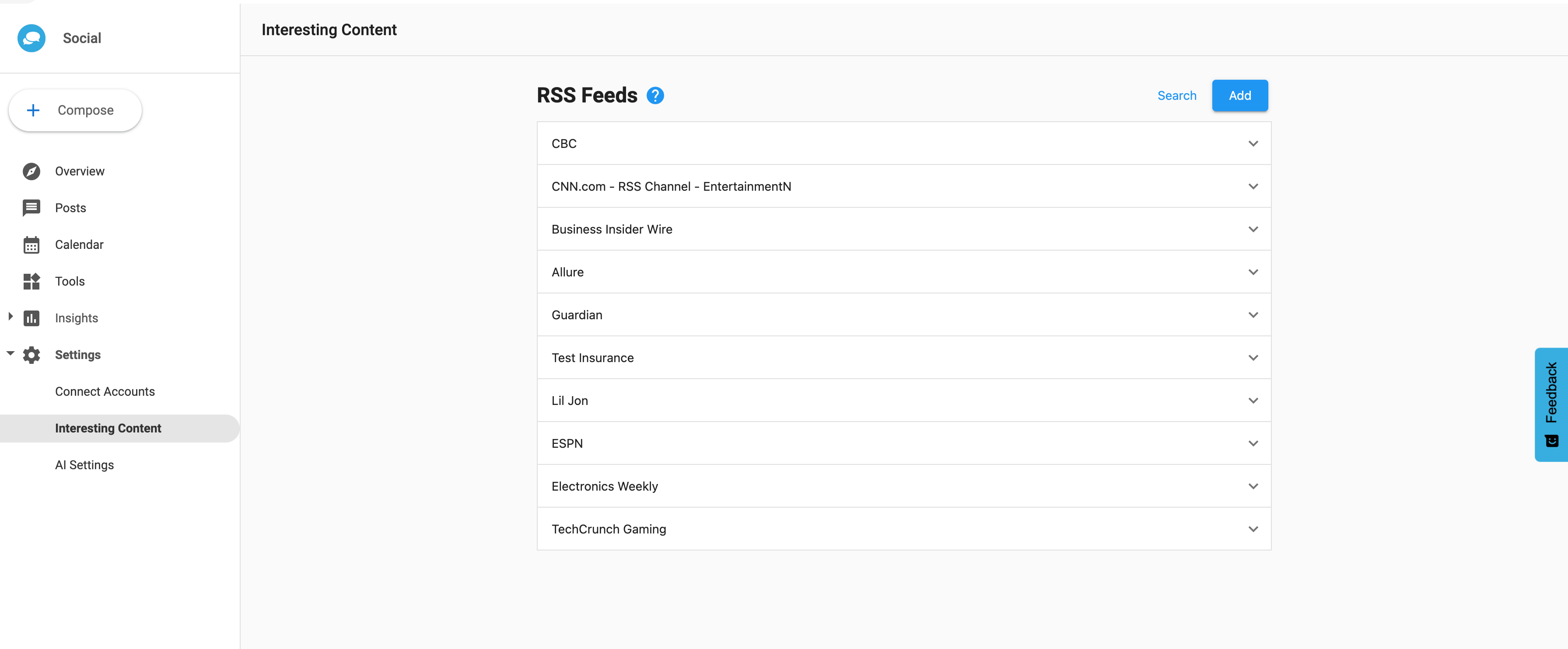
Discover and curate content from RSS feeds to inspire or supplement your social posts. Access via Social Tool > Settings > Interesting Content.
Add a Curated RSS Feed
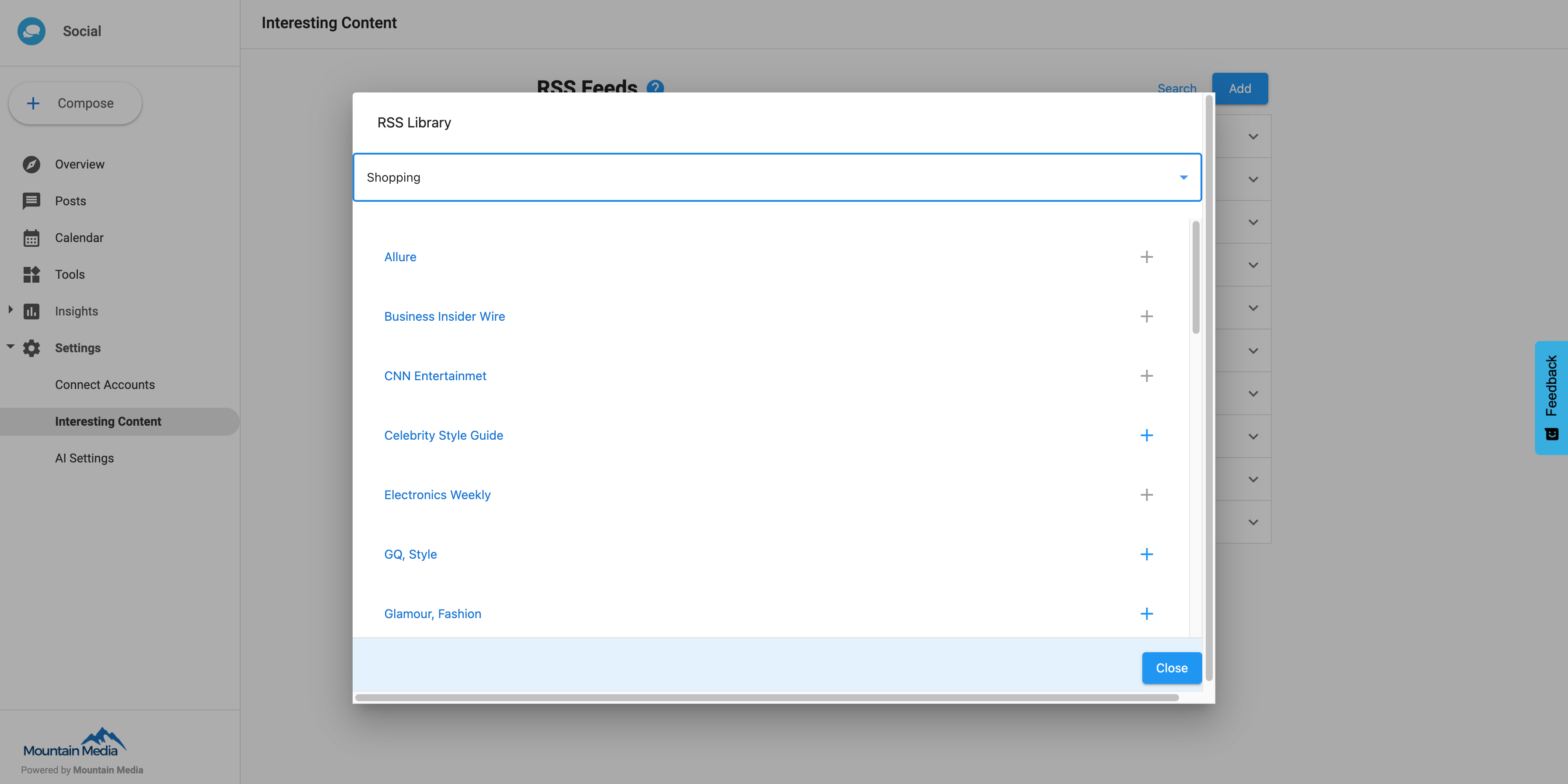
- Click Search in the Interesting Content settings.
- Select a business category.
- Click + next to any feeds to add them to your content feed. Click the feed name to preview the pages it covers.
Add a Custom RSS Feed
- Go to Settings > Integrations > Custom Feed.
- Enter the RSS feed URL or API endpoint.
- Set filtering rules — include/exclude by keyword, category, or date.
- Configure sharing: auto-share or manual review, choose platforms, add custom messages.
- Test the integration, then save.
Adding New Facebook Pages
If you've been granted Admin access to a new Facebook Page but it doesn't show up in your list of managed pages, it's because Facebook now requires new pages to be re-authorized before they appear. Follow these steps to surface the new page.
- Log into Facebook (the account through which pages are managed) and go directly to facebook.com/settings.
- Select Business Integrations on the left.
- Check the box for the Social Reputation App.
- Click Remove the App — this breaks the existing token.
- Go back to Social Tool and connect any Facebook account. This automatically re-authenticates the app for all accounts managed by that profile, and the new page will now appear in your list.
Troubleshooting Quick Reference
| Platform | Common Error | Fix |
|---|---|---|
| Expired token / access not granted | Reconnect in Settings > Connect Accounts | |
| No permission to post | Log in as Admin, Editor, or Moderator of the Page | |
| Link violates Community Standards | Run URL through Facebook's Link Debugger, remove flagged content | |
| Not a Business account | Switch to Professional Account in Instagram app, then reconnect | |
| Not connected to Facebook Page | Link IG to a FB Page via IG app > Edit Profile > Page | |
| Token expired/broken | Reconnect in Settings > Connect Accounts | |
| Token expired (every 60 days) | Reconnect when prompted — takes a few seconds. Watch for yellow banner 10 days before expiry. | |
| Google Business Profile | "Location belongs to a chain" | Post directly in Google Business Profile — API disabled for chain businesses |
| Google Business Profile | Post rejected | Remove phone numbers, URLs, or sensitive keywords. Review Google's posting policy. |
| Google Business Profile | "Business category not eligible" | Update category via Partner Center > Edit |
| X (Twitter) | Account locked / looks automated | Log in at x.com to unlock the account |
| X (Twitter) | Invalid/expired token | Settings > Connect Accounts > ⋮ > Reconnect |
| X (Twitter) | Video upload failed | Check X's video format and size requirements, reformat video |
| Any platform | Post failed to publish | Usually an expired token — reconnect in Settings > Connect Accounts > ⋮ > Reconnect. Failed scheduled posts are saved to Drafts. |
General Fixes for Any Platform
- Disconnect the affected account in Social Tool.
- Remove the Social Tool app from the platform (e.g., Facebook > Apps & Websites).
- Clear your browser cache or open an incognito/private window.
- Try a different browser.
- Reconnect the account in Social Tool.