Administration Settings
Your Administration section is the control center for your DFM account — manage your business profile, users, messaging channels, CRM setup, scoring, and SMS registration all in one place.
What's in Administration?
Administration is where you configure the foundational settings that power everything in your DFM account. Getting these right ensures your tools stay connected, your messaging works properly, and your data is organized the way your business needs it.
Your core business info — name, address, hours, logo, and services. Used everywhere in DFM.
View, invite, and remove team members who have access to your DFM account.
Configure phone, SMS, web chat, email, Facebook, Instagram, and WhatsApp channels.
Manage contacts, companies, opportunities, and create custom fields for your records.
View your Review Grade, Listing Score, and manage contact lead scores in the CRM.
Register your business for A2P 10DLC to send text messages to US customers.
Recommended Setup Order
- Business Profile — Fill in your name, address, hours, logo, and services first. This powers listings, AI, and reporting.
- Users — Invite your team members so everyone has access.
- Conversations Settings — Connect your phone number, SMS, and messaging channels.
- SMS Registration — Submit your A2P 10DLC registration if you plan to text customers.
- CRM Objects — Add custom fields to track data specific to your business.
- Score — Set up contact scoring if you want to prioritize leads and automate follow-ups.
Business Profile
Your Business Profile is the single source of truth for your business information in DFM. It powers your listings, AI employees, lead capture tools, automations, and reporting. Keeping it complete and up to date means you only have to maintain your info in one place — it updates everywhere automatically.
To access it, go to Administration > Business Profile.
Profile Sections
Primary Info
The core details that appear on your listings and across DFM:
- Business name and common name
- Website URL
- Primary business category and additional categories
- Physical address with map marker
- Phone number (must be formatted internationally)
- Service area business toggle (if you serve customers at their location)
Click Save after making changes.
Hours
Set your regular hours of operation and add special hours for holidays or closures. Your AI employees use these hours when answering customer questions.
Descriptions
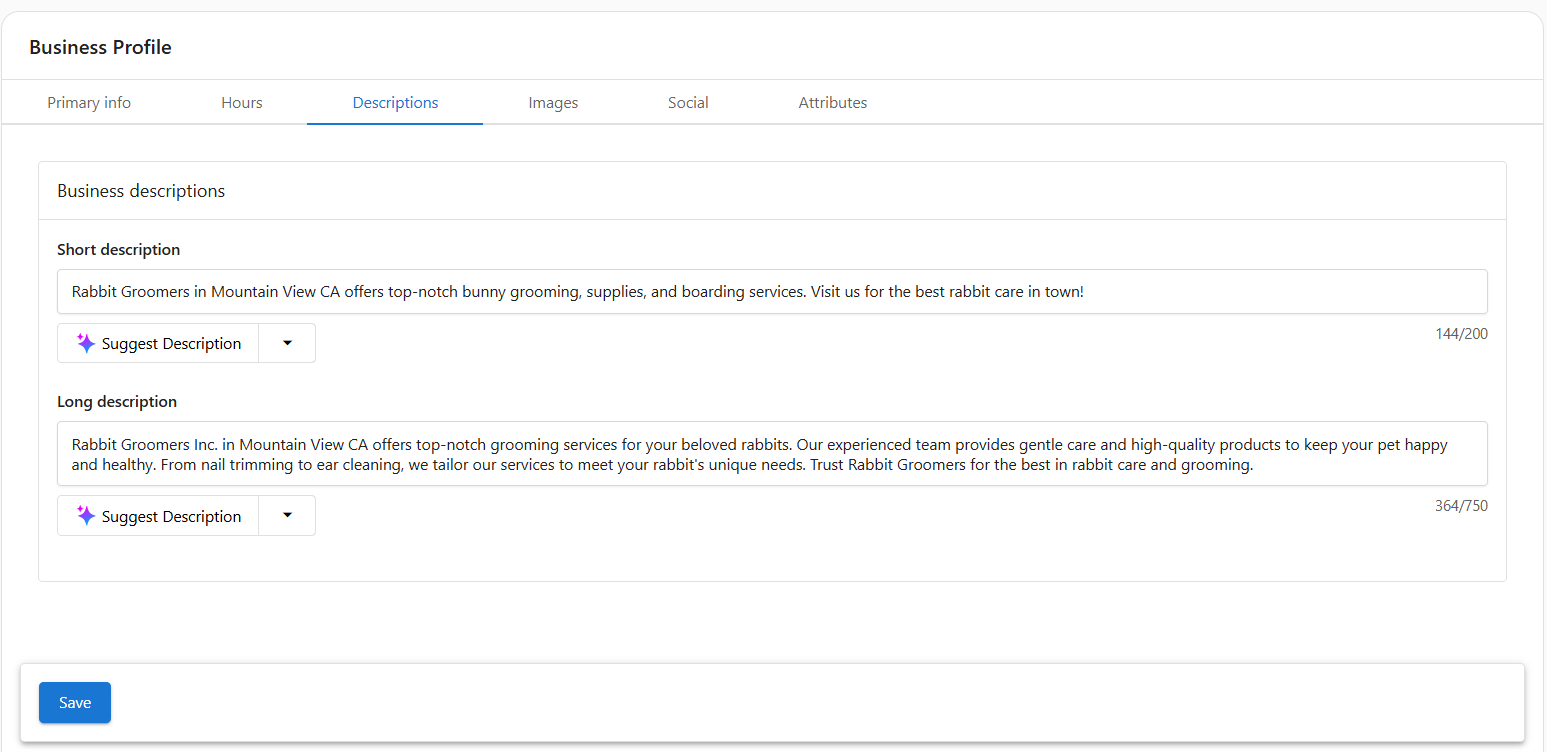
Add a short description (up to 200 characters) for previews and listings, and a long description (up to 750 characters) for more detail. You can use the Suggest Description button to generate content with AI assistance.
Images
Upload your brand visuals — these appear across your listings and DFM tools:
- Main logo
- Secondary logo (optional)
- Cover photo
- Gallery images — shared to listings that accept photos
Social
Add links to your active business social pages — Facebook, LinkedIn, Instagram, Twitter/X, YouTube, Pinterest, and Foursquare. You can also add a Blog or RSS feed URL.
Attributes
Attributes define specific qualities your business offers — things like wheelchair accessibility, pet-friendly, women-owned, curbside pickup, delivery, and more. These are synced to Google and Bing to improve your local search discoverability.
Frequently Asked Questions
Users
The Users page lets you manage who has access to your DFM account. You can view all current users, invite new team members, and remove users who no longer need access.
To access it, go to Administration > Users.
View Users
The Users page shows a table of everyone with access to your DFM account. Each row shows the user's email, first name, last name, and phone number.
Invite a Team Member
- On the Users page, click Invite user.
- In the sidebar, fill in their first name, last name, email (required), and phone.
- Click Send.
The invited user receives a welcome email with instructions to access DFM. If that email address is already associated with your account, you'll see an error.
Remove a User
- Find the user you want to remove on the Users page.
- Click the three-dot menu on their row.
- Select Remove user.
- Confirm by clicking Remove user in the dialog.
Frequently Asked Questions
Conversations Settings
Conversations Settings is where you configure all your messaging channels — phone, SMS, web chat, email, and social messaging. Each channel has a card showing its status and a Configure button.
To access it, go to Administration > Conversations Settings.
Channel Connections
| Channel | What you configure |
|---|---|
| Phone & SMS | Assign your Conversations phone number, enable AI handling, and set up missed-call text back. |
| Web Chat | Install and configure the website widget, set availability, and enable AI options. |
| Facebook Messenger | Connect a verified Facebook Page so messages appear in your inbox. |
| Instagram Messages | Connect via Facebook to enable DMs in your inbox. |
| WhatsApp Business | Connect via Facebook to enable WhatsApp messages in your inbox. |
| Set sender name and address, and connect the inbox. | |
| Messaging Templates | Create reusable replies for common questions and scenarios. |
Phone & SMS
- Choose your primary phone number for calling and texting
- Configure call forwarding and voicemail settings
- Enable Missed-Call Text Back to automatically text callers you couldn't answer
AI Replies
From Conversations Settings you can assign an AI Employee to automatically respond on specific channels. Set guardrails and escalation rules so complex messages are handed off to a person when needed. See the AI Workforce Guide for full setup details.
Frequently Asked Questions
CRM Objects & Fields
CRM Objects are the building blocks of your DFM CRM — Contacts, Companies, and Opportunities. CRM Fields let you extend these records with custom data fields specific to your business, so you're not limited to the default setup.
To access it, go to Administration > CRM Objects.
Core CRM Objects
Individual people you communicate with. Support phone, email, SMS, tasks, and marketing lists.
Businesses, locations, or accounts that own contacts and opportunities.
Pipeline stages for tracking sales deals or service projects.
Create your own object types — service contracts, equipment assets, project milestones, and more.
Custom Fields
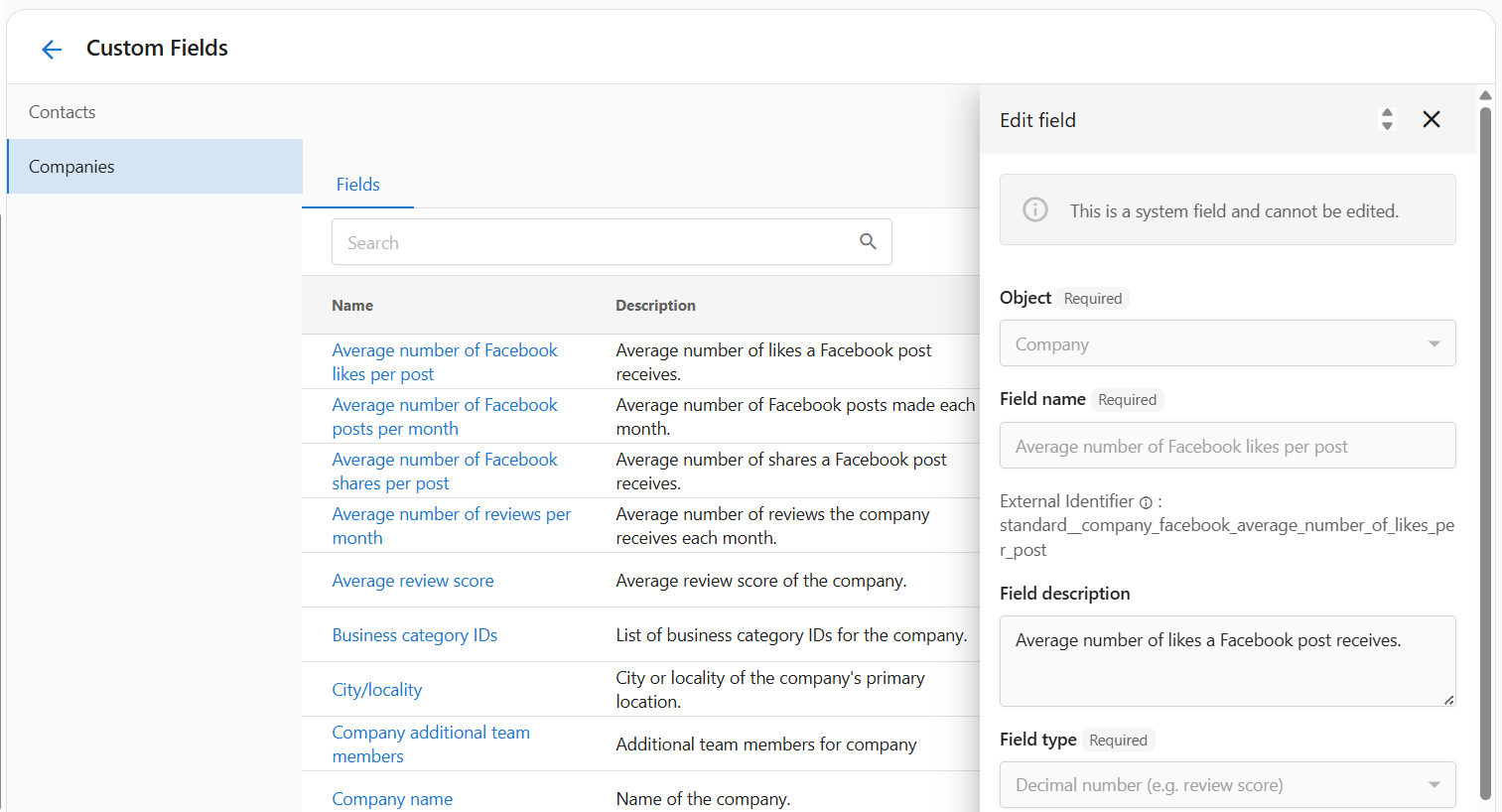
Default contact and company records don't include everything every business needs. Custom fields let you track things like birthdays, service preferences, VIP status, appointment history, or any internal data that matters to your workflow — all inside DFM, without separate spreadsheets.
Available Field Types
- Text — General text (e.g. preferred contact method)
- Number — Whole numbers (e.g. number of locations)
- Decimal number — Decimal values (e.g. review score)
- Email — Validated email address
- Phone number — Formatted phone number
- Date — Calendar date (e.g. birthday)
- Date and time — Date and time (e.g. next appointment)
- True or false — Boolean yes/no (e.g. VIP customer)
How to Create a Custom Field
- Go to Administration > CRM Objects.
- Click Create to open the new field form.
- Choose the Object — Contact or Company.
- Enter a Field name (e.g. "Birthday" or "Preferred contact method").
- Optionally add a Field description for internal clarity.
- Select the Field type from the list above.
- Click Create to save.
Ideas for Custom Fields
- Track birthdays to send greetings or offers
- Log service preferences (e.g. favorite style or dietary restrictions)
- Flag VIP customers with a true/false field for prioritized outreach
- Store secondary contact info (e.g. backup phone or emergency contact)
- Segment lists by visit count for loyalty campaigns vs new customer offers
Frequently Asked Questions
Score
Score in DFM covers two areas: performance grades in your Executive Report (like your Review Grade and Listing Score) and contact lead scoring in your CRM. Together they help you see how your business is performing and which contacts to focus on.
Scores in Your Executive Report
A letter grade (A–F) summarizing your online review presence compared to others in your industry — based on average score, number of sources, total reviews, and reviews per month.
How accurate and complete your business listings are across the web. Higher scores mean more consistent info across directories.
Review Grade Breakdown
- A — 90th–100th percentile (top 10% in your industry)
- B — 75th–89th percentile
- C — 50th–74th percentile
- D — 30th–49th percentile
- F — 0th–29th percentile
Contact Score (Lead Score)
Contact Scoring lets you assign a numeric score to each contact so you can track engagement, prioritize follow-ups, and segment contacts for marketing. The score appears directly on each contact's profile in your CRM.
Why Use Contact Scoring?
- Qualify leads based on behavior or attributes
- Identify high-priority contacts at a glance
- Drive automated workflows (e.g. when a score reaches a threshold)
- Segment contacts for targeted campaigns (e.g. top scorers get a referral offer)
How to View and Update a Contact Score
- Go to Administration > Score.
- View or update contact scores from the scoring page.
- Enter a new numeric score and click Save.
Using Contact Scores in the CRM
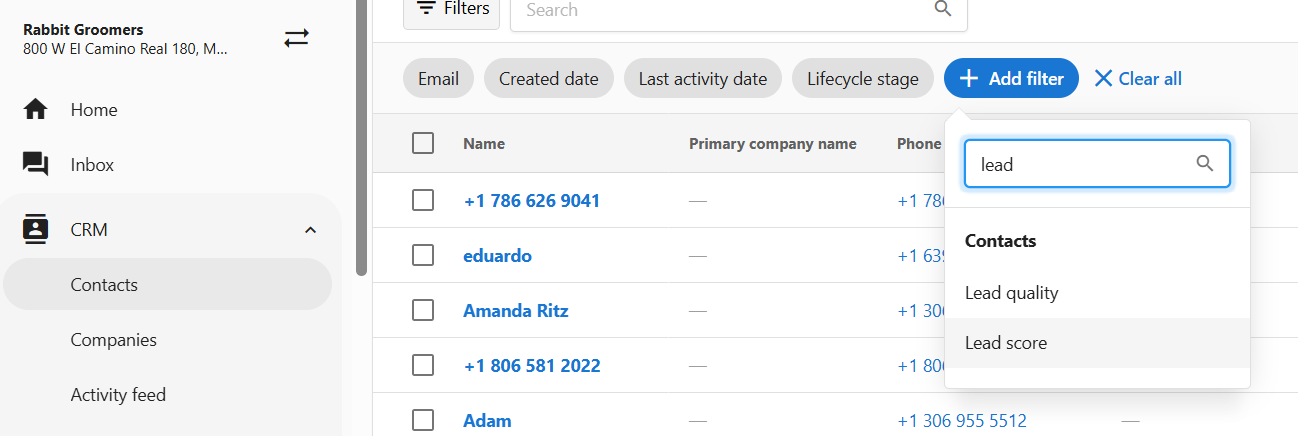
- Open CRM > Contacts.
- Click Add Filter and choose Lead Score.
- Filter and sort contacts by score to prioritize your outreach.
Frequently Asked Questions
SMS Registration (US Businesses)
To send text messages to customers in the United States, your business must complete A2P 10DLC registration. This is a carrier requirement designed to reduce spam — it verifies your business identity and checks that your website meets compliance standards before approving SMS messaging.
Before You Submit — Website Requirements
Carriers manually review your website before approving registration. The most common reason for rejection is a missing or incomplete website. Complete all four steps below before submitting.
Step 1 — Update Your Privacy Policy
Your privacy policy must explicitly include the following language:
| Requirement | Language to include |
|---|---|
| No sharing of SMS data | Mobile information will not be shared with third parties or affiliates for marketing or promotional purposes. |
| Opt-in disclosure | By providing your number, you consent to receive automated informational and promotional messages. |
| Opt-out instructions | You can cancel the SMS service at any time. Just text "STOP" to our number. |
| Help instructions | Reply HELP for assistance. |
| Rates | Message and data rates may apply. Message frequency varies. |
Step 2 — Update Your Terms of Service
Your terms of service must describe your SMS program:
| Requirement | Language to include |
|---|---|
| Program description | By opting in, you agree to receive [Your Business Name] notifications and alerts. |
| Standard phrases | Message and data rates may apply. Message frequency varies. Carriers are not liable for delayed or undelivered messages. |
| SMS instructions | Text HELP for help or STOP to cancel. |
Step 3 — Add Opt-In Checkboxes to Web Forms
Every form on your website that collects a phone number must include a consent checkbox:
- Place a checkbox next to the phone field with the text: "I agree to receive automated messages from [Your Business Name]. Message & data rates may apply. Reply STOP to opt out."
- The checkbox must be unchecked by default
- Your system must log the phone number and consent status at the time of form submission
Step 4 — Enable AI Chat Consent (if applicable)
If you use the AI Chat Receptionist, an additional consent question is automatically added to the Lead Capture capability for accounts submitting A2P registration. The AI will ask visitors to confirm they agree to receive text messages before saving their number.
Submitting Your Registration
- Go to Administration > Conversations Settings > Phone & SMS.
- Click Register now.
- Complete the registration form with your business information.
- Enter your EIN (Employer Identification Number).
- Click Submit information.
About Your EIN
Your EIN is the nine-digit number the IRS assigned to your business for tax purposes. Find it on your IRS CP 575 EIN Confirmation Letter, previous tax returns, or bank account documents. If you don't have one, you can apply via IRS Form SS-4.
After You Submit
Registration approval typically takes 1–4 weeks. A third-party agency reviews your business info against government databases and checks your website for compliance. You'll receive a notification when approved.
Once approved, you can send SMS from Conversations, Automations, Campaigns, and Reputation (review requests).
Common Rejection Reasons
| Issue | Solution |
|---|---|
| Privacy policy doesn't mention SMS | Add the required language from Step 1 above |
| Missing STOP/HELP instructions | Add opt-out and help instructions to your privacy policy |
| Terms of service missing SMS program | Add the required language from Step 2 above |
| Web forms missing consent checkbox | Add opt-in checkboxes to all forms with phone fields |
| Checkbox is pre-checked | Change the default state to unchecked |
| Business name or address doesn't match IRS records | Ensure all info exactly matches what the IRS has on file for your EIN |
| Newly issued EIN | Wait 30–90 days for your EIN to appear in verification databases, then resubmit |