Reputation Management Guide
DFM's Reputation Management brings your reviews, business listings, online mentions, and social monitoring into one place — so you can manage your online presence and respond to customers quickly.
Getting Started with Reputation Management
Reputation Management brings your reviews, business listings, and online mentions into one place so you can monitor your reputation and respond to customers quickly. Follow this checklist to connect your accounts, set up listings, and configure alerts.
Getting Started Checklist
- Add or select your business location — Ensure you're monitoring the right business.
- Connect your review sources — Link Google, Facebook, and other platforms.
- Set up and verify your listings — Confirm your business listings and fix any errors.
- Configure notifications — Get alerted when new reviews or mentions appear.
- Start monitoring and responding — View reviews and respond where supported.
Step 1: Add or Select Your Business Location
Before connecting review sources, make sure you have the correct business location selected. If you manage multiple locations, you can switch between them from one login.
- Log in to DFM.
- Navigate to Reputation Management.
- Use the location selector (if applicable) to add a new business or switch to an existing one.
Step 2: Connect Your Review Sources
Reputation Management pulls reviews from platforms like Google, Facebook, and Yelp. Connect your accounts so reviews appear automatically in your dashboard.
- Go to Reputation Management > Settings > Connect Accounts.
- Click the + icon next to the platform you want to connect (e.g., Google or Facebook).
- Sign in and grant the required permissions.
- Select the business location or page to connect.
For Google, you can also connect from Reputation Management > Listings by clicking a Google listing and choosing Connect Google Business Profile.
Step 3: Set Up and Verify Your Listings
Listings are the places online where your business appears — search engines, directories, and review sites. Reputation Management matches your business to these listings and flags errors so you can fix them.
- Go to Reputation Management > Listings > Primary Listings.
- Review your Listing Score and compare it to industry averages.
- Click a listing to view details, go to the source to edit, or mark it as correct.
- Connect or fix your Google Business Profile listing if needed.
Step 4: Configure Notifications
Stay informed when new reviews or important mentions appear. Configure alerts so you can respond quickly.
- Go to Reputation Management > Settings.
- Open the Notifications section.
- Choose between instant alerts or daily digest emails for new reviews and mentions.
- Optionally set up scheduled reports for weekly or monthly summaries.
For mentions tracking, add keywords in Settings > Mentions so Reputation Management can monitor when your business is mentioned online.
Step 5: Start Monitoring and Responding
Once your sources are connected and listings are set up, reviews will populate in your dashboard. You can view them, respond where supported, and use templates to save time.
- Go to Reputation Management > Reviews > Manage Reviews.
- Browse reviews from all connected sources in one place.
- Click Respond to reply directly (supported on Google Business Profile and Facebook).
- Use response templates to reply quickly, or try AI-generated responses if available on your plan.
Frequently Asked Questions
What is Reputation Management?
Reputation Management is a centralized tool that helps businesses monitor and manage their online presence. It brings together reviews, business listings, and online mentions into one platform, making it easier to take action and stay informed.
You can track what's being said across the web, respond to reviews, correct business information, and understand how your business compares to others in your industry.
Why Use Reputation Management?
Maintaining an accurate and active online presence is essential. But keeping up with multiple platforms, inconsistent business data, and scattered reviews can be overwhelming. Reputation Management simplifies this by collecting everything in one place, making it easier to:
Respond to customers faster from a single dashboard.
Correct outdated or inconsistent business information.
Monitor brand sentiment and identify trends over time.
Generate reports that demonstrate your reputation growth.
What's Included
- Review Monitoring: View reviews from major platforms in one dashboard.
- Listing Accuracy: Identify and correct incorrect or missing business information.
- Mentions Tracking: Monitor where your business is mentioned online.
- Sentiment Analysis: Highlight key themes and tone in online reviews.
- Review Response: Respond to reviews directly from the platform (when supported).
- Automated Alerts: Get notified of new reviews or important mentions.
- Reporting Tools: Generate summaries and trend reports over time.
- Competitive Benchmarking: See how your business compares to others in your industry.
Managing Multiple Businesses
If you're managing multiple locations or client businesses, the platform allows you to:
- View and switch between businesses from one login.
- Track reviews, listings, and online mentions for each account.
- Generate separate reports for each business.
- Organize teams by client, department, or region.
Reports, Alerts & Automation
- Alerts: Get notified by email when new reviews or mentions are detected.
- Scheduled Reports: Receive recurring summaries of key metrics.
- Sentiment Highlights: Understand common themes in customer feedback.
- Listing Updates: Monitor changes to business data across key directories.
Feature Comparison by Plan
| Feature | Standard | Professional | Premium |
|---|---|---|---|
| Manage reviews including responding to Google and Facebook | ✓ | ✓ | ✓ |
| Receive daily digest and executive reports | ✓ | ✓ | ✓ |
| Review display widget for your website | ✓ | ✓ | ✓ |
| Sentiment analysis of customer feedback | ✓ | ✓ | ✓ |
| Monitor listings on Google and Facebook | ✓ | ✓ | ✓ |
| Create and manage review response templates | — | ✓ | ✓ |
| AI-powered responses to reviews | — | ✓ | ✓ |
| Manage reviews on 100+ sources | — | ✓ | ✓ |
| Create unlimited customer review response templates | — | — | ✓ |
| Monitor online citations | — | — | ✓ |
| Monitor up to 3 competitors | — | — | ✓ |
| Monitor online mentions and social media presence | — | — | ✓ |
| Send unlimited email review requests monthly | — | — | ✓ |
| Bulk send review requests | — | — | ✓ |
| Send SMS review requests | — | — | ✓ |
| AI-generated email templates | — | — | ✓ |
| Add your business logo to email templates | — | — | ✓ |
Frequently Asked Questions
Reviews Overview
The Reviews feature in Reputation Management lets you monitor, manage, and respond to customer reviews pulled from connected review sources. Once accounts are connected, reviews are automatically retrieved and organized under one dashboard.
What's Included
Reply to Google, Facebook, and My Listing reviews directly from the platform.
Request reviews via text message (Premium plan).
Display your best reviews on your website.
Use AI to draft professional review responses quickly.
Get notified when customers update their reviews.
Match reviews to known contacts in your customer list.
How to View and Manage Reviews
- Go to Reputation Management > Settings > Connect Accounts and click + to connect Google, Facebook, or other review sources.
- Navigate to Reputation Management > Reviews > Manage Reviews to view all reviews.
- Reviews appear once a listing is matched (via Best Match) or manually marked as yours in the Listings tab.
- Reviews update every 24 hours after the initial listing is confirmed.
Exporting Reviews
Export all reviews:
- Go to Reputation > Reviews.
- Click the More Options (three dots) icon.
- Select Export to CSV.
Export from an individual listing:
- Navigate to Reputation > Listings.
- Select the desired listing.
- Go to the Reviews tab.
- Click the More Options icon and choose Export to CSV.
Responding to Reviews
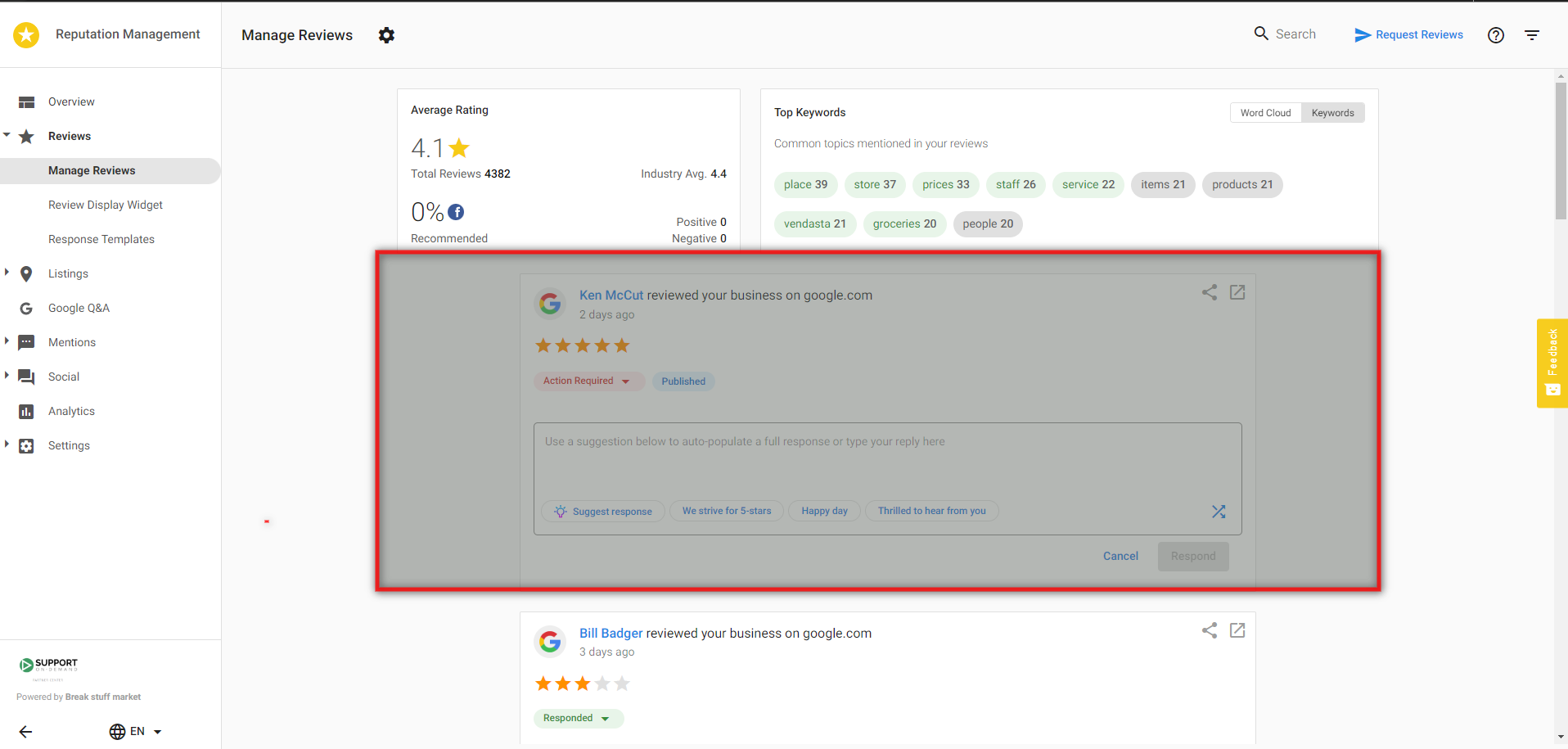
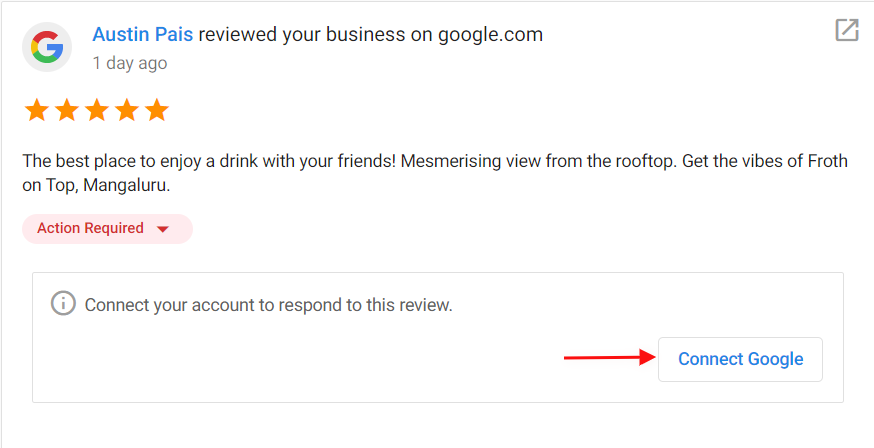
Navigate to Reviews > Manage Reviews. You can respond directly to Google, Facebook, and My Listing reviews from this page. Google and Facebook accounts must be connected in Settings first.
Type your response in the text field, or choose from a review response suggestion to auto-populate a response. All suggestions can be edited. Click Respond to post.
For all other review sites (Yelp, TripAdvisor, etc.), clicking Respond will take you to the site where you can respond.
Tips for Positive Reviews
Thank them for their praise and invite them to come back. You can mention upcoming promotions and use your business name in the response to help SEO. Positive reviews also make great social posts — if you have Social Marketing connected, click the Share icon to share on your social networks.
Tips for Negative Reviews
Personalize your response to the content of the review so they know you're listening. Apologize for the experience and invite the reviewer to resolve the issue offline — it's always better to deal with concerns privately.
How Long Does It Take for Reviews to Appear?
- Monitored sources (not connected): Reviews import within 24 hours of being posted.
- Google Business Profile (connected): New reviews sync approximately 2 hours after posting.
- Facebook Pages (connected): New reviews sync approximately 10 minutes after posting.
- My Listing: Reviews submitted through My Listing appear immediately.
AI-Generated Review Responses
AI has been integrated into Manage Reviews to allow users to quickly generate a review response. This feature is available for accounts with Reputation Management Pro or Premium.
- Go to Reputation Management > Reviews > Manage Reviews.
- Filter reviews by Without Responses to display reviews that need a reply.
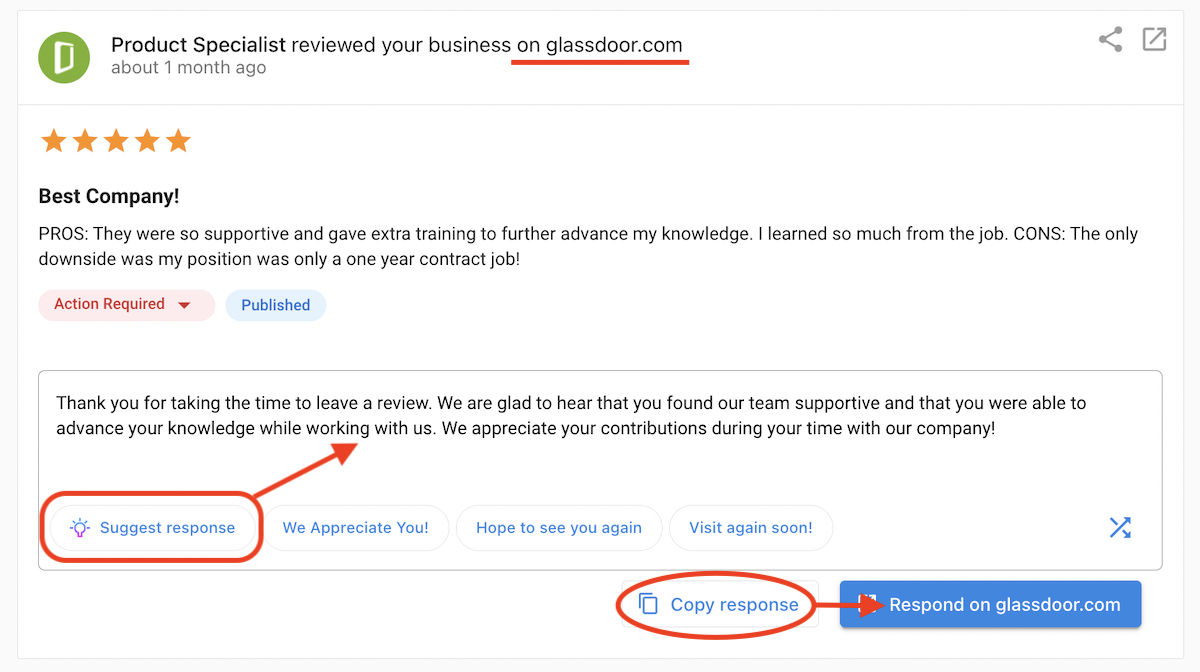
- Click Suggest Response on any review.
The AI will generate a response. If you have templates set up in different languages, the AI can detect the language of the review and respond in kind.
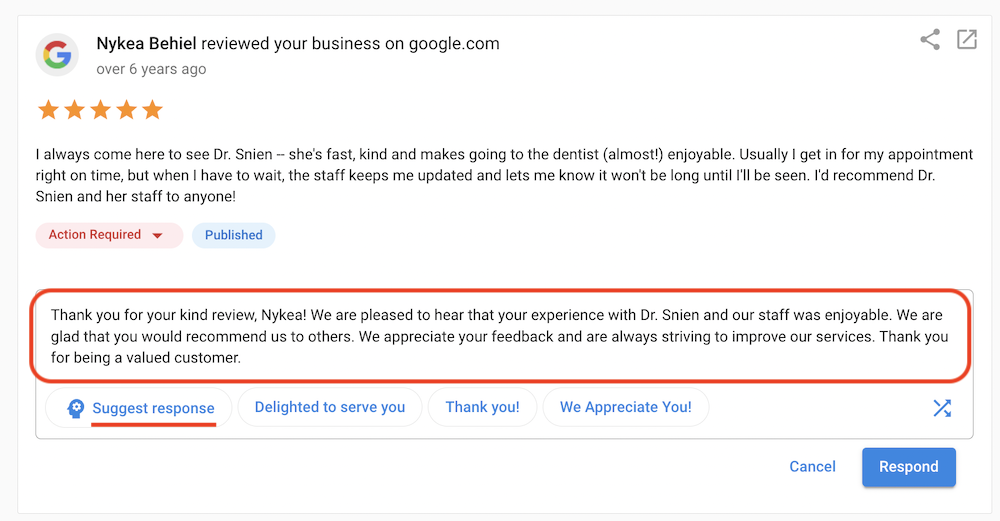
Edit the response if needed, then click Respond. To use the AI response on other review sites, click Copy response > Respond on [review site].
Review Widget
The Review Widget lets you display reviews from Google, Facebook, and My Listings on your website. Popular review sources are included with all editions of Reputation Management, with additional sources available with Review Widget Pro.
Review Widget Features by Edition
| Feature | All Editions | Review Widget Pro |
|---|---|---|
| Google, Facebook, and My Listings review sources | ✓ | ✓ |
| Additional review sources | — | ✓ |
| Feed layout | ✓ | ✓ |
| Carousel layout | — | ✓ |
| Badge layout | — | ✓ |
| Layout customization | — | ✓ |
| Light and dark themes | ✓ | ✓ |
| Accent colour | ✓ | ✓ |
How to Set Up the Review Widget
- Go to Reputation Management > Reviews > Review Widget.
- Select your Sources — choose which review sources to request reviews from and display on your website.
- Select Reviews to configure the displayed reviews by star rating and rating format.
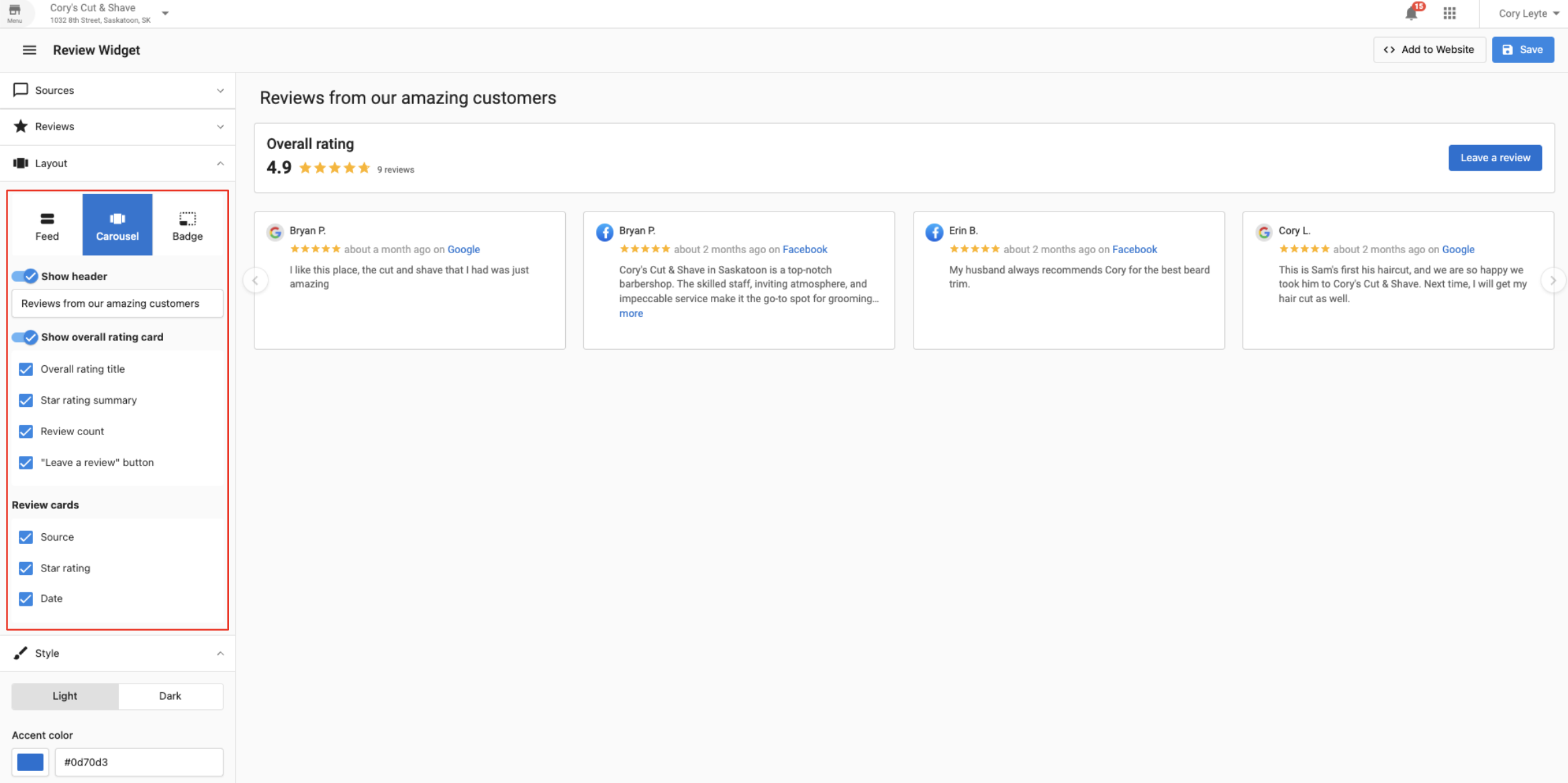
- Under Layout, choose Feed (default), Carousel, or Badge (Pro required for Carousel/Badge).
- Under Style, switch between light/dark theme or adjust the accent color to match your site.
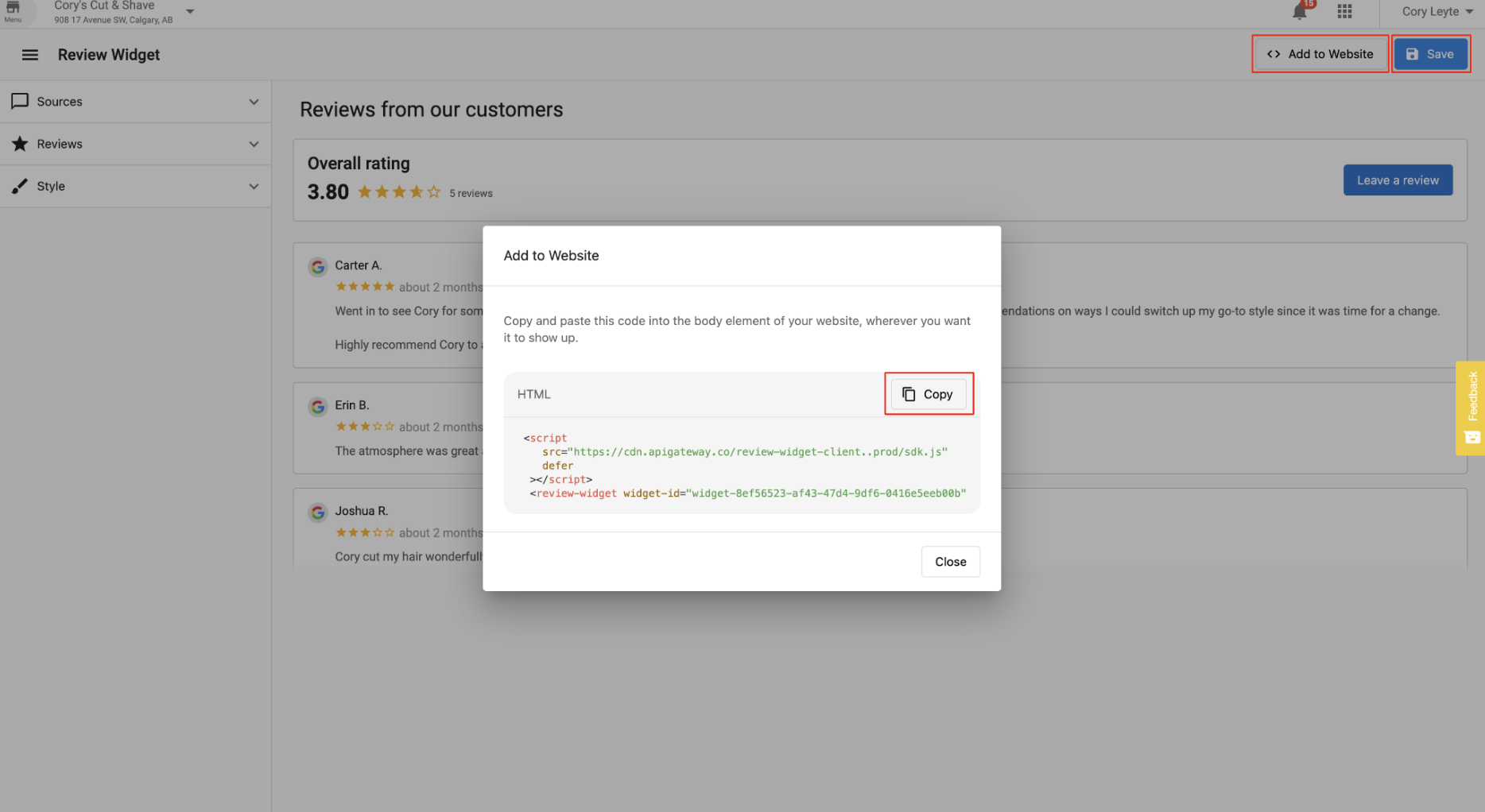
- Click Save, then Add to Website to copy the HTML code into your site's body element.
Managing Edited Reviews
Reputation Management lets you identify reviews that have been updated by customers, along with a history of those edits.
- If instant email notifications are enabled, you'll receive an email whenever a review is edited — clearly labeled as an edited review.
- In the dashboard, edited reviews display a banner stating "This review has been edited on [date]" and an Edited badge next to the published date.
- Click the Edited badge to view the full edit history for that review.
Sending Review Requests
Reputation Management Premium allows you to send branded review requests to your customers via email or SMS.
- Click the Review Requests Management tab and select Send Review Requests.
- Select the review site(s) where you want to direct customers to leave reviews.
- Add recipients using Add Recipient (one at a time) or Upload List (CSV bulk upload).
- For individual entries, enter the customer's name and email. For CSV uploads, include First Name, Last Name, and Email Address.
- Click Add Recipients to proceed to the email template page.
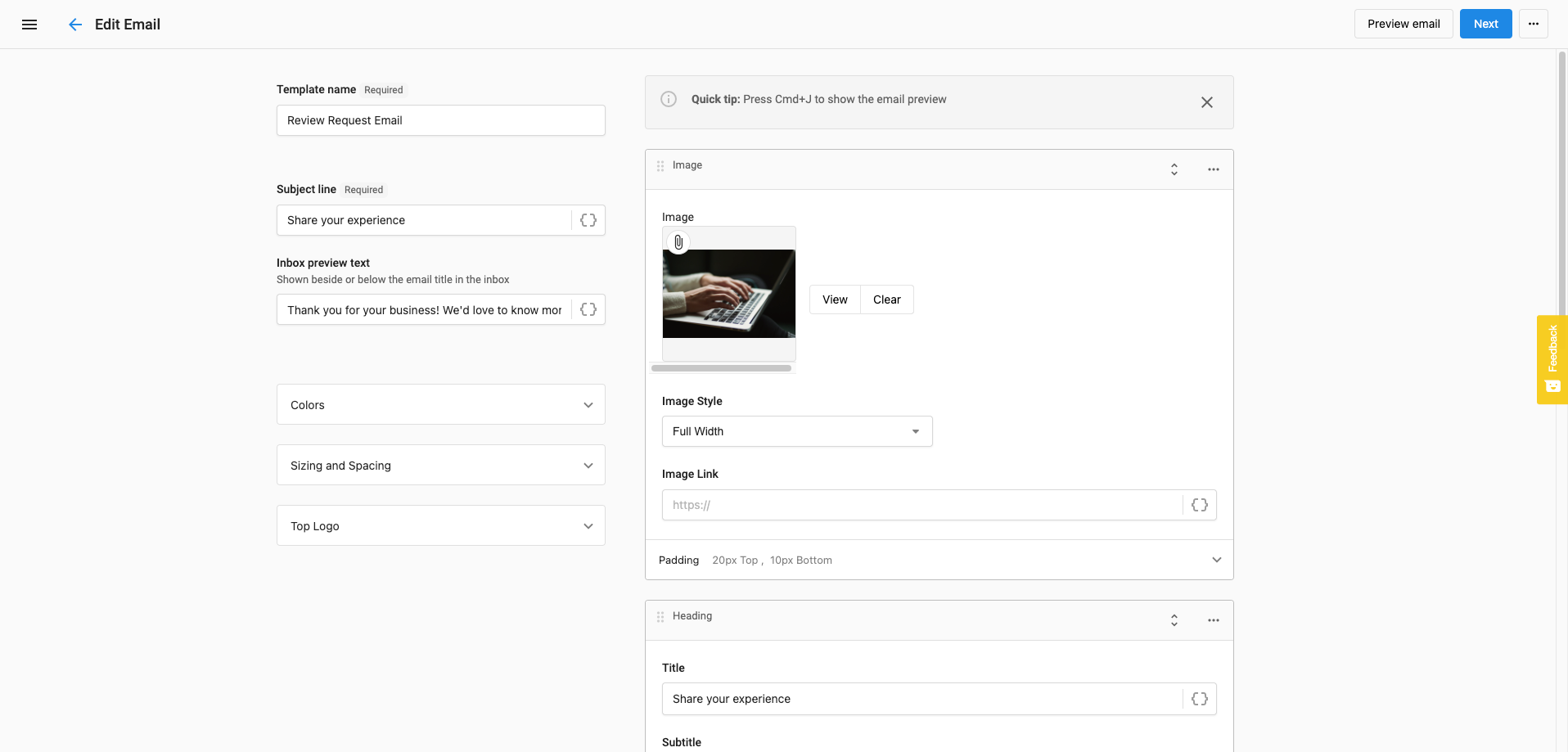
- Customize the email: set a sender address, subject line, header logo, email body, and background color.
- Preview the email, then click Send.
Review Matching
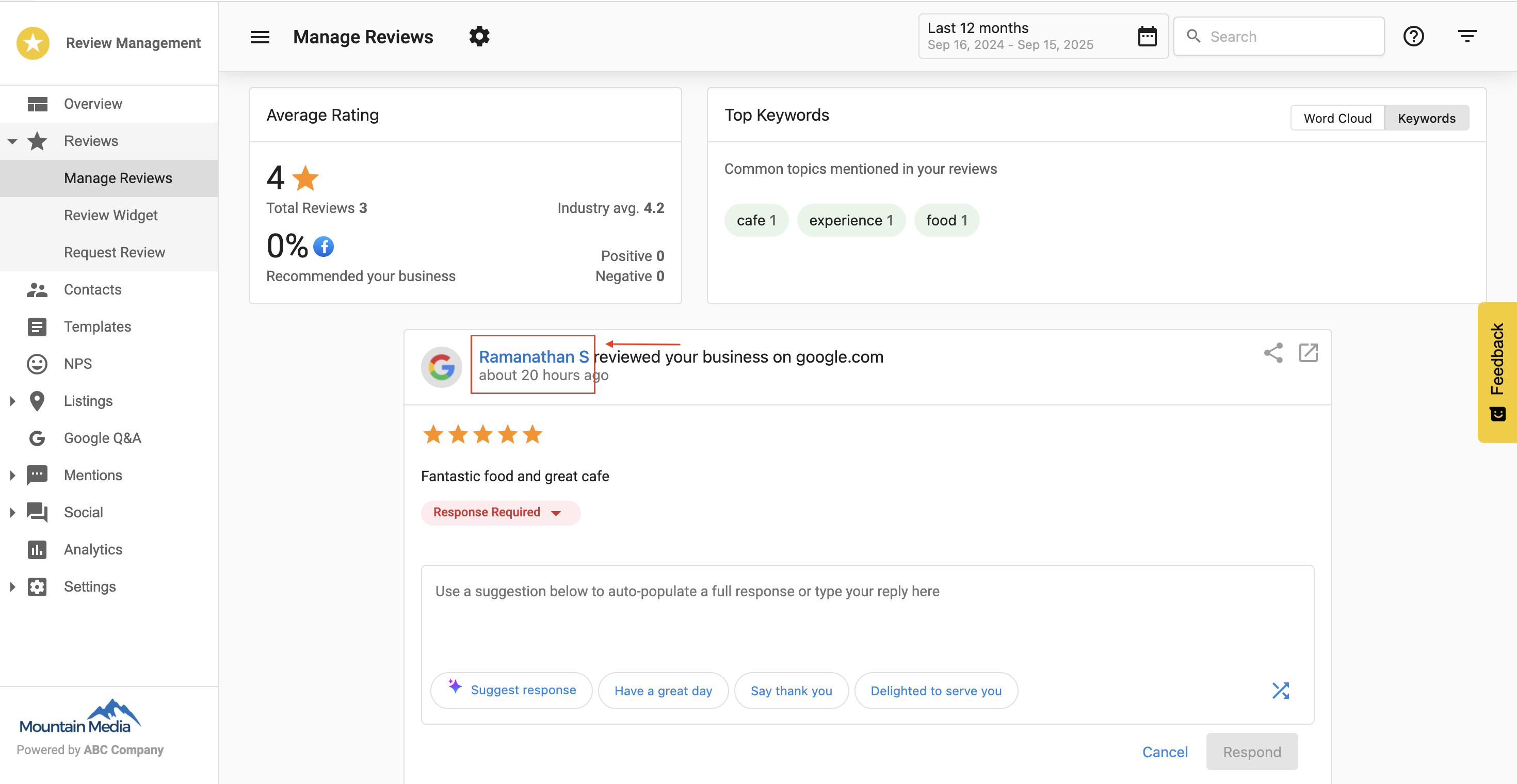
Review Matching helps you determine whether a review came from a known contact in your customer list. It automatically compares new reviews to existing contact details (name, email, or phone number).
How to Use Review Matching
- Go to Reputation Management > Manage Reviews. Review cards show match status — a clickable name means the review is matched to a contact; plain text means it is not matched.
- In a matched contact's timeline, the Review Card shows the full review content, star rating, source platform, and submission date.
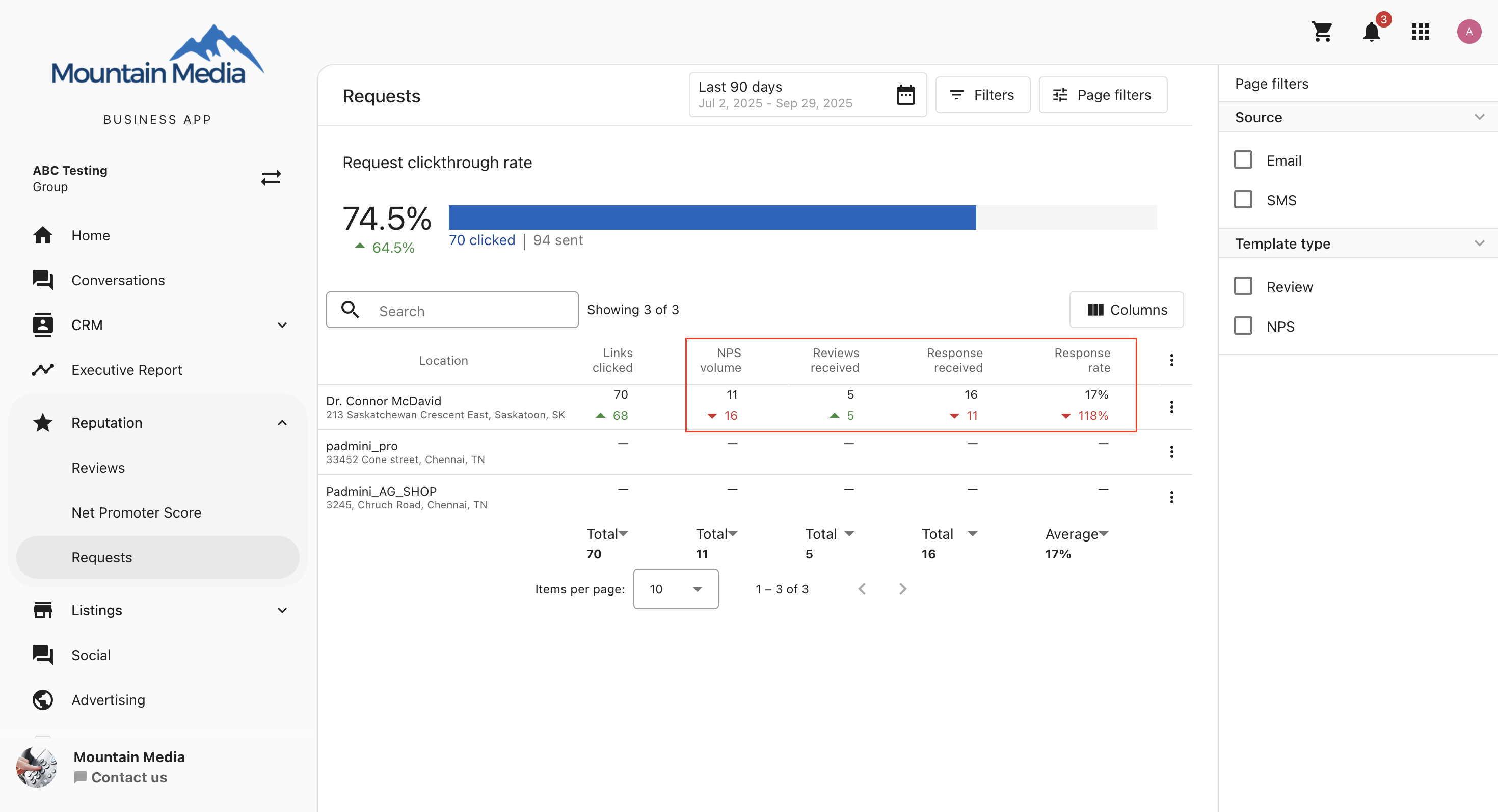
- In the side menu, go to Reputation > Requests to view review request activity across locations.
- Use the NPS and Reviews filters to analyze performance separately.
SMS Review Requesting (Premium)
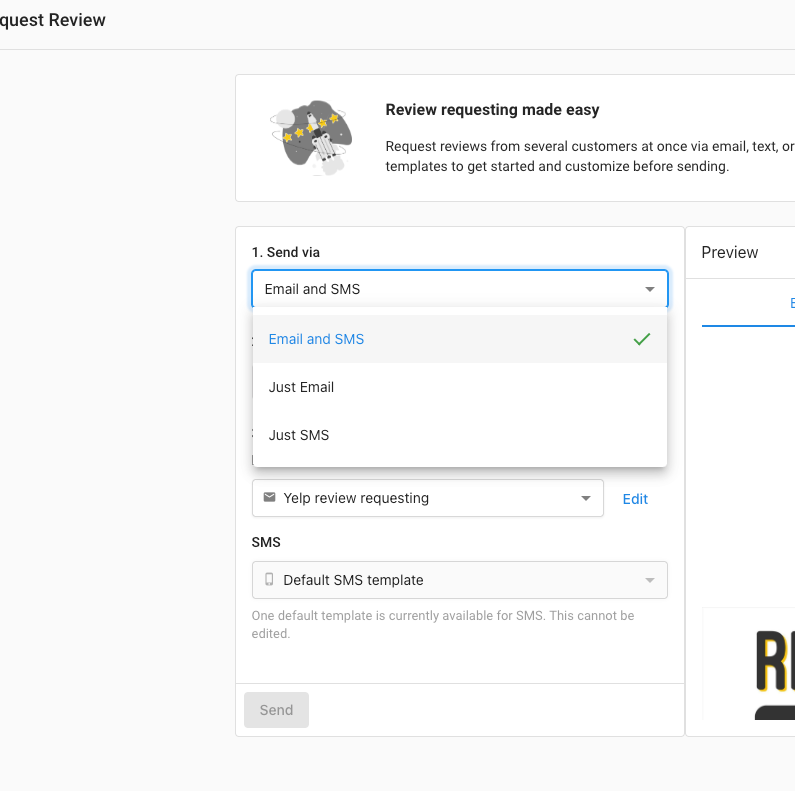
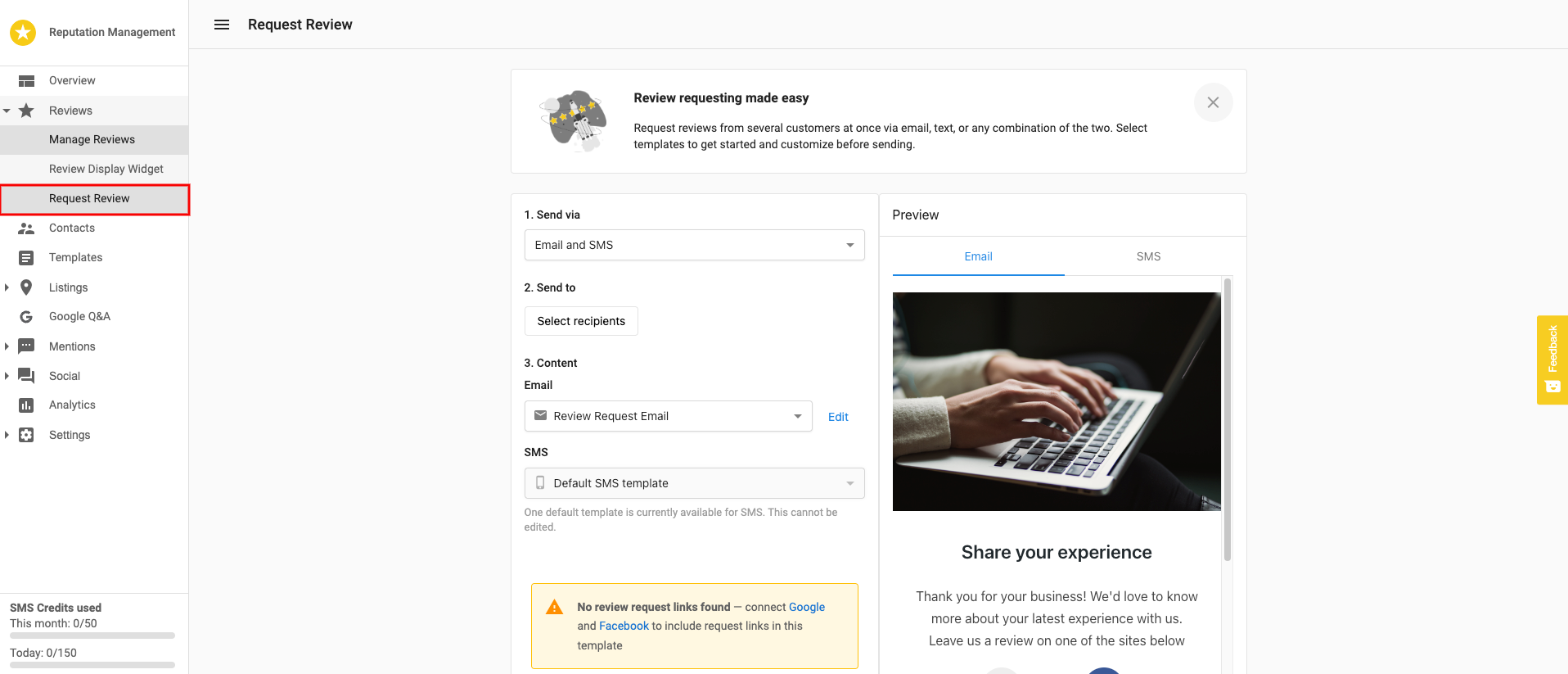
Reputation Management Premium users can request reviews via text message. When sending requests, you can choose from three options: Email and SMS, Just Email, or Just SMS.
The review link in the SMS will point to Google Business Profile first (if connected), or Facebook (if connected). For US and Canada, 50 free credits are included, with additional credits available as add-ons.
Sending Review Requests Manually via CRM
You can also send review requests directly from the CRM tool — useful when your contacts are already in the system from a CRM integration or a previous import.
- Open the CRM tool from the left menu. To manually upload contacts, click Import and follow the CSV guide. To add a single contact, click Create Contact.

- If your contacts are already in the CRM, search for them by name. Select each contact you want to send a request to, then click Actions.

- Choose the Request Reviews action. You'll see a preview of the request that will go out via SMS or email (depending on the contact info connected to each contact).

Frequently Asked Questions
Contacts Overview
The Contacts tab in Reputation Management displays all saved contacts along with their phone numbers, email addresses, and review request activity. Use this tab to manage contact records and track communication history for email and SMS requests.
What's Included
- Contact List: Table showing contact name, phone, email, and review request activity.
- Filters Panel: Tools to filter contacts by attributes such as email, phone number, or activity.
- Columns Manager: Select which fields appear in the contact table.
- Bulk Tools: Import multiple contacts and apply bulk actions.
- Review Request Activity: See last email or SMS sent and any resulting activity.
View and Navigate Contacts
- Open the Contacts tab.
- Use the search bar to locate a contact by name, phone, or email.
- Scroll through the list or use the pagination dropdown at the bottom to change how many rows are shown.
Add a New Contact
- Click Create contact in the top right corner.
- Fill in the contact's name, phone number, and email address.
- Click Save.
Import Contacts in Bulk
- Click the Import button.
- Upload a CSV file formatted with name, phone number, and email address.
- Map each CSV field to the correct column and complete the import process.
Apply Filters
- Click Filters on the left panel.
- Select + Add filter and choose filter types such as phone number, email, or review activity.
- Add multiple filters to narrow down your contact list.
Customize Columns
- Click the Columns button near the top right of the table.
- Check or uncheck columns to control which fields appear.
- Save the view to reuse your custom column layout.
Review Request Activity Fields
Each contact record may include these fields if a review request was sent:
- Last review request email sent
- Last review request email activity
- Last review request SMS sent
- Last review request SMS activity
Frequently Asked Questions
Templates Overview
The Templates feature helps you manage pre-built and custom templates for communicating with customers. Templates are used to send review or NPS requests and to respond to customer feedback. They save time, keep communication consistent, and can be personalized using dynamic fields.
Template Categories
Used for asking customers to leave reviews or complete NPS surveys — available in both Email and SMS formats.
Used for replying to customer reviews. Includes 80+ professionally written templates filterable by star rating and sentiment.
Navigate to Templates
- Go to the Templates section from the sidebar.
- Choose Request to manage templates for sending requests.
- Choose Respond to manage templates for review responses.
Create or Edit Templates
- Click Create to build a new template.
- Use the available options to customize the content.
- Edit, delete, or set a template as default from the action menu.
Response Templates
In Reputation Management Pro, you get access to 80 unique templates designed to respond to different review types, from 1 to 5 stars. You can also create custom templates with content tailored to your business.
- Template Library: Browse 80+ professionally written templates.
- Custom Templates: Create templates specific to your business and tone.
- Filtering Tools: Filter by star rating (1–5), review sentiment, or platform.
- Bulk Actions: Manage multiple templates at once.
Adding Dynamic Fields
When editing or creating templates, click Insert dynamic field to personalize each message automatically. Available fields include:
- Business Information: Name, phone number, address.
- Customer Information: Name, email, contact details.
- Review Context: Reviewer's name, star rating, platform.
SMS Template Management
Create and organize custom SMS templates for review and NPS requests. SMS templates are available in Reputation Management Premium.
How to Create an SMS Template
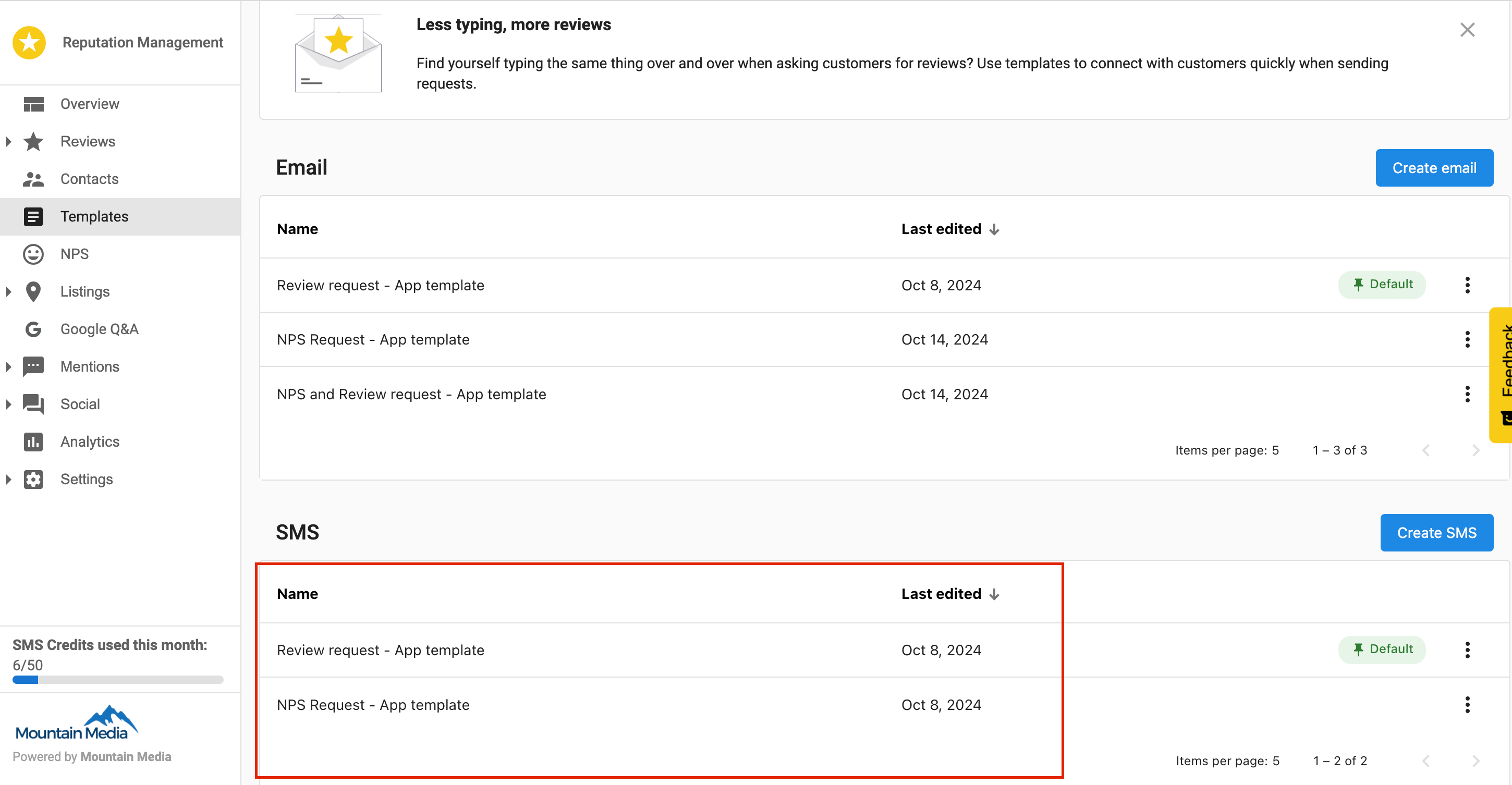
- Navigate to Templates in the sidebar of Reputation Management Premium and select the Request tab.
- Under the Requests tab, go to the SMS section and click Create SMS.
- Select the request type: Reviews, NPS, or Review and NPS.
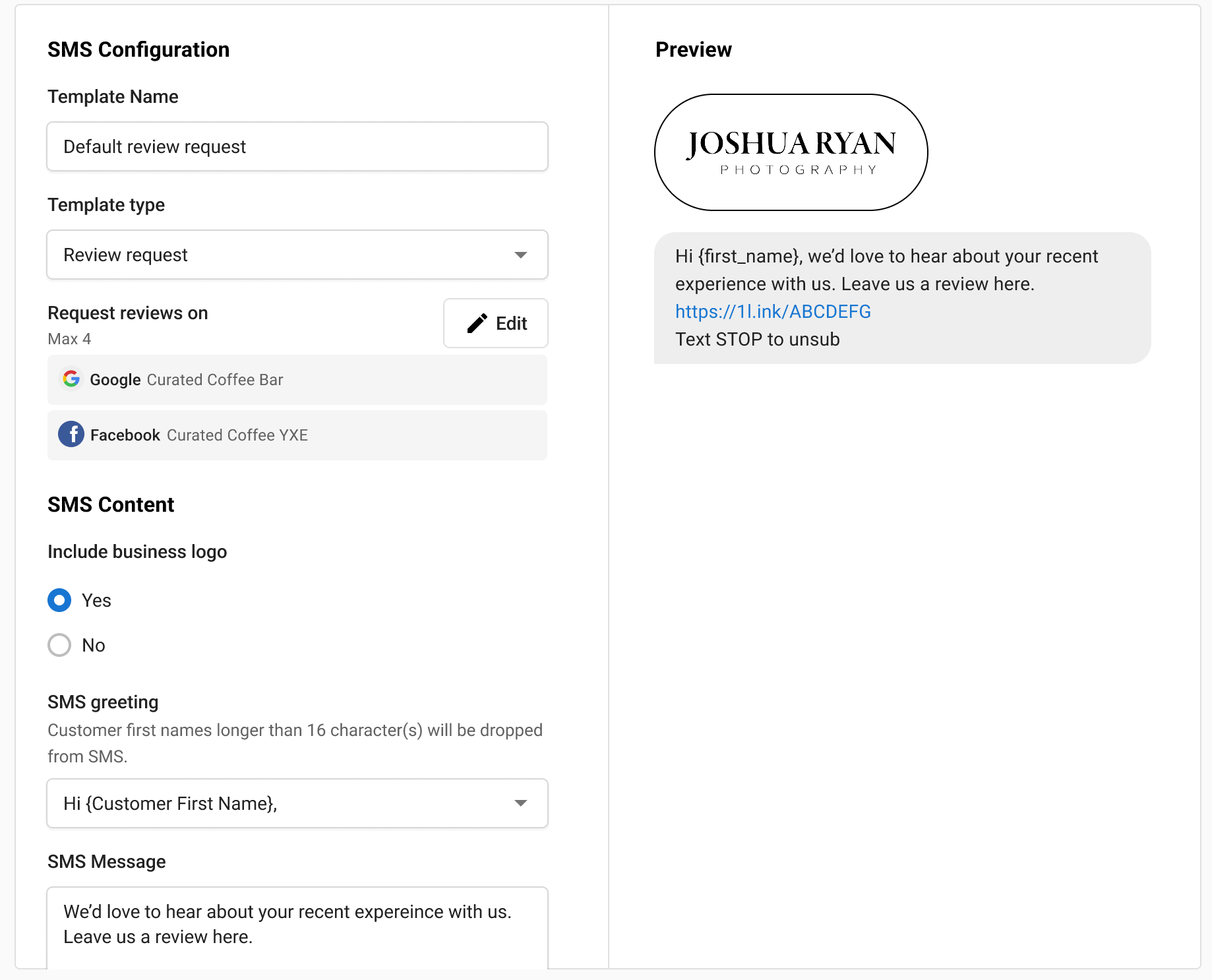
- The SMS builder will open. Make your changes and click Save.
Manage Existing SMS Templates
Each template has a three-dot menu with options to Edit, Delete, or Make Default. The default template is automatically used in automations and pre-loaded when sending new SMS review requests.
SMS Request Types
- Review Request: Choose which review source (Google, Facebook) you want reviews from. Multiple source options are available.
- NPS Request: Configure NPS settings directly in the builder, with an optional redirect after survey submission.
- Review and NPS Request: Include both Review and NPS blocks in a single template.
Request Reviews to Industry-Specific Platforms
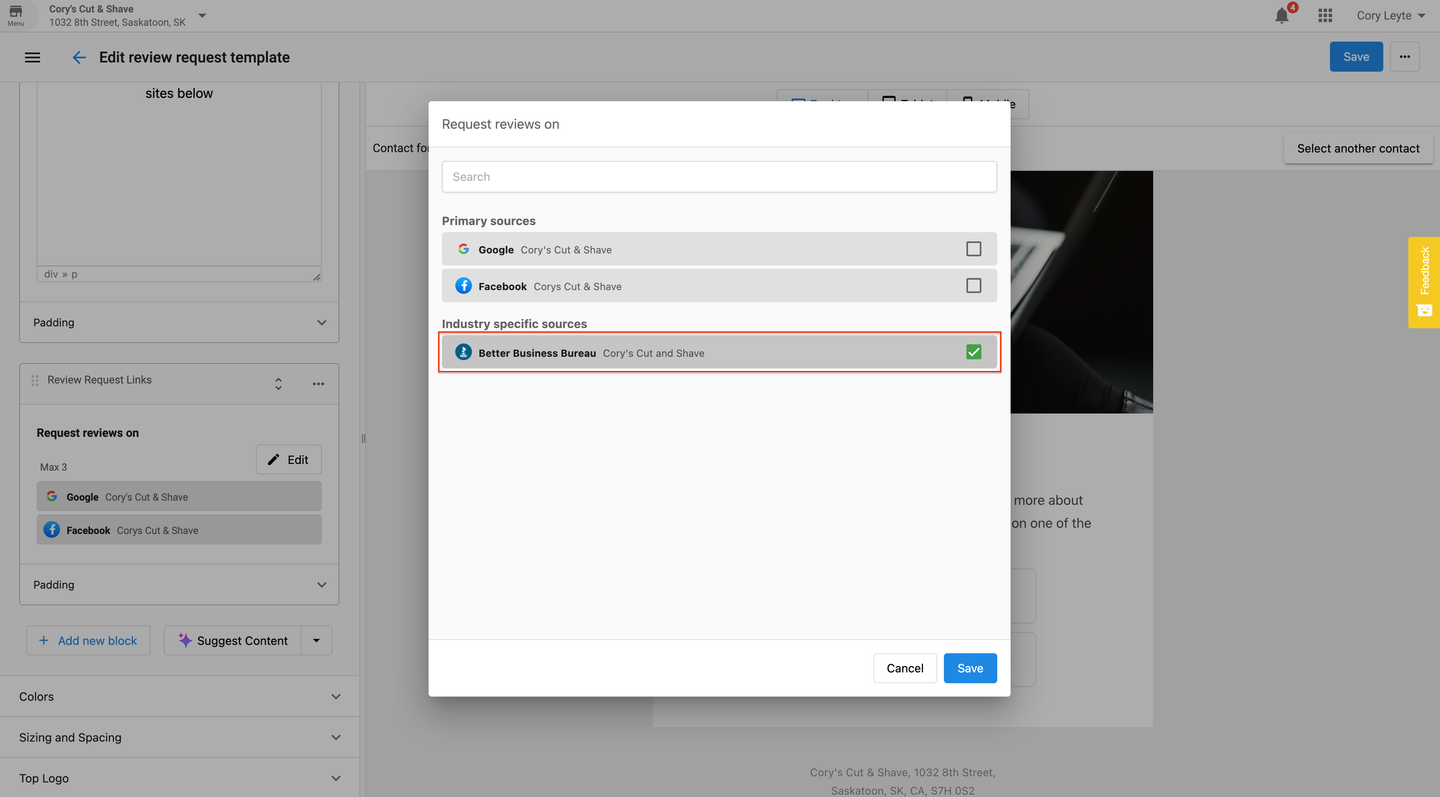
Use the email builder in Reputation Management Premium to direct review requests to industry-specific review platforms (e.g., Healthgrades, Houzz, Avvo, etc.).
- Go to Templates within Reputation Management Premium and create a new email template or edit an existing one.
- Find the Review Request Links option in the email template builder.
- Select the industry-specific review platforms you want to include. Only platforms where reviews have been detected will be available.
- Click Save to apply your changes.
Frequently Asked Questions
NPS Overview
The Net Promoter Score (NPS) feature in Reputation Management Premium allows you to send customer satisfaction surveys before requesting public reviews. This workflow identifies unhappy customers early so you can address concerns privately — before prompting them to leave a review on Google or Facebook.
What's Included
- Email and SMS NPS survey delivery.
- Configurable NPS templates using a drag-and-drop email builder.
- Automatic redirect for promoters to leave public reviews.
- NPS score tracking and feedback history.
- Filterable feedback view by Promoter, Passive, or Detractor.
How to Create an NPS Template
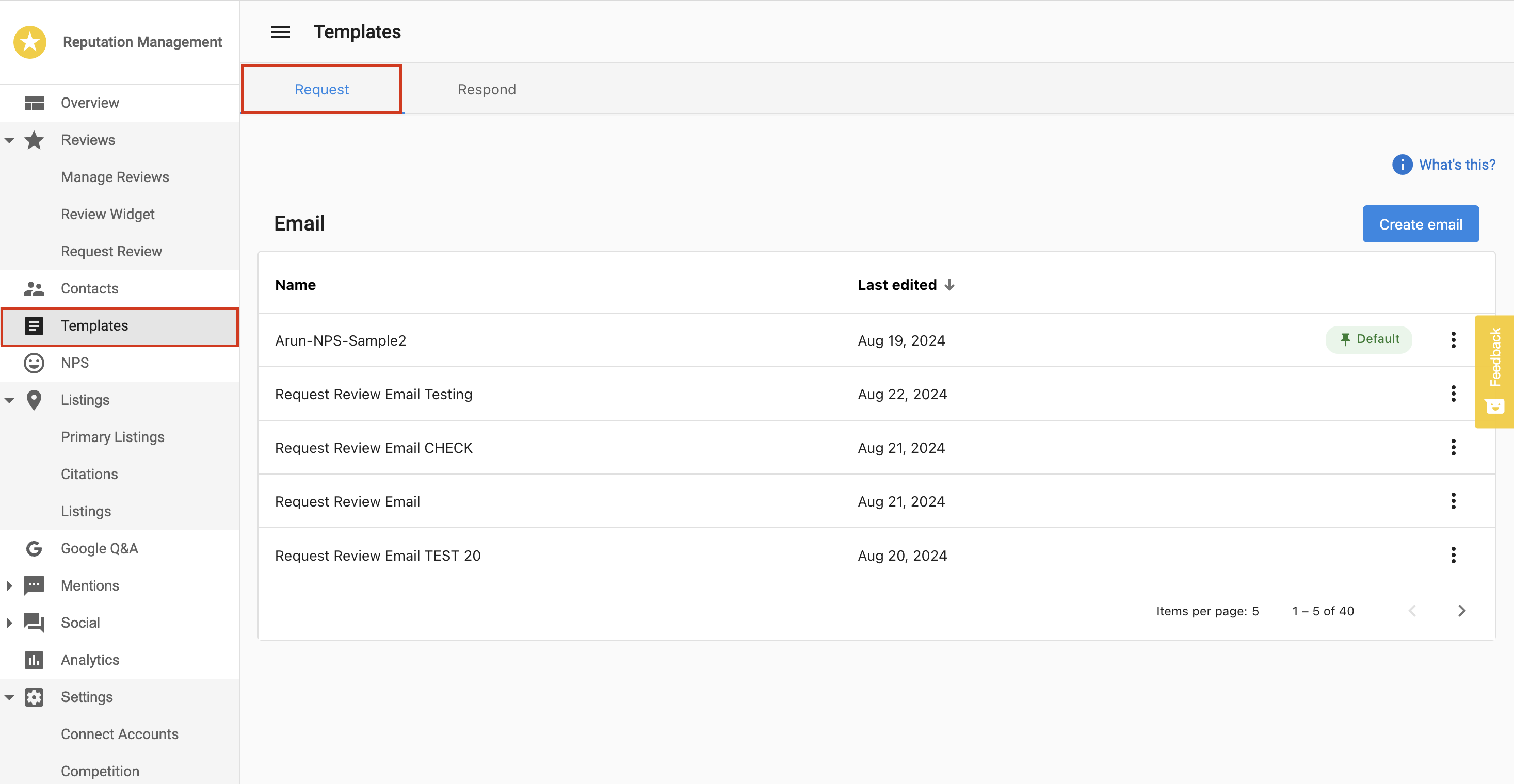
- Go to Templates in the sidebar of Reputation Management Premium.
- Select the Request tab and click Create Email to open the email builder.
- Click Add New Block and insert the NPS block.
- Choose your display option: Button Option (one-click feedback buttons in email) or Inline Option (0–10 number scale embedded in email).
- Enable the option to redirect customers with scores above 7 to a public review site (e.g., Google).
- Click Save once all configurations are complete.
How to View NPS Feedback
- Go to NPS in the sidebar of Reputation Management Premium.
- Review the average score within your selected date range.
- See the breakdown of Promoters, Passives, and Detractors.
- View individual feedback responses including score, written comments, and contact details.
NPS Score Calculation
NPS is calculated using this formula: NPS = % Promoters − % Detractors
Highly satisfied customers who are likely to recommend your business.
Satisfied but not enthusiastic. Not included in the NPS calculation.
Dissatisfied customers who may share negative feedback publicly.
The Trends section shows NPS score changes over time, helping you track improvements or issues in customer satisfaction.
Frequently Asked Questions
Listings Overview
Listings in Reputation Management gathers all the locations on the web where your business can be found: major search engines, local review sites, online business directories, and social networks. This feature allows you to see where your business is listed, detect and fix errors, and add new listings to expand your online presence.
Be found online before your competitors across directories and review sites.
Monitor and maintain consistent business data across all platforms.
Review your Listing Score and compare it to industry averages.
Identify and fix inaccuracies in your listings quickly.
Understanding the Primary Listings Tab
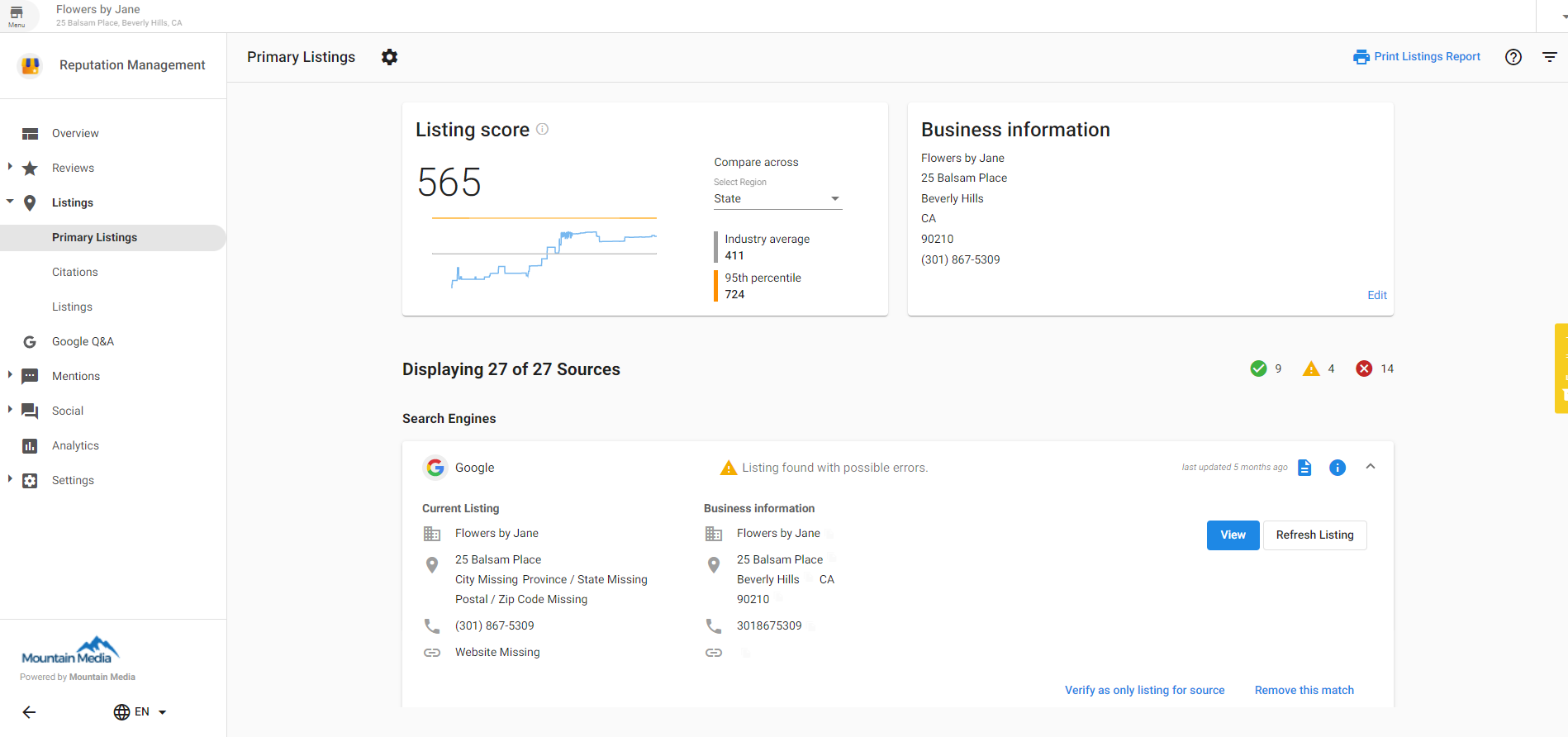
Go to Reputation Management > Listings > Primary Listings. This is your command center for managing your business listings. From here you can:
- Review your Listing Score and compare it to industry averages.
- Monitor listings for accuracy and detect possible errors.
- Navigate to source platforms to view or edit listings directly.
- Refresh listings to get the most up-to-date information.
- Mark listings as correct, verify as the only listing, or remove incorrect matches.
How Your Listing Score Works
Your Listing Score evaluates the accuracy of your business's Primary Listings and Citations. Each listing source is assigned a score based on its popularity and authority. For example, an accurate Google Maps listing carries more weight than a smaller directory site.
To increase your Listing Score: ensure your business information is accurate and consistent across all platforms, add listings to additional relevant sources, and fix any detected errors.
Understanding Citations
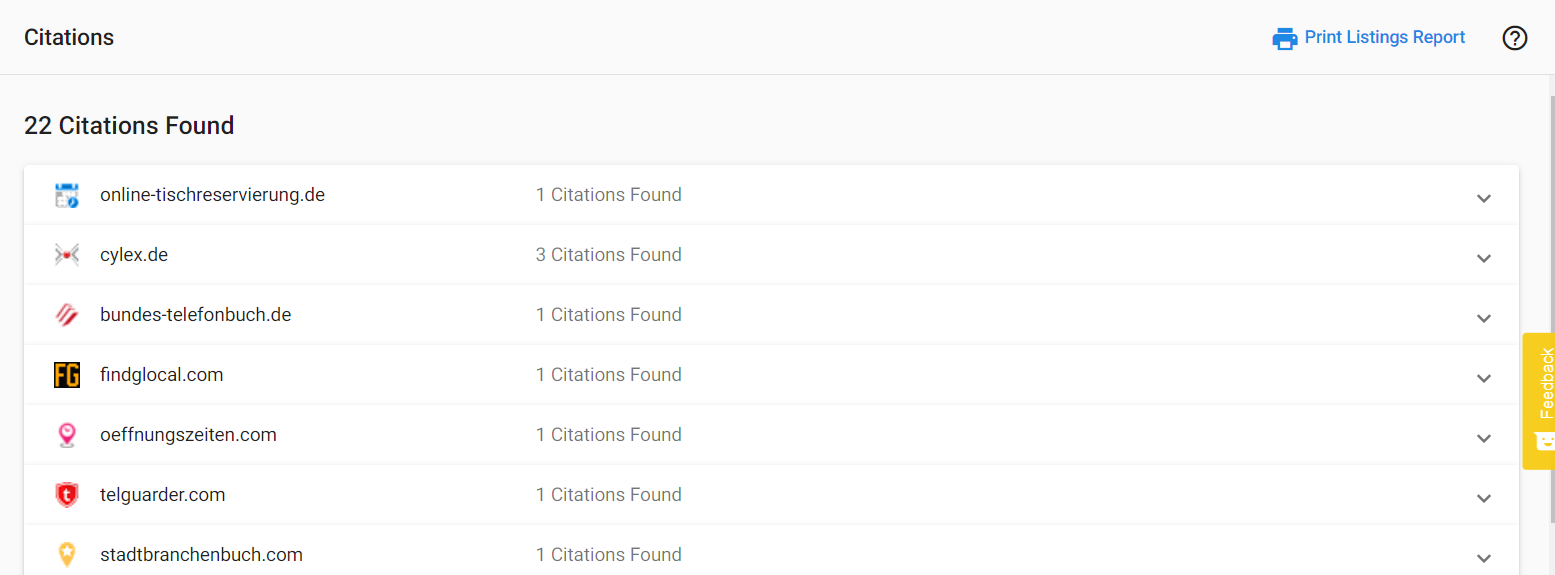
Citations are mentions of your business name along with other business data (phone number, address, website, etc.). They're crucial for search marketing optimization. When search engines rank listings, they consider the number of citations, the accuracy and consistency of data, and the authority of websites where citations appear.
When a business has many listings with consistent data, they build a "Citation Effect" — Google's web crawler finds the same information in multiple places, increasing confidence in the data, and creating good backlinks that improve SEO.
How the System Identifies Listings
Reputation Management uses Best Match — an algorithm that compares your anchor data (Name, Address, Phone Number, and Website) to listings and ranks them by similarity. Data types are weighted differently:
- Phone Number: 1.00 (highest weight)
- Address: 0.70
- Zip Code: 0.55
- Business Name: 0.55
- City: 0.10 (lowest weight)
A listing must reach a minimum threshold of typically 50% to be considered a potential match.
Editing and Updating Listings
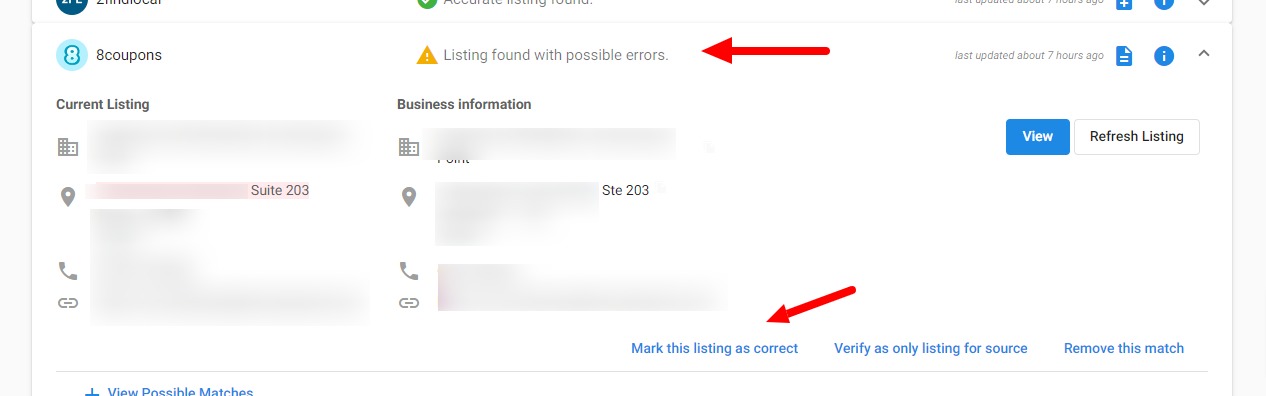
Mark This Listing as Correct
Use this when the system flags an error that isn't actually incorrect (e.g., "STE 101" vs "Suite 101"). Reputation Management will stop checking for changes on that listing. Use with caution — the listing status changes from "Listing found with possible errors" to "Accurate listing found."
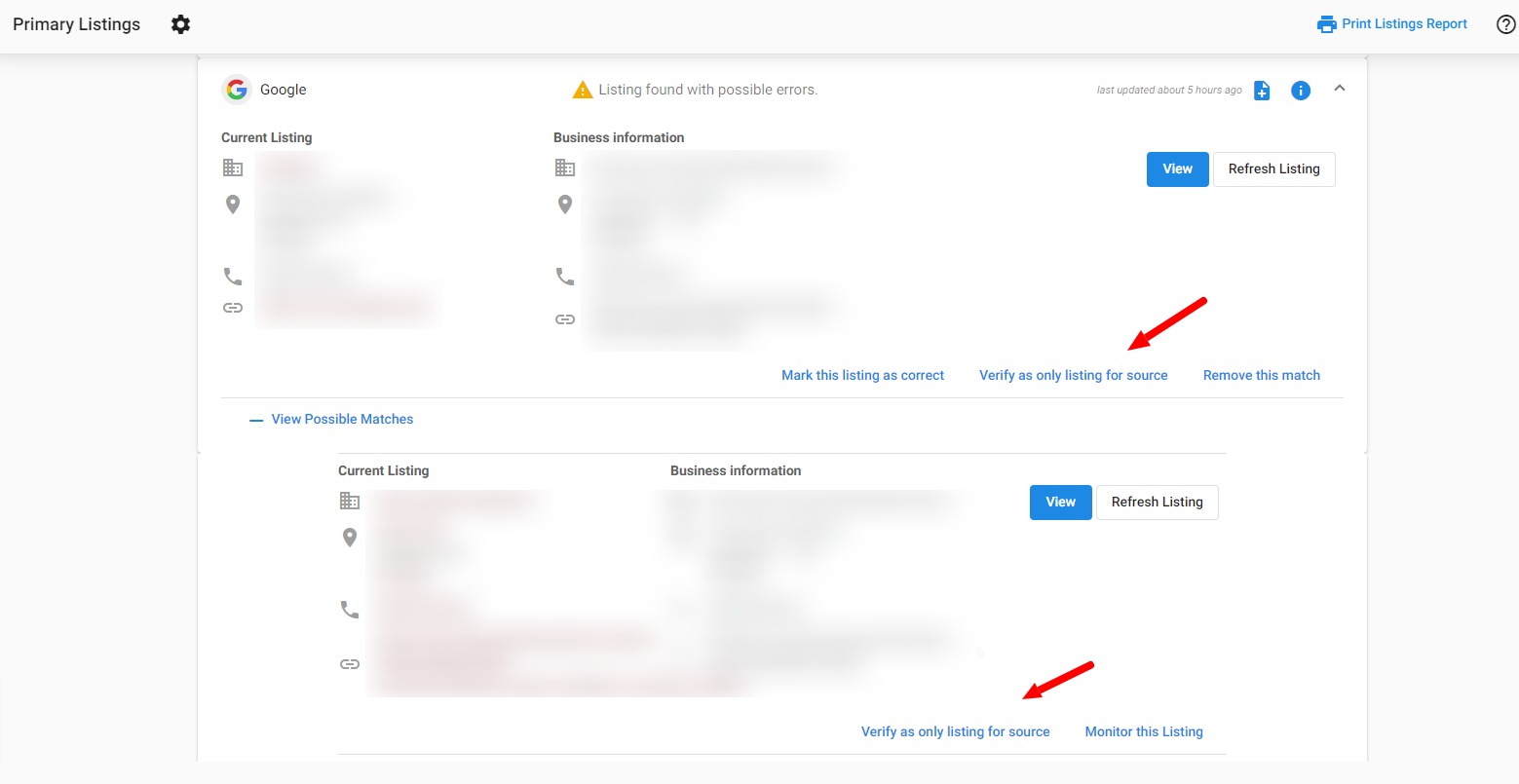
Verify as Only Listing for Source
Use this when the system finds multiple possible matches for a listing (e.g., multiple locations for the same business chain). Verifying as the only listing ensures Reputation Management only monitors and pulls reviews from that single listing.
Remove This Match
Use this when the system has pulled in a listing that doesn't belong to your business. Once removed, you can manually add the correct listing by selecting View Possible Matches > Submit Listing URL.

Refresh Listing
If you've edited your business profile on a listing source, use Refresh Listing to manually scan and update the information in Reputation Management. This can be done once every 24 hours.
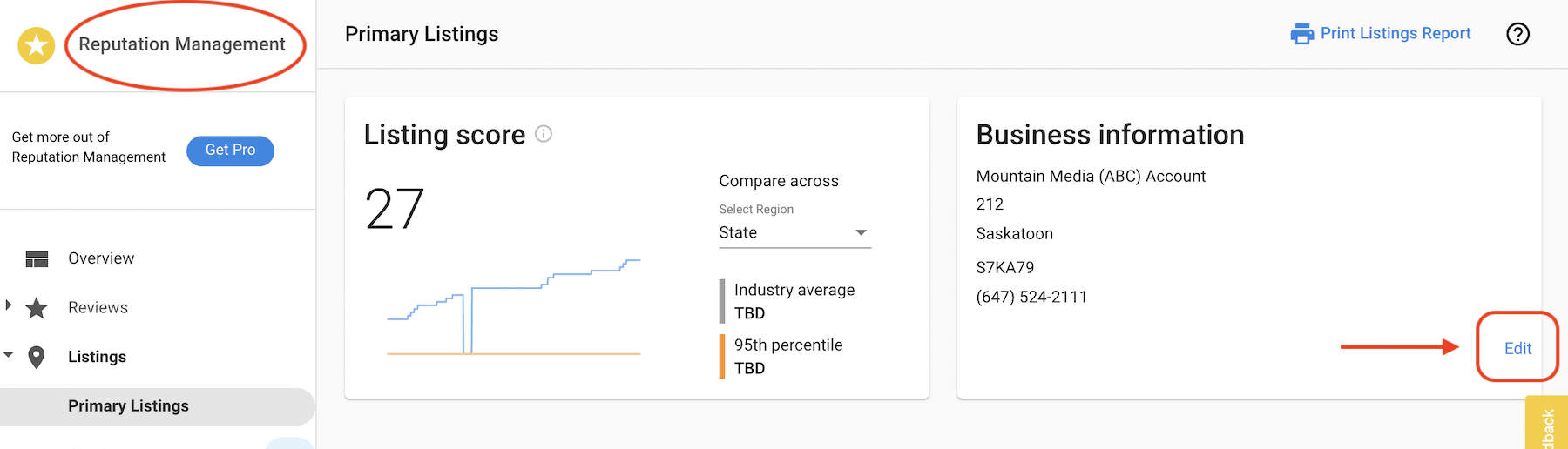
Edit Business Profile in Reputation Management
You can edit your business profile information directly within the platform without being redirected. Go to Reputation Management > Listings > Edit to update your profile, then click Save.
Authenticate Google Business Profile
There are three places where you can connect a Google Business Profile account. Once connected in one area, it is connected in all of them.
Option 1: Via Reputation Management Listings
- Go to the Listings tab in Reputation Management.
- Click the Google listing and select View Possible Matches.
- Click Connect Google Business Profile.
- Log into your Google account and select a verified location.
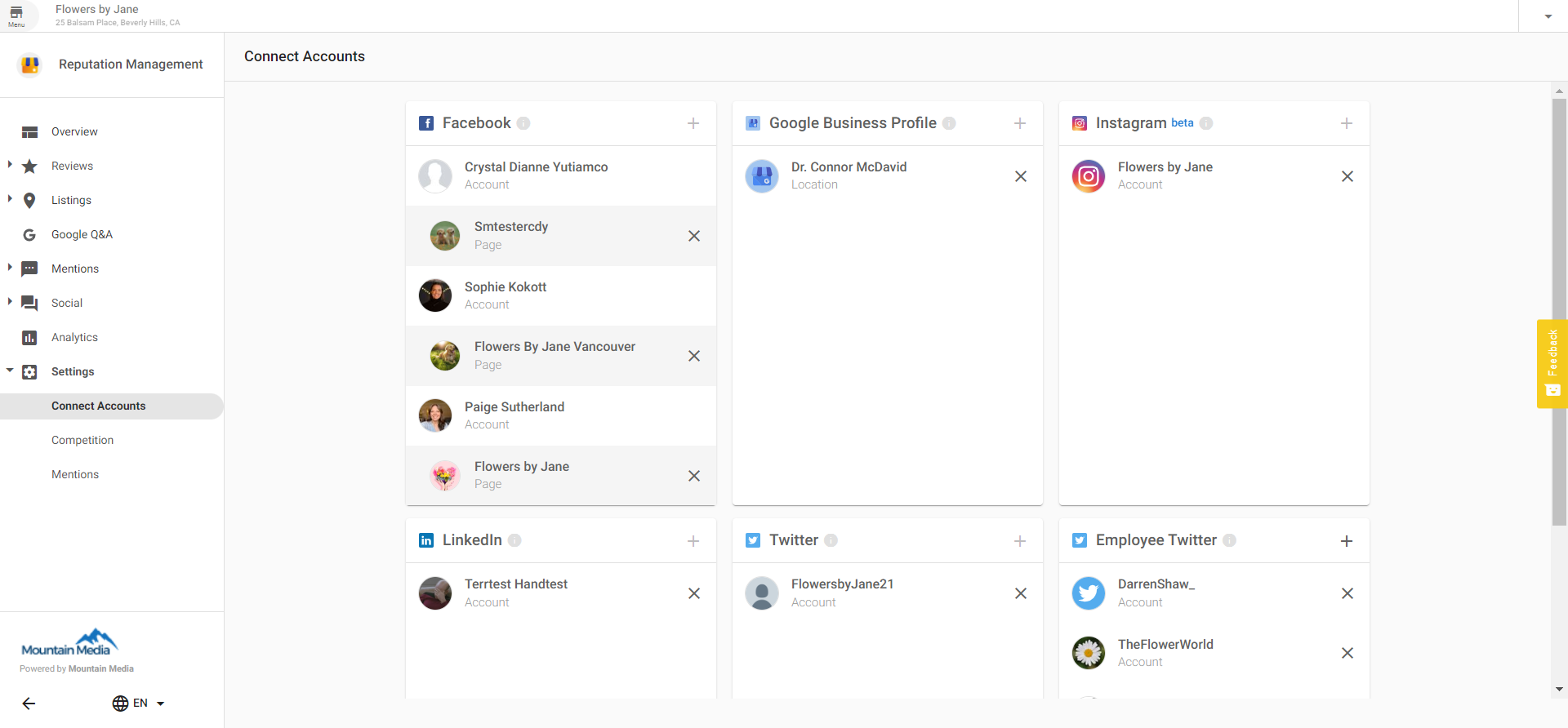
Option 2: Via Reputation Management Settings
Go to Reputation Management > Settings > Connect Accounts and authenticate your Google account from there.
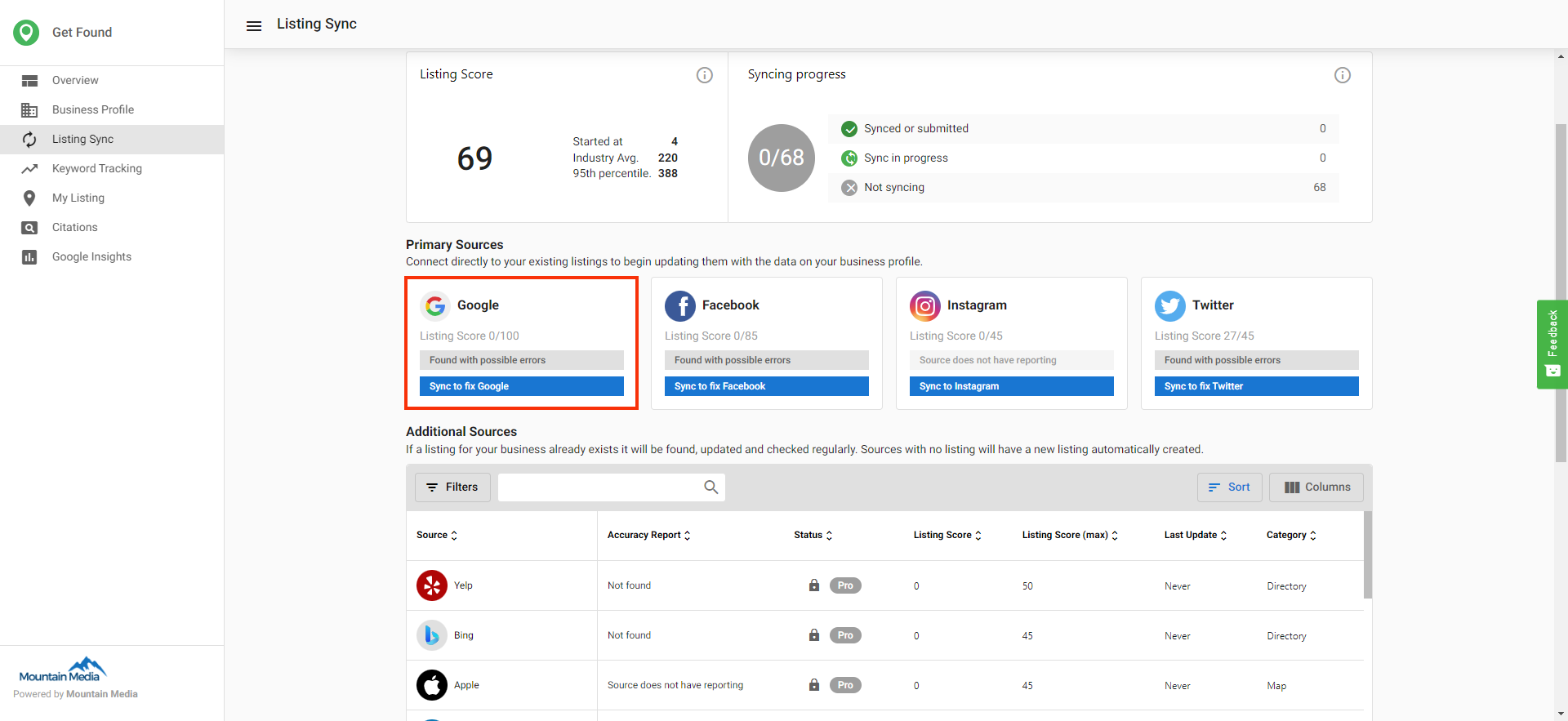
Option 3: Via Local SEO Listing Sync
- Go to the Listing Sync tab in Local SEO.
- Click Sync to fix Google on the Google listing source.
- Authenticate a Google account and select your Google business listing.
- Click Turn on Syncing. Changes will syndicate to Google Business Profile automatically.
Frequently Asked Questions
Mentions Overview
Mentions helps you track where your business is being talked about online, beyond traditional review sites. It collects content from blogs, news sites, forums, social media platforms, and other sources based on your search terms. A mention can include blog posts, news articles, social media updates, forum comments, or photos.
Sentiment analysis is applied to each mention to help you understand whether the content is positive, neutral, or negative.
What's Included
- Automated collection of mentions from blogs, news sites, forums, social media, and other platforms (excluding review sites).
- Sentiment analysis applied to each mention.
- Two tracking views: Monitor Mentions and Mentions Timeline.
- Filtering and tagging options for better organization.
- Manual sentiment correction when needed.
- Search customization via keyword settings.
Getting Started with Mentions
- Go to Reputation Management > Settings > Mentions.
- In the Keywords section, add or update your search terms.
- Use keywords related to your business name, products or services, competitor names, industry-specific terms, or marketing campaign names.
"Joe's Pizza Downtown" will only return mentions with that exact wording.Monitor Mentions Tab
The Monitor Mentions tab gives you a summary of recent mentions found for your business. See the latest mentions across all tracked sources and use View All to see additional mentions from a specific source.
Mentions Timeline Tab
The Mentions Timeline tab allows you to browse and interact with individual mentions. You can:
- View all mentions linked to your business location.
- Review sentiment labels and adjust if needed.
- Tag mentions as Starred, My Content, or Not Relevant.
- Filter mentions by search term, source, or sentiment.
Tagging Options
- Starred: Save mentions you want to follow up on or refer to later. View all starred mentions using the Filters menu.
- My Content: Hides mentions from your main results — useful when mentions come from your own blog or website. Still accessible from Filters.
- Not Relevant: Removes a mention from your results to clean up unrelated content. Still saved and viewable from Filters.
Customizing Sentiment Ratings
Sentiment analysis estimates whether a mention is positive, negative, or neutral. You can manually adjust the sentiment if a mention is misclassified. For example, slang like "This burger is sick!" might be flagged as negative when it's actually positive. Use the slider next to the mention to correct it.
Frequently Asked Questions
Social Monitoring Overview
Social Monitoring helps you observe activity across connected social media profiles. It includes engagement metrics such as comments, shares, and follower growth over time. You can also compare performance against industry averages and monitor both business and employee accounts from a single dashboard.
Why Use Social Monitoring?
- Engage with customers in real time.
- Identify brand advocates and influencers.
- Capture both positive and constructive feedback.
- Generate new leads from social conversations.
- Understand what content drives the most engagement.
- Monitor employee social activity to help ensure brand alignment.
What's Included
- Activity tracking on connected Facebook and X (formerly Twitter) accounts.
- Historical engagement trends including follower counts and post interactions.
- Side-by-side comparison with industry averages via Social Analytics.
- Monitoring of individual employee X accounts for business-related content.
- Notifications when social account connections expire.
Get Started with Social Monitoring
- Go to Reputation Management > Settings > Connect Accounts.
- Click the + icon in the top-right corner of the account you want to connect.
- Authenticate your account through the redirected platform page.
Once connected, Social Monitoring will begin tracking data automatically.
Monitor Business Accounts
View Facebook and X activity over time. Track likes, followers, and post interactions. Access visual data under Reputation Management > Analytics > Social.
Monitor Employee X Accounts
View employee X activity in one place. Track recent posts and shares, and monitor for content that may impact your business.
Expired Social Account Notifications
If a connected social profile's token expires, a notification appears near the top of the page. You can choose to re-authorize the account or remove the expired profile.
Frequently Asked Questions
Analytics Overview
Analytics in Reputation Management helps you gain deeper insight into how your business is perceived online. By analyzing review content and sentiment, you can identify key themes, track trends, and benchmark your performance against competitors.
What's Included
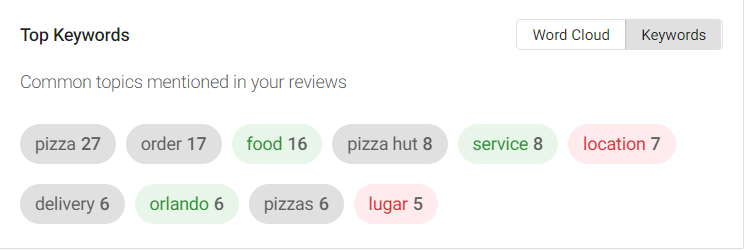
See how commonly used keywords in reviews evolve over time — green for positive, red for negative.
A visual representation of the most frequently mentioned terms. Larger words = higher frequency.
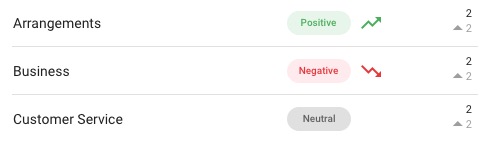
Natural language processing identifies common themes and overall sentiment in your reviews.
Metrics on how often specific terms are used and the sentiment associated with each.
Highlights adjectives and descriptive terms customers use to describe your business.
Benchmark your reputation and visibility against up to 3 competitors (Premium).
Tracking Customer Sentiment
Take full advantage of Reputation Management by searching reviews for specific keywords and viewing sentiment data tied to those terms — great for understanding what customers say about your team, departments, or specific services.
- Open the Reputation Management tab from the toolbar.
- Click Insights. Use the date range filter to narrow down to a specific time frame if needed.

- Type your keyword or phrase in the search bar and click the magnifying glass icon.

- Click on the keyword so it is highlighted in blue.

- Scroll down to view how many reviews used that word and the customer sentiment data associated with it.

Competition: Share of Voice
Share of Voice shows how often your business is mentioned in web content and local searches compared to competitors. It helps you gauge brand awareness, brand equity, and target audience engagement over time.
Set Up Share of Voice (3 Steps)
- Set your Business Name: Go to Reputation Management > Analytics > Competition. Ensure the Business Name field uses the most common name your business is referred to. If a shortened name is more common, use that version for more accurate results.
- Choose Service Categories: Select keywords related to your services, products, or customer experience. These can be specific (e.g., "car dealer") or broad (e.g., "new car"). Each service category creates a separate pie chart in the Competition tab.
- Enter Your Competitors: Add up to 3 competitors using their most common business name and accurate social profile URLs.


Tips if You See 0% Share of Voice
- Your search terms may be too general. Instead of "Restaurant + New York," try "Pizza + New York."
- Your business name may be too specific. Try a shorter version, e.g., "Andrea's" instead of "Andrea's New York Style Pizzeria."
Request Performance Metrics
Single Location
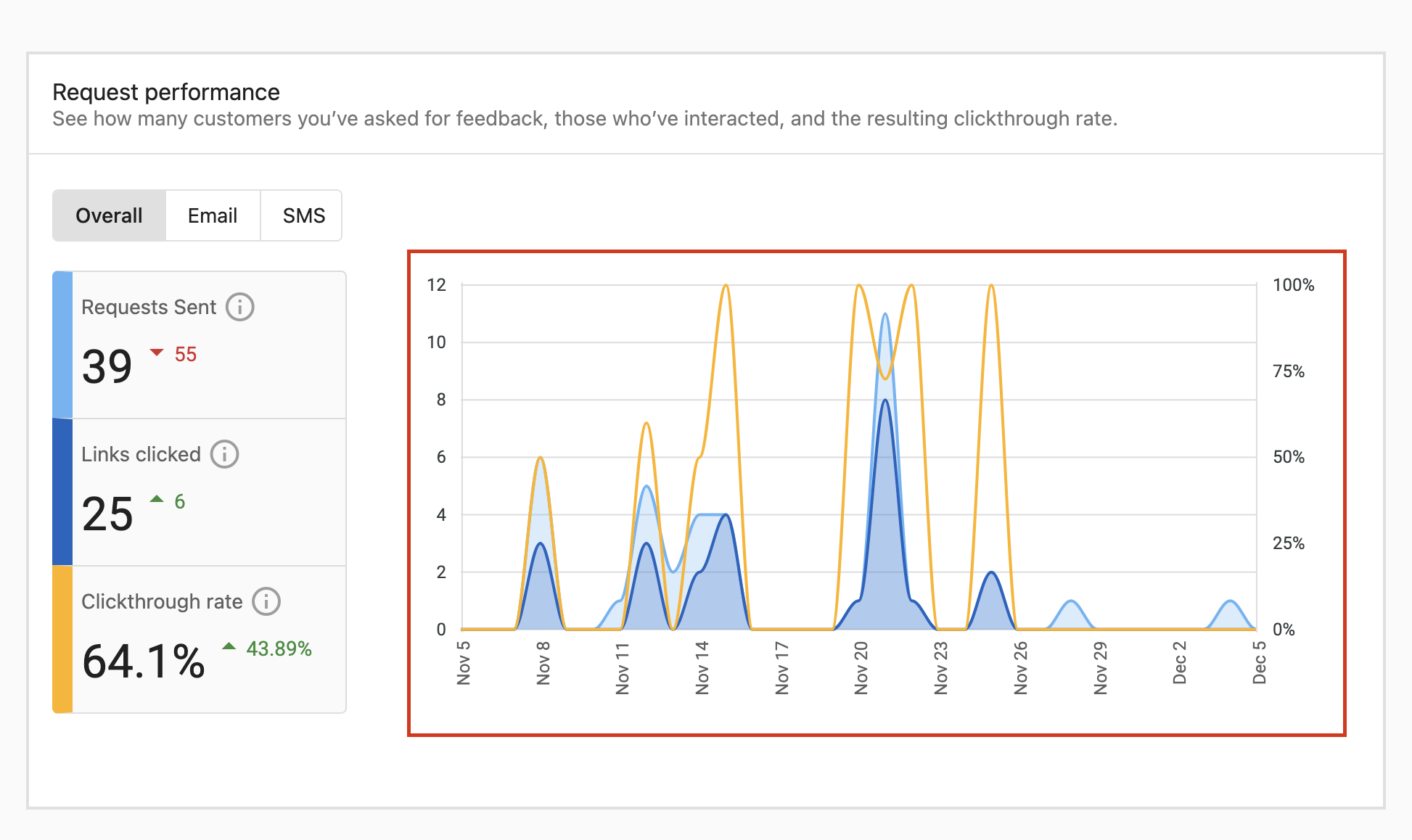
The Request Performance Metrics provide insights into the quantity of review requests sent and the resulting customer reviews for a single location.
- Navigate to Reputation Management > Analytics tab.
- Review the performance graph showing Requests Sent vs. Reviews Received over time.
- Mouse over data points to view details for specific dates.
- Use the date range selector to filter data for specific periods.
Multi-Location
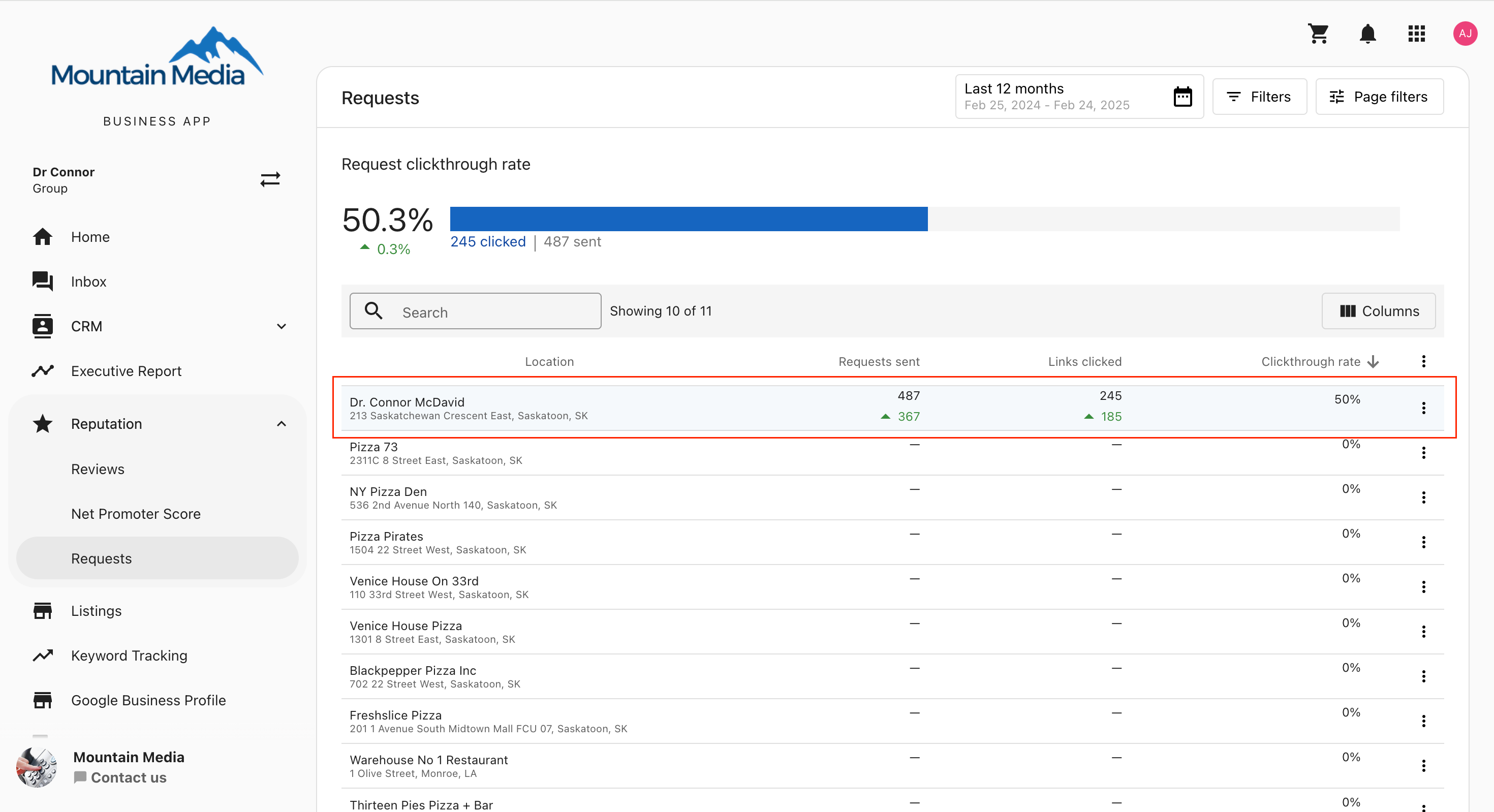
For businesses with multiple locations, track and compare review request performance across all locations.
- From your main Account List, navigate to the Requests menu item in the Navigation Bar.
- Select Performance from the submenu.
- Review the overview metrics: Requests Sent, Email Open Rate, Feedback Rate, and Reviews Collected.
- Scroll down to see metrics broken down by individual location.
- Use filters in the top right to set a custom date range or filter by location.

Frequently Asked Questions
Settings Overview
The Settings section in Reputation Management allows you to configure account connections, notification preferences, and platform integrations. Use these settings to customize how Reputation Management works for your business.
Settings Areas
Link Google Business Profile, Facebook, and other platforms to enable review monitoring and response.
Configure email alerts and digest reports for new reviews, mentions, and listing changes.
Set up keyword tracking so Reputation Management monitors when your business is mentioned online.
Choose between Relaxed and Strict visibility settings for listing matching.
Connect Accounts
- Go to Reputation Management > Settings > Connect Accounts.
- Click the + icon next to the platform you want to connect (Google, Facebook, etc.).
- Follow the authentication prompts to grant access.
- Select the business location or page to monitor.
Notifications
- Go to Reputation Management > Settings > Notifications.
- Choose between instant alerts or daily digest emails for new reviews and mentions.
- Set up scheduled reports for weekly or monthly summaries.
Mentions Keywords
- Go to Reputation Management > Settings > Mentions.
- Add keywords related to your business name, services, or competitors.
- Use quotes around phrases to search for exact matches.
Listing Precision
Relaxed Visibility: Listings are marked as "Correct" when an exact or close match is found (e.g., "St." instead of "Street"). Good for businesses with common address abbreviations.
Strict Visibility: Listings are marked as "Found" only when an exact match is discovered. Optimal for SEO — ensures only exact matches are counted as accurate.
Competition Settings
Go to Analytics > Competition to update your business name for Share of Voice calculations, add up to 3 competitors, and configure service categories. Note: changing your business name here does not affect how the business appears elsewhere in the platform.