Listings Management Guide
Listings Management helps you improve your business's visibility online and within maps and navigation apps. Manage your listings, track keywords, and keep your business information accurate everywhere customers find you.
Listings Management helps customers find your business online. This guide walks you through setting up your Business Profile, connecting your listings to major directories, tracking keywords, and viewing analytics so you can grow your local search visibility.
Getting started checklist
- Set up your business profile — Complete your core business details.
- Connect your listings — Sync to Google, Facebook, Bing, X, and Apple.
- Verify your Google Business Profile — Complete Google verification if you sync to Google.
- Start tracking keywords — Monitor how you rank for search terms.
- Set up analytics — Connect Google and Bing insights.
- Explore optional features — Citation Builder and My Listing.
Step 1: Set up your business profile
Your Business Profile is the source for all your listing data. Complete it before connecting platforms so your information syncs accurately everywhere.
How to complete your business profile
- Open Listings Management and go to the Business Profile tab.
- Complete all required fields: business name, address, phone, and website.
- Set your hours of operation under the Hours tab.
- Add special hours for holidays and exceptions.
- Configure category-specific Google attributes under the Attributes tab.
- Upload high-quality images following the image guidelines (JPG or PNG, 10 KB to 5 MB).
Step 2: Connect your listings
Listing Sync sends your Business Profile data to Google Business Profile, Facebook, Bing, X, and Apple so you update once and stay consistent across platforms.
How to connect platforms
- Go to
Listings Management>Listing Sync. - Click
Connectnext to each platform you want to sync (Google, Facebook, Bing, X, or Apple). - Enter your credentials and grant permissions.
- Select the business location or page to connect.
- Turn on sync to start pushing your data.
Most platforms receive submissions within 15 minutes to 1 hour. Publishing can take up to 4 weeks. Allow 6 to 8 weeks for initial activation across all sources. For Apple, you must first claim your listing through Apple Business Connect.
Step 3: Verify your Google Business Profile
If you connect Google, your Google Business Profile must be claimed and verified through Google. Listing Sync cannot manage unverified profiles.
How to verify with Google
- Sign in at
business.google.comand select your business. - Click
Verify nowand ensure your address is correct. - Request a verification postcard (typically arrives within 14 days).
- Enter the 5-digit code when it arrives.
Step 4: Start tracking keywords
Keyword Tracking shows how your business ranks for specific search terms over time. You can add up to 15 keywords (or more with an add-on) and view positions, trends, and search volume.
How to add keywords
- Go to
Listings Management>Keyword Tracking. - Click
Add Keywords. - Enter keywords (one per line).
- Click
Addto begin tracking.
Use the Trend tab to analyze performance over time. You can also use SMART Keyword Suggestions to discover related terms from your website.
Step 5: Set up analytics
Analytics connects Google Business Profile insights (and Bing for Listing Sync Pro users) so you can see how customers find and interact with your business.
How to connect Google insights
- Go to
Listings Management>Analytics>Google. - Click
Connect Google Business Profile. - Sign in and grant permissions.
After connecting, view metrics such as search terms, where customers see your business, and common actions. For Bing insights, ensure your Bing profile is synced under Listing Sync and open Analytics > Bing.
Step 6: Explore optional features
Citation Builder
Citation Builder submits your business data to aggregators (TransUnion's Neustar/Localeze and Foursquare), which distribute it to directories, search engines, and voice assistants. Available for US-based businesses. Allow 6 to 8 weeks for initial distribution and 2 to 3 months for full publication.
My Listing
My Listing lets you create a customizable public business profile page with themes, branding, and event analytics. Use it to showcase your business without a full website.
Frequently Asked Questions
What is Listings Management?
Listings Management is a suite of products designed to improve your business's visibility online and within maps and navigation apps. It helps you ensure that your business information is accurate everywhere it appears online so customers can find you easily.
The platform allows you to customize search engine-optimized listings, view the status of your business listings, sync business information to reputable listing sites, track keyword performance, and analyze your local search presence.
Why is Listings Management important?
- Improved local search visibility — Better rankings in local search results help customers find you when they need your services.
- Better accuracy across directories — Consistent business information across all platforms builds trust with customers and search engines.
- Enhanced customer experience — Accurate hours, directions, and contact information make it easier for customers to visit or contact your business.
- Time savings — Manage multiple online profiles and listings from a single dashboard instead of updating each platform individually.
What's included with Listings Management?
Business Profile Management
- Core profile data — Manage business name, address, phone, website, and other essential details
- Hours of operation — Set regular hours, including those that extend past midnight
- Special hours — Add holiday hours and exceptions
- More hours — Category-specific hours like delivery, drive-through, takeout, or pick-up
- Google attributes — Configure category-specific attributes that help your business appear in relevant searches
- AI-generated descriptions — Create short and long business descriptions with AI assistance
- Image management — Upload logos, primary photos, and additional images following Google Business Profile guidelines
- Service area settings — Hide physical addresses for service area businesses, or add service areas your business covers
Listing Sync
- Multi-platform syncing — Sync data to Google Business Profile, Facebook, Bing, and X profiles
- NAP data consistency — Ensure Name, Address, Phone number accuracy across directories
- Enhanced attributes — Sync payment methods, business logos, photos, descriptions, and social media URLs
- Apple Business Connect — Dedicated connection to Apple Maps and Apple services
- Status tracking — Monitor sync progress with detailed status and accuracy reports
- Multiple social connections — Choose which Facebook, Instagram, or X pages to sync when multiple are connected
Keyword Tracking
- Keyword monitoring — Track how your business ranks for specific search terms over time
- Performance grid — View positions, best position achieved, changes, search volume, and competition data
- Trend analysis — Analyze ranking performance over time periods
- SMART keyword suggestions — Discover additional keyword ideas using your website as the seed
- Executive report integration — Choose which keywords to include in reports
- Access controls — Manage who can edit keywords
Analytics and Insights
- Google Business Profile insights — Track searches, customer interactions, and how customers find your business
- Bing insights — Monitor performance on Bing for Listing Sync Pro users
- Search terms reporting — See the queries people use to find your business
- Customer interaction tracking — Monitor bookings, conversations, and food orders
- Performance trends — Evaluate marketing effectiveness across platforms
Citation Builder
- Data aggregator submission — Submit business data to TransUnion's Neustar/Localeze and Foursquare
- Distribution network — Reach directories, search engines, navigation tools, and mobile apps
- Verification handling — Manage aggregator verification processes and conflict resolution
- Citation reporting — Track citation growth, distribution, and data accuracy
- Healthcare support — Special fields for healthcare professionals including credentials and insurances
My Listing
- Custom business profile — Create a public-facing business profile page
- Theme selection — Choose responsive layouts that adapt to different screen sizes
- Custom branding — Upload logos, favicons, and mobile shortcut icons
- Domain customization — Use custom slugs, domains, or mobile subdomains
- Page management — Create and manage pages for images, contact info, coupons, videos, and custom content
- Event analytics — Track visitor actions like viewing hours, maps, and contact information
Listing Sync Pro
- Yext-powered network — Access enhanced listing distribution through Yext's network
- Expanded directory reach — Sync to additional directories beyond basic Listing Sync
- Advanced reporting — Detailed insights into listing performance and accuracy
- Priority support — Enhanced support for managing complex listing scenarios
How to get started with Listings Management
- Open
Listings Managementand go to theBusiness Profiletab. Complete all required fields including business name, address, phone, and website. Set hours, special hours, Google attributes, and upload images. - Navigate to
Listings Management>Listing Sync. ClickConnectnext to each platform (Google, Facebook, Bing, X, Apple), enter credentials, and turn on sync. - Go to
Keyword Tracking, clickAdd Keywords, enter terms, and use theTrendtab to analyze performance. - Visit
Analytics>Googleto connect Google Business Profile insights. For Listing Sync Pro users, enable Bing insights under the Analytics section. - Activate Citation Builder to submit data to major aggregators. Monitor the reporting dashboard and allow 6–8 weeks for initial distribution.
Managing your listings management presence
Keep information accurate and consistent
- Update business details immediately when changes occur
- Ensure NAP (Name, Address, Phone) consistency across all platforms
- Review and approve Google Business Profile suggested updates when they appear
- Monitor listing accuracy through status reports and sync dashboards
Optimize for better visibility
- Choose accurate primary and secondary business categories
- Write compelling business descriptions using AI assistance when available
- Upload high-quality images that represent your business well
- Respond to customer reviews and engage with your audience
Track and improve performance
- Monitor keyword rankings and adjust strategy based on trends
- Review analytics insights to understand customer behavior
- Use search term data to discover new keyword opportunities
- Track citation growth and ensure consistent distribution
Frequently Asked Questions
Create and sync your business profile
To add information to your Business profile, and to begin pushing data to more than just Google, open the Listings Management tool in the toolbar and slide over to the Listing Sync button.

On the top right of your screen, select the Edit business profile button.

Add all relevant information about your business. Hours, phone number, website, categories, photos, logos, social links, address, etc. *Don't forget holiday hours!

Once you hit save – Your listings are now in progress.
DFM's listings aggregator is now building, claiming, and verifying your business listings on over 50 search engines and review sites.

- "Synced" = The data you added to your business profile is now live in that site.
- "Submitted" = The data from your business profile has been sent to that site.
- "Sync in progress" = Data is being processed.
- "Claimed" = Your profile for this site has been claimed.
- "Not Syncing" = The data submitted was either denied or an account has already been verified for that site. Reach out to support for more details.
*Note: Smaller search engines and review sites may take up to 60 days for all listings to sync or submit.
"Sync to fix" near one of your listings?

Select Sync to fix to start pushing data.
Manage your Business Profile information effectively to improve local search visibility and customer experience. This section covers various aspects of configuring and optimizing your Business Profile in Listings Management.
What is Business Profile?
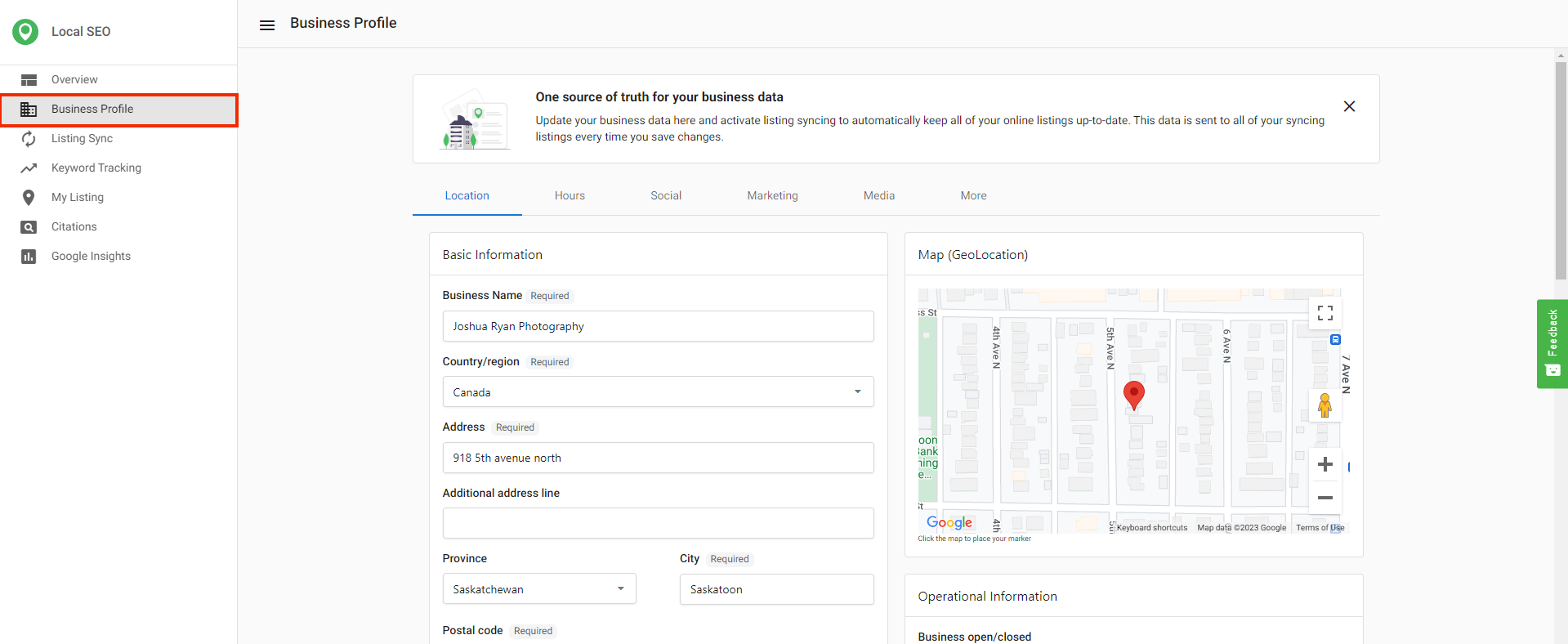
You can manage core business details in the Business Profile tab. This includes profile data, Special Hours (holiday hours), category-specific Google attributes, More Hours, and tools for AI-generated business descriptions.
Why is Business Profile important?
- Streamlines profile setup so you can quickly start using the product and syncing.
- Helps you control hours that extend past midnight and holiday exceptions.
- Lets you add category-specific Google attributes that can help your business appear in relevant searches.
- Supports service area businesses by allowing you to hide the physical address where supported.
What's included with Business Profile?
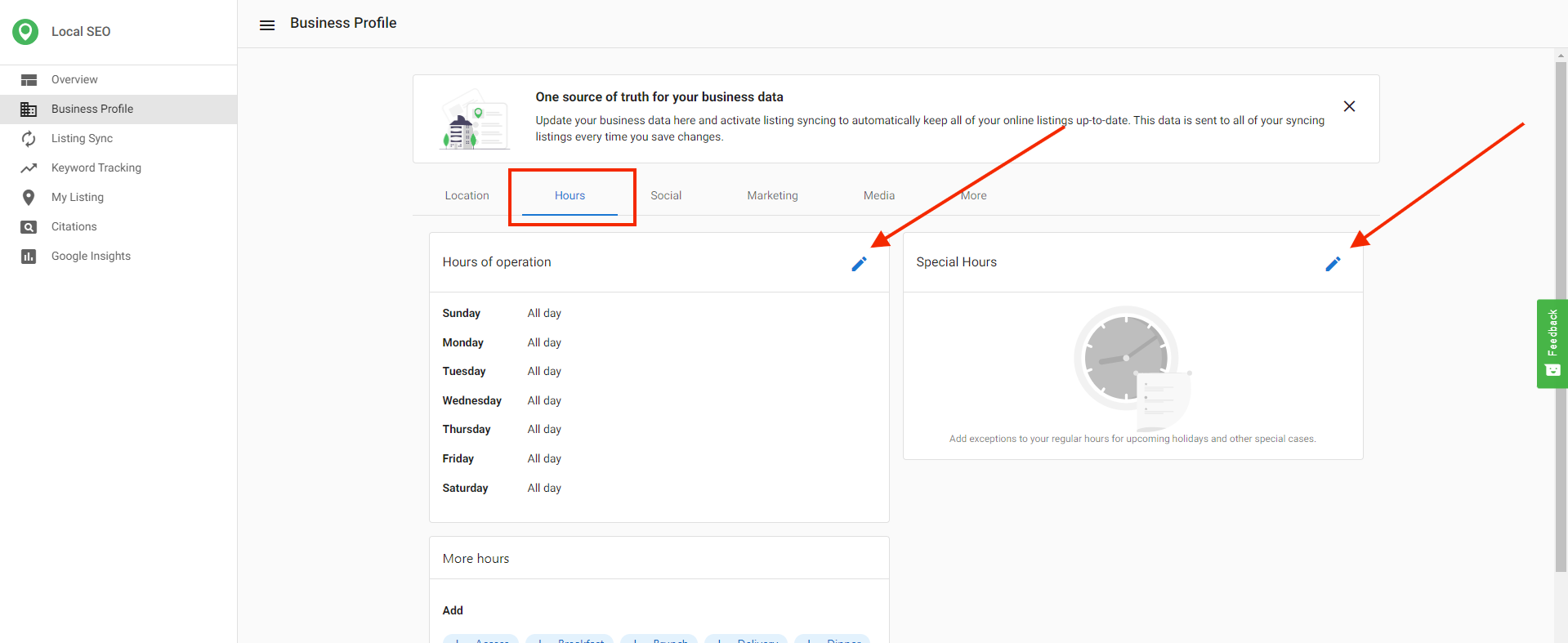
- Hours of Operation — Set hours, including hours that extend past midnight.
- Special Hours — Add holiday hours and exceptions under
Hours. - More Hours — Add category-specific hours (for example, delivery, drive-through, takeout, pick-up) under
Hours. - Google Attributes — Configure category-specific attributes under
More. - AI-Generated Descriptions — Generate short and long descriptions under
MarketinginBusiness Profile. - Image Requirements — Follow Google Business Profile image guidelines for logos, primary, and additional photos.
- Service Area Business — Hide the physical address (where supported) for service area businesses, including bulk updates.
Hours and More tabs.How to use Business Profile
Generate AI business descriptions
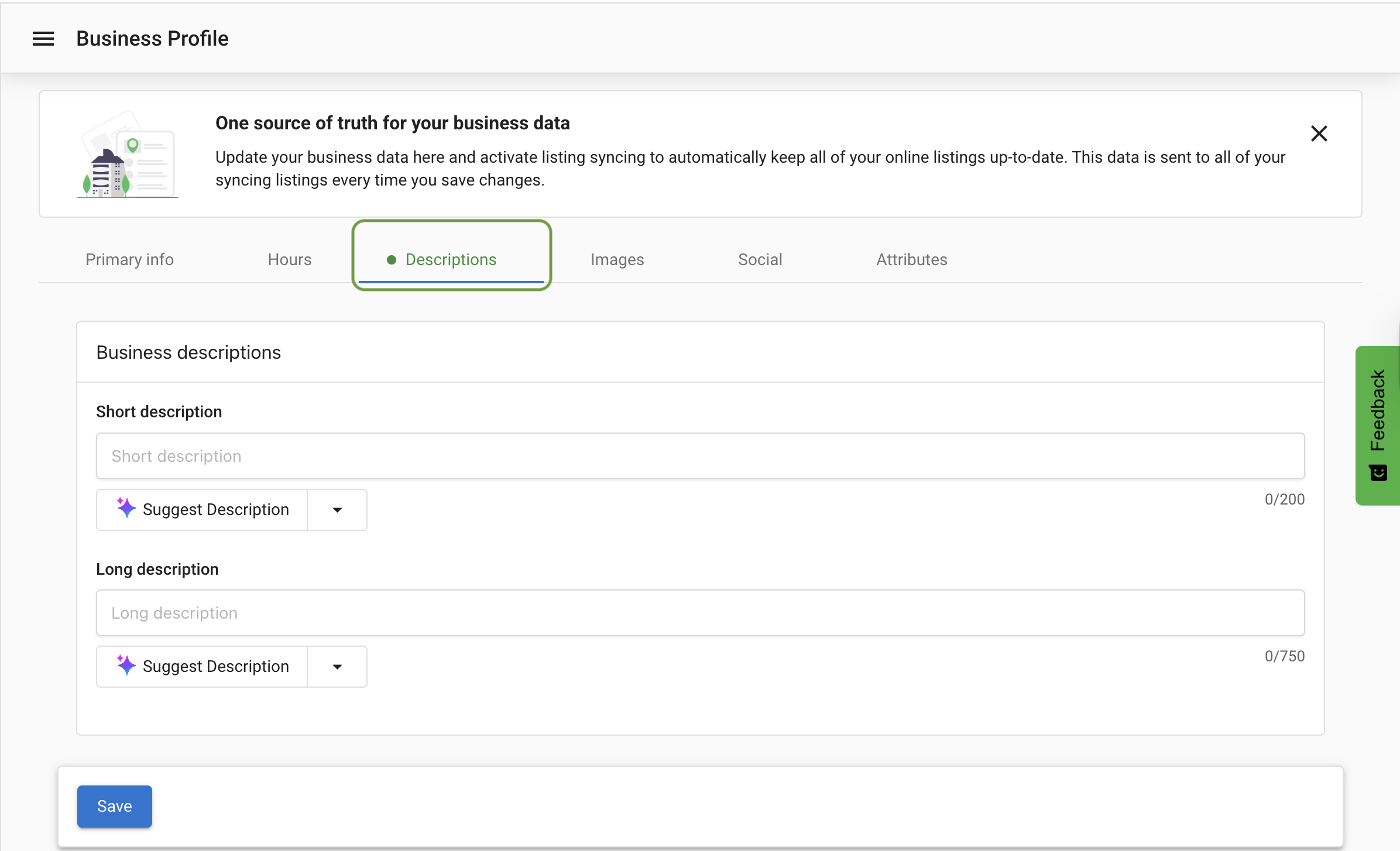
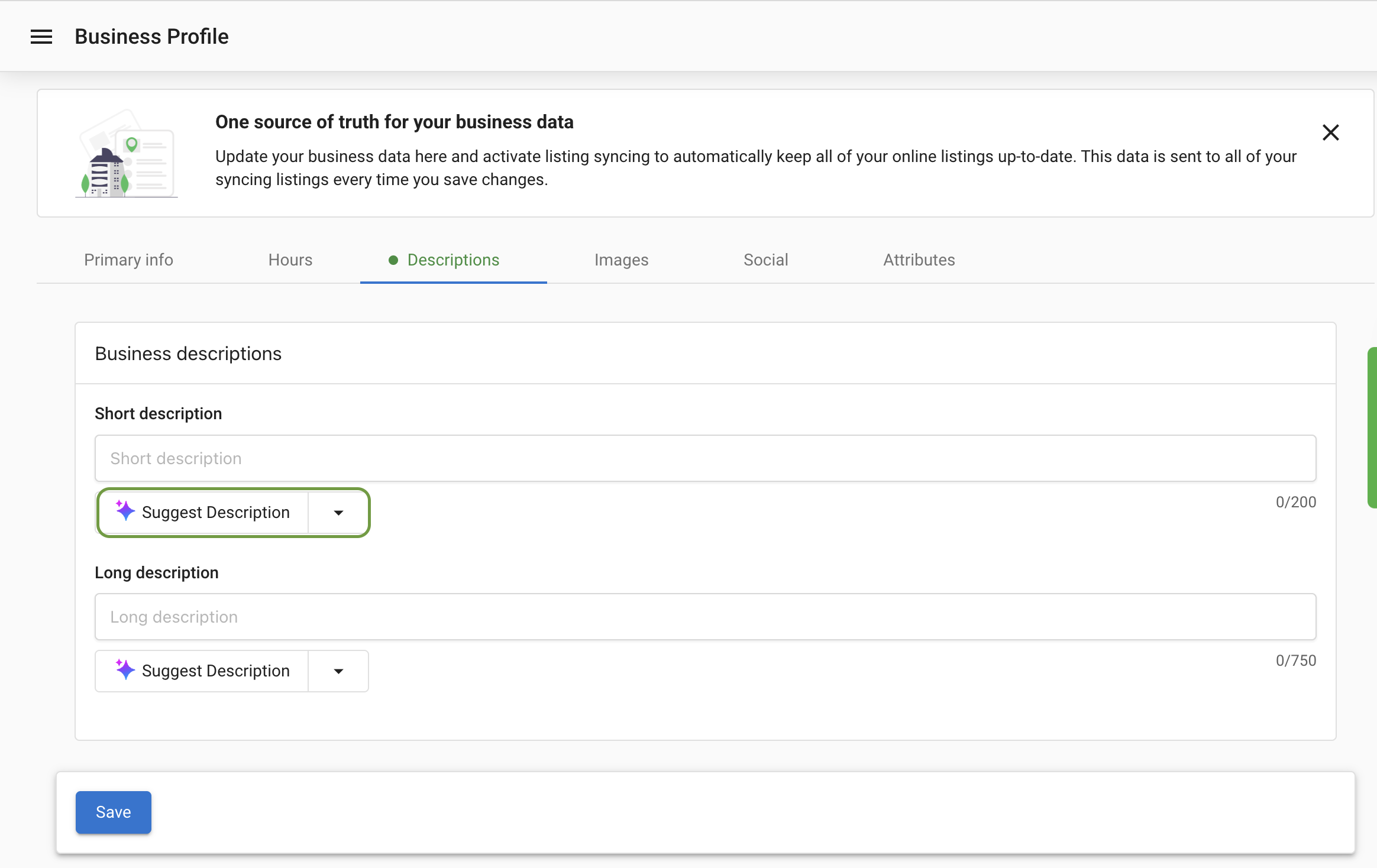
Use AI to quickly create short and long business descriptions from the Descriptions tab in Business Profile. This feature works when Listings Management and/or Listing Sync Pro is active.
- Go to
Business Profileand select theDescriptionstab. - Click
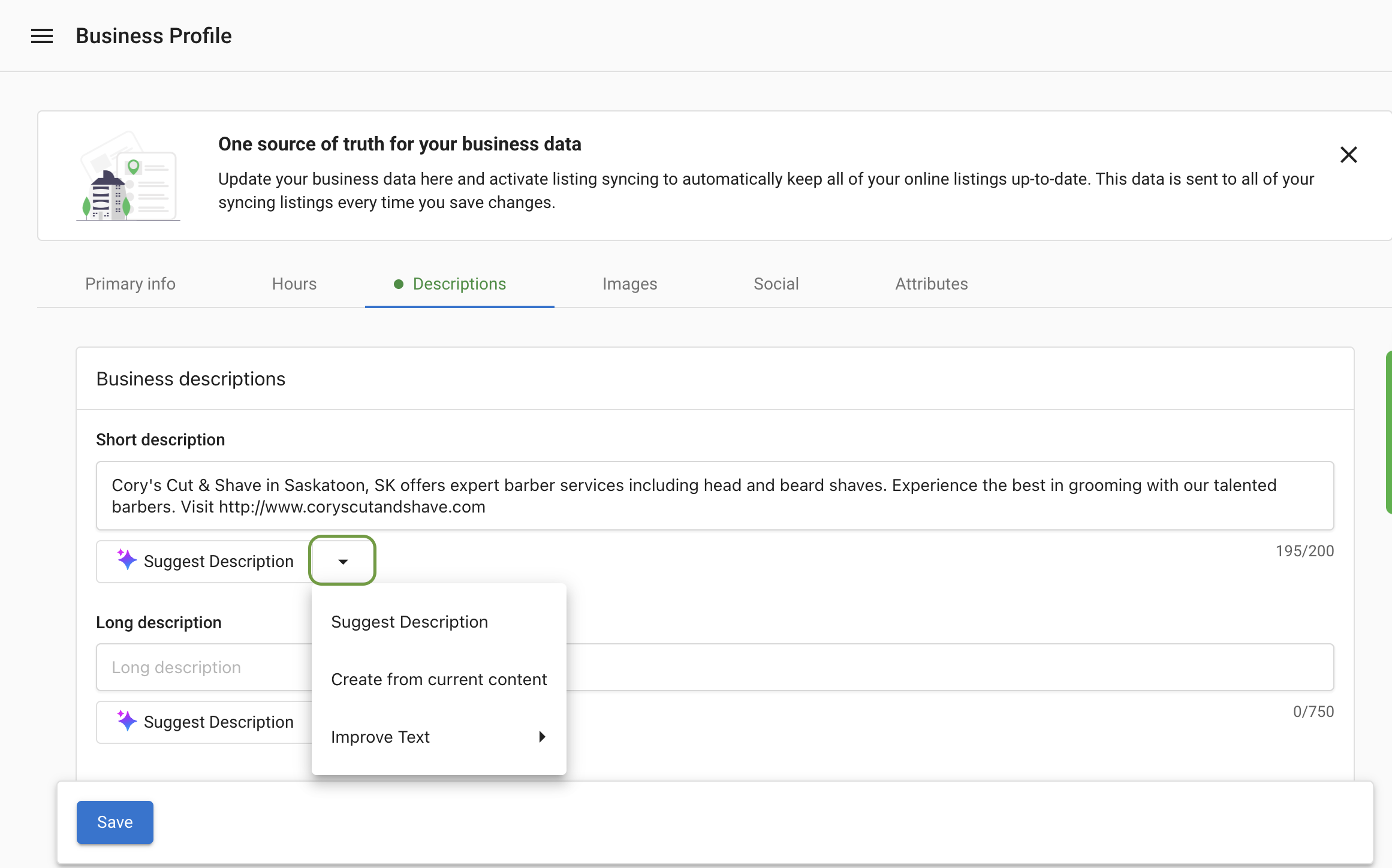
Suggest Description. - Use the dropdown to explore options. Select
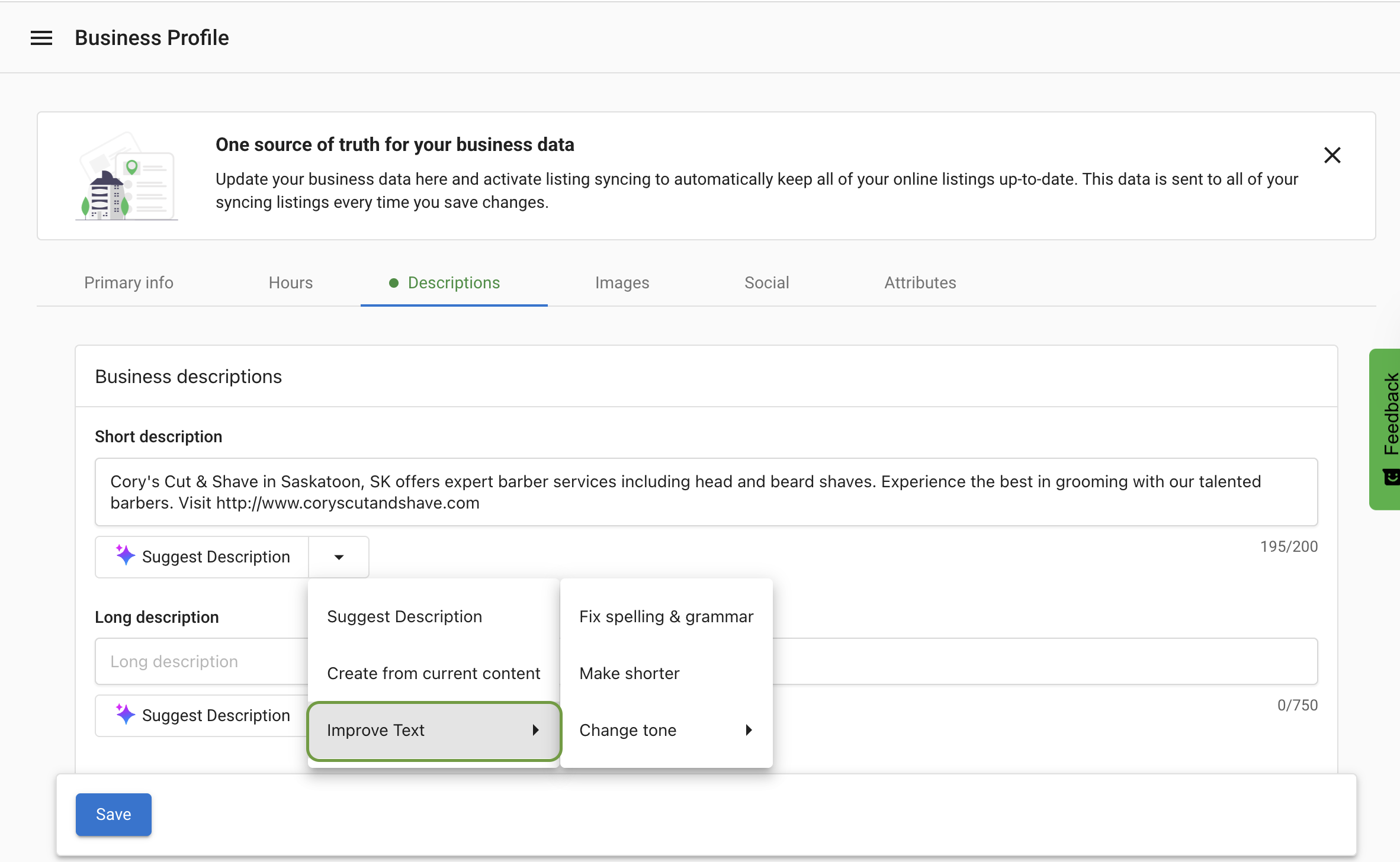
Create from current contentto build from an existing description. - Select
Improve Textto fix spelling and grammar, shorten the text, or adjust tone. - Choose a tone such as friendly, professional, or witty.
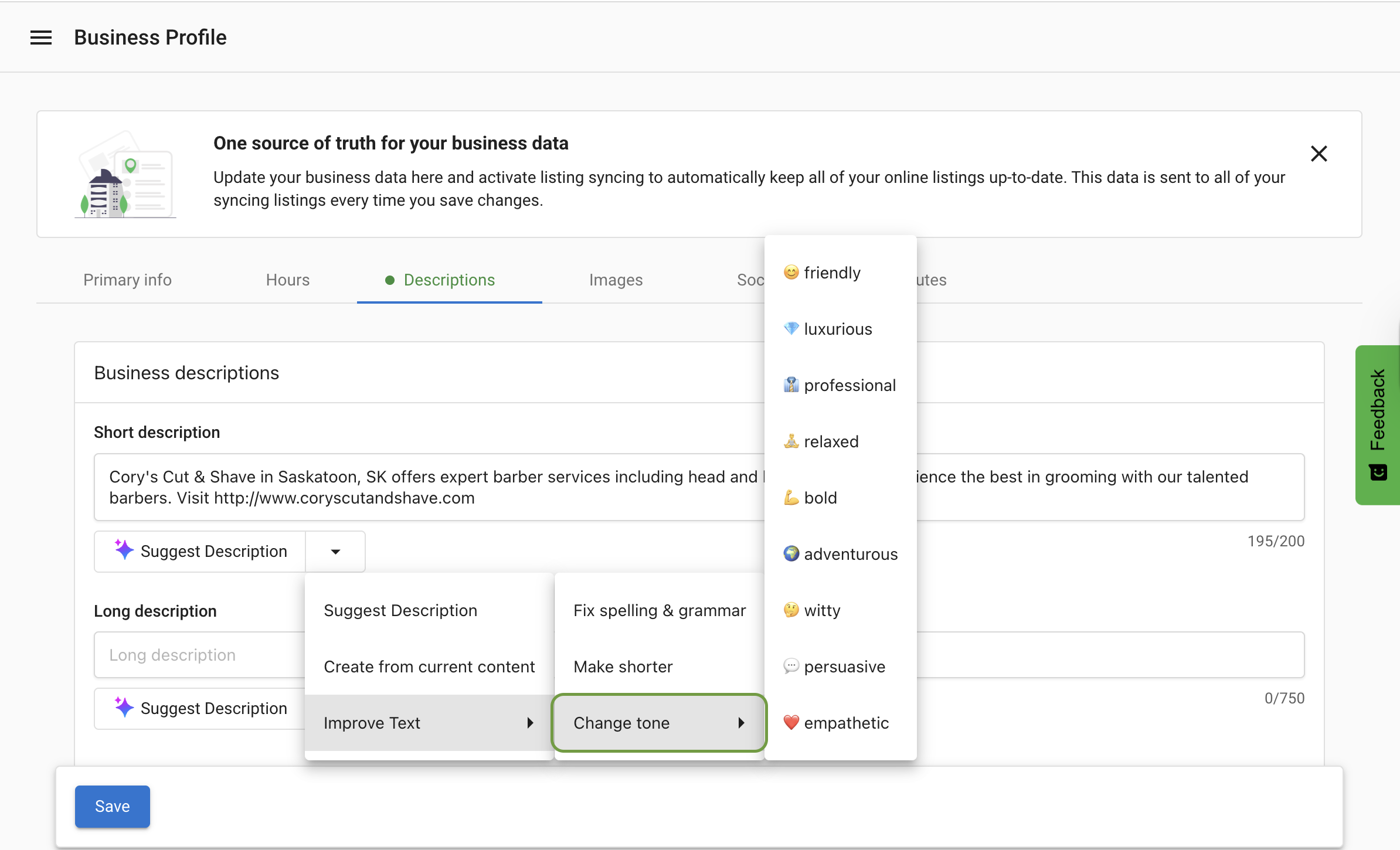
Long description syndication to Google Business Profile
The Long Description field in Business Profile > Descriptions syncs to a connected Google Business Profile when sync is on. If this field contains content, it will be published to the connected profile. If blank, no changes are made.
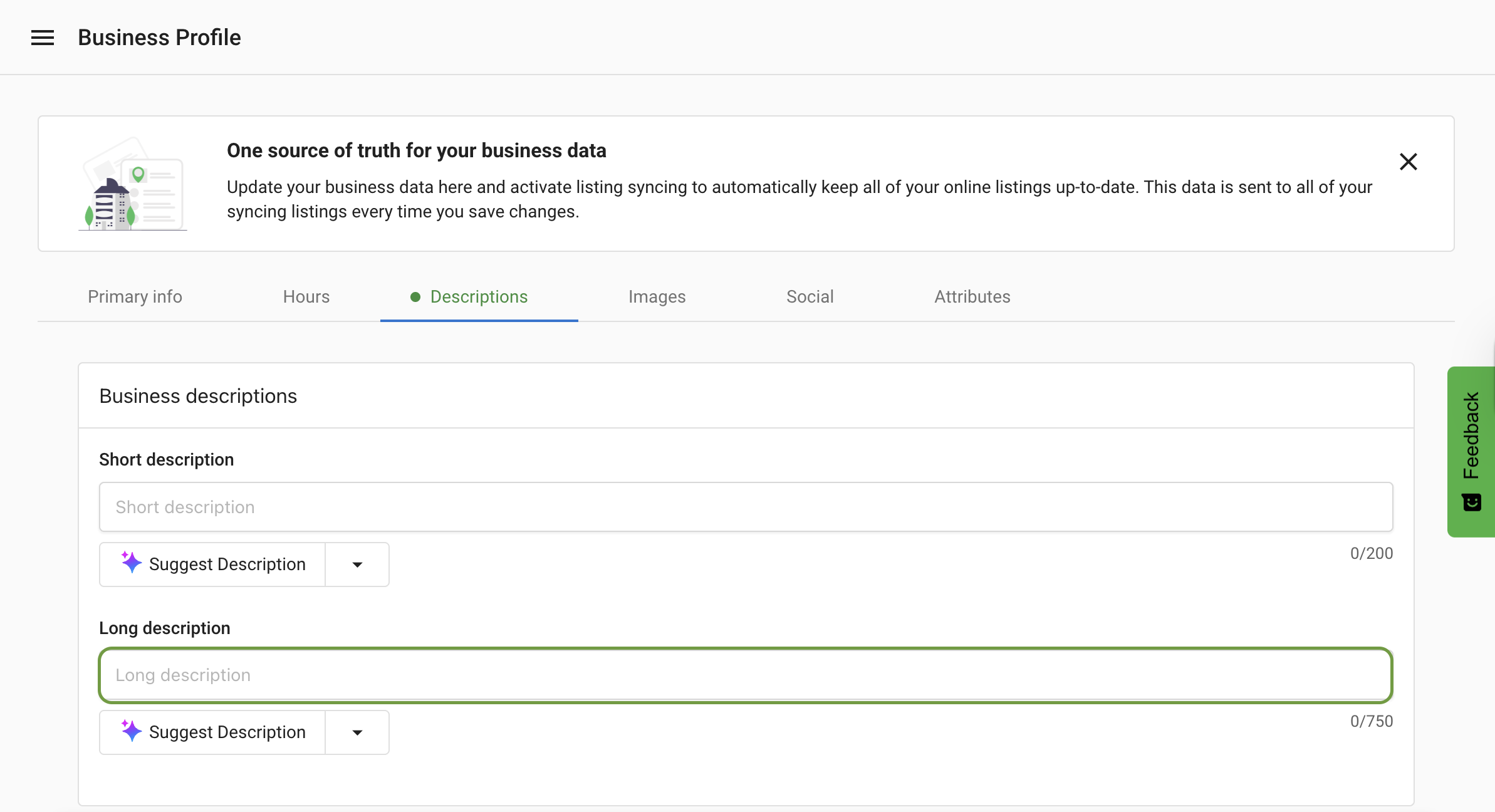
Recommendations:
- Describe services or products, history/values, and essential details a customer should know.
- Keep content under 750 characters and avoid URLs or HTML.
Set hours of operation (including past midnight)
- Open
Business Profileand go to theHourstab. - Enter your hours, including ranges that extend past midnight (for example,
11:00 am - 3:00 am).
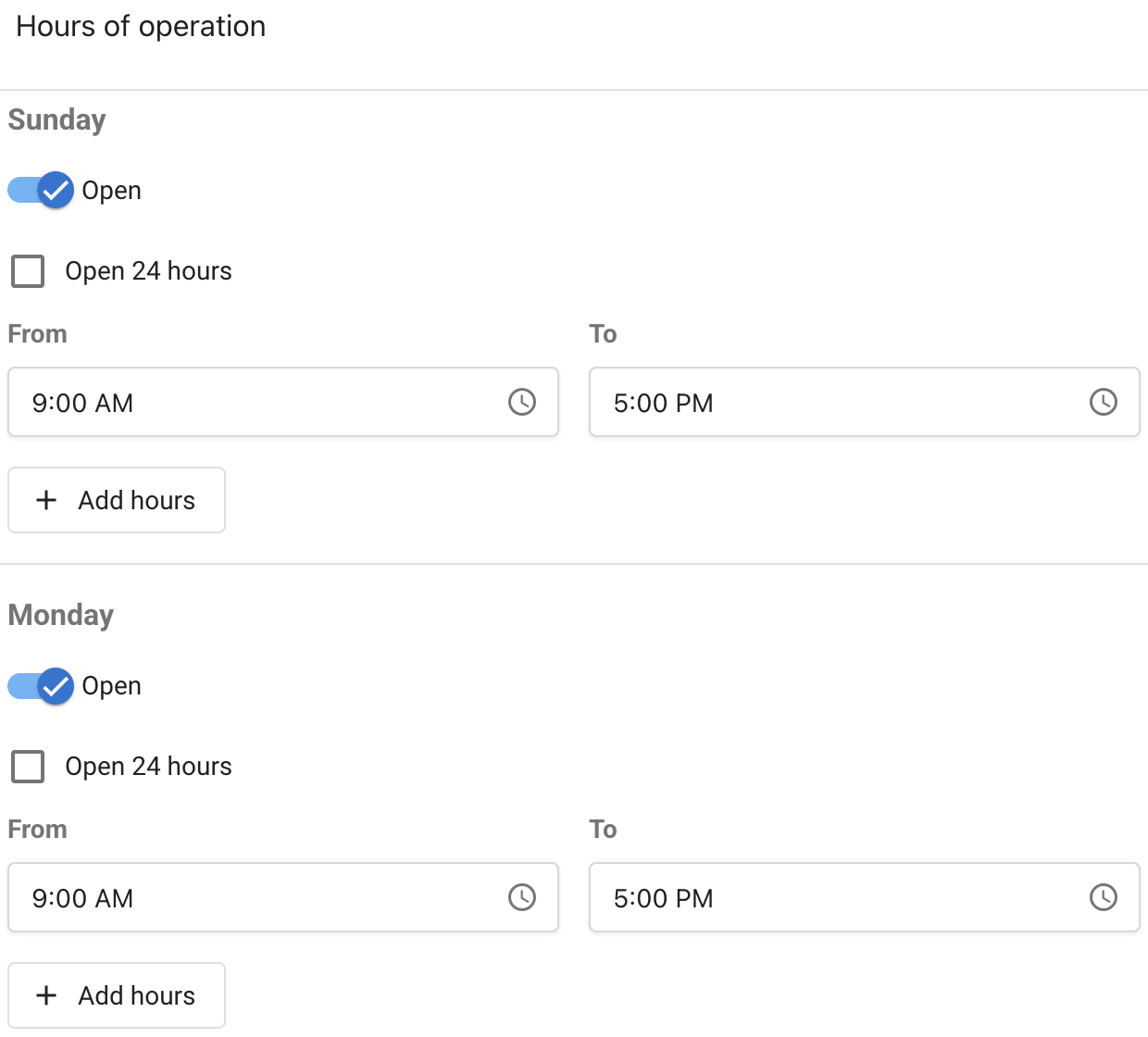
Manage special hours and Google attributes
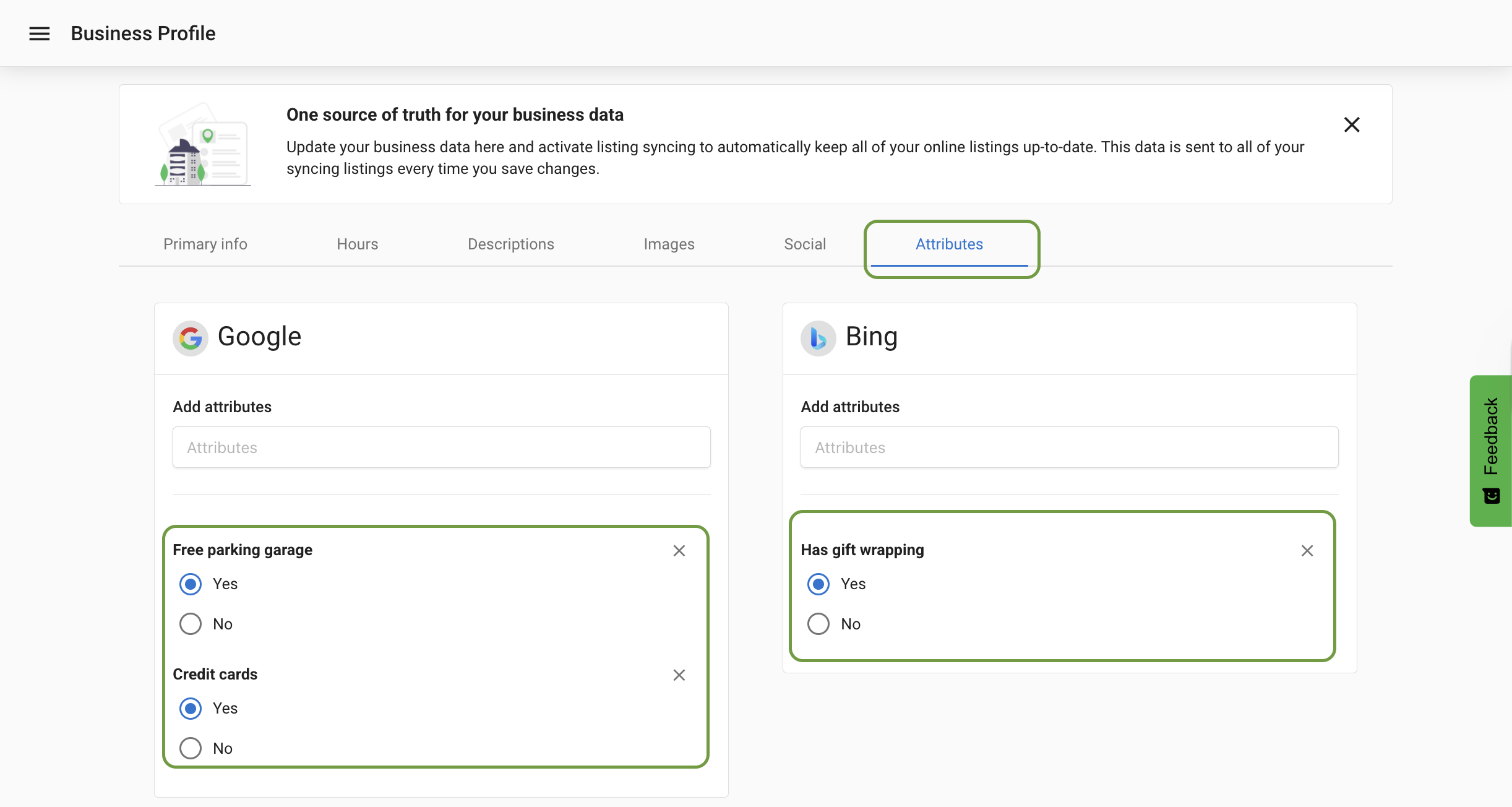
Special Hoursare under theHourstab and are ideal for holidays and exceptions to your regular hours.- Category-specific Google and Bing attributes are under the
Attributestab. Available attributes vary by business category.
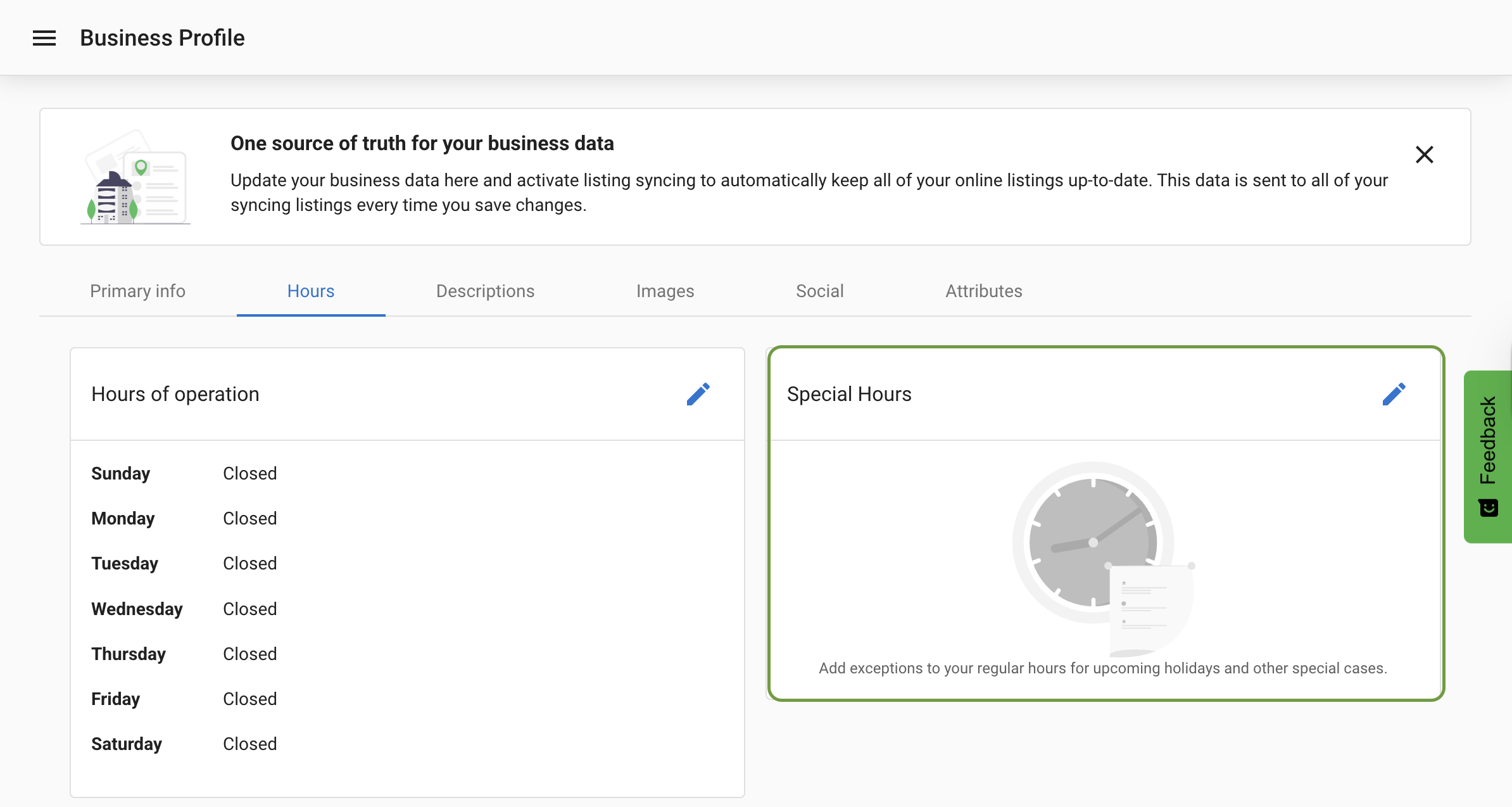
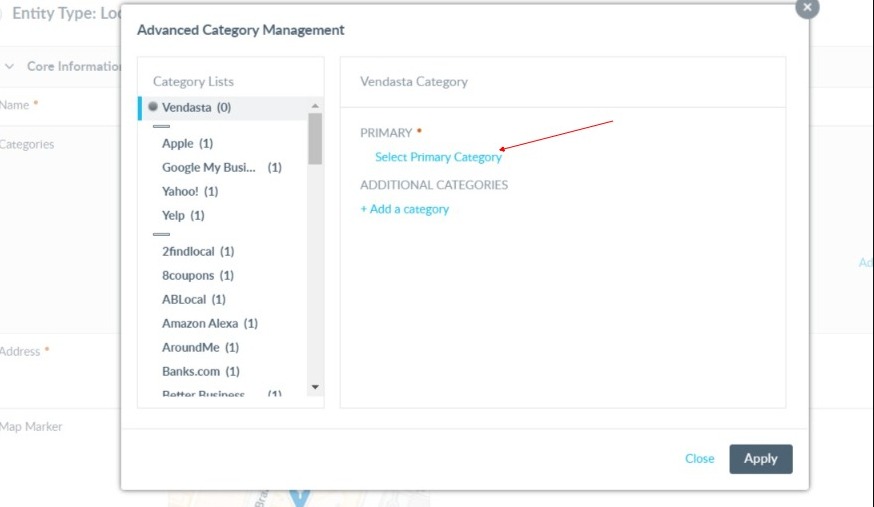
Set primary and additional categories
Categories help directories classify your business. The first category sent is treated as the primary category. Additional categories may sync to listing networks that support them. Keep categories aligned across the product to avoid sync failures on category-sensitive networks.
Use more hours
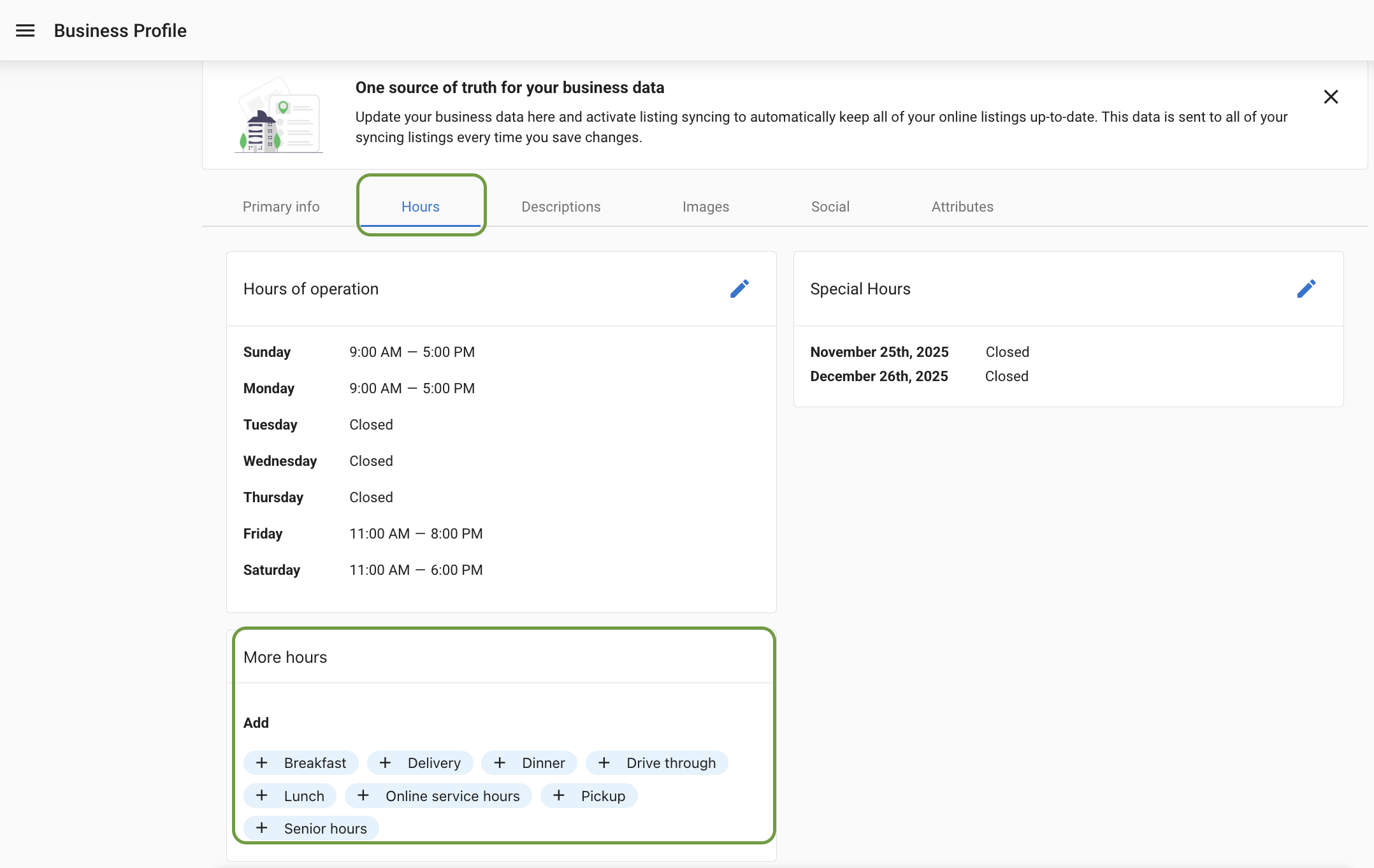
All users can access More Hours from the Business Profile tab.
- In
Business Profile, open theHourstab to view and manageMore Hours. - Add category-specific hours such as delivery, drive-through, takeout, or pick-up.
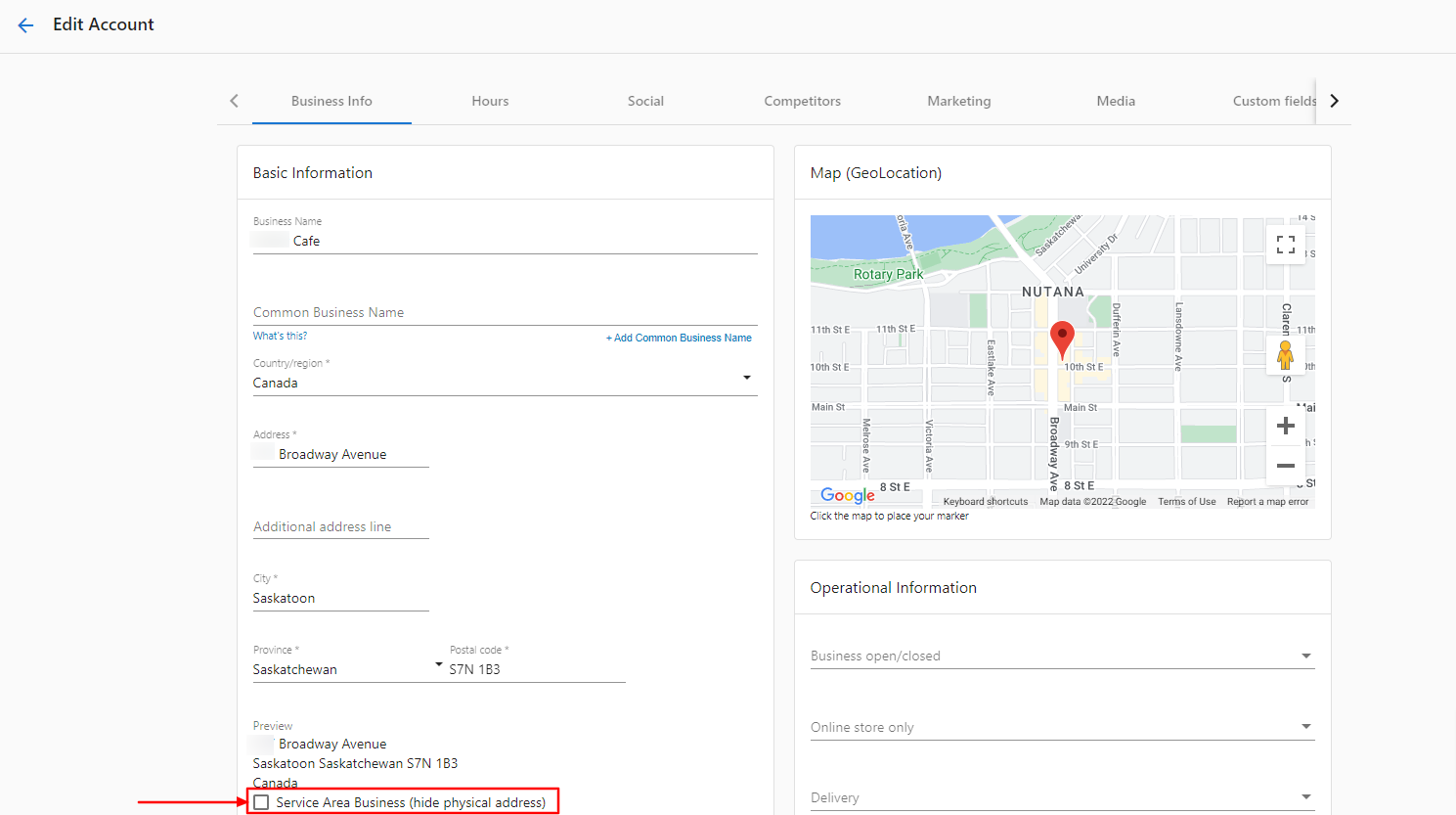
Hide your physical address (service area businesses)
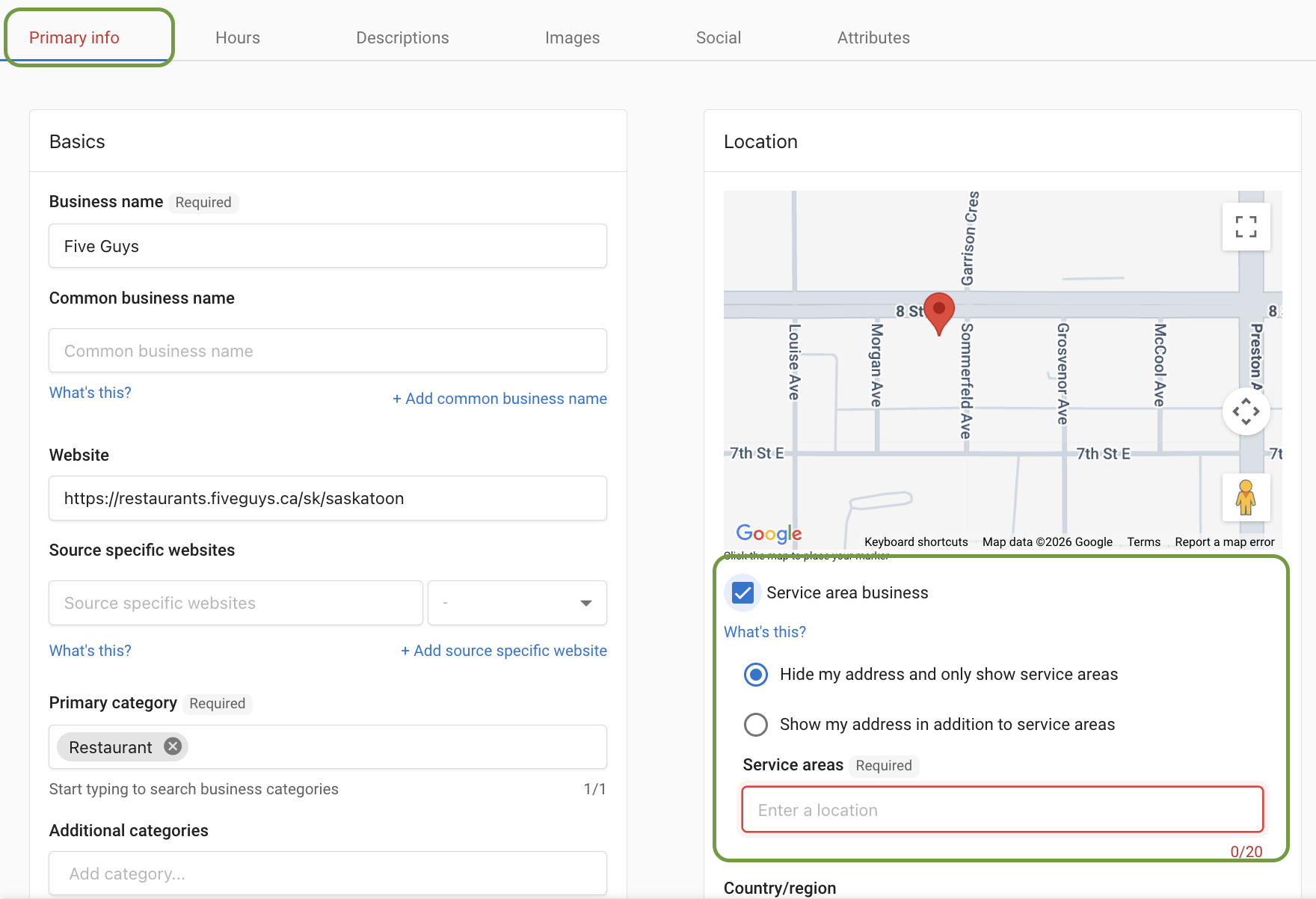
You can list your business as a service area business and hide the physical address in Listing Sync Pro, Citation Builder, and in Listings Grade in the Snapshot Report.
Set during new account creation:
- In the
Business Profilesection of account creation, checkService Area Business (hide physical address)(belowLocation Map). It is turned off by default.
Update an existing account:
- Open
Accountsand select the business to edit. - Click
View all data. - Under
Primary info, belowLocation Map, checkService Area Business (hide physical address). - Click
Save.
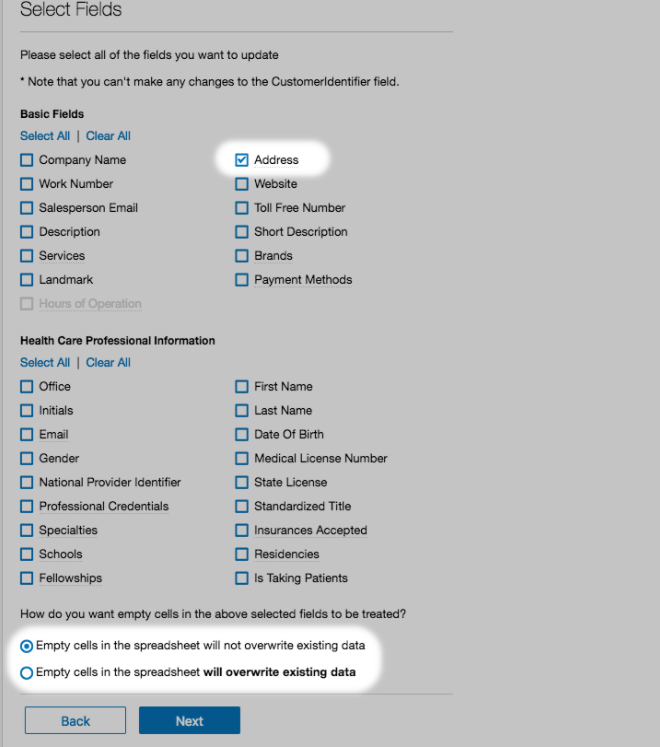
Update multiple existing accounts (bulk):
- Open
Accounts. - Click the menu next to
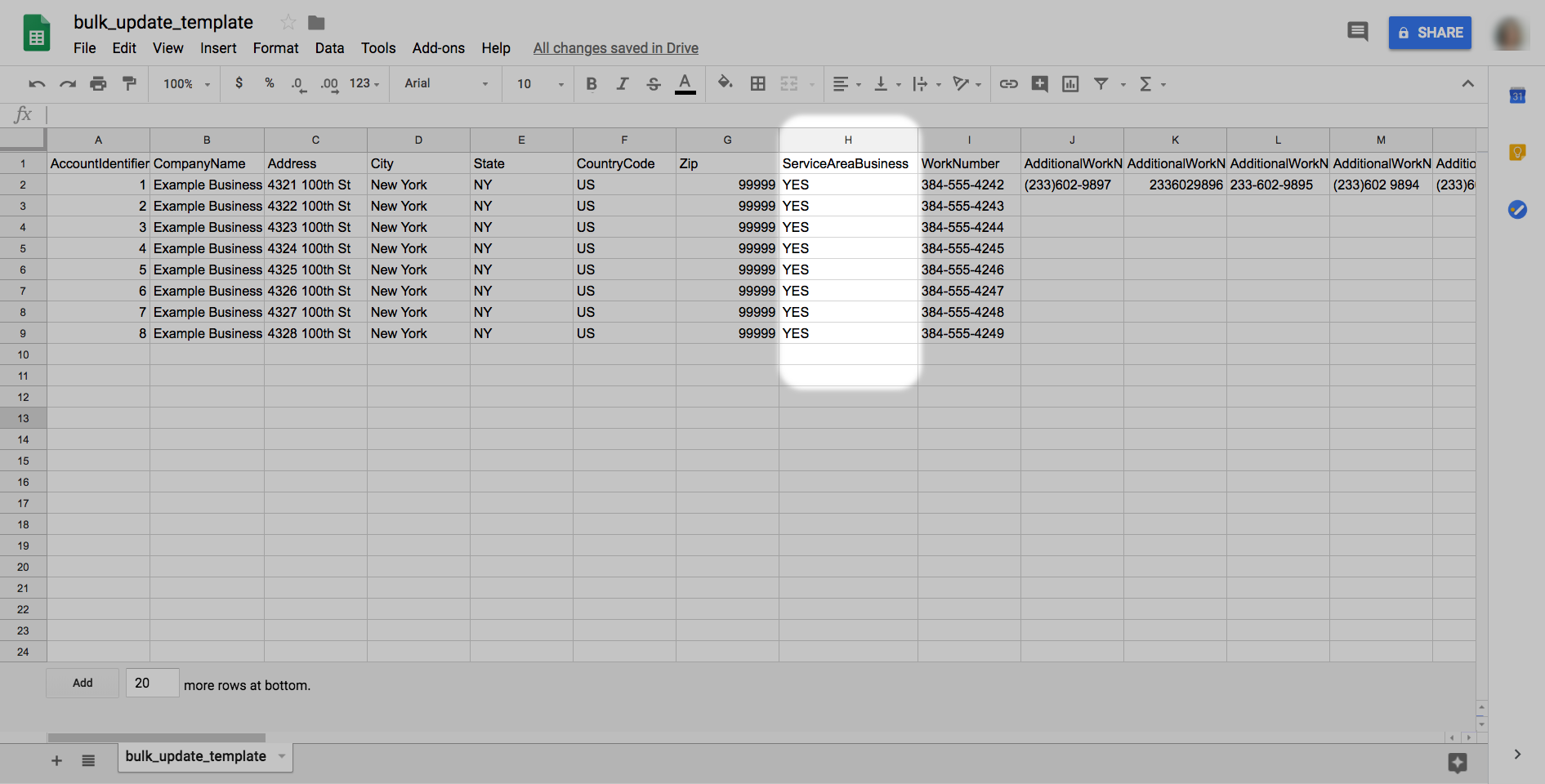
Create Account> selectUpdate Accounts (CSV Upload). - Prepare a CSV with the new data or export an existing list. The template includes a
Service Area Businesscolumn; enterYesfor each applicable account. - Upload the CSV and click
Next. - Select the
Addressbox. - Choose whether empty cells should overwrite existing data and click
Next. - Review changes and click
Update.

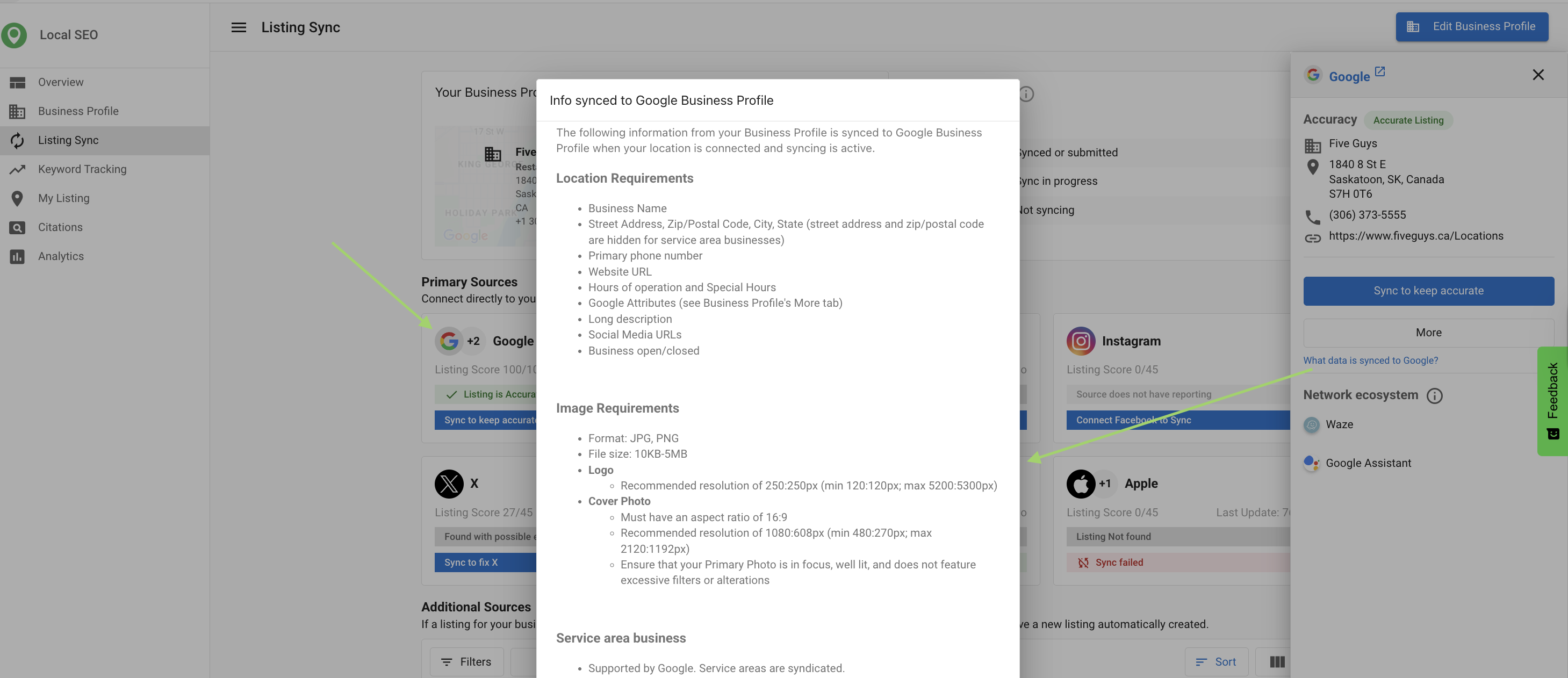
Follow image and photo requirements (Google Business Profile)
- Formats: JPG, PNG
- File size: 10 KB–5 MB
- Logo: Recommended 250×250 px (min 120×120 px; max 5200×5300 px)
- Cover Photo: Aspect ratio 16:9, recommended 1080×608 px (min 480×270 px; max 2120×1192 px). Ensure the photo is in focus, well-lit, with no excessive filters or alterations.
Review Google Business Profile updates
You can review and manage updates that Google proposes to your profile. Approve changes to accept Google's updates and sync them, or reject changes to republish your current data.
Requirements: the profile must be authenticated, Listings Management must be active, and sync must be enabled for the business. Manual approval is required to comply with Google policies. Automatic overwrites are not allowed.
Verify your Google Business Profile
Desktop:
- Sign in to
https://business.google.com/and select the business. - Click
Verify nowand ensure the address is accurate. - Click
Send postcardand watch for delivery (typically within 14 days).
Mobile:
- Open the Google Business Profile app and tap
Send postcard. - Select the business, tap
I don't have a codeif needed.
Enter your code:
- After the postcard arrives, sign in and choose the location.
- Click
Verify locationorVerify nowand enter the 5-digit code.
Frequently Asked Questions
Business Profile > Descriptions tab.Business Profile > Descriptions, click Suggest Description, and use options like Create from current content or Improve Text.Improve Text to fix spelling and grammar, shorten the text, or change the tone (for example, friendly, professional, witty).Business Profile > Hours and enter a range that crosses midnight (for example, 11:00 am - 3:00 am).Hours tab.Business Profile > Hours.Service Area Business (hide physical address). You can do this during account creation, for a single existing account, or in bulk via CSV.Creating a Google Business Profile (GBP)
To create a Google Business Profile, please follow the steps below after opening this link: https://business.google.com/en-all/business-profile/
You can either log in to your existing Google account or create a new account. Whatever account you use to create this profile will be the owner of the profile. DFM highly recommends that only the owner of the business have this level of ownership over your Google Profile(s).
Helpful tips when creating a profile:


Connecting your Google Business Profile
Open the Administration tool in your DFM account.
Select Integrations & Search Google Business Profile. Login and connect your Google.

*The same steps can be used to connect your Facebook account. Administration > Integrations > Search 'Facebook'.
Keep your profiles up to date
Ensure your business information remains accurate: *AI uses your Google profiles and reviews to answer questions about your business.*
- The name of your business should be cohesive with your website, social media, and search engine profiles.
- Phone number on Google must match your website to avoid re-verification issues.
- Hours, addresses, logos, exterior/interior photos, about sections, and more should all be up to date.

What is Listing Sync?
Listing Sync allows you to sync common business data to your Google Business Profile, Facebook, Bing, and X profiles to ensure the accuracy and consistency of your contact info. This helps improve SEO and customer acquisition while reducing the time it takes to update multiple online profiles.
Why is Listing Sync important?
- Increased visibility — People use online maps and directories daily to find businesses. Keeping your listings up to date attracts more local customers.
- Time savings — Update once in your Business Profile and it syncs automatically across Google, Facebook, Bing, X, and other directories.
- Reduced errors — Listing Sync ensures your data stays accurate and uniform everywhere, eliminating inconsistencies from manual updates.
- Customer trust — Consistent, accurate information across all directories helps customers find you and trust your business details.
- Listings Management benefits — Consistent NAP (Name, Address, Phone) data helps search engines verify your business, improving local search rankings.
- Enhanced features — Add logos, cover images, and action links on supported directories to make your listing stand out.
What's included with Listing Sync?
- NAP data — Name, Address, Phone number
- Website URL
- Attributes — Payment methods, business logo, primary photo, long/short descriptions, and social media URLs
Each directory decides which attributes to display.
How to set up Listing Sync
- Go to
Listings Managementand open theListing Synctab. - Click
Connectnext to Google, Facebook, X or Apple. - Enter your login credentials for that source.
- Click
Allowor grant permissions for the source to sync.
Multiple social connections
If you connect multiple Facebook, Instagram, or X pages, you can choose which page Listing Sync updates.
- In
Listings Management, open theListing Synctab. - Click the desired source.
- In the side panel, choose which connected page to sync to.
- Click
Sync to.
Service area businesses
If your business does not have a physical customer-facing storefront, you can mark it as a Service Area Business in your Business Profile to hide your address on listings while still appearing in local search results.
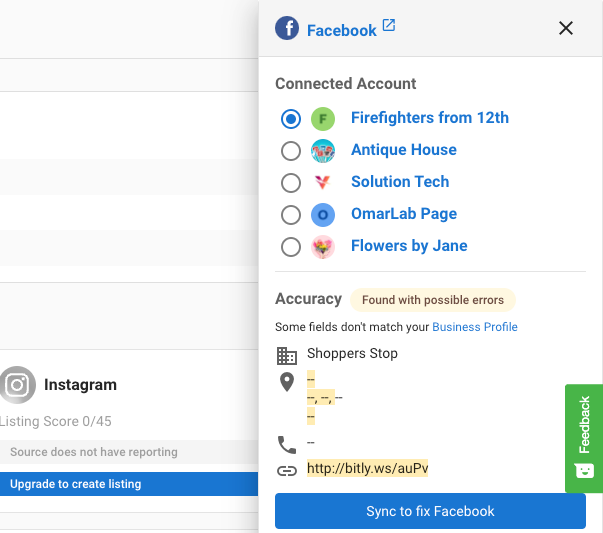
How accuracy is marked for service area businesses
- The system will still attempt to match and pull listings into the platform.
- If an external source's Business Name, Phone Number and Website URL matches your Business Profile, it appears as an accurate listing.
- If they do not match, it appears as "listing found with possible errors" — edit it on the external source to resolve.
Improve your listing score
- Fill out your Business Profile completely and ensure the information is 100% accurate.
- Select a primary category and two secondary categories.
- Keep your Google Business Profile optimized every month.
- Ensure the business address is searchable with a quick online search.
What information syncs
Common fields synced to multiple sources: company name, address & service areas, phone number, website, payment methods, brands carried, hours of operation and special hours, logo/primary photo, SEO keywords, social URLs, and attributes. For source-specific details: open Listings Management > Listing Sync > choose a source > Syncing Info.
Listing Sync timeline
- Most sources receive submissions within 15 minutes to 1 hour.
- Listings can take up to 4 weeks to publish. Allow 6–8 weeks for initial activation across all sources.
- Allow 24–72 hours for updates before troubleshooting. GPS directories can take up to 30 days.
- Bing and Apple Maps can take longer as they also pull and verify data from other sources.
- Directories with mandatory cleansing include Apple, Yelp, Foursquare, Baidu, and HERE.
- If a listing remains in
syncingstatus for over 4 weeks, contact support with the account name and specific source.
Accuracy report
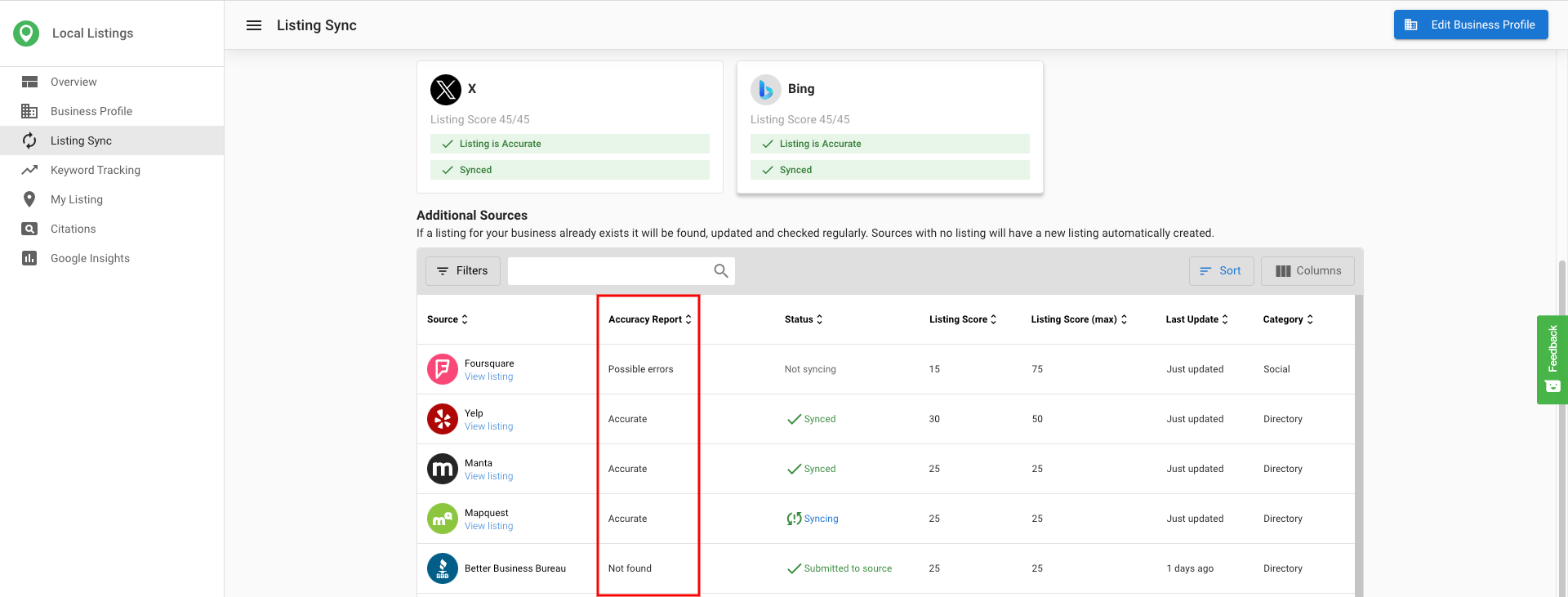
Accuracy report statuses
- Accurate — 100% match between your Business Profile data and the listing source.
- Possible errors — An incorrect listing was found; data is being updated on the source.
- Not found — The system did not find a good listing match.
- Source does not have reporting — The directory cannot communicate a status back.
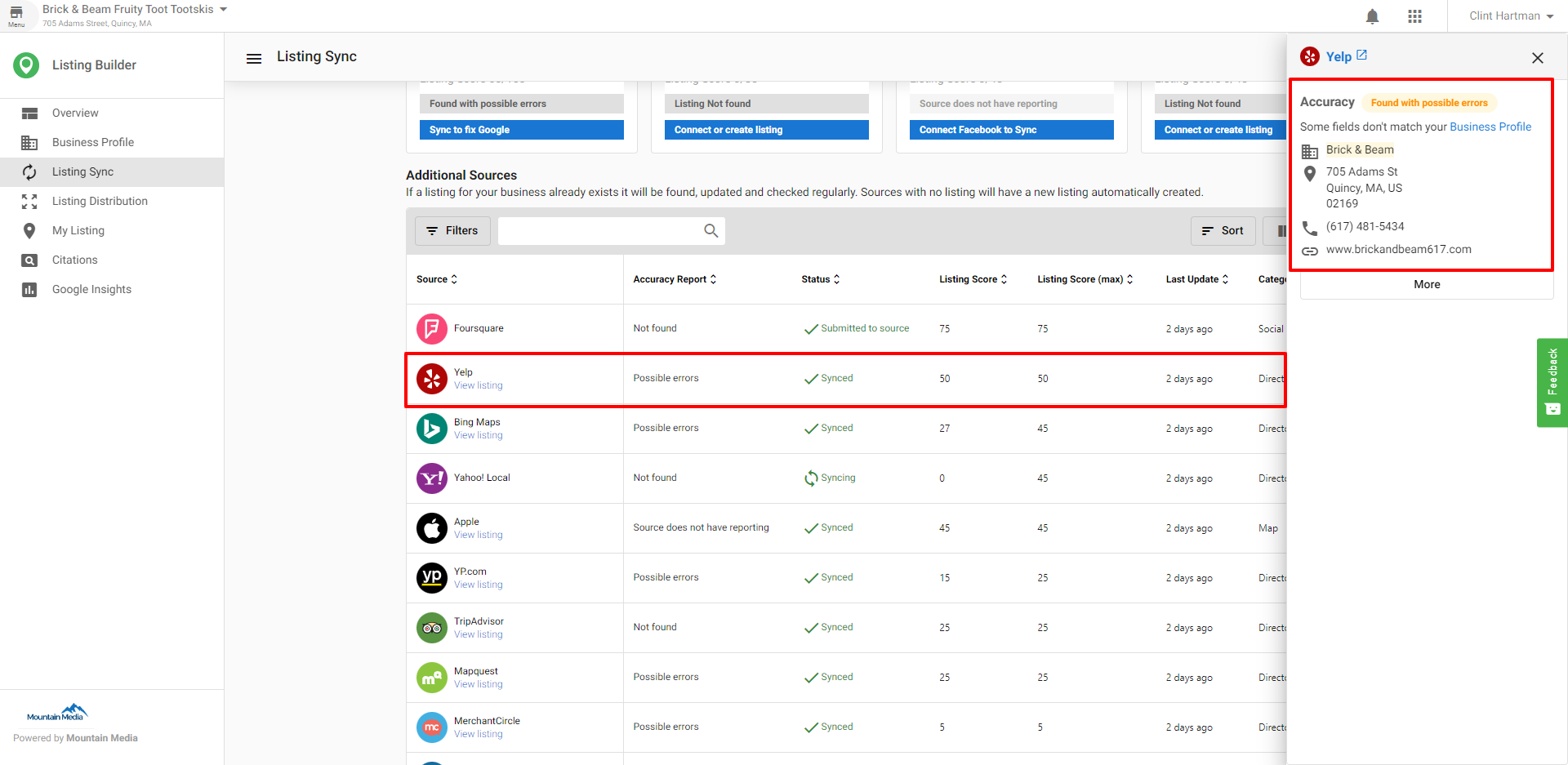

Listing statuses
- Submitted to source — Data submitted to the directory. Allow 24–72 hours for most, up to 30 days for GPS directories.
- Synced — The directory confirmed the listing was updated. Check Accuracy Report for data match.
- Syncing — The listing is being updated on the source.
- Not syncing — The business may have a paid advertising relationship with the source that blocks updates.


Claimed listings
When a listing is claimed, someone controls it through a paid relationship or third-party syncing service. Listing Sync cannot manage claimed listings. Contact the listing site and ask them to release it using this template:

Stop listings from syncing
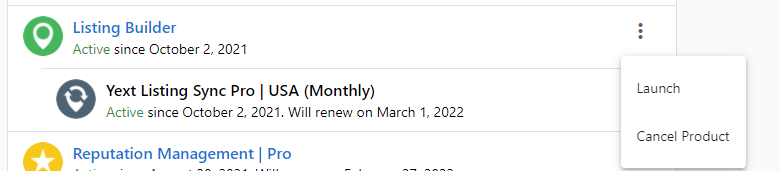
- Syncing continues until the billing cycle ends, even after cancellation.
- To stop immediately: click schedule deactivation, then click
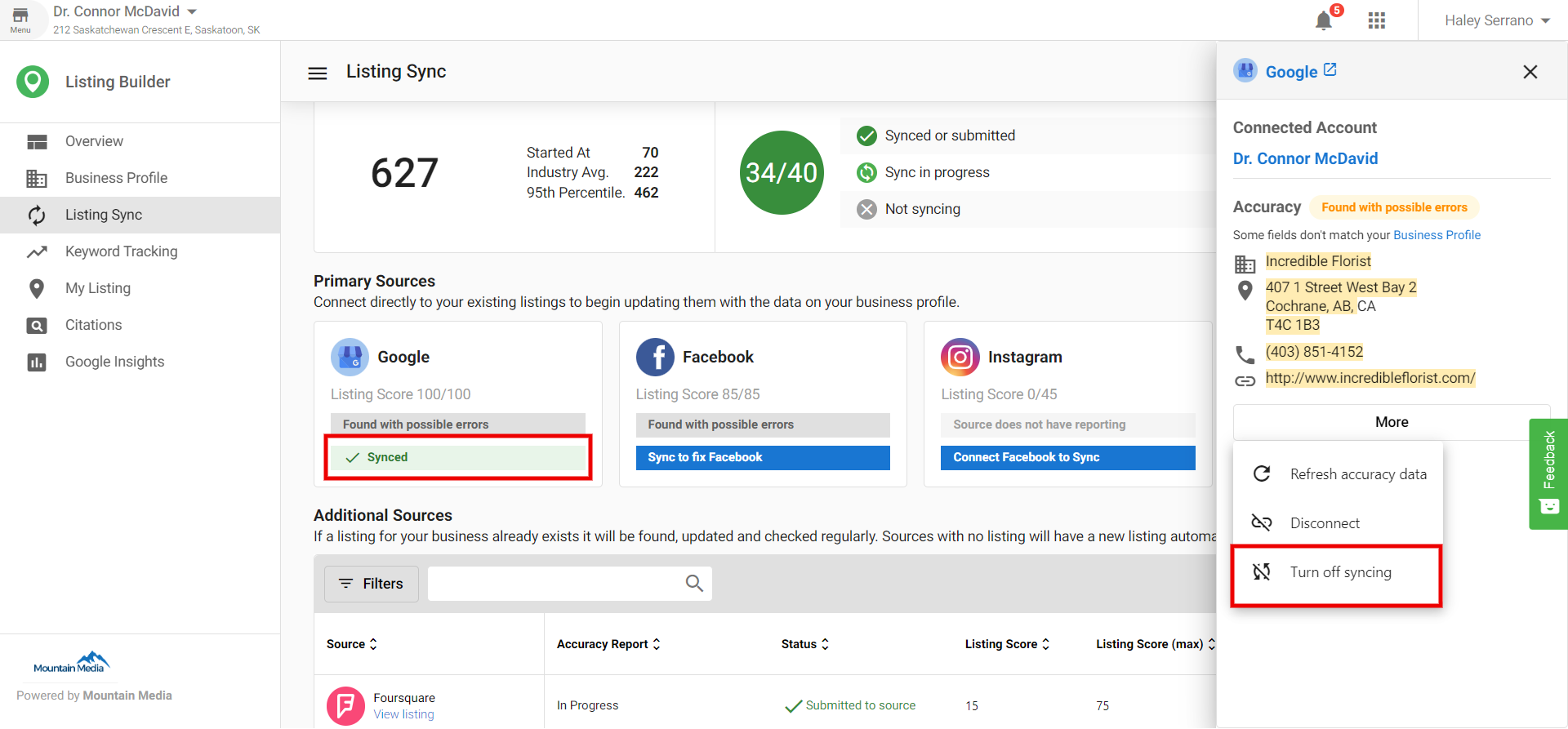
immediately. - Turn sync on/off per source: click the sync button >
More>Turn off Syncing. Turning off Facebook also turns off Instagram.
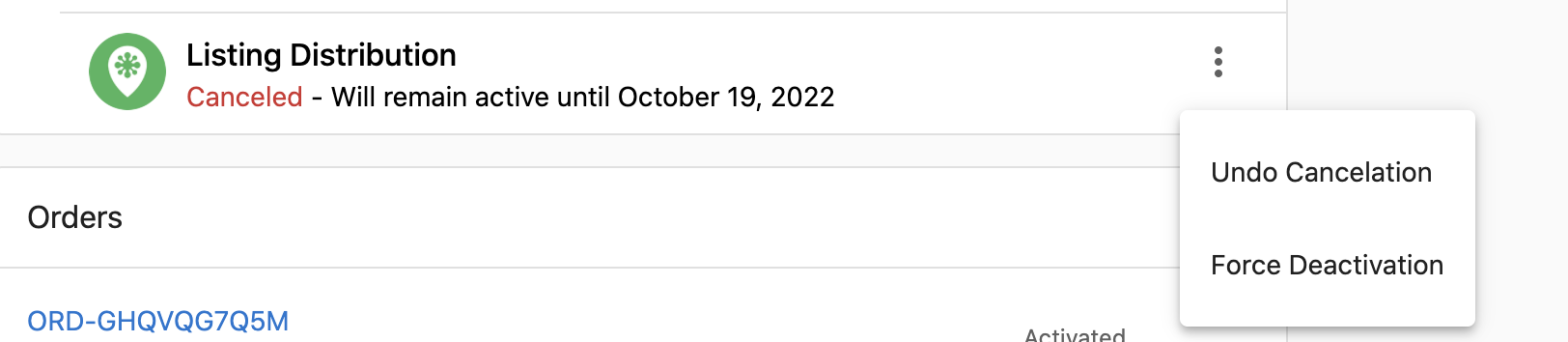
Force deactivation steps
- Open the account and locate the cancelled add-on under
Products. - Click the kebab menu and choose
Force deactivation. - In the confirmation, select
Deactivate nowto proceed.
Special hours on Apple
- Apple displays Holiday Hours as
Special Hoursfor a 7-day timeframe if you are within 4 days of the holiday. - Updates can take up to a week to display on Apple Maps. Maximum of 50 holiday hour entries.
- Apple does not display all special hours for the entire year at once.
Bing duplicate listing alternative
You cannot suppress duplicates on Bing directly, but you can suggest an edit:
- Open the Bing listing that should be removed.
- Click the three dots in the top-right corner and select
Suggest an edit. - Choose
Remove this placeand mark it as closed, nonexistent, or duplicate.
Columns and actions in Listing Sync
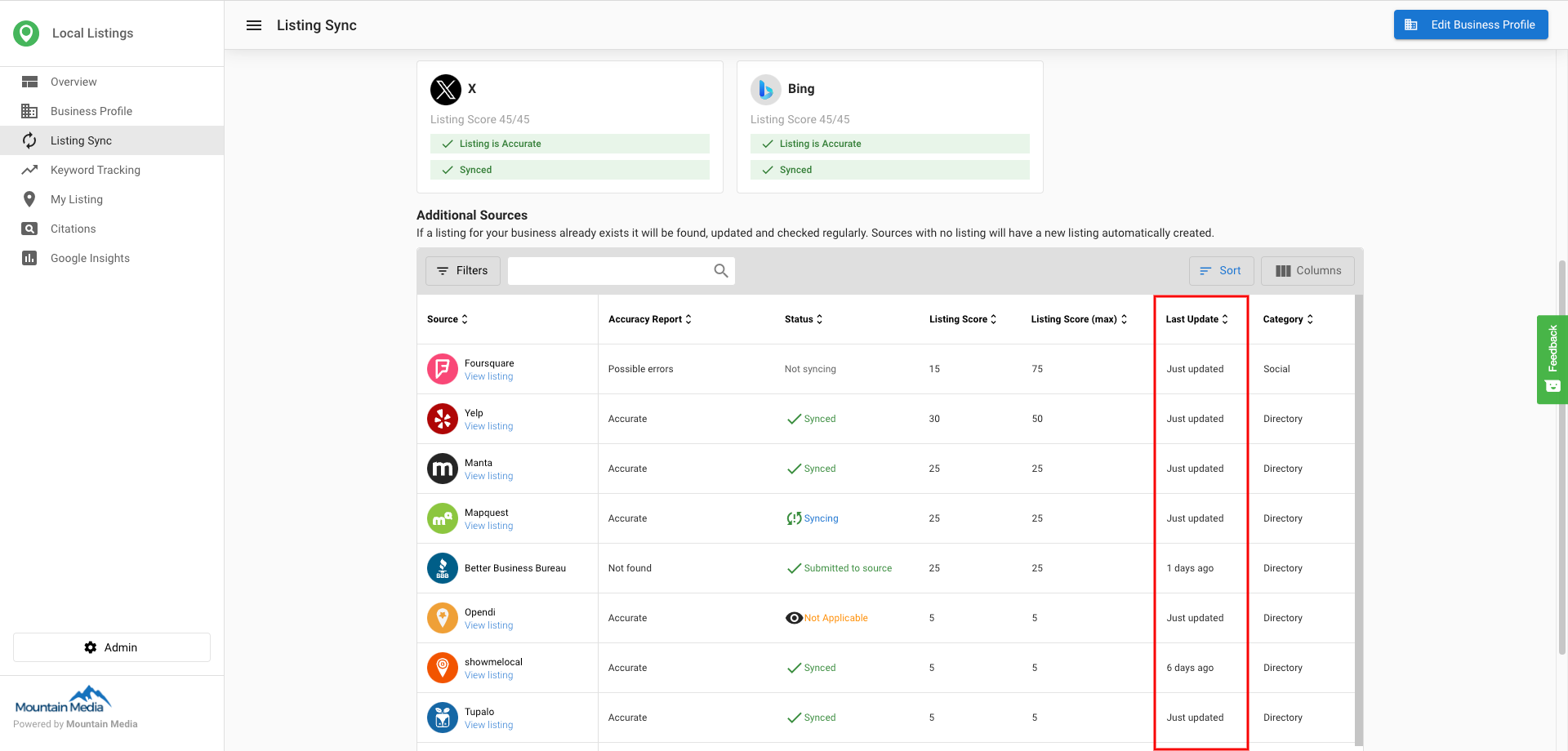
The Category column shows the directory type: Directory, Map, Social, Aggregator, App, or GPS.
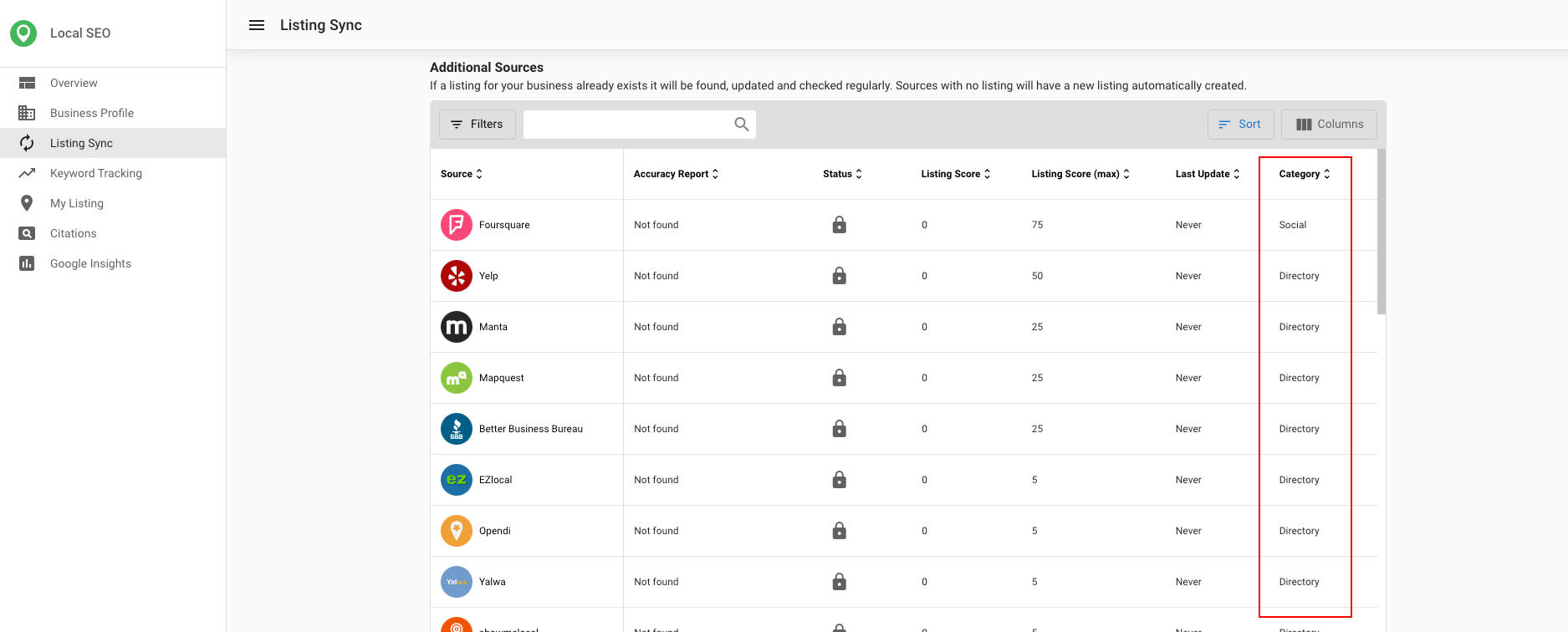
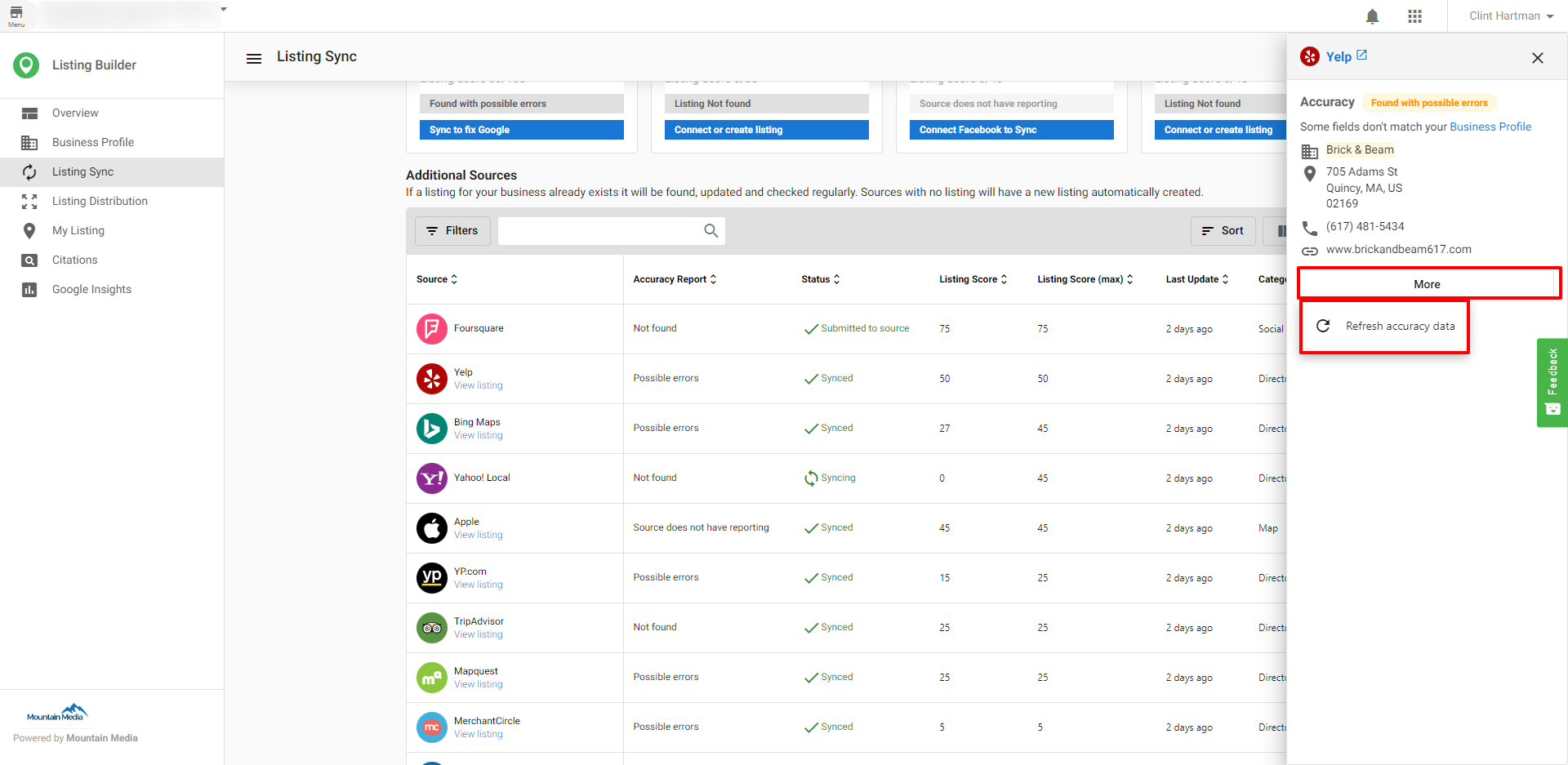
The Last Update column shows the last time the system pulled data from the internet for that listing. Use Refresh Listing to get an updated state and refresh the Accuracy Report.
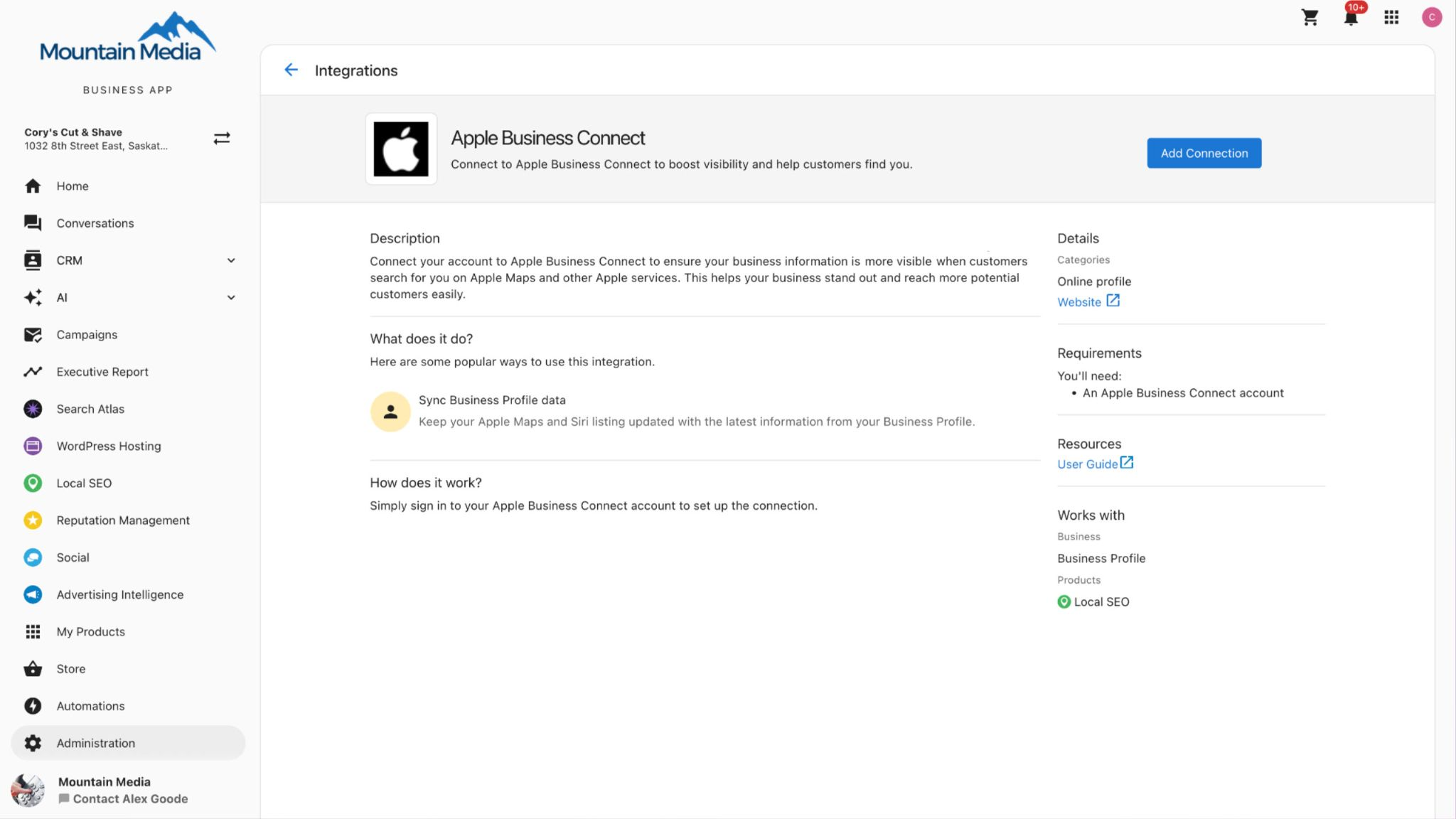
Apple Business Connect Authentication
You can connect and authenticate your Apple Business Connect listing with Listings Management through an integrated workflow with Apple Business Connect. This allows for direct data syndication to Apple Maps, Siri, Wallet, Messages, and more.
Why Apple Business Connect matters
- Higher Data Accuracy — Manage your phone number, email, addresses, website, and hours to have accurate, consistent data across Apple apps.
- Greater Visibility — Claimed businesses get 30% more views. Add your logo, cover photo, and photos to help your place card stand out.
How to claim your Apple listing
- Go to Apple Business Connect and register.
- Add information about the owning organization (e.g. legal entity or parent company).
- Add your brand.
- Verify the business using official documents like a utility bill or lease.
- Claim or add your business location and address.
- Update details such as your business category, phone number, and website.
- Add your logo, cover photo, and other brand content.
- Set your typical business hours.
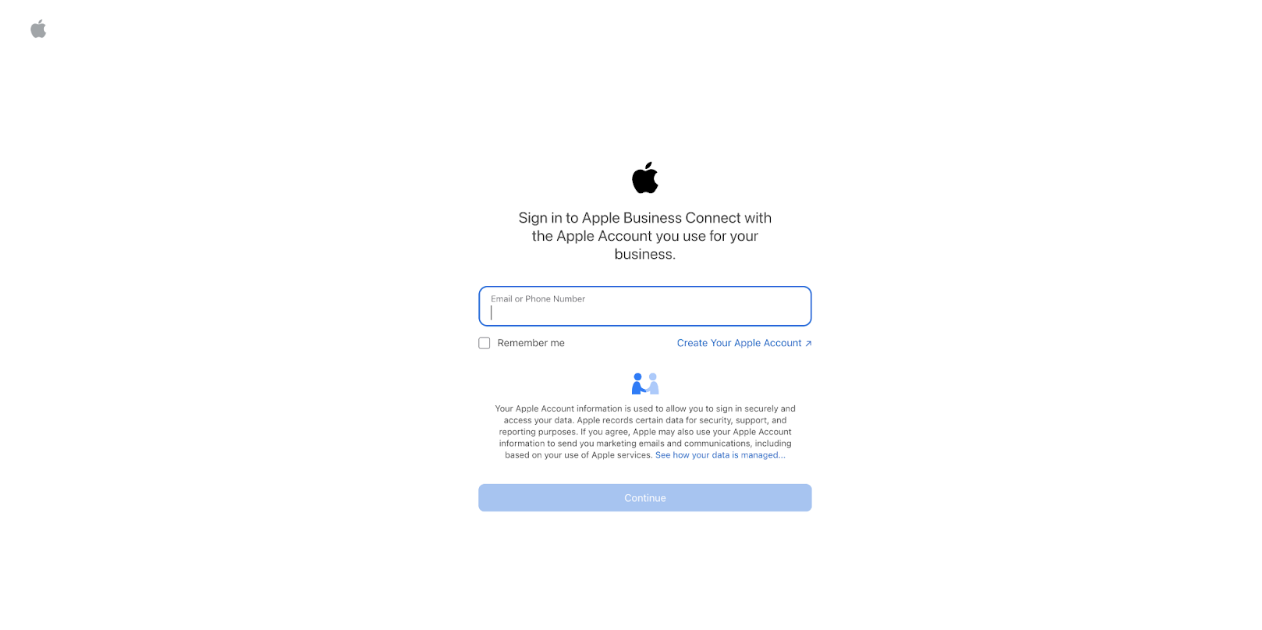
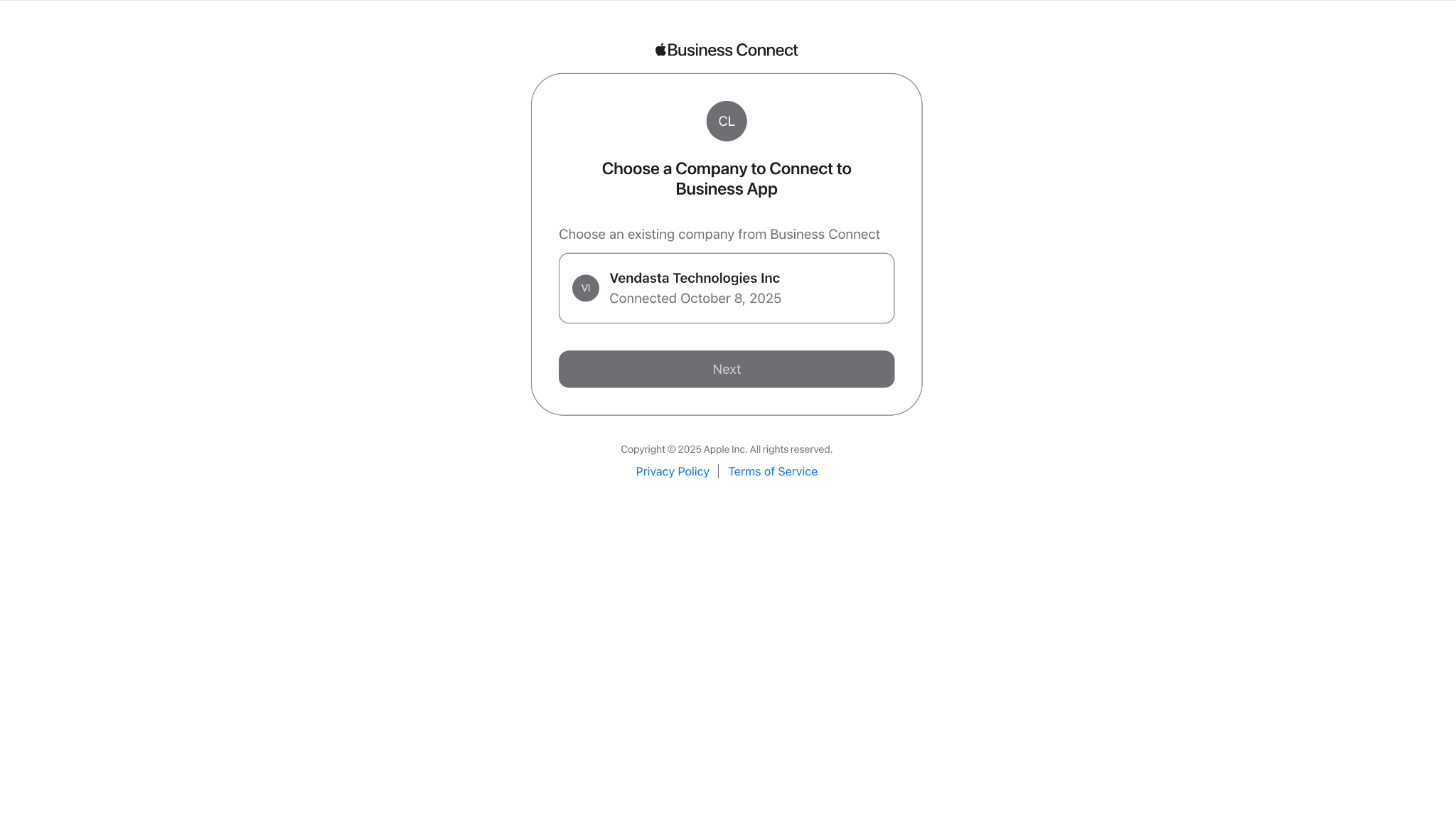
How to connect via Listings Management
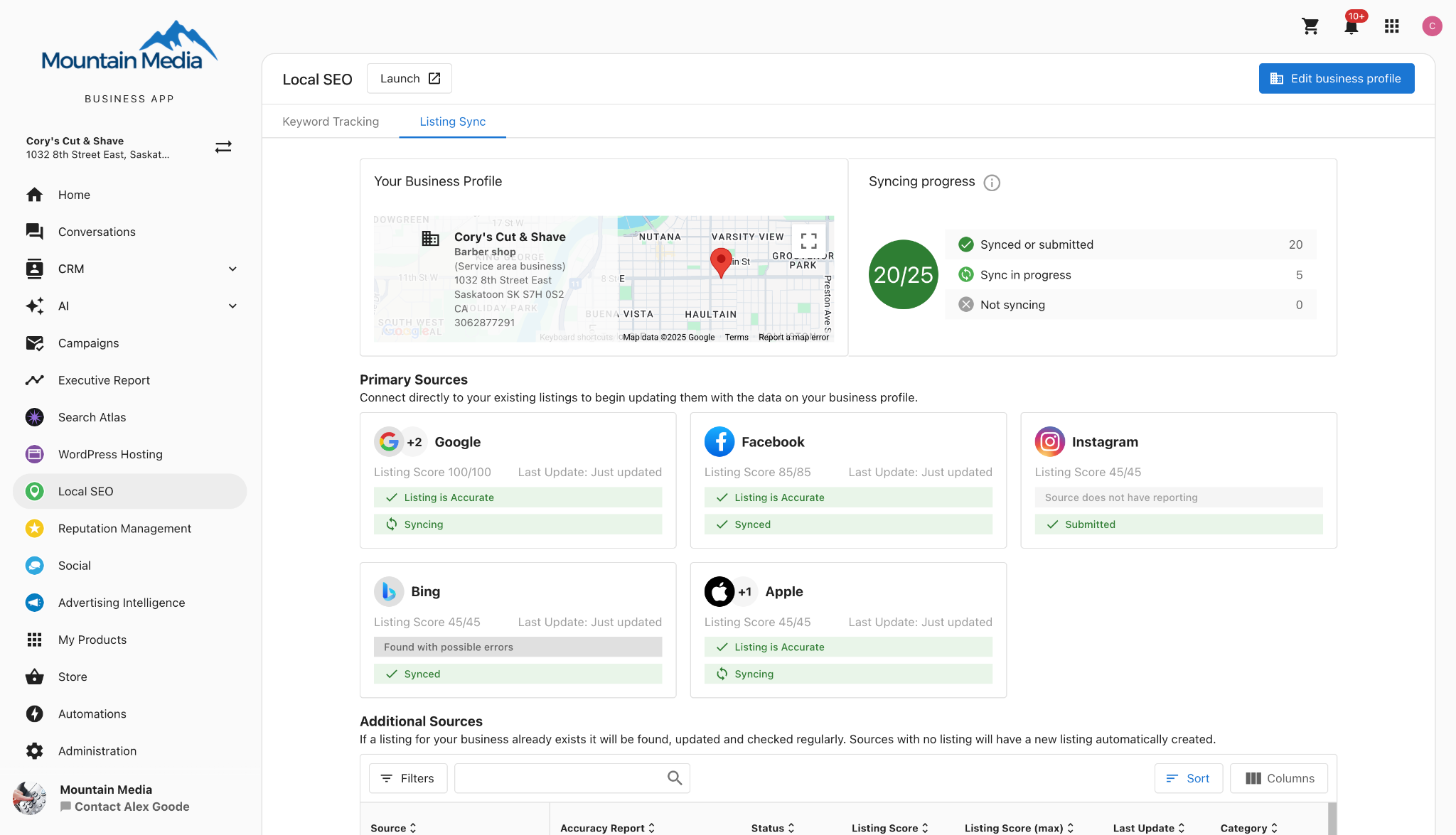
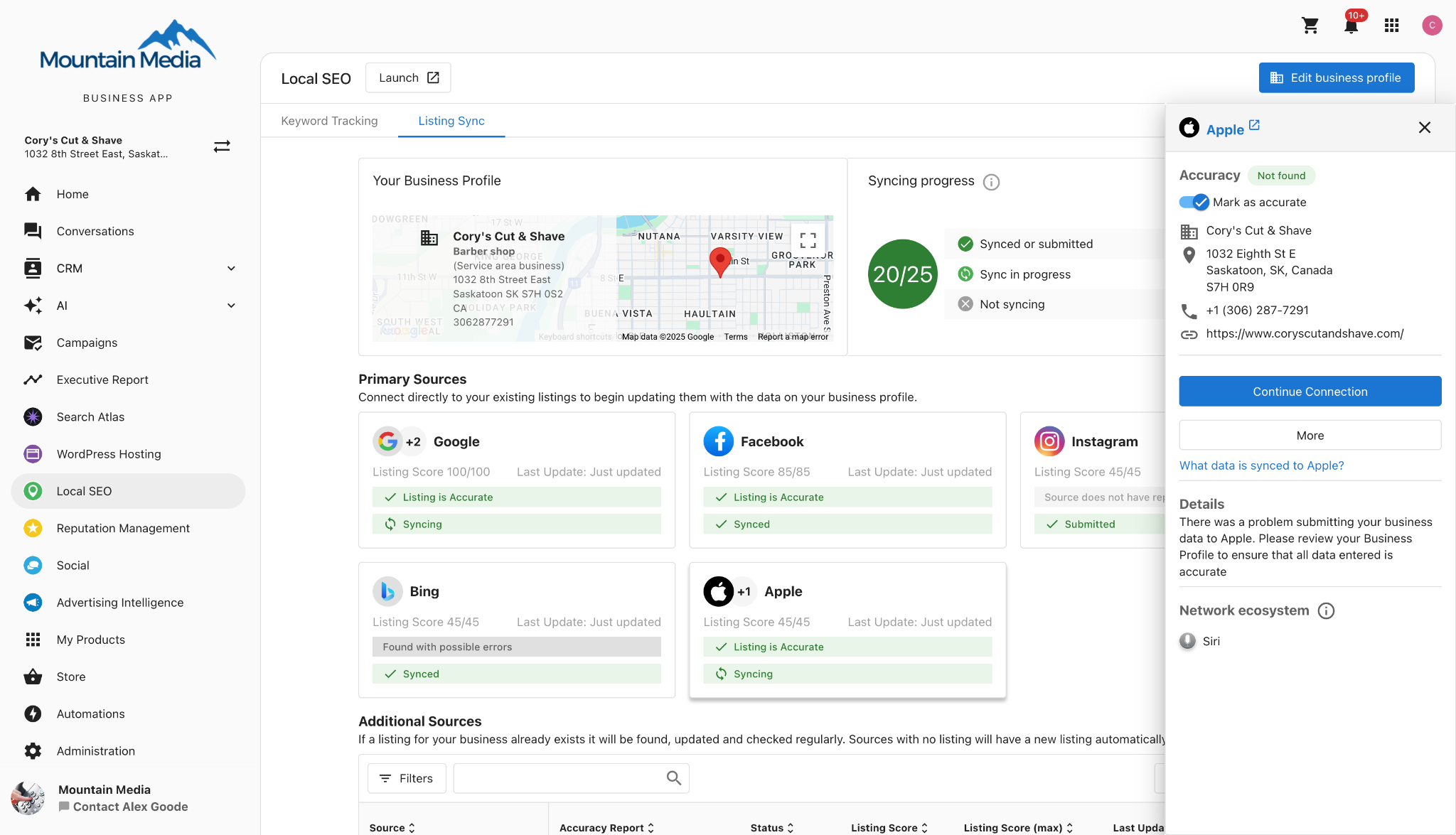
- Navigate to the
Listing Synctab. - Select the Apple listing card and click
Connect Now. - Sign in to Apple Business Connect.
- Select a company to connect.
- You will be automatically redirected back to Listings Management.
How to connect via Administration
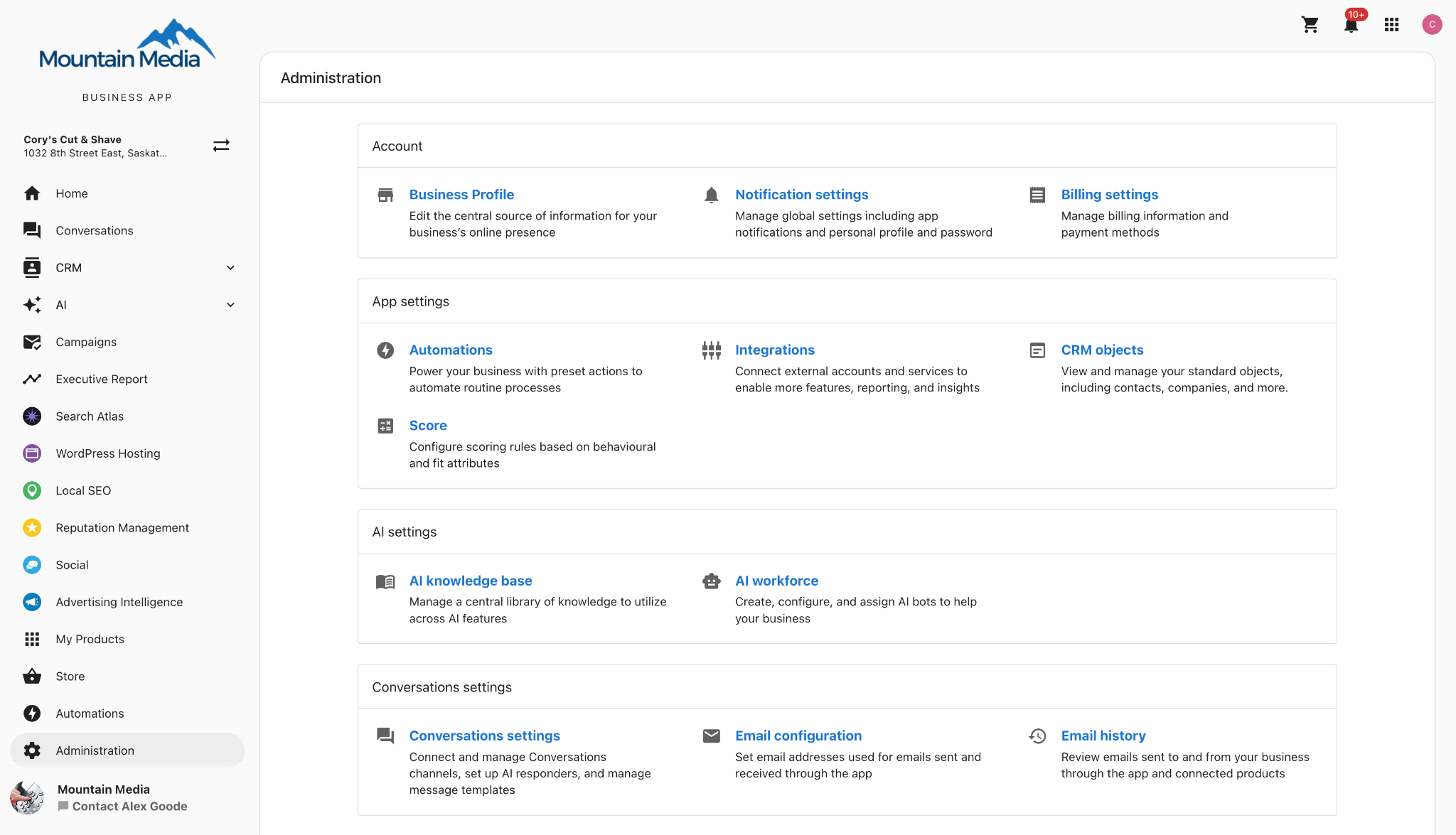
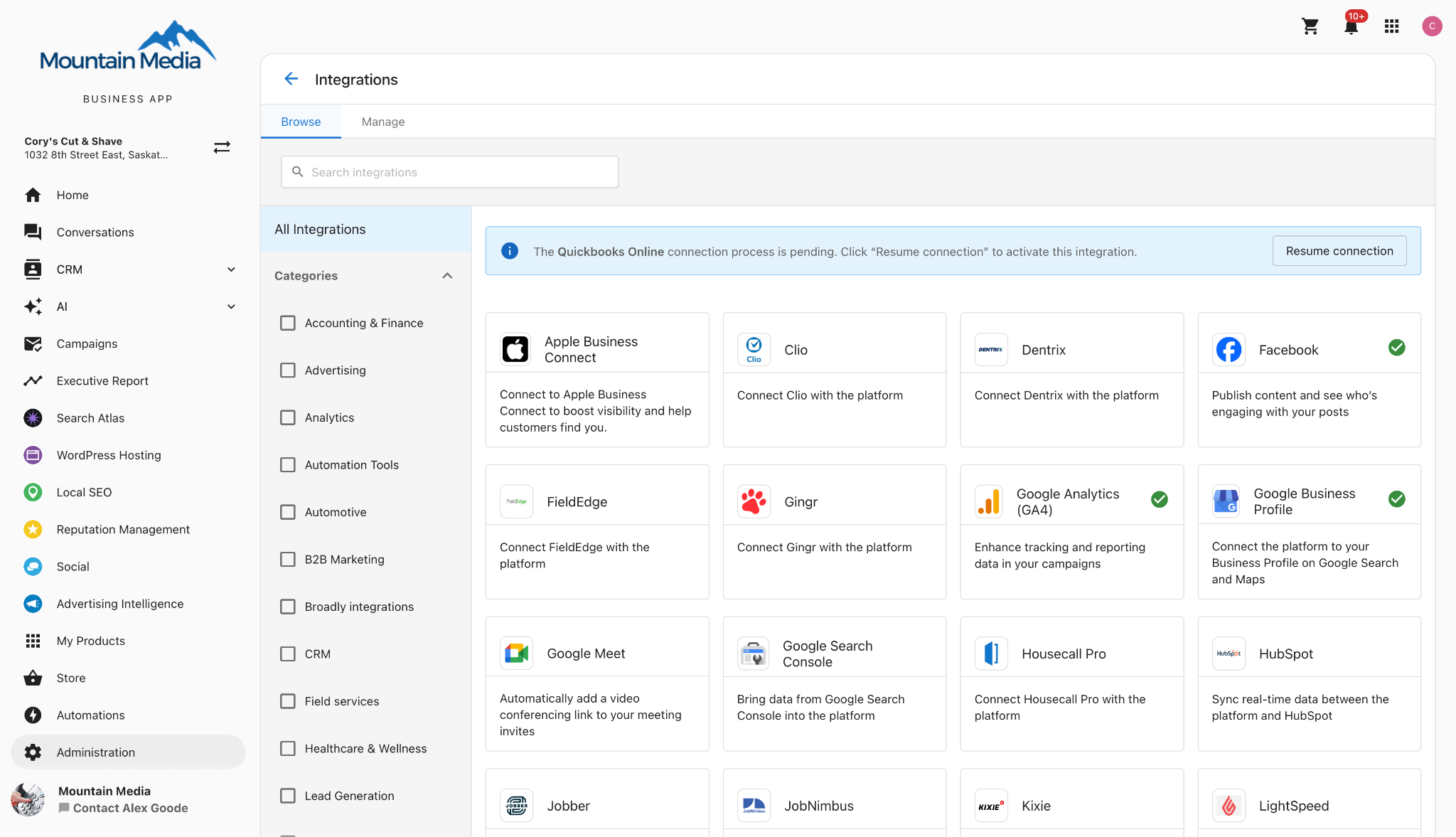
- Go to the
Administrationtab. - Click
Connectionsand selectApple Business Connect. - Click
Add Connection. You will be redirected to Apple Business Connect. - Sign in and select a company to connect. You will be returned to the Apple Business Connect page.
Apple Business Connect FAQs
Listing Sync Pro
Listing Sync Pro allows you to create and update business listings across directories, search engines, maps, and apps. It keeps core details accurate and consistent, and protects listings from third-party changes by re-submitting correct data on an ongoing basis.
Why is Listing Sync Pro important?
- Maintains accurate business information everywhere customers look
- Reduces manual work when updating multiple platforms
- Keeps listings up to date with automatic monitoring and re-submission
Editions and availability
- Listing Sync Pro — US, Canada, Australia, Great Britain, France, Germany, and Italy
- Listing Sync Pro Powered by Yext — US and Canada
- An international package is available for other countries
Key differences
| Capability | Listing Sync Pro | Powered by Yext |
|---|---|---|
| US listing sites | Up to 50 | Up to 70 (varies by category) |
| Countries | US, CA, AU, GB, DE, FR, IT | US, CA |
| Create and update listings | Yes | Yes |
| Unlimited updates | Yes | Yes |
| Protects from third-party changes | Yes | Yes |
| Duplicate suppression | Automatic | Manual through dashboard |
Listing Sync Pro FAQs
Setup and requirements
Before you start
- Ensure accurate name, address, phone number, website, and categories are in
Business Profile. - Prepare a unique local phone number for the business.
- Use a physical street address — PO Boxes are not supported.
Authentication
- Listings managed by Listing Sync Pro generally do not require you to authenticate accounts on supported directories.
- Google, Facebook, Instagram, and X require authentication within those platforms to sync data.
Claiming profiles
- Google Business Profile must be claimed directly through Google — this product does not claim Google profiles on your behalf.
- Prioritize claiming major sources such as Google, Bing, Apple, and Yelp.
Address and PO boxes
Using a PO Box as the business address prevents syncing. Enter a physical street address instead. If you prefer to hide the address publicly, select the service-area business option where supported.

Shared phone numbers or addresses
- A unique local phone number is critical — directory networks use this for matching. Reuse across businesses can prevent syndication.
- Address data is validated against authoritative postal sources to avoid duplication.
Alternate phone & website syndication
This feature lets you override your default phone number and website URL on specific platforms (Google Business Profile, Facebook, and Bing) to customize which contact details appear per platform.
- Call tracking — Use unique numbers to attribute calls by platform.
- Landing page optimization — Drive traffic to platform-specific landing pages.
- Campaign attribution — Measure ROI more effectively by mapping results to specific sources.
Setup FAQs
Troubleshooting and errors
Status: submitted to source (aggregator)
Some sources function as aggregators. The system submits your data to the aggregator, which then distributes it to their network. Publication timing depends on the aggregator and downstream sites. Confirmation reflects submission/acceptance rather than live publication timing.
Manage duplicate listings
If duplicates are detected by the managed network dashboard, you can review and suppress them. Suppression requests are reviewed by the publisher — many resolve within 24 hours, while others may take up to a week or longer. Suppressed listings are typically removed from search results or redirected to the correct profile.
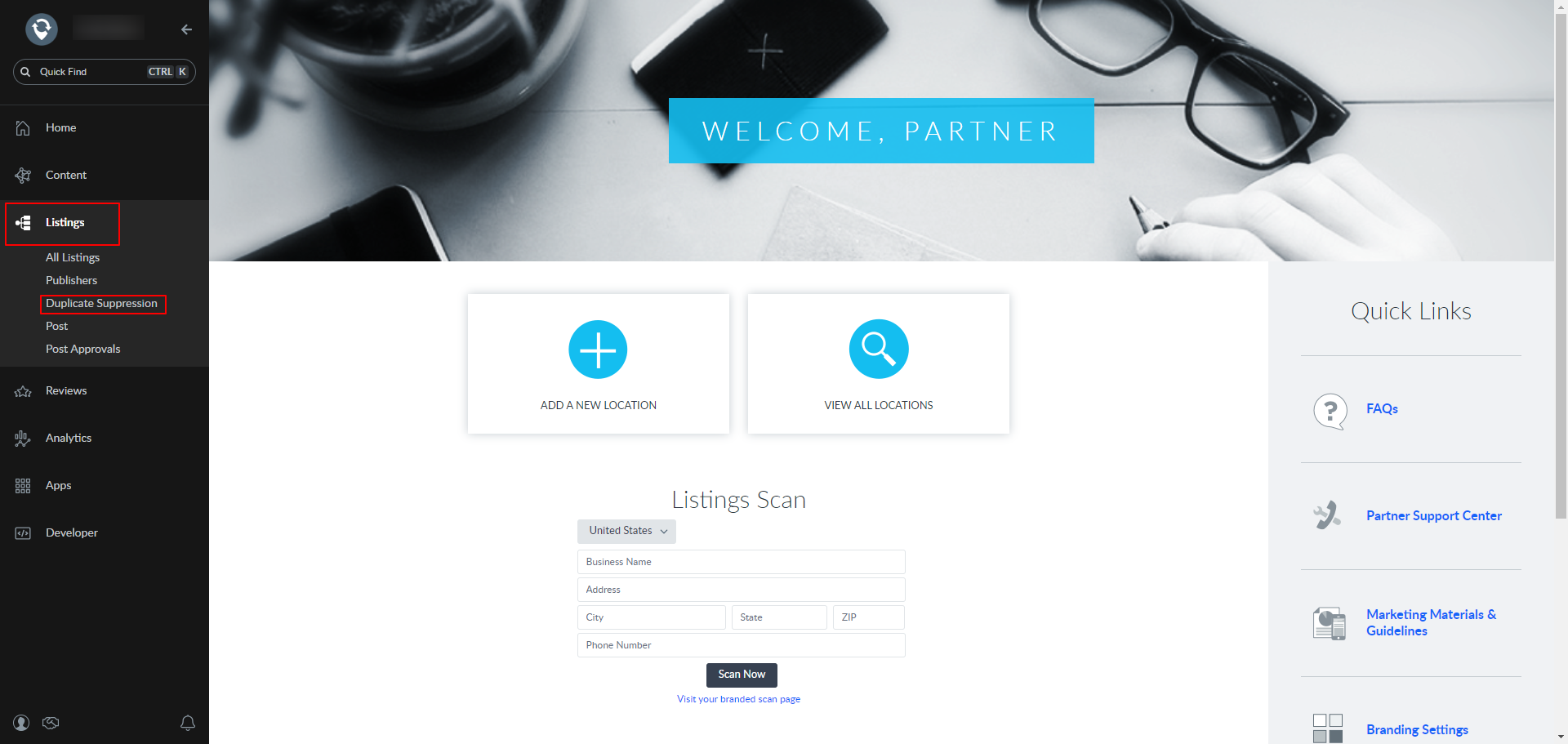
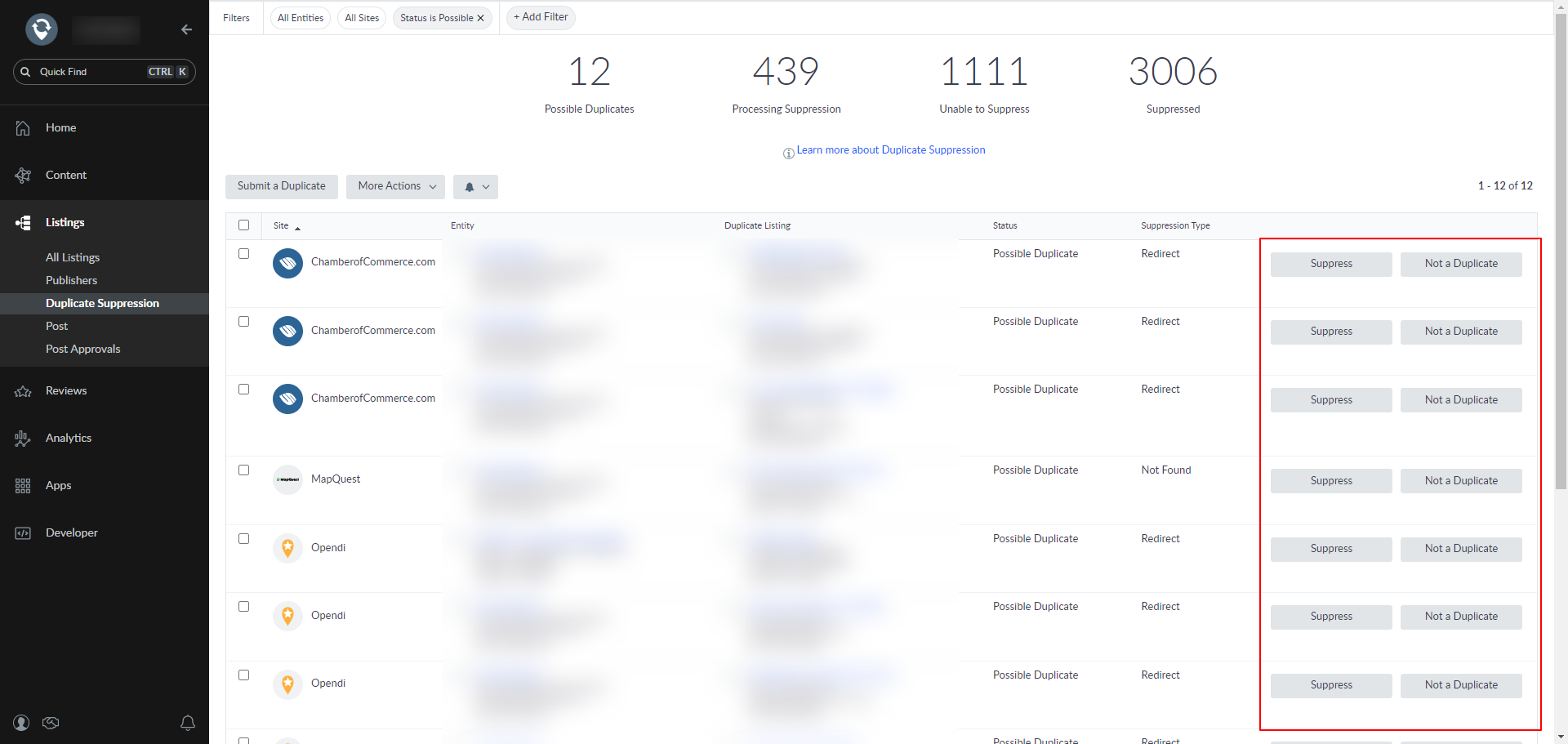
Listing Sync Pro should not create duplicate listings. If you find duplicates, use the duplicate-suppression workflow above to resolve them.
Blocked categories (service-area business types)
Some service-area business categories cannot create new listings on certain publishers due to verification and spam-prevention policies. Examples include locksmiths, garage doors, and movers. Existing listings may still be claimed. If categories in the business profile do not match a network dashboard, syncing can fail until aligned.
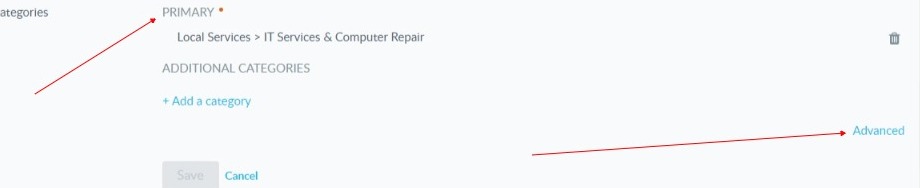
Activation error: existing incompatible service
If you see an activation error indicating the account has an existing incompatible service, the existing relationship with the network must end before activation can proceed. The business owner must contact the network's support address to request termination of the conflicting relationship.
Listing Sync FAQs
Manage how you track and report on keywords. This section provides a single overview of settings, usage, tips, and troubleshooting.
What is Keyword Tracking?
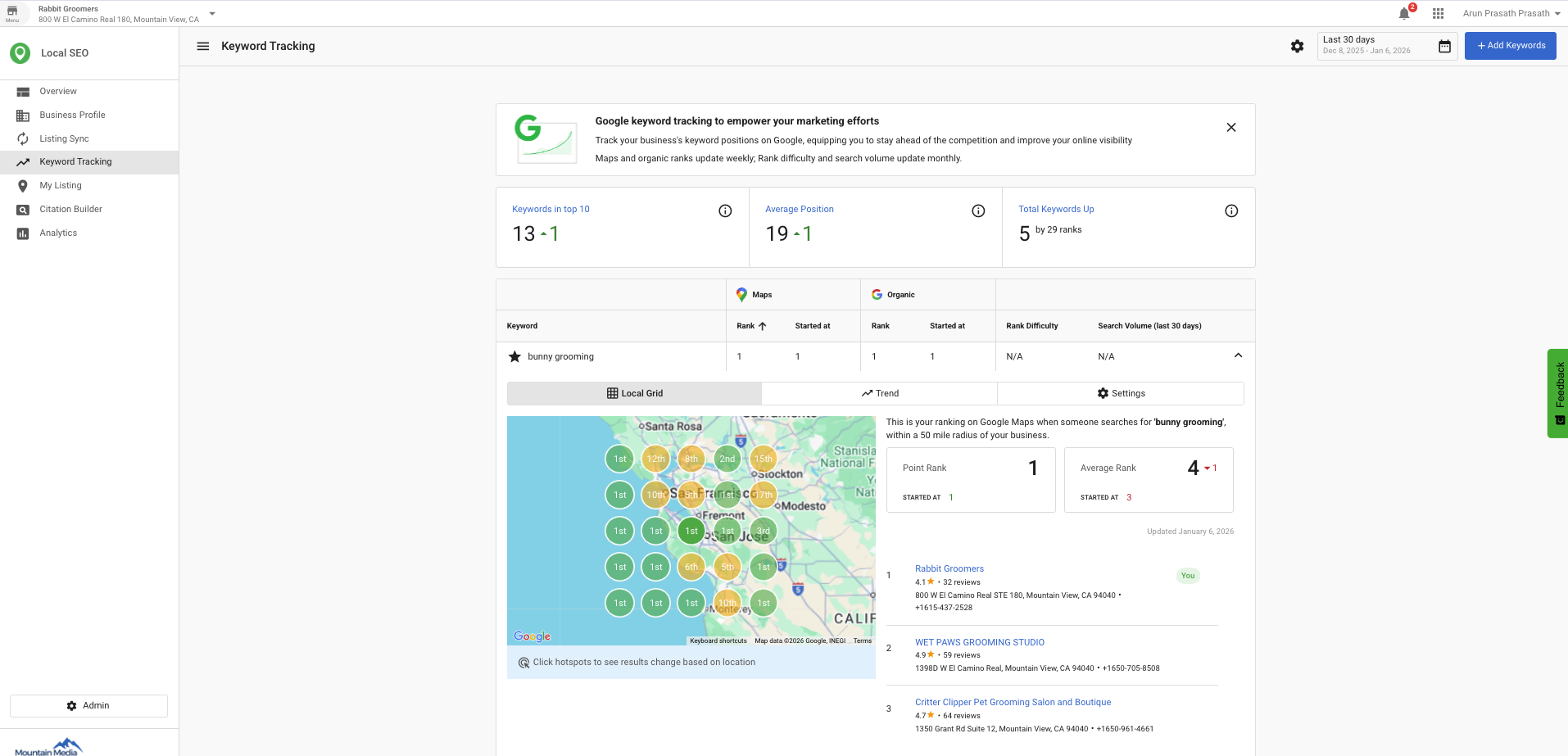
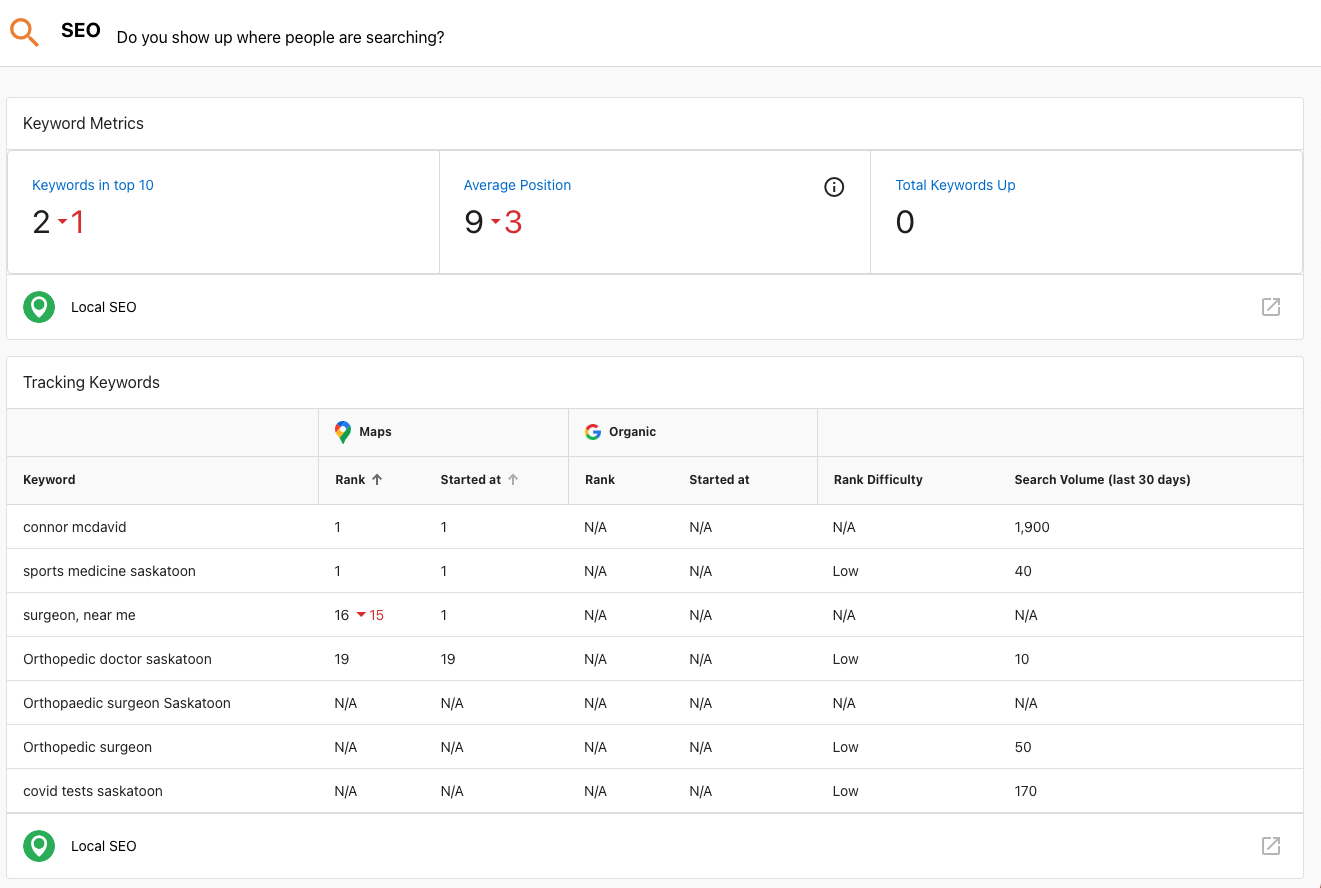
Keyword Tracking helps you monitor how a business ranks for specific search terms over time. You can add keywords, view positions in a grid, analyze trends, and manage which keywords appear in reports.
Why is Keyword Tracking important?
- Understand ranking performance for target keywords.
- Identify changes in visibility over time.
- Focus efforts on terms with the most impact.
What's included with Keyword Tracking?
- Add Keywords — Enter terms to track.
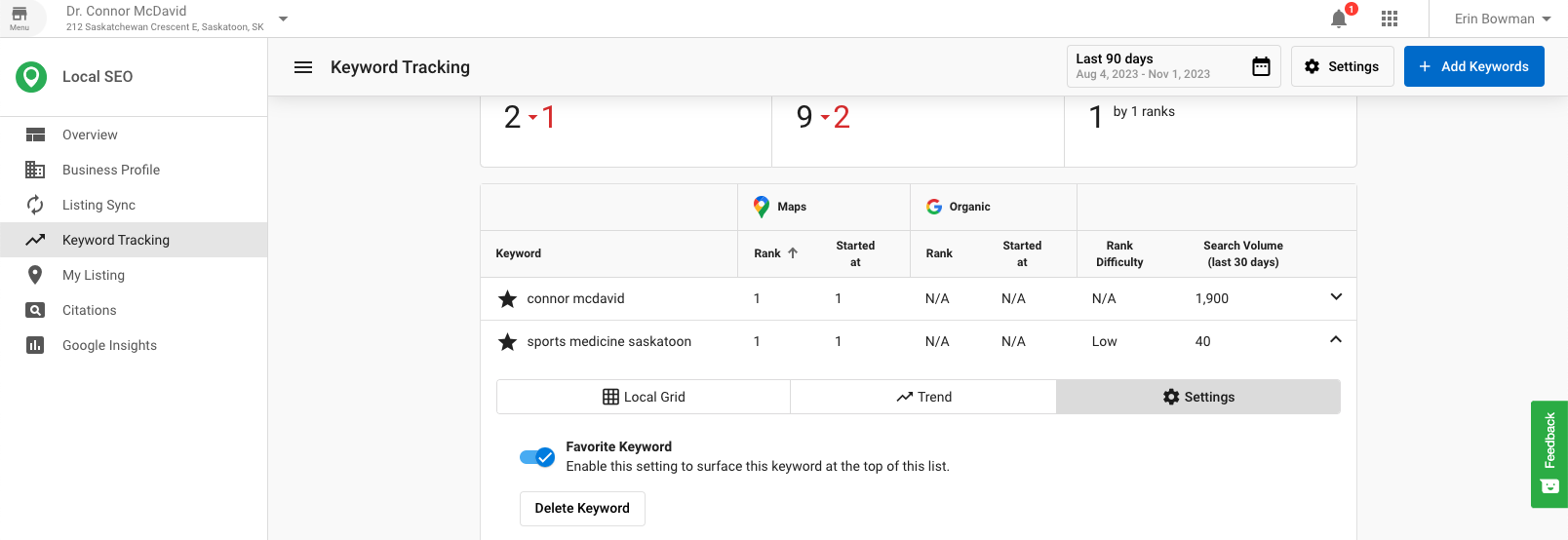
- Keyword Grid — View positions, best position, average rank, change, search volume, competition, and last updated date.
- Settings — Adjust or remove keywords using the action menu.
- Trend Tab — Analyze performance over time.
- Access Controls — Disable editing of keywords for users.
- SMART Keyword Suggestions — Discover additional keyword ideas using a website as the seed.
- Executive Report keywords — Choose which keywords to include in reports and sync to sources that accept this data.
How to use Keyword Tracking
Access Keyword Tracking
- Open the Listings Management product.
- Select
Keyword Trackingfrom the left-hand menu.
Add keywords to track
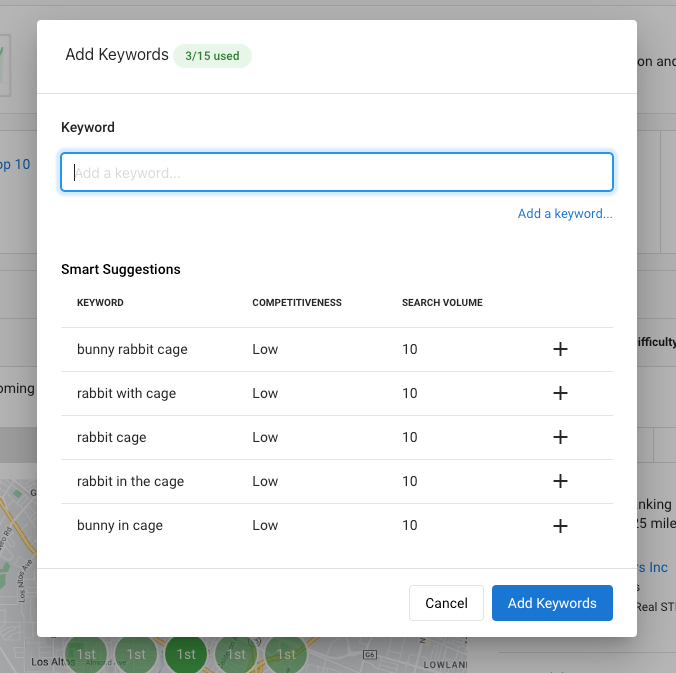
- Click
Add Keywords. - Enter keywords (one per line).
- Click
Addto begin tracking.


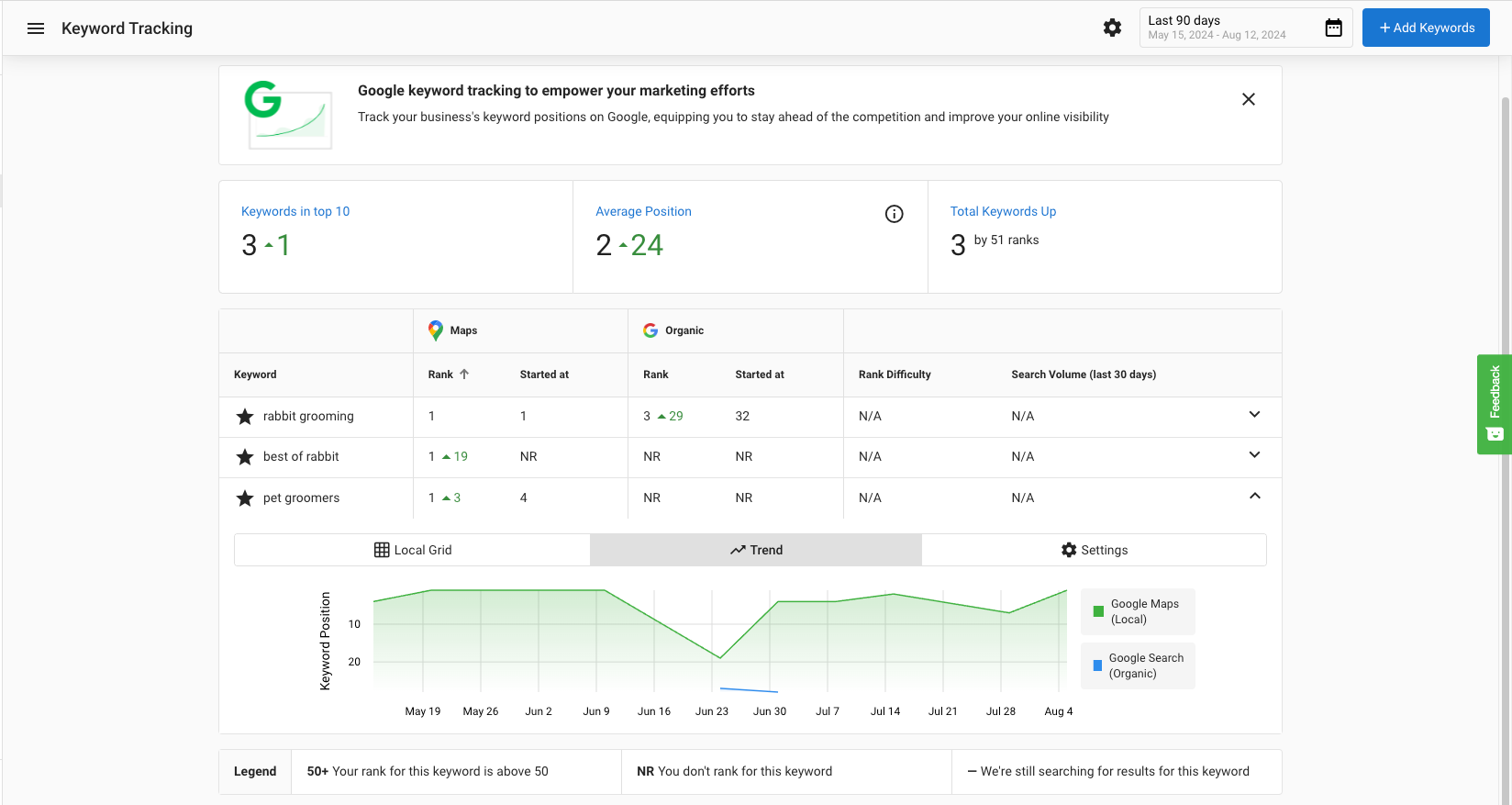
View keyword data in the grid
The grid displays:
Position— Current search position for the keywordBest Position— Highest position achievedAverage Rank— Average of all the grid pointsChange— Difference since the last updateLocal Monthly Search Volume— Approximate local monthly searchesCompetition— Competition level (Low, Medium, High)Last Updated— Date of the last update
Adjust keyword settings
- Click the gear icon in the
Actioncolumn for a keyword. - Select the desired action from the dropdown to adjust settings or remove the keyword.
Analyze keyword trends
- Click the
Trendtab at the top of the page. - Select a date range.
- Hover over data points to view details for specific dates.
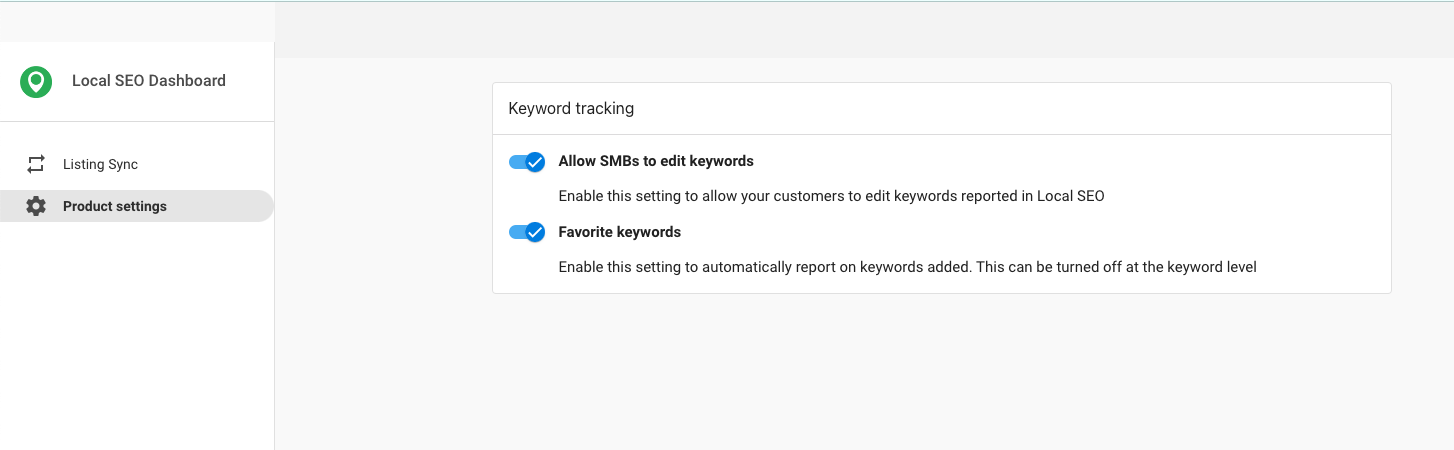
Manage access to editing keywords and radius settings
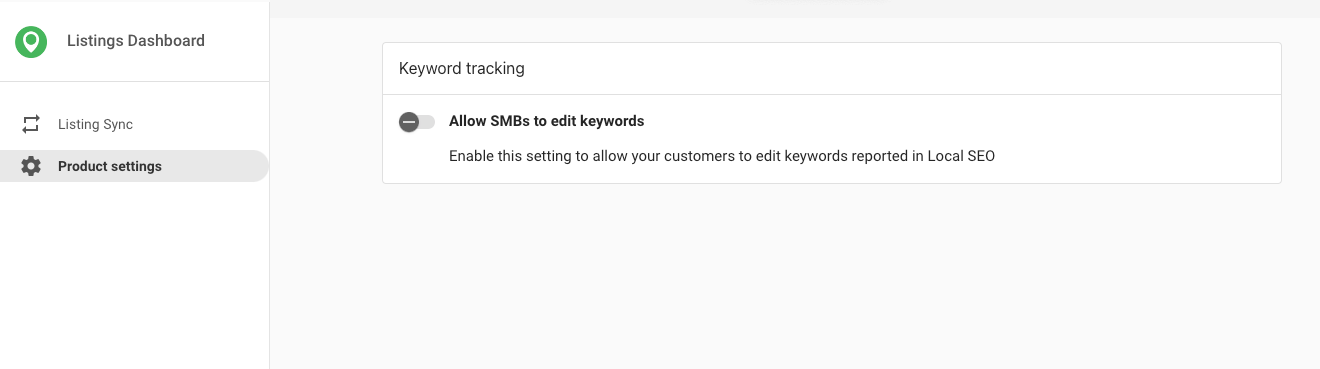
You can disable editing of keywords for users.
- Open the Listings Management Admin Dashboard.
- Go to
Product Settings. - Toggle off
Allow SMBs to edit keywords.

SMART keyword suggestions
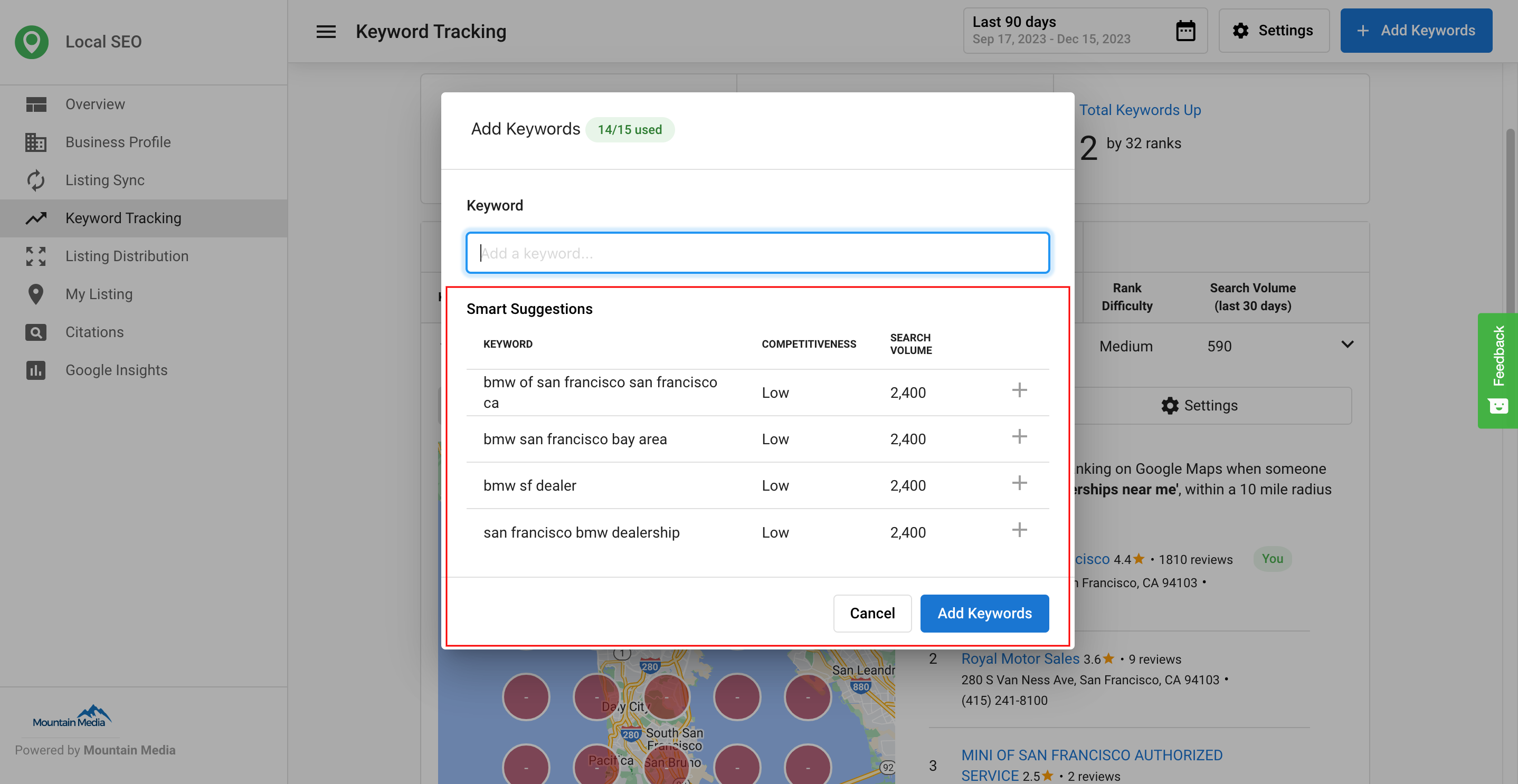
You can track SEO ranking on up to 15 keywords. Suggested keywords help you choose the terms that matter most.
How it works:
- Uses a business website as a seed to surface relevant alternatives.
- Considers competitiveness and search volume to highlight additional keywords to explore.
- Find suggestions at
Listings Management>Keyword Tracking>Add Keyword.
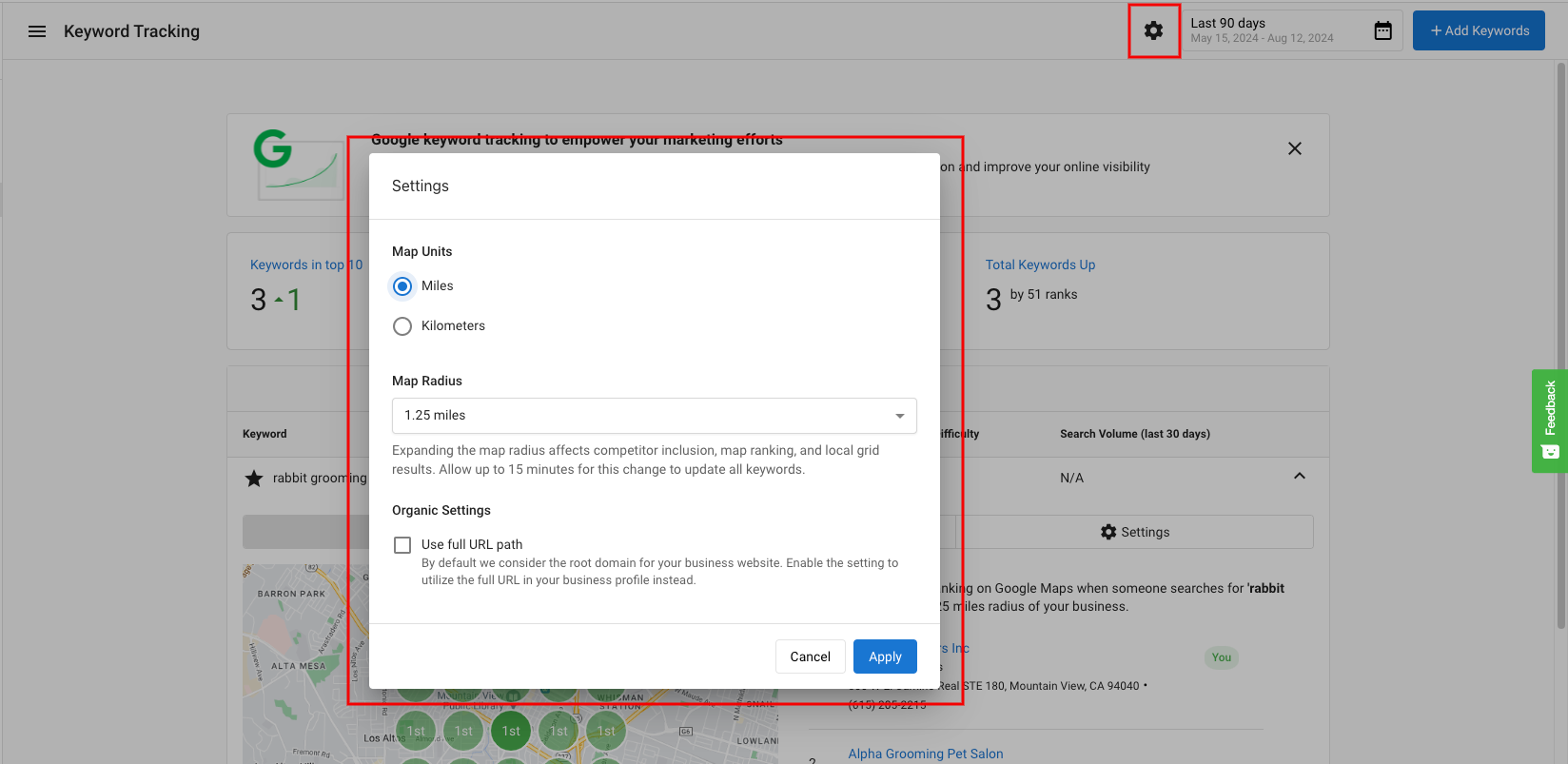
Adjust the tracking radius
Click the settings button at the top of your screen to adjust the radius.

Favorite or Sync a keyword
After adding keywords, click on a keyword then click settings to choose:
- Favorite — Push to Executive Report data only. Use this to track whether the keyword is getting you clicks.
- Sync — Sends this keyword to your search engine and review site profiles so it appears in search results.

Analyze keyword trends
Click the Trend tab next to each keyword and filter a date range if needed.

SEO keywords in the executive report
You can select keywords to be synced (to sources that accept this data) and choose which ones to include in the Executive Report. This helps you monitor more keywords while reporting only on selected terms.
Why are there no results in the Listings Management grid?
If the business is a Service Area Business (SAB), the issue might arise from a misalignment between targeted keywords and the address listed in the business profile.
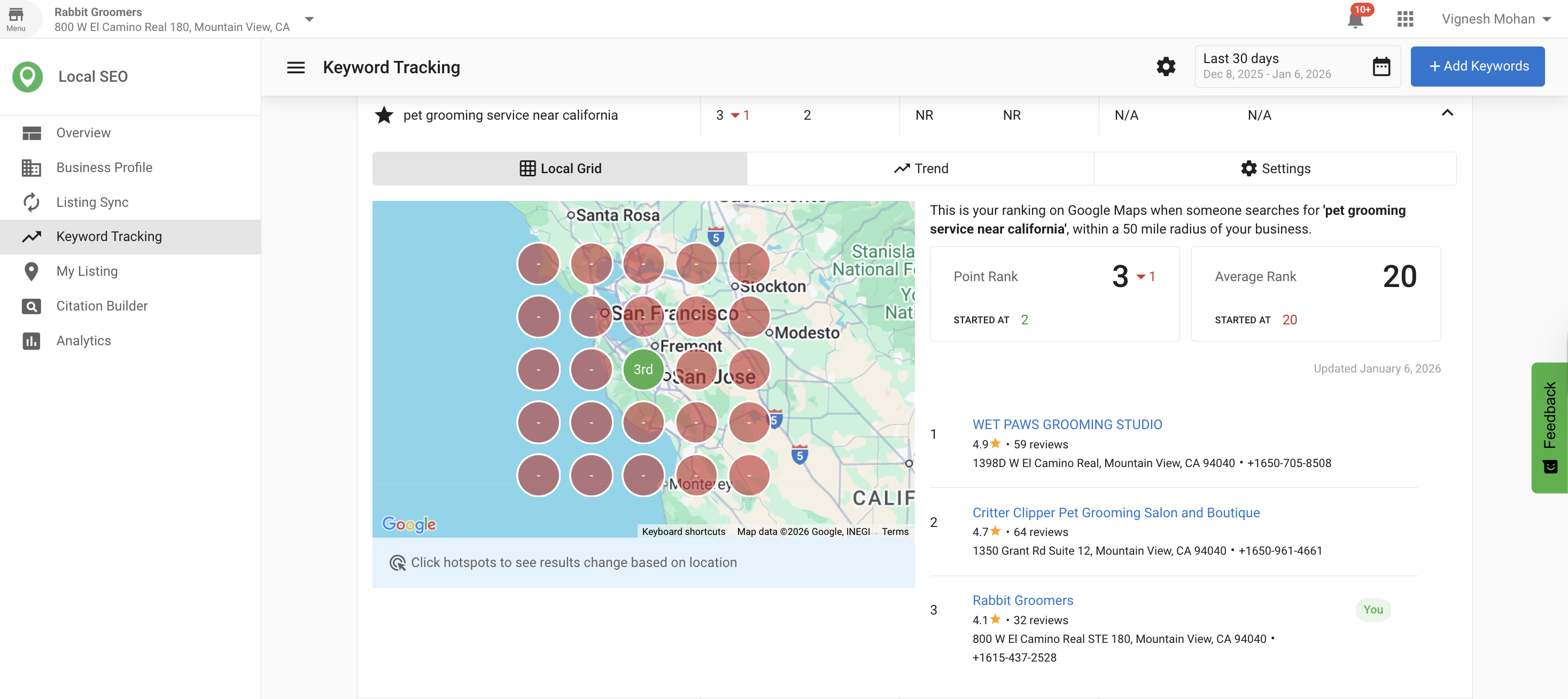
How the map works: the listed business address is the center point for the map area used in Local Grid searches. If targeted keywords correspond to a region far from the listed address, no rankings will appear in the grid.
Workarounds:
- Align keywords with the business address by focusing on the area surrounding the listed address.
- Change the business address to a location closer to the targeted region. Important: This is not recommended and may impact listing accuracy.
For Google Maps results, the system retrieves a maximum of 20 listings per search. If a business does not rank within the top 20 for an area, it appears as a blank red entry on the map.
Frequently Asked Questions
Keyword Tracking from the left-hand menu.Add Keywords, enter terms (one per line), and select Add.Position, Best Position, Average Rank, Change, Local Monthly Search Volume, Competition, and Last Updated.The My Listing feature in Listings Management allows businesses to create a customizable online business profile that showcases their business information, services, and other important details.
What is My Listing?
My Listing lets you create a customizable online business profile that showcases business information, services, and other details. You can choose a theme, add branding, customize the domain, create pages, and track engagement through event analytics.
Why is My Listing important?
- Present essential business information in one place
- Use responsive themes that adapt to different screen sizes
- Customize branding and domain to match your needs
- Track how visitors interact with your listing
What's included with My Listing?
- Business Profile — Complete the profile that powers your listing content
- Themes — Choose a responsive layout
- Branding — Upload logo, favicon, and mobile shortcut icons
- Domains — Use a custom slug, custom domain, or mobile subdomain
- Pages — Create and manage pages such as Images, Contact, Coupons, Videos, and Custom
- Home Page — Edit title, content, and metadata
- Event Analytics — Track visitor actions such as viewing hours, map, contact info, and more
How to create and customize your listing
1) Enter business information
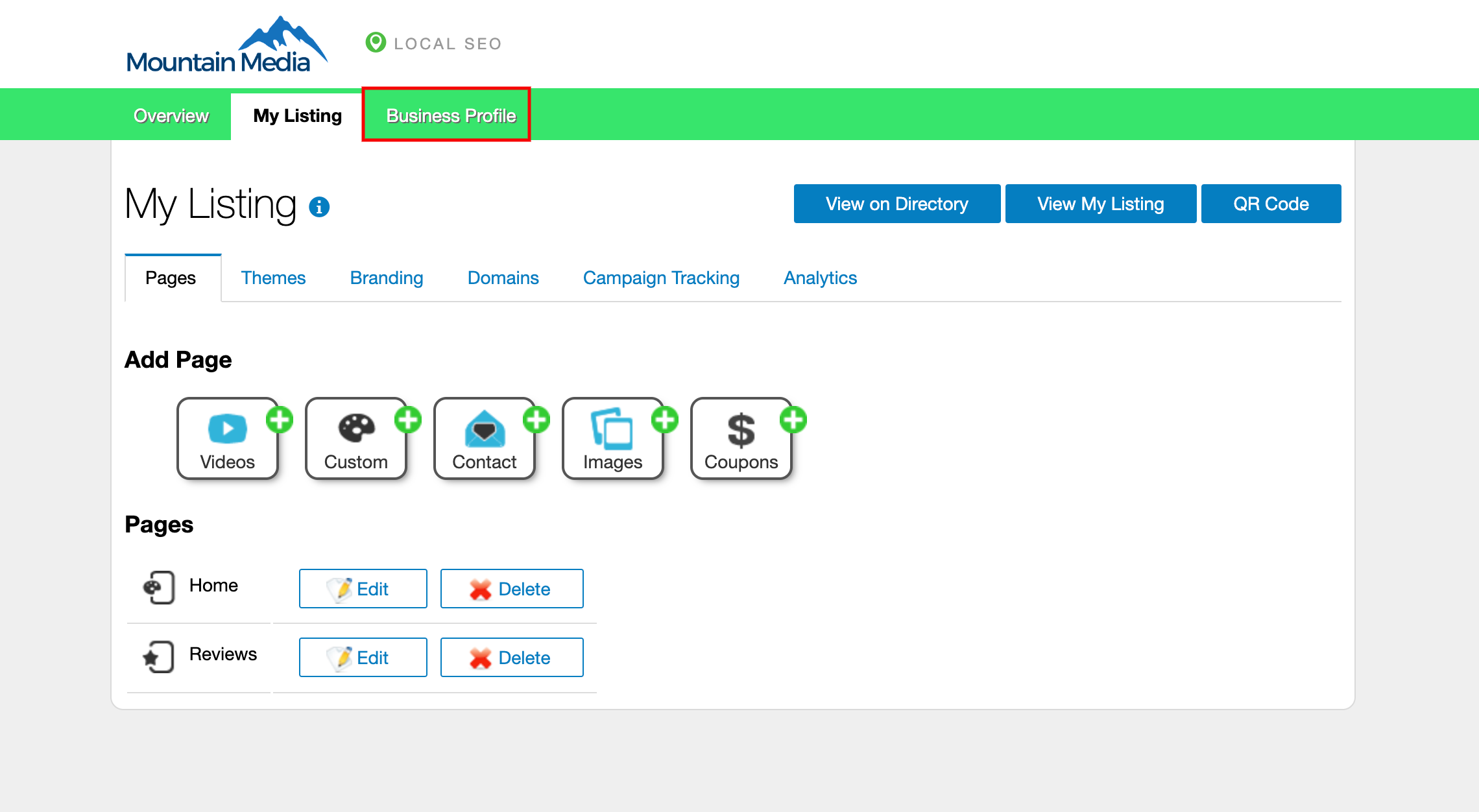
Open Listings Management > My Listing > Manage My Listing > Business Profile and complete the profile. The information you enter will appear on the listing.
2) Select a theme
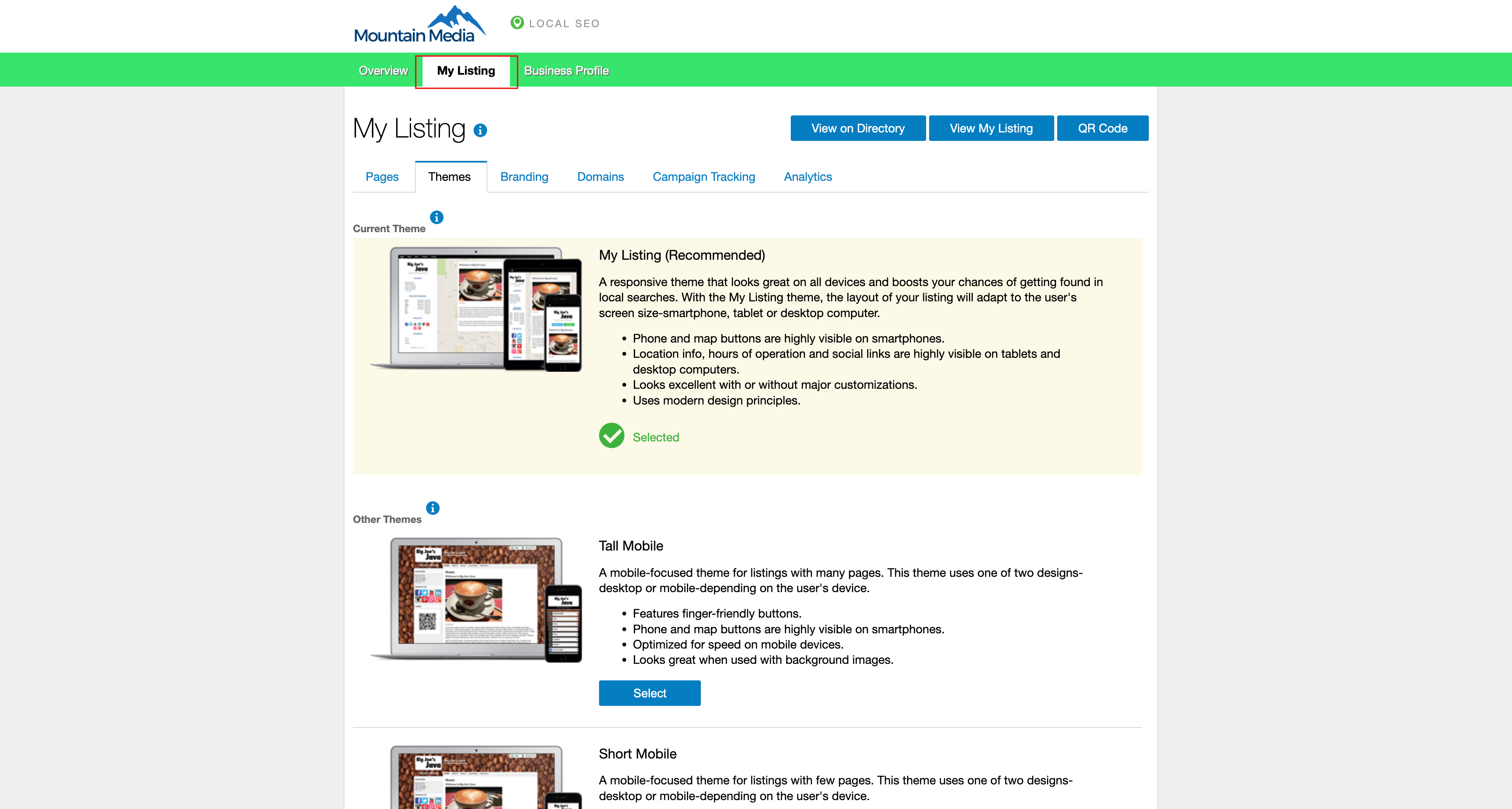
Go to My Listing > Themes to select the listing style. The My Listing Page theme is the default and is responsive. Responsive will adapt to different screen sizes, while Short Mobile or Tall Mobile are designed primarily for smartphones.
3) Customize the branding
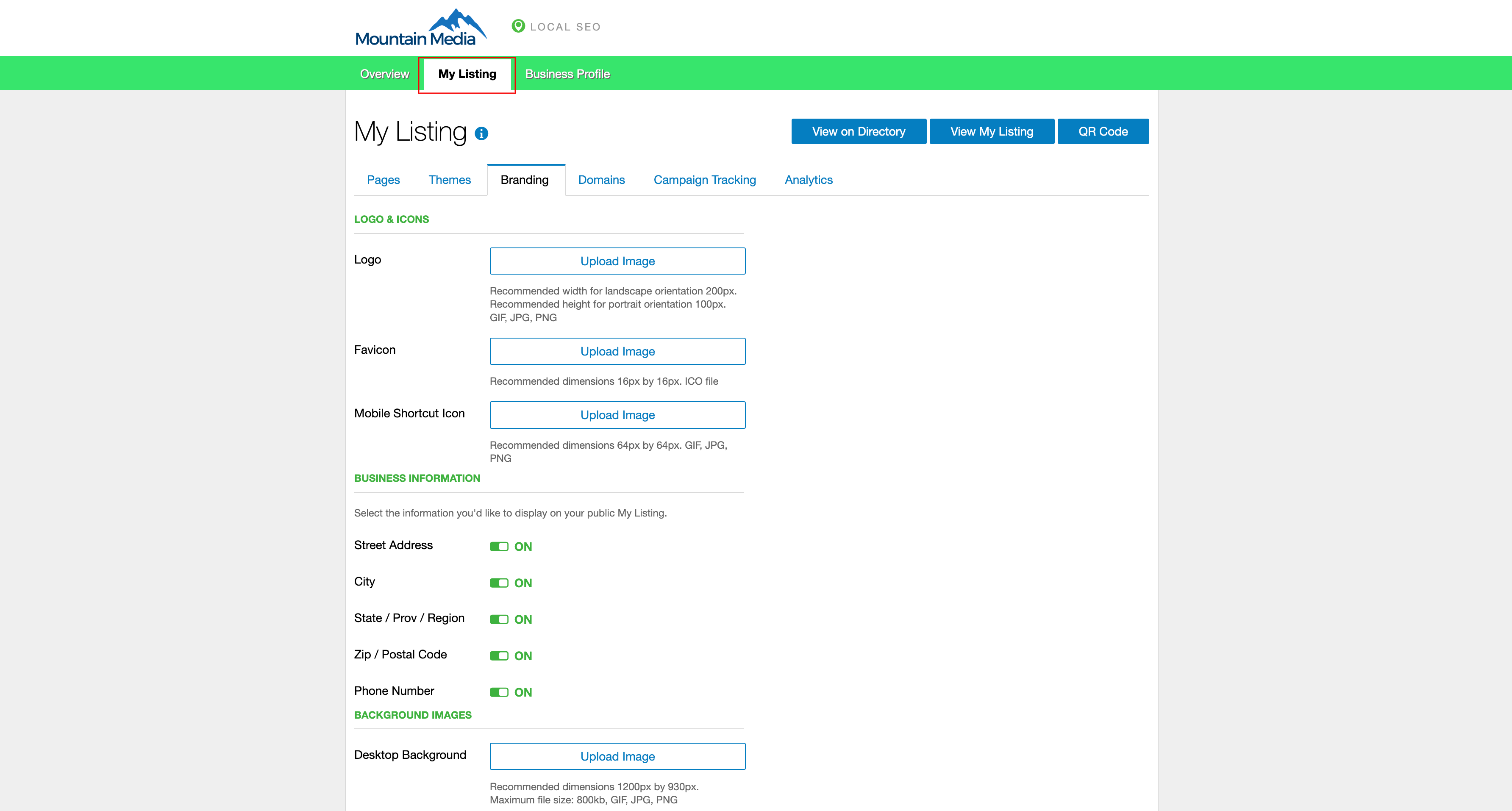
Upload your logo, favicon, and iPhone/Android Shortcut Icon. If the business is home-based or service-based, you can select the information you want to hide from the listing. If you upload a background image, ensure it meets the specified size.
4) Customize the domain
There are three ways to customize the URL of your listing:
- Custom Slug — Keep the listing on your Listings Management domain but customize the end of the URL. Go to
My Listing>Manage My Listing>Domains. InEdit Slug, enter the text that should appear after the root domain. Replace spaces with dashes. Cost: Free. - Custom Domain — Use your listing as the main website (for example,
www.mybusiness.com). You will need to add TXT and A record entries in your DNS settings. - Custom Domain on mobile subdomain — Use your listing as the mobile site (for example,
m.mybusiness.com). You will need to add TXT and CNAME entries in your DNS settings.
5) Update the home page
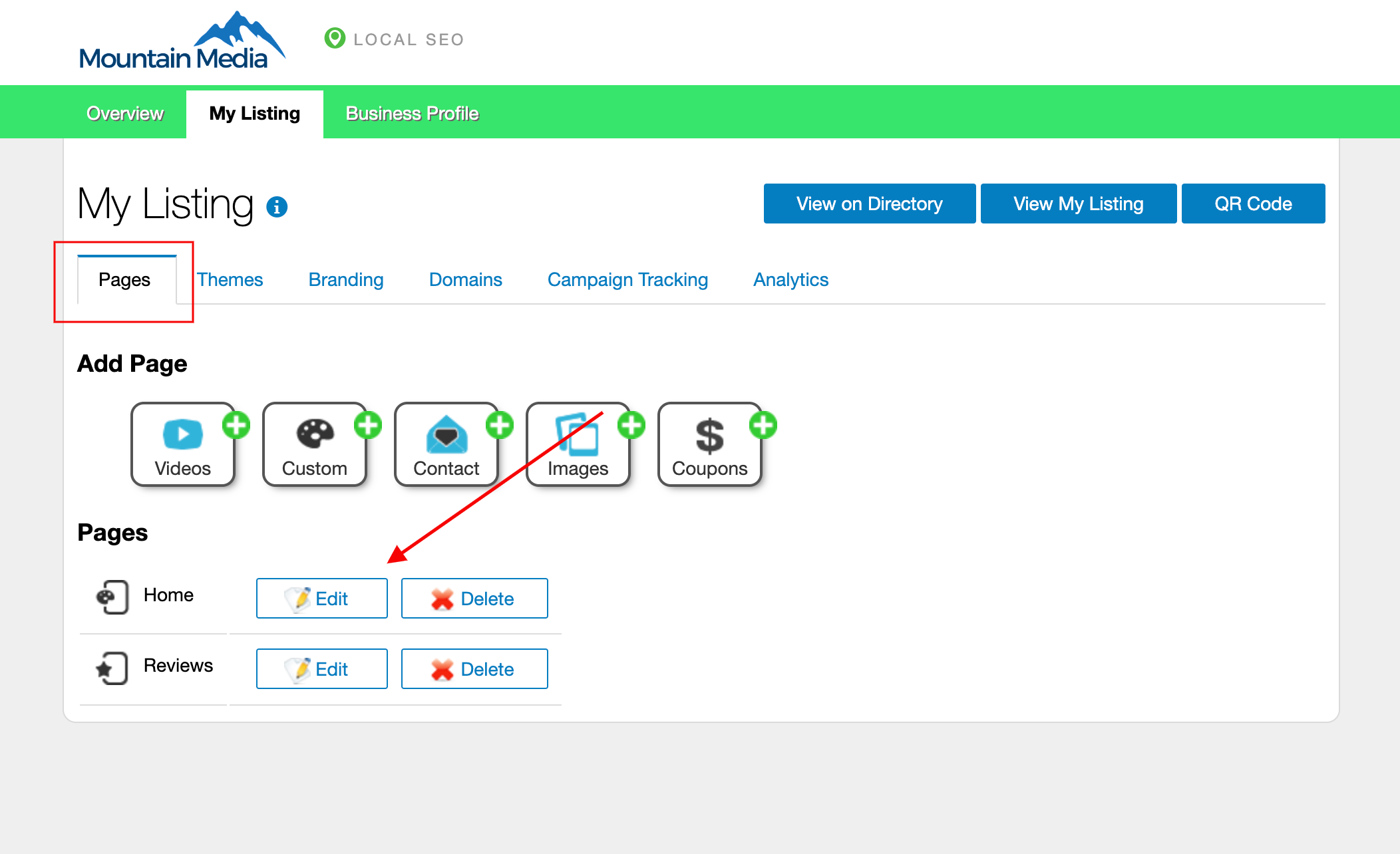
Go to My Listing > Pages and click Edit beside the Home page. Fill in the fields as you want them to display on the site.
- Although
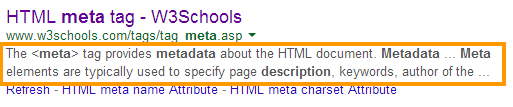
Meta Keywordsare not commonly used by larger search engines, you can enter site keywords separated by commas. Meta Descriptionis the two lines of text that appear below a site in web search. Limit to 155 characters. Each page should have a unique description.
6) Create additional pages
Click a page type to create a new page:
Images— Create gallery-like pages for the websiteContact— Create a page for visitors to contact the businessCoupons— Create a page dedicated to promotion coupons (set start, end, and expiry dates)Videos— Create a videos page where you can embed videos from online video hostsCustom— Create pages that are not covered by the other categories
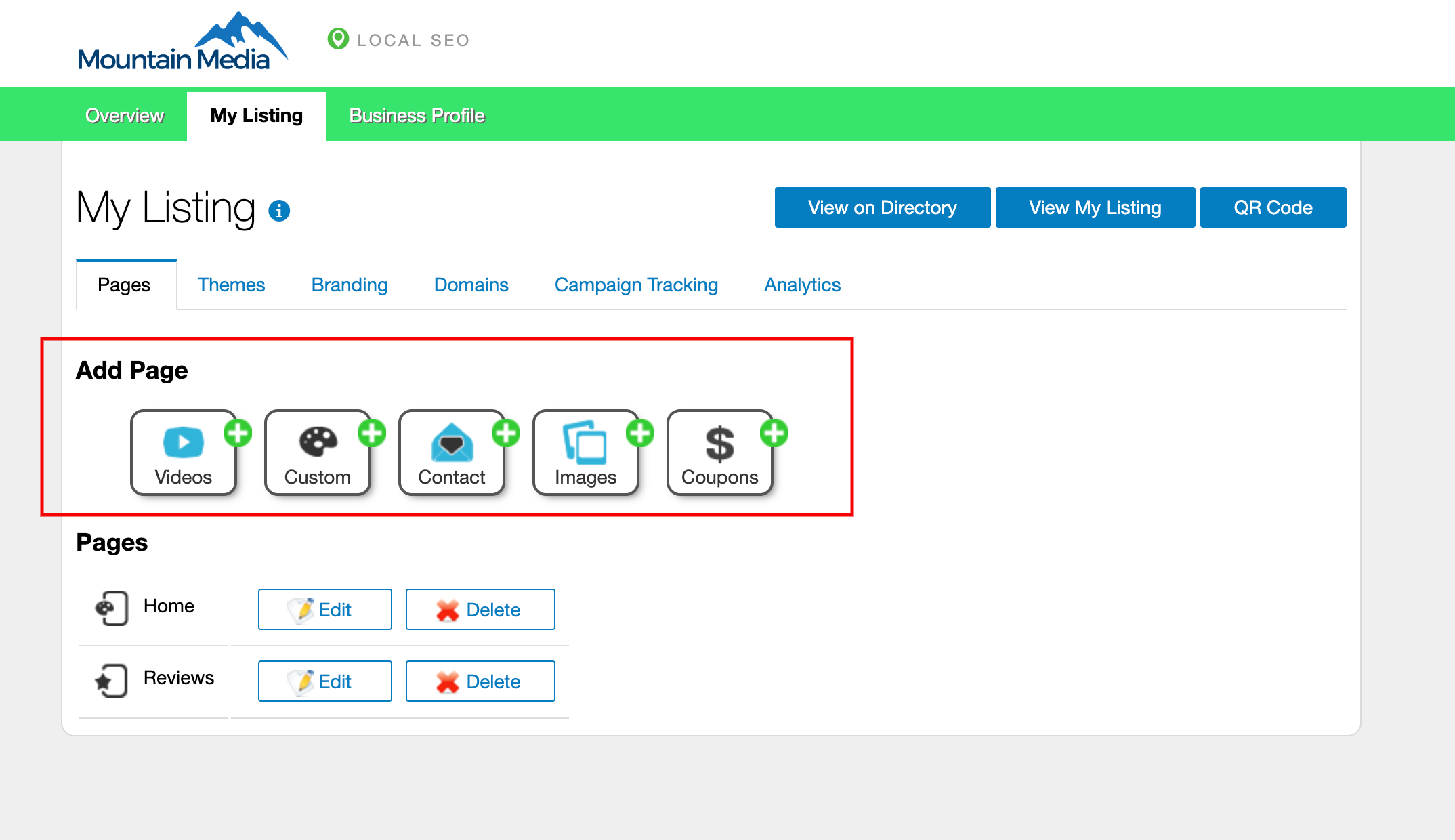
Enter the order in which the page should appear in the main website menu. Fill in all mandatory fields and click Create Page.
My Listing event analytics
Each time a visitor takes an action on your listing (for example, viewing the map), the event is tracked and added to the Event Analytics chart so you can measure engagement.
Tracked events include: View Hours, View Map, View Contact Information, View Video, Call Business, Link to Full Website, View Image, Scanned QR Code.
Frequently Asked Questions
/my-business-name), which is free. A custom domain allows you to use your own web address, which requires DNS configuration.Manage how your business data is submitted to aggregators and distributed to directories and apps.
What is Citation Builder?
Citation Builder is an add-on that sends your business information to major data providers (aggregators) so your listing appears accurately across the web—on search engines, mobile apps, voice search, and other platforms. It helps more customers find you, keeps your name, address, phone, and hours consistent everywhere.
Why is Citation Builder important?
- Consistent listings improve local search visibility.
- Aggregators distribute your data to many platforms that users rely on.
- Ongoing distribution helps keep details up to date across the web.
What's included with Citation Builder?
- Data Submission to aggregators: TransUnion's Neustar/Localeze and Foursquare.
- Verification and Conflict Handling guidance for aggregator workflows.
- Reporting to track citation growth, distribution, and data accuracy.
- Update Timeline expectations for submissions and downstream publication.
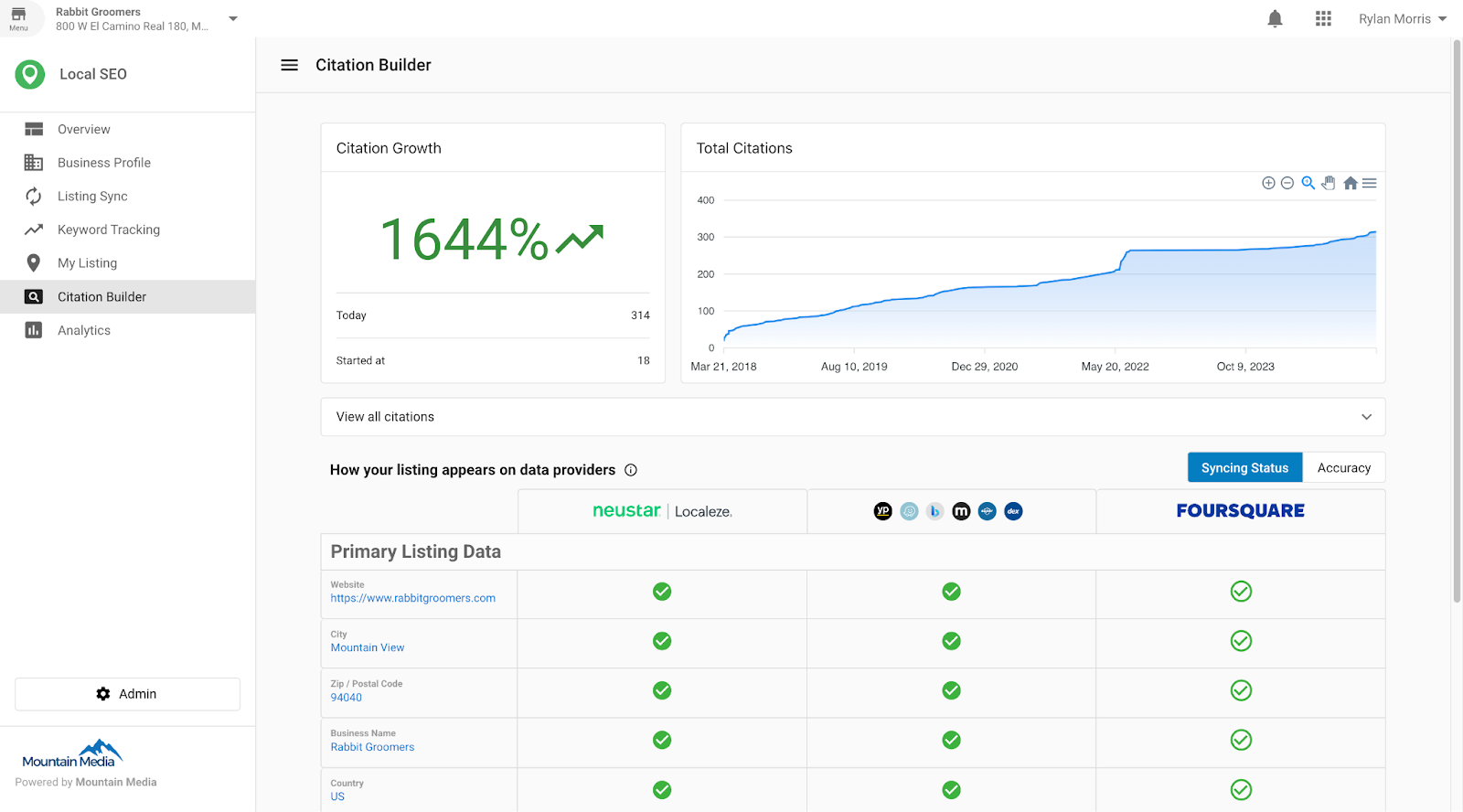
How data submission works
Information sent to aggregators
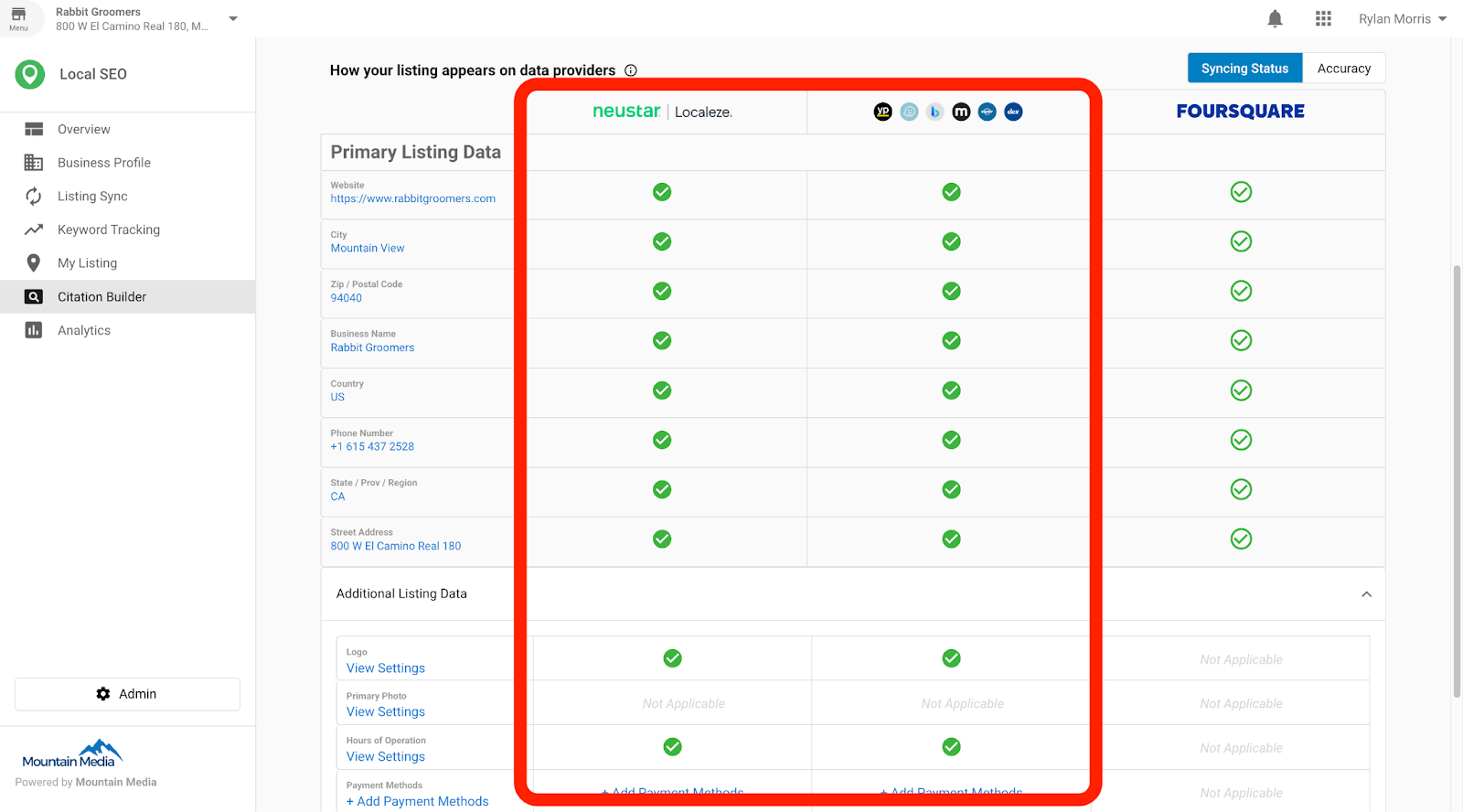
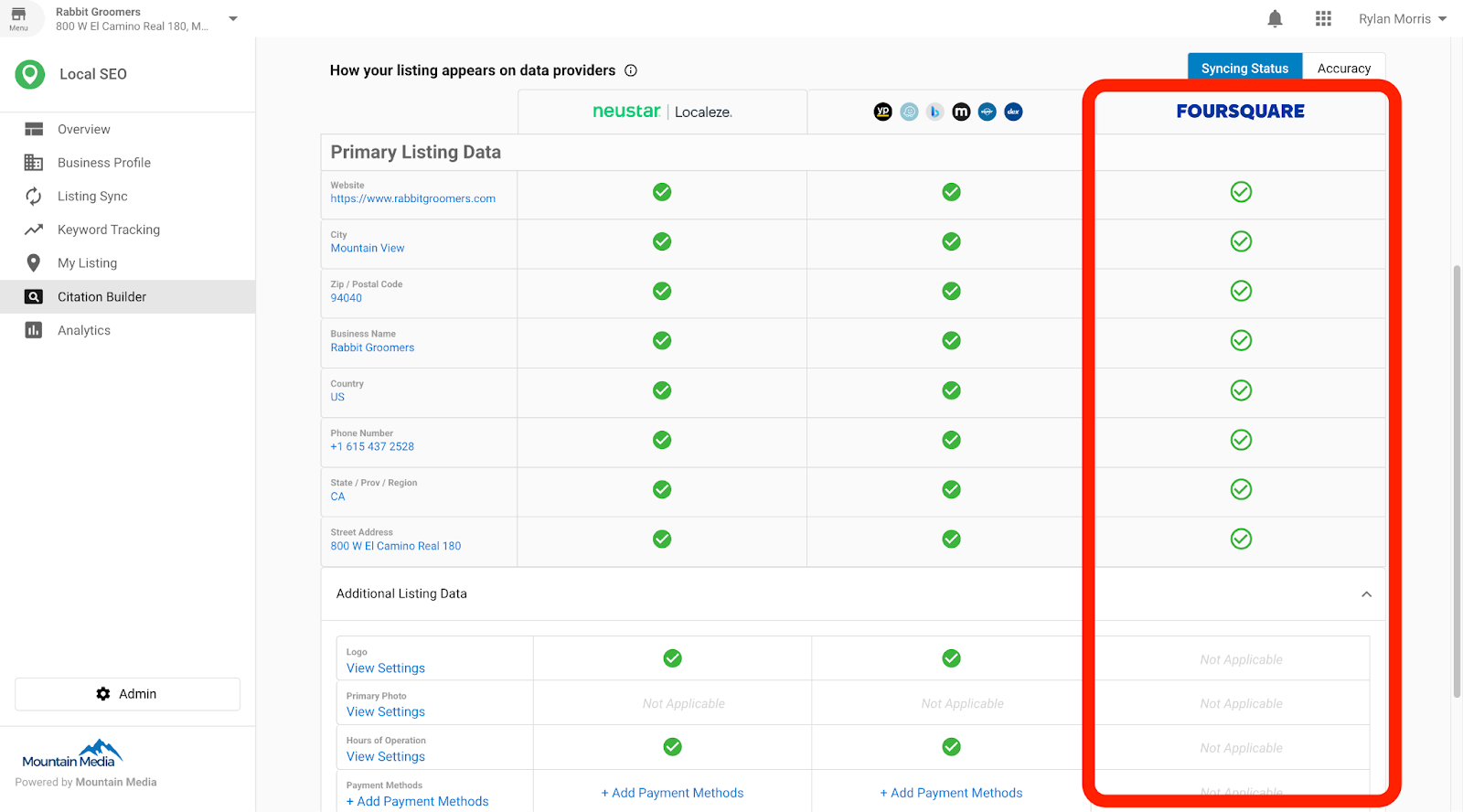
- Primary data submitted to both aggregators: Business name, address, city, state/province/region, country, zip/postal code, phone number, and website.
- Additional data (accepted by some sources): Hours of operation, payment methods, business description, services, brands, and keywords.
- Healthcare records (where applicable): Firm/clinic/office name, first name, last name, email, professional credential, NPI, gender, insurances accepted, and school.
Aggregator verification
Aggregators compare submitted data against authoritative sources (for example, postal records). They may make formatting adjustments and may contact businesses for verification.
Aggregator specifics
TransUnion's Neustar/Localeze — Collects, verifies, and distributes business data to directories, search engines, navigation tools, mobile apps, and more. Tracks acceptance and distribution, including reporting to several key platforms.
Foursquare — Acts as a submission-only provider for this product. Distributes business data to platforms that rely on Foursquare.
Verification examples
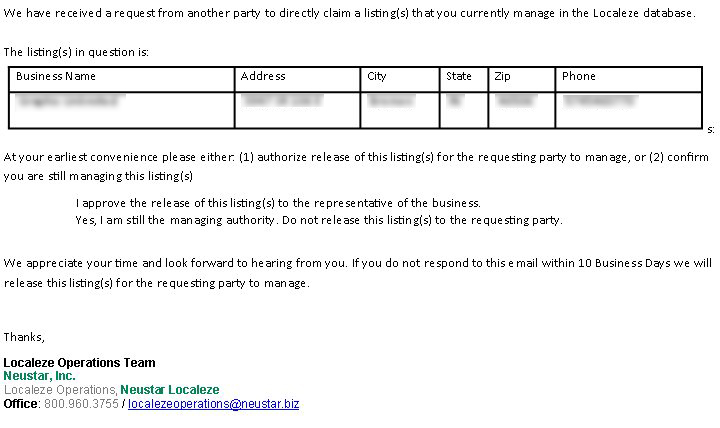
Neustar/Localeze may send a conflict-resolution email when a listing is already claimed. If approved, control is transferred; if not, updates cannot be applied; if no response within 10 business days, the listing is released.
Toll-free numbers
Toll-free numbers are supported. Neustar/Localeze has a dedicated field for toll-free numbers. To use a toll-free number as the main phone, a standard number must also be provided. Acceptance as a primary number is not always guaranteed.
Selecting the correct category
Choosing the correct business category ensures accurate classification and helps avoid syncing issues with sources that do not support generic categories.
Reporting
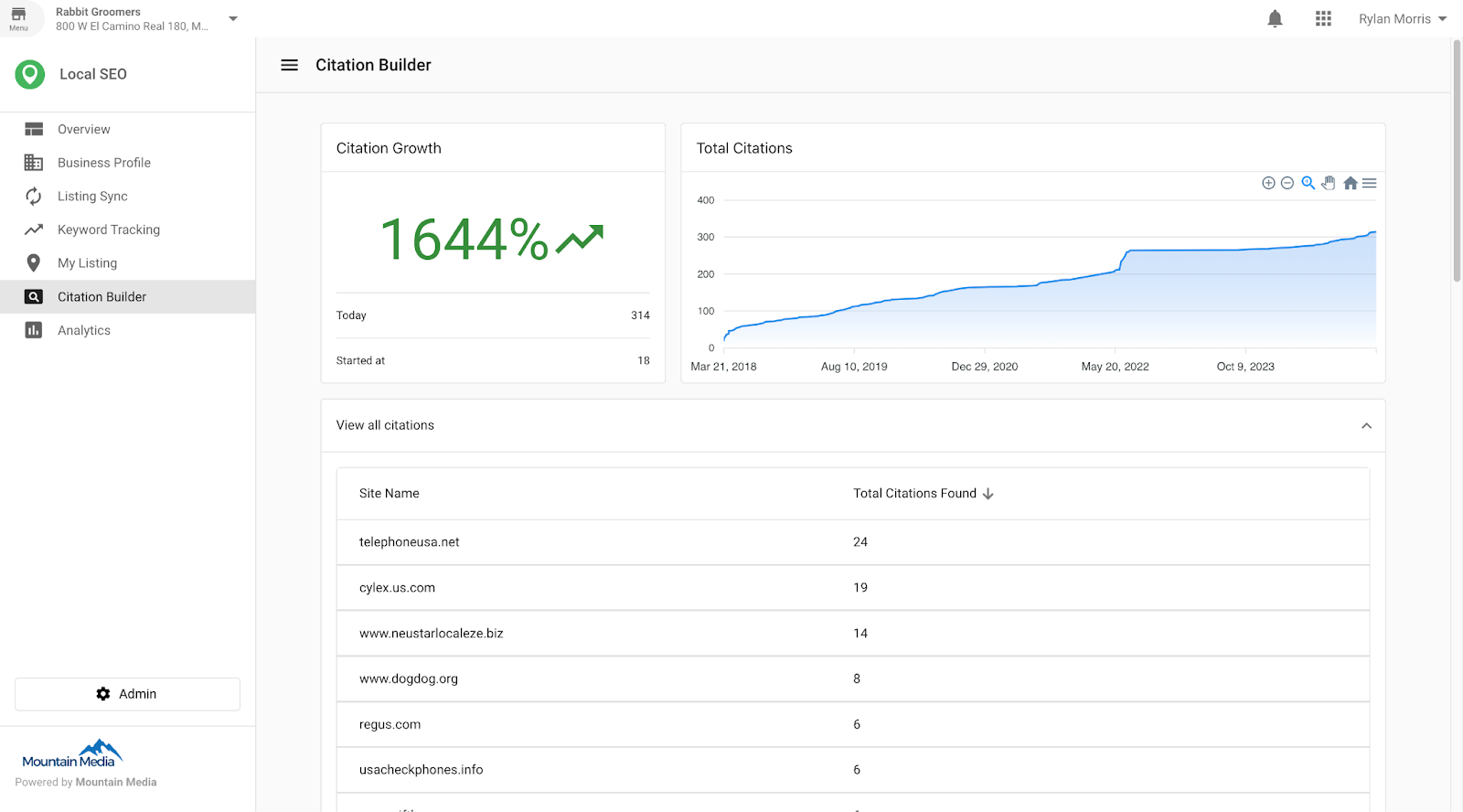
- View total citations created since activation and new citations added over time.
- See distribution by source in the "View all citations" area.
- Review syncing status and accuracy of name, address, and phone number across platforms.
Update timeline and expectations
- Data submission typically occurs within 24 hours of data entry.
- Aggregators may confirm acceptance within 6–8 weeks.
- Aggregators then share information with citation sources, which may take 2–3 months to publish updates (varies by source).
- Search engines and directories pick up changes on their own refresh cycles.
Frequently Asked Questions
In this section, you'll learn about the analytics capabilities available in Listings Management. Use these insights to measure performance, track customer interactions, and optimize your local search strategies.
What is analytics in Listings Management?
Analytics in Listings Management provide valuable insights into how a business is performing on search platforms Google and Bing. By tracking key metrics, businesses can better understand customer interactions, refine their digital marketing strategies, and optimize local search presence.
Google Business Profile insights in Listings Management
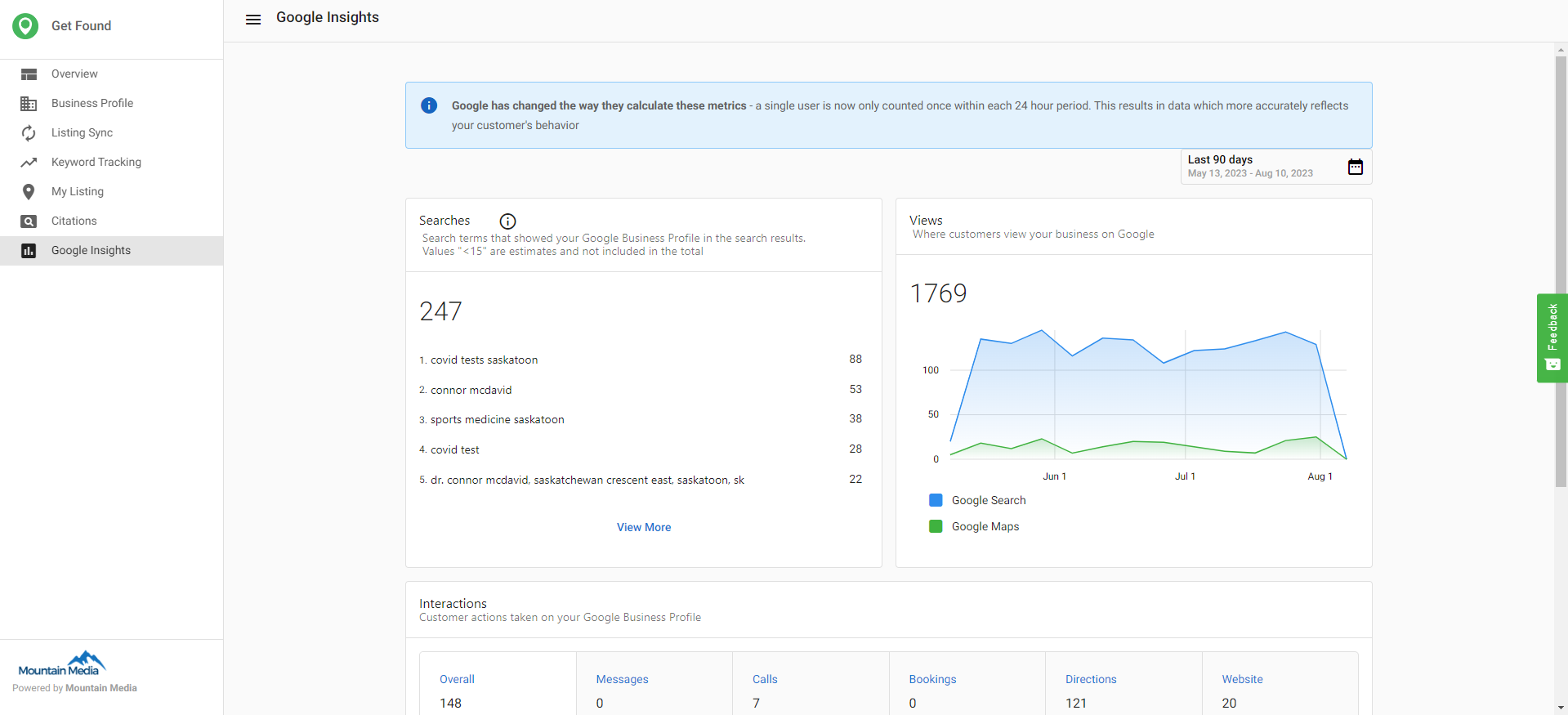
Google Business Profile Insights provide a detailed overview of how customers find and interact with a business on Google. These metrics help businesses assess their online visibility and customer engagement.
Key Google metrics available in Listings Management
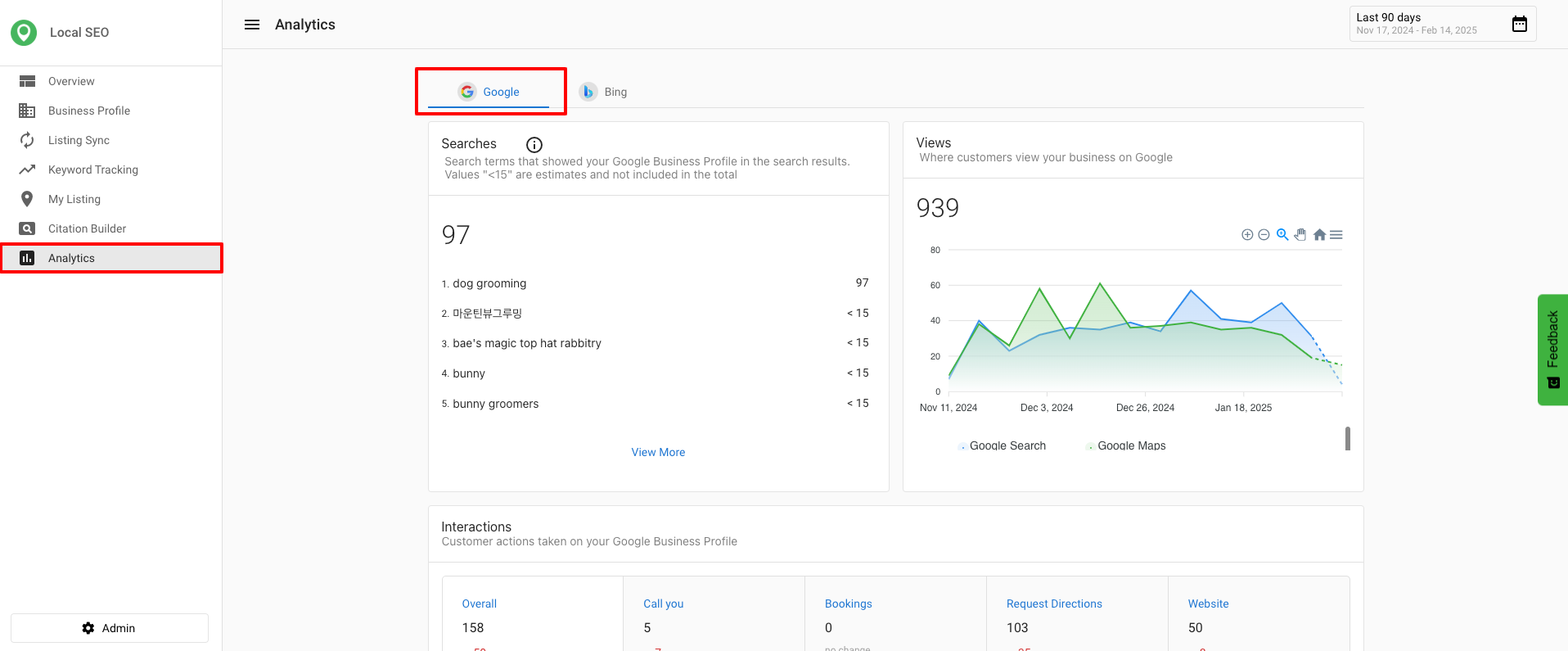
- Search Terms — Displays the queries people use to find a business. (Available in Listings Management and Executive Report.)
- Search Total — Shows the total number of searches where the business appeared. (Available in Listings Management, Executive Report, Multi-Location, and Multi-Location Executive Report.)
- Customer Interaction [Bookings] — Tracks completed customer bookings. (Available in Listings Management, Executive Report, Multi-Location, and Multi-Location Executive Report.)
Accessing Google Business Profile analytics in Listings Management
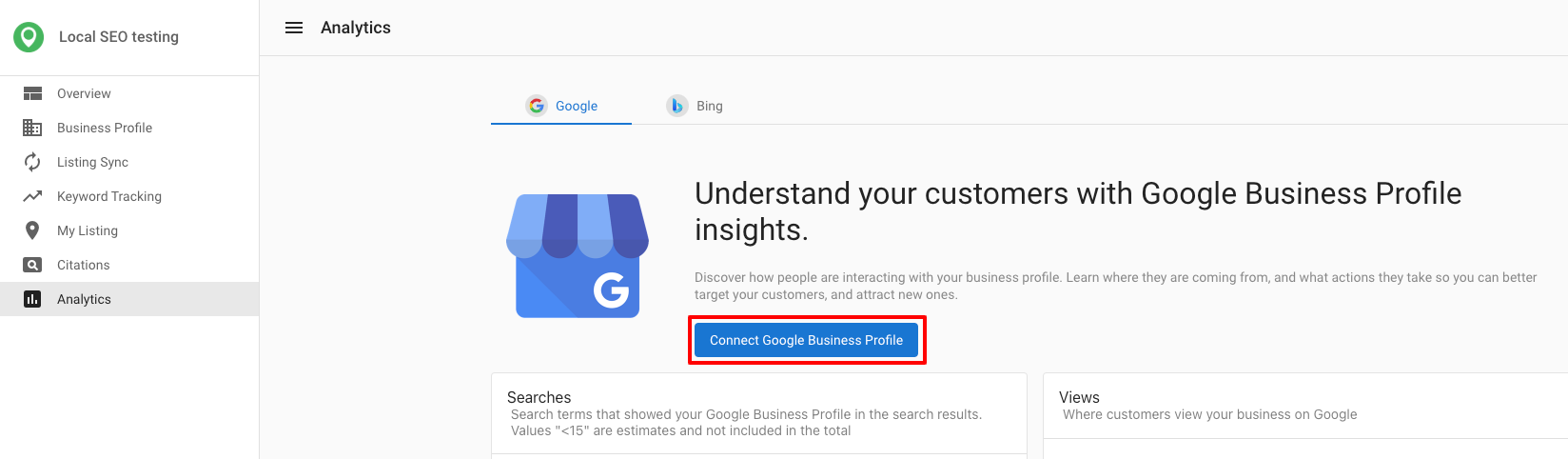
- Go to
Listings Management>Analytics>Google. - Click
Connect Google Business Profile. If you do not have an account, clickCreate a Google Business Profile accountto sign up.
After connecting, you can view metrics such as searches, where customers view your business, and common customer actions.
Bing insights in Listings Management
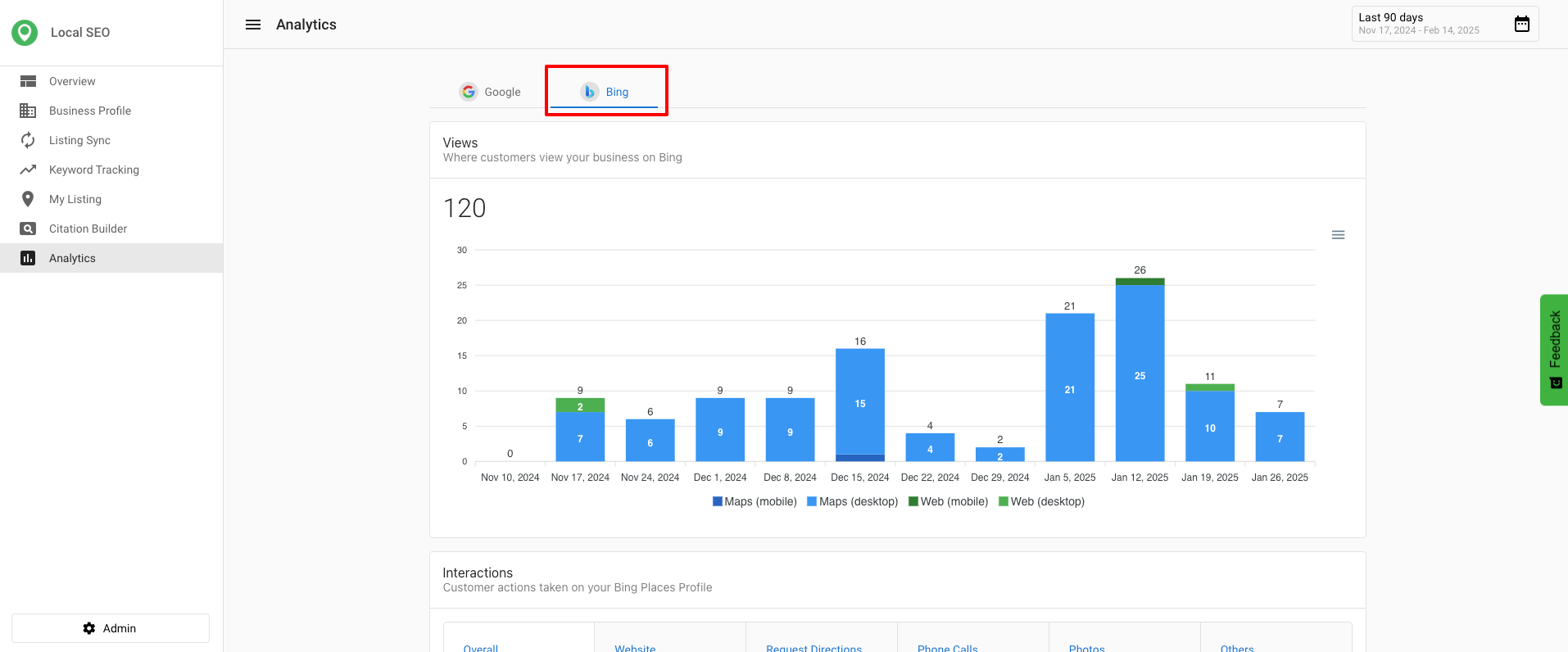
Bing Insights allow Listings Management Pro users to see how their business listings perform on Bing. This feature enhances visibility into search traffic and customer interactions beyond Google.
Key Bing metrics available in Listings Management
- Traffic insights to measure Bing as a source of customer visits.
- Customer interactions based on listing visibility and engagement.
- Performance trends for evaluating marketing effectiveness.
Accessing Bing analytics in Listings Management
Google insights:
- Navigate to the Analytics tab in Listings Management.
- View Google-specific data related to search queries, interactions, and overall visibility.
Bing insights (available for Listings Management Pro users):
- Select a Listings Management Pro account.
- Ensure that the Bing profile is created and synced under Listing Sync.
- Go to the Analytics section and click on Bing Insights to view performance data.
Why these insights matter
- Better Decision Making — Helps businesses understand which search platforms are driving traffic.
- Improved Engagement Strategies — Aligns customer interactions with business goals.
- More Control Over Listings — Ensures that businesses can monitor and adjust their presence on both Google and Bing.