Executive Report Guide
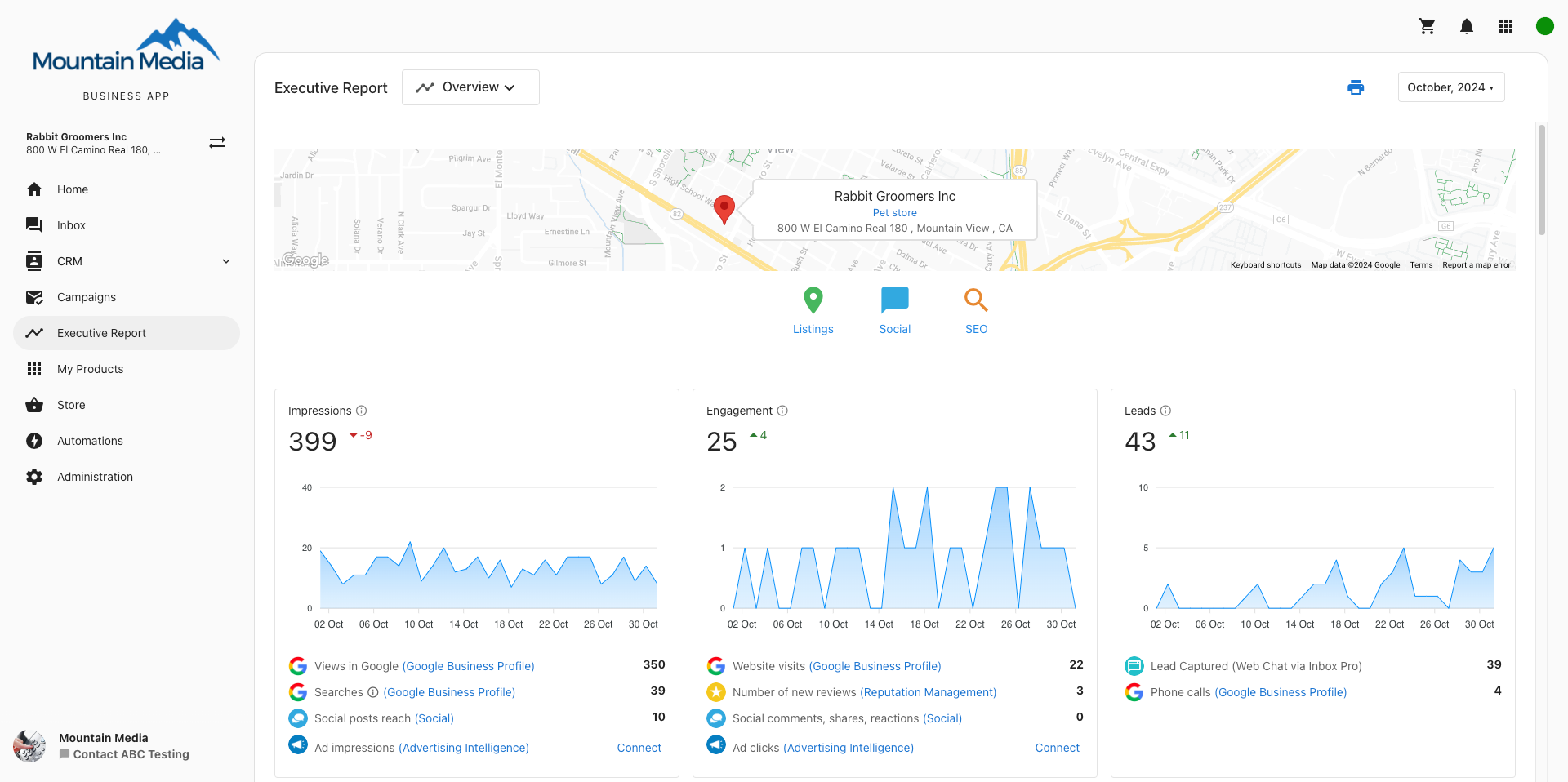
Your Executive Report is a single, automatic summary of your entire online presence — reviews, leads, SEO, social, website traffic, advertising, and more — delivered to your inbox weekly or monthly.

What is the Executive Report?
The Executive Report gives you a clear summary of your business's online performance across all key marketing areas — reviews, SEO, social media, listings, advertising, and website traffic. It's automatically generated and delivered on a weekly or monthly schedule using data from the tools connected to your DFM account.
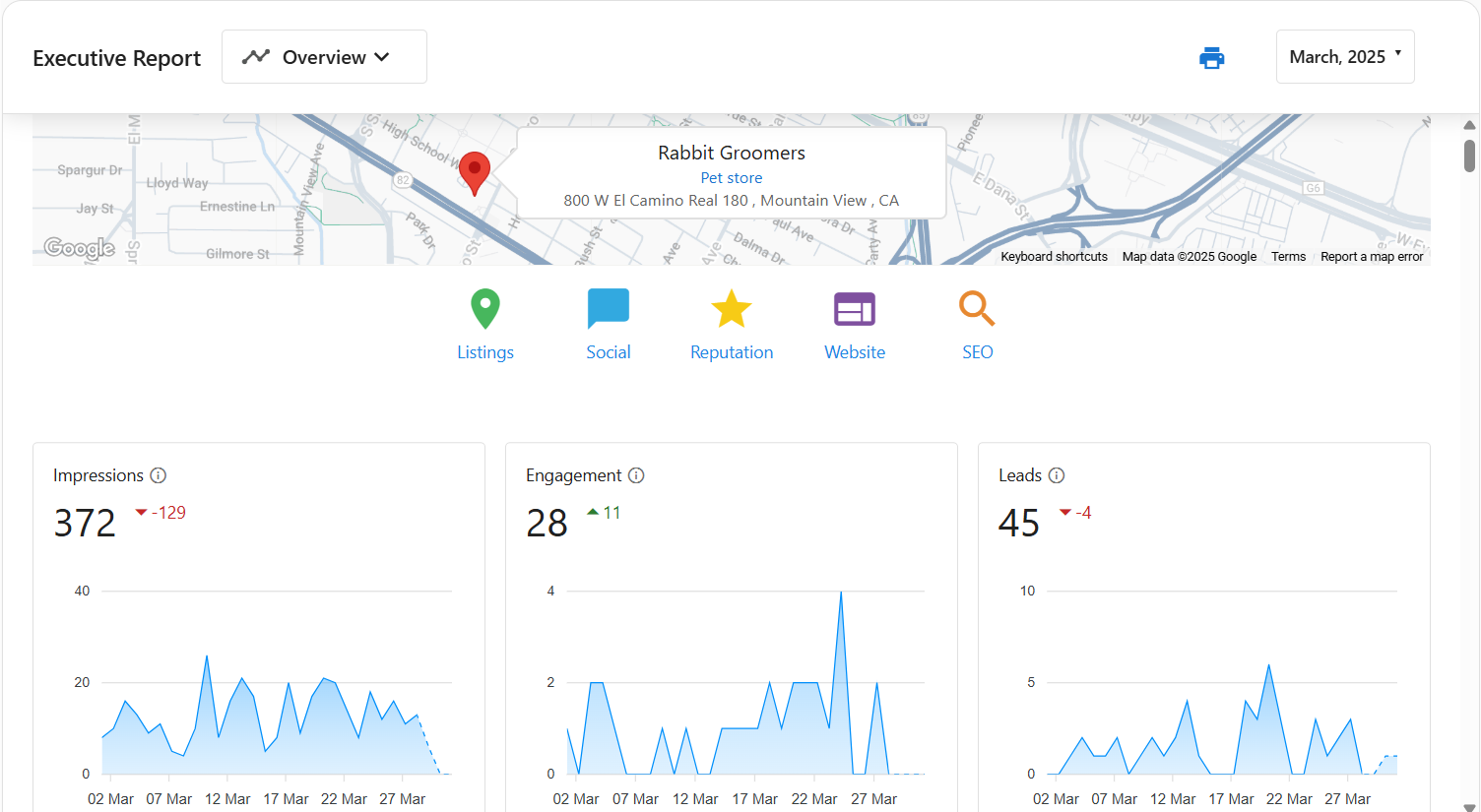
What's Included
Phone calls, AI receptionist, web chat, forms, SMS, and other lead sources tracked in your CRM.
Your Review Grade — a letter grade summarizing your online review presence vs. your industry.
Google Search Console data — queries, clicks, impressions, top pages, and 1st-page rankings.
Website traffic, users, sessions, bounce rate, and traffic sources via Google Analytics.
Google Ads and Facebook Ads ROI, spend, impressions, clicks, and conversions.
Income, expense data, and invoice payment notifications from QuickBooks Online.
Accessing Your Report
- Open the Executive Report tab in your DFM menu bar.
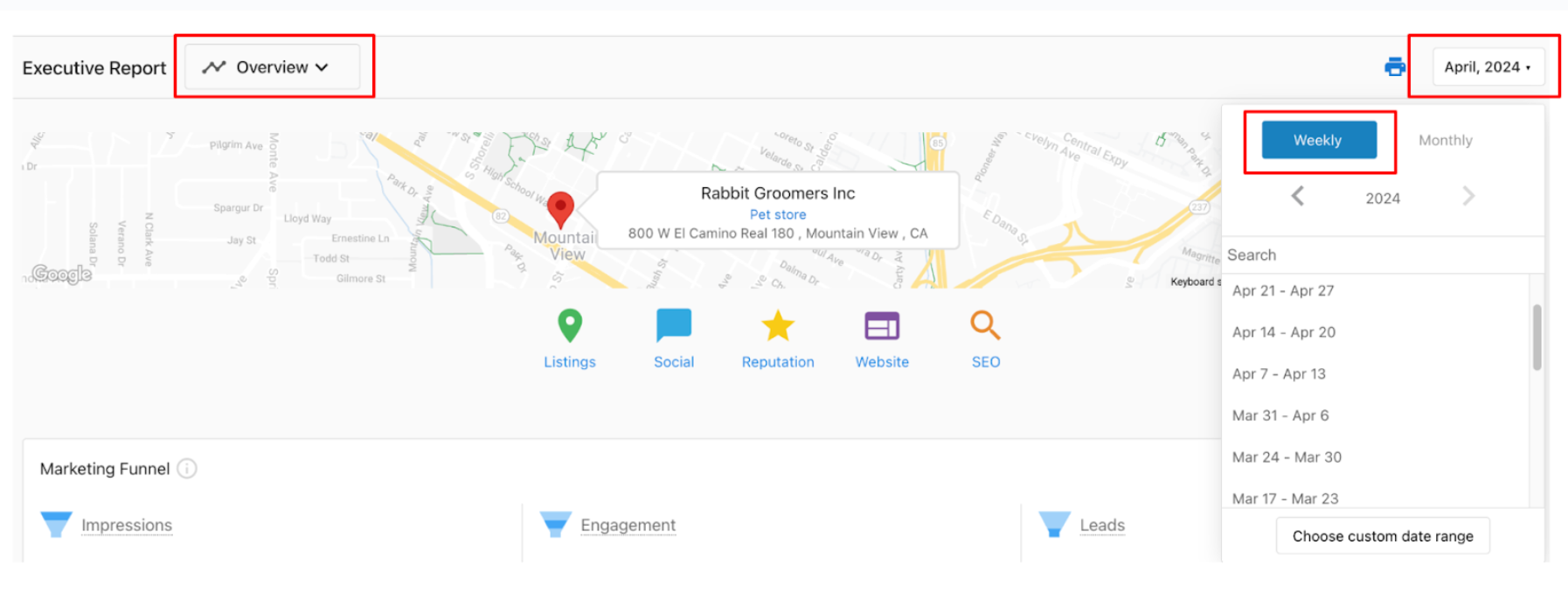
- Use the date selector in the top-right to choose Weekly, Monthly, or a Custom date range.
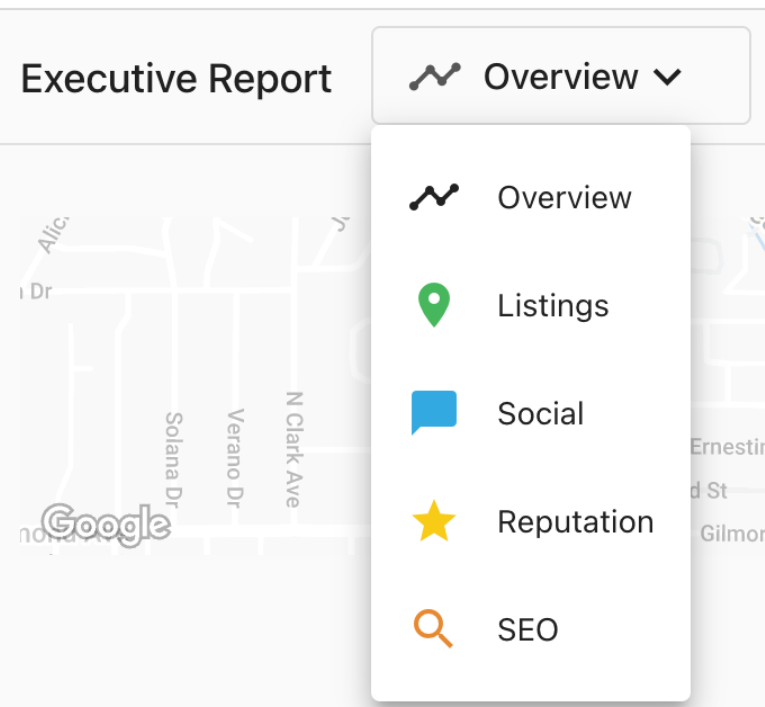
- Navigate between sections using the category icons at the top or the dropdown navigation menu.
- To download or print your report, use the print icon in the top-right corner.
Delivery Schedule
Sent between the 1st–3rd of each month. A 2–3 day processing delay is normal to ensure all data is complete.
Sent on Mondays. To enable automated email delivery, contact DFM at contactus@thedfmagency.com.
Data Update Timing
- Google Business Profile data typically shows within 5 minutes of connecting.
- Newly added products may take up to 48 hours to appear in your next report.
- Google Search Console data is pulled once per day (around midnight CST).
- Advertising data updates every Sunday.
Frequently Asked Questions
Leads (Customer Relations)
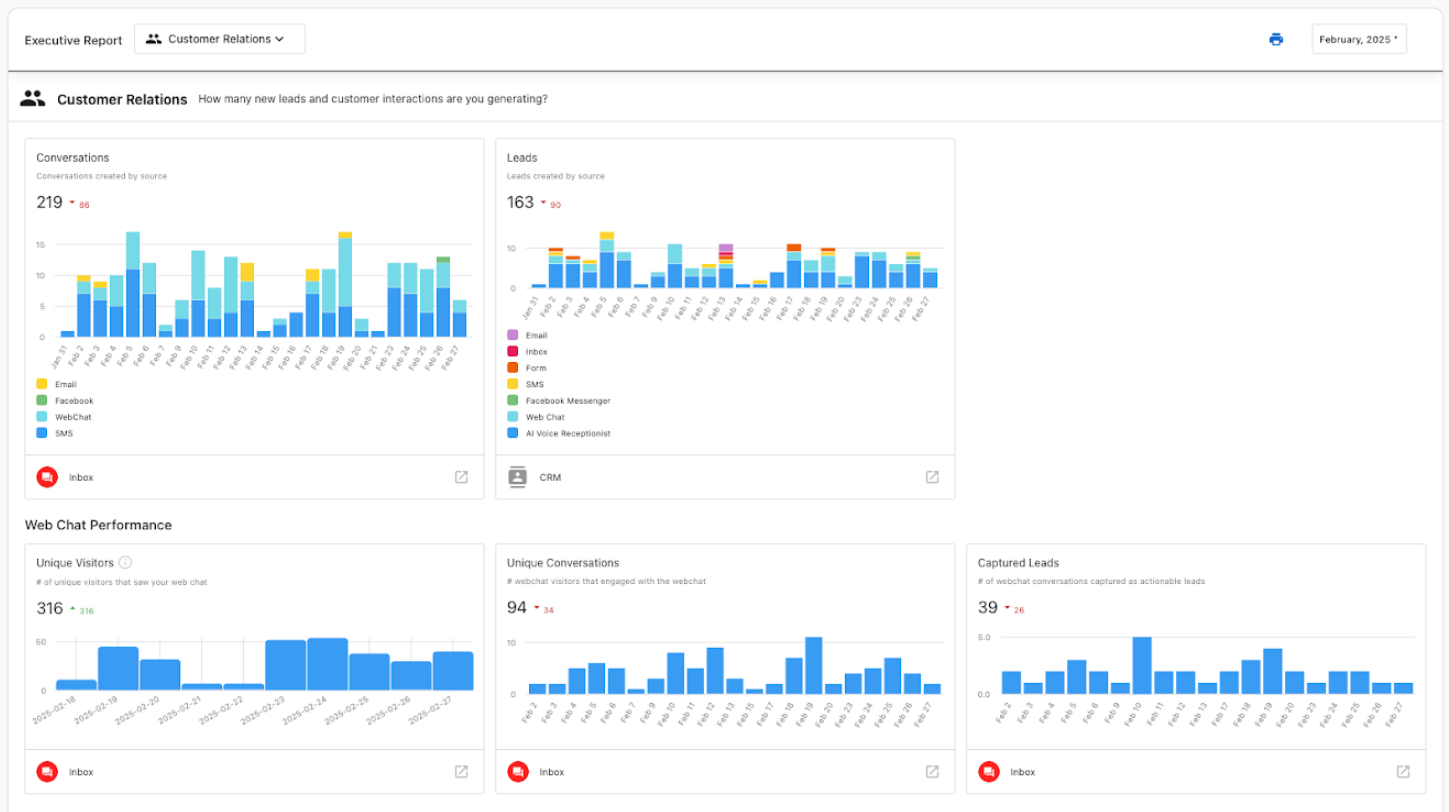
The Leads section gives you a single view of all new leads and customer interactions your business is generating across every channel. In the report's navigation dropdown, this may appear as Customer Relations.
What's Tracked
Total new leads in CRM broken down by source. E.g. "Leads: 59 (-2)" = 59 leads, 2 fewer than last period.
Volume of communication across SMS, web chat, email, and other channels.
Unique visitors who saw the chat widget, conversations started, and leads captured.
Total message volume over time, split by customer messages, AI responses, and team replies.
Lead Sources Tracked
Only organically captured leads are counted. Sources include:
- Phone calls (Google Business Profile) — Calls from your listing
- AI Voice Receptionist — Calls handled by the AI phone system
- Web Chat — Website chat conversations that become leads
- Forms — Contact form submissions
- SMS — Text conversations that generate leads
- Zapier — Leads from connected apps
Setup Checklist
- ✅ Google Business Profile connected with phone tracking on
- ✅ AI Voice Receptionist set up (if applicable)
- ✅ Web chat widget installed on your website (if applicable)
- ✅ Contact forms connected to the CRM
- ✅ SMS set up for lead capture (if applicable)
- ✅ Zapier or other integrations active (if applicable)
Frequently Asked Questions
Reputation
The Reputation section shows how your business is performing on reviews. The centerpiece is the Review Grade — a letter grade that gives you an at-a-glance summary of your online review presence compared to others in your industry.
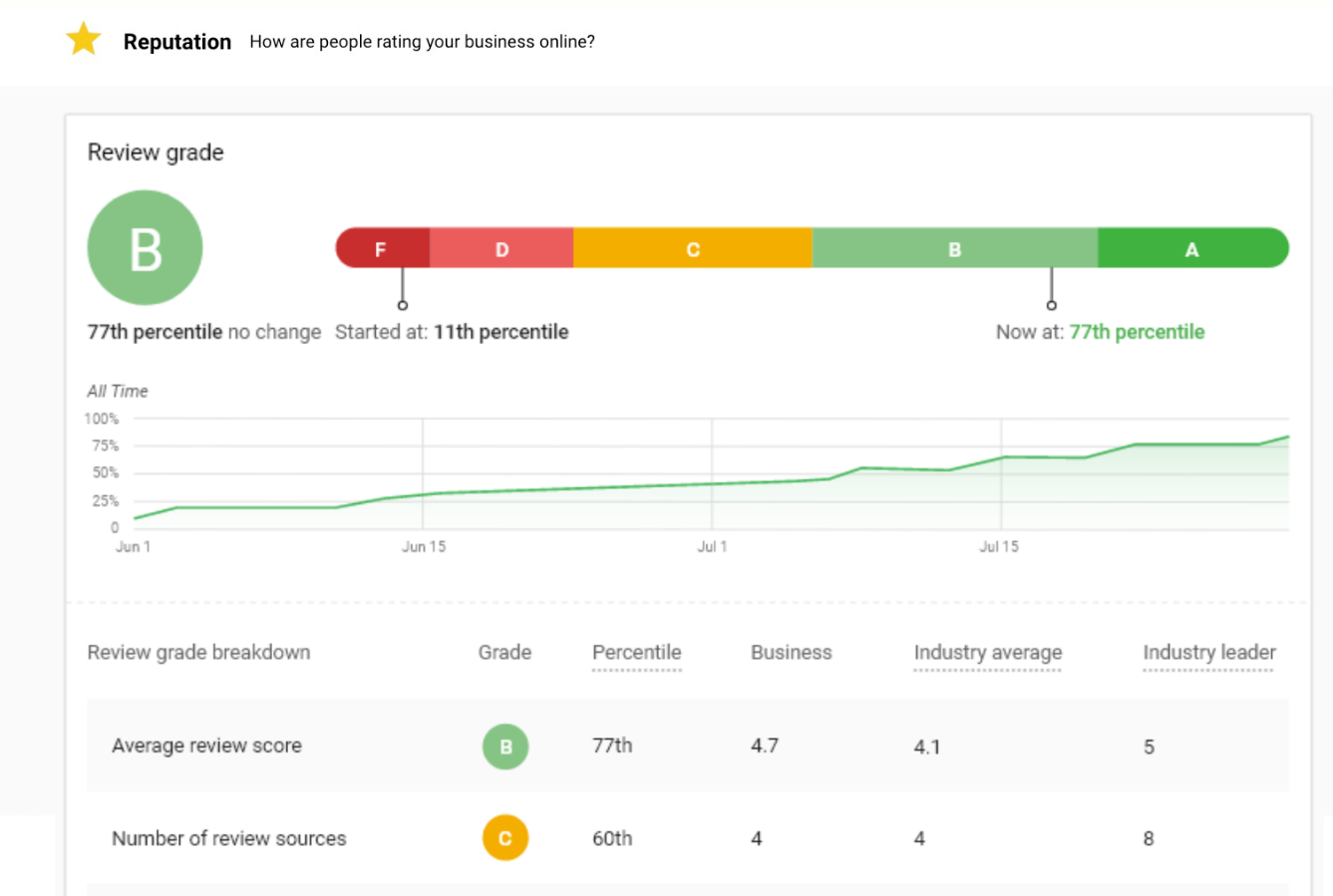
How the Review Grade is Calculated
The grade is based on four areas, each compared to the industry average:
- Average review score — Your typical star rating
- Number of review sources — How many sites you're getting reviews on
- Reviews found — Total reviews found for your business
- Reviews per month — How many new reviews you're getting
SEO (Google Search Console & MarketGoo)
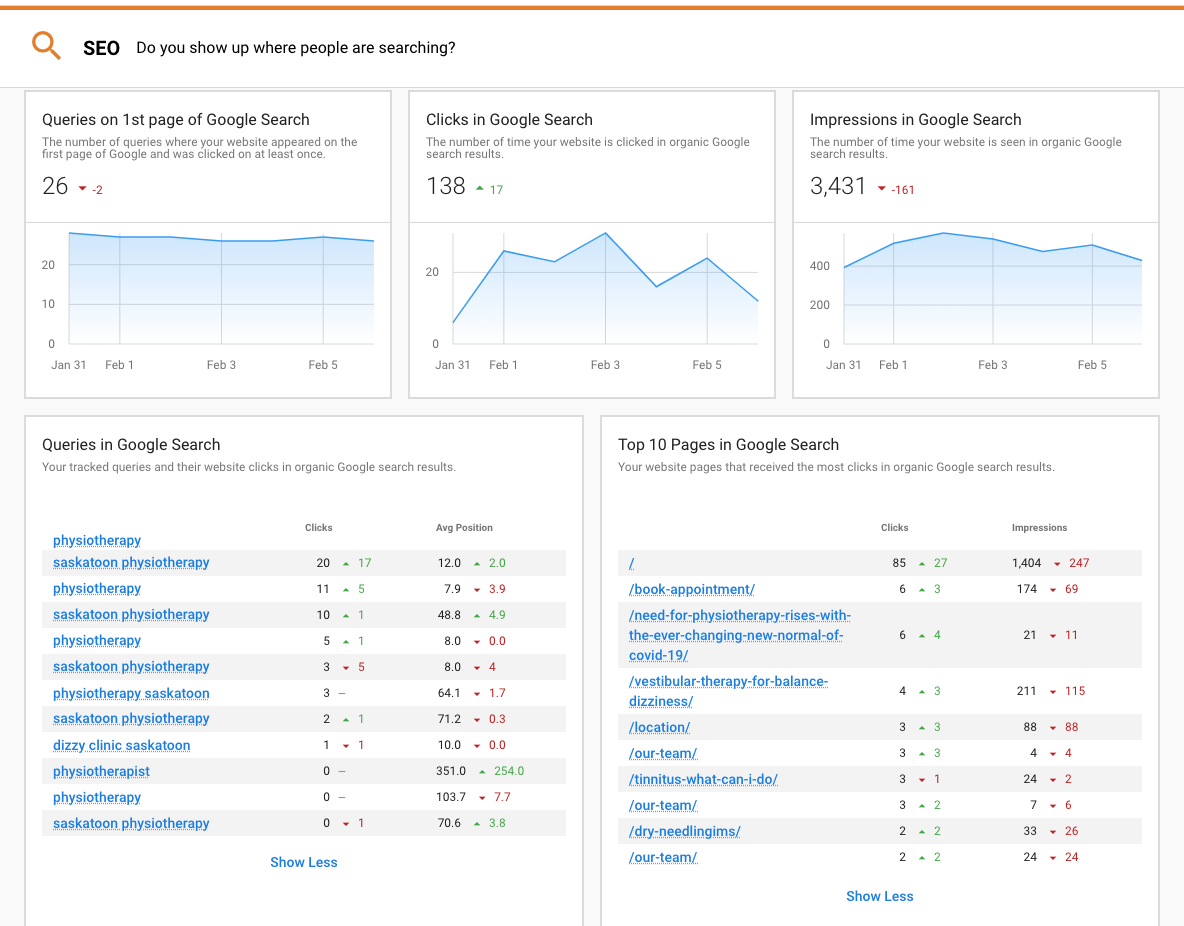
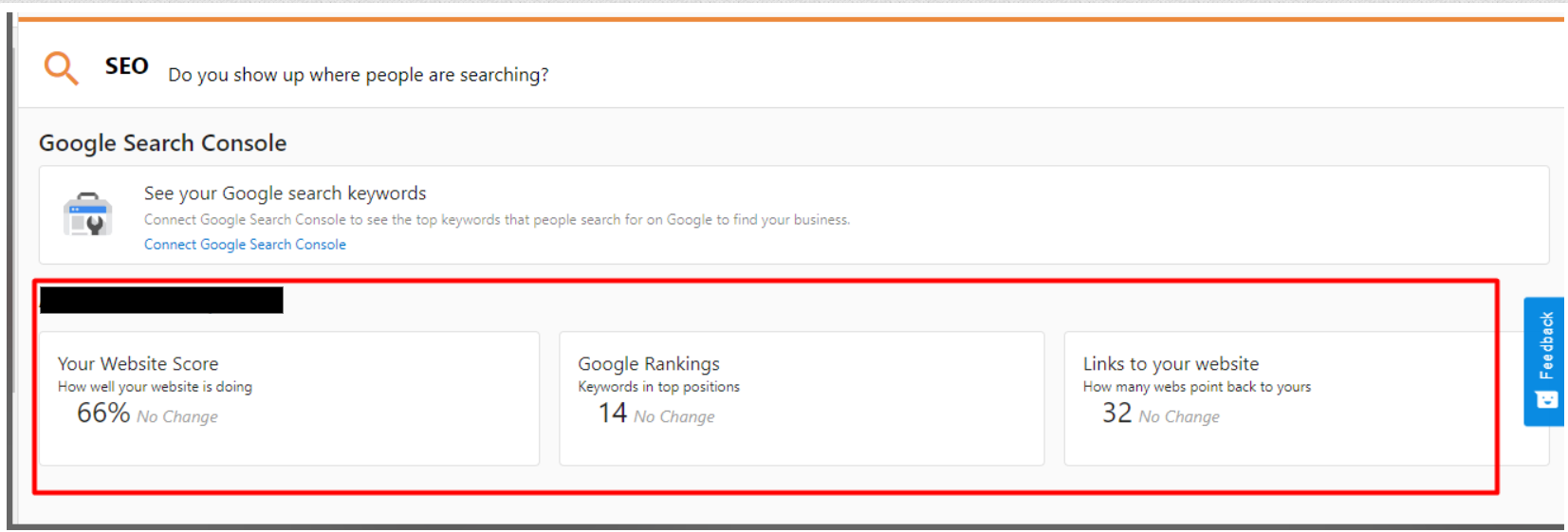
The SEO section shows how your website is performing in Google Search. Connect Google Search Console and the report automatically shows proof of how your site is ranking and getting traffic from search.
Google Search Console Metrics
How many search terms your site ranks on page 1 of Google for, with at least one click in the last 30 days. Updated daily.
How many people clicked through to your site from Google search results.
How often your site appeared in search results, even if not clicked.
Which search terms and pages get the most clicks and impressions, with average position.
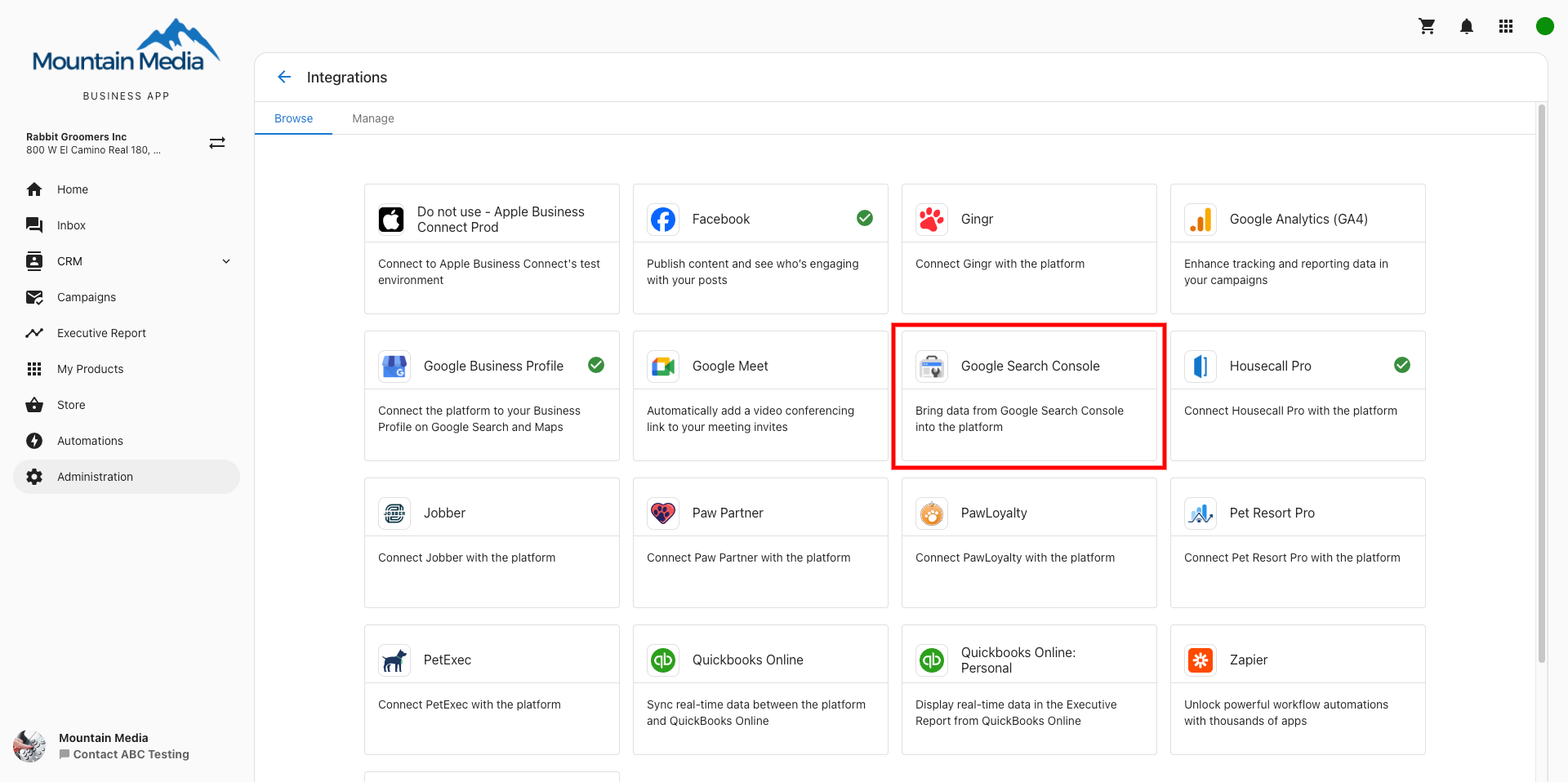
How to Connect Google Search Console
- Make sure you have a Google Search Console account with your website verified. Create one at search.google.com/search-console if needed.
- Go to DFM > Administration > Connections > Browse Integrations and find Google Search Console.
- Sign in with a Google account that has access to your Search Console property.
- Choose the property to connect — about 30 days of history is pulled in immediately.
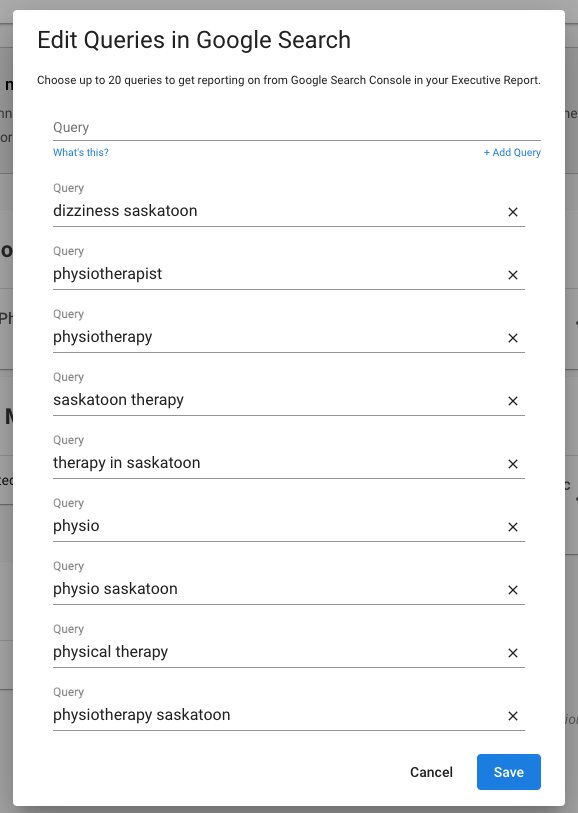
Customize Which Queries Are Tracked
When you first connect, the top 10 queries by clicks are pulled in automatically. You can edit this list — add or remove keywords, up to 20 total — via Administration > Connections > Google Search Console.
MarketGoo
If you use MarketGoo, its data appears in the SEO section. MarketGoo data is sent monthly — you'll only see it when you select the Monthly date range. MarketGoo Lite accounts do not appear in the report.
Frequently Asked Questions
Website Performance
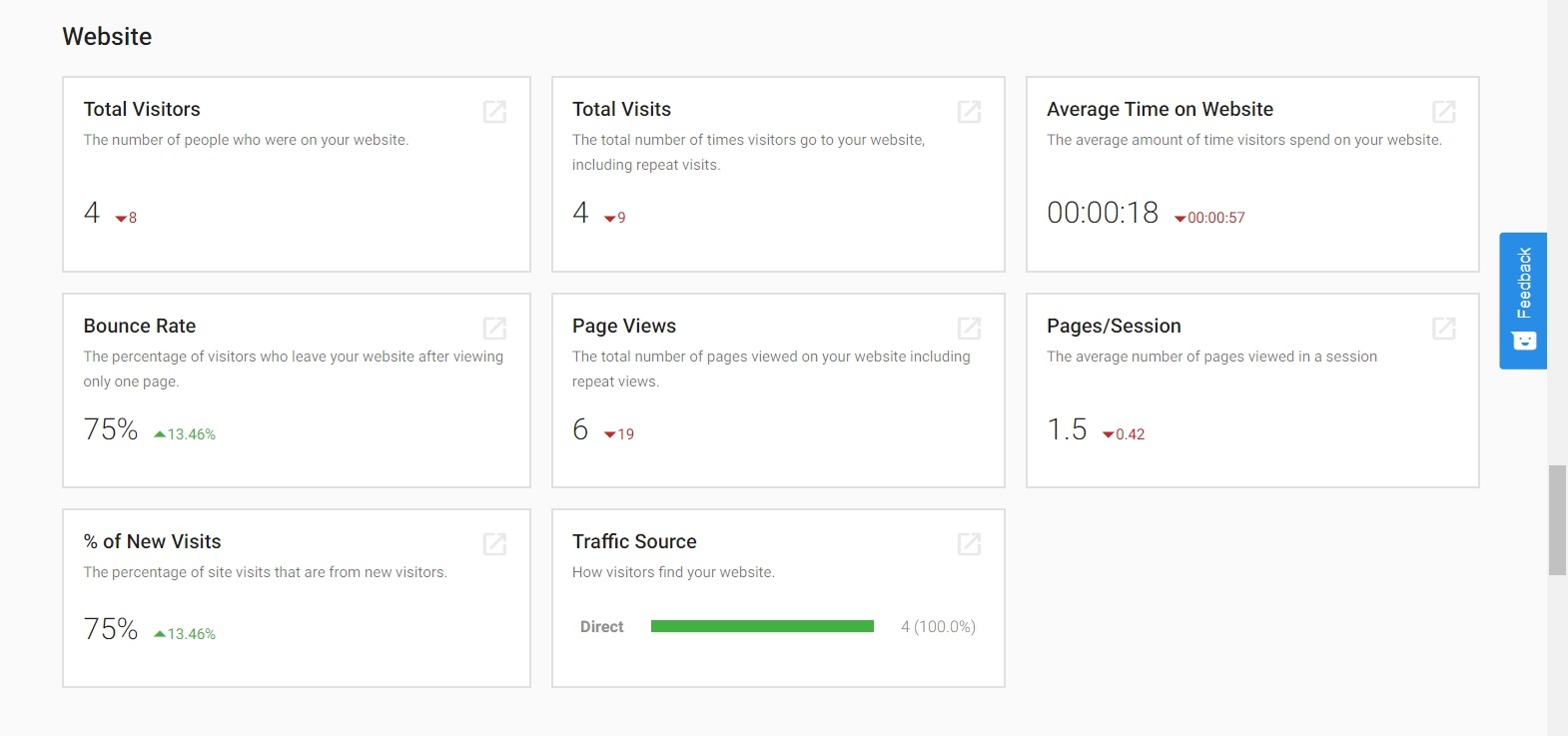
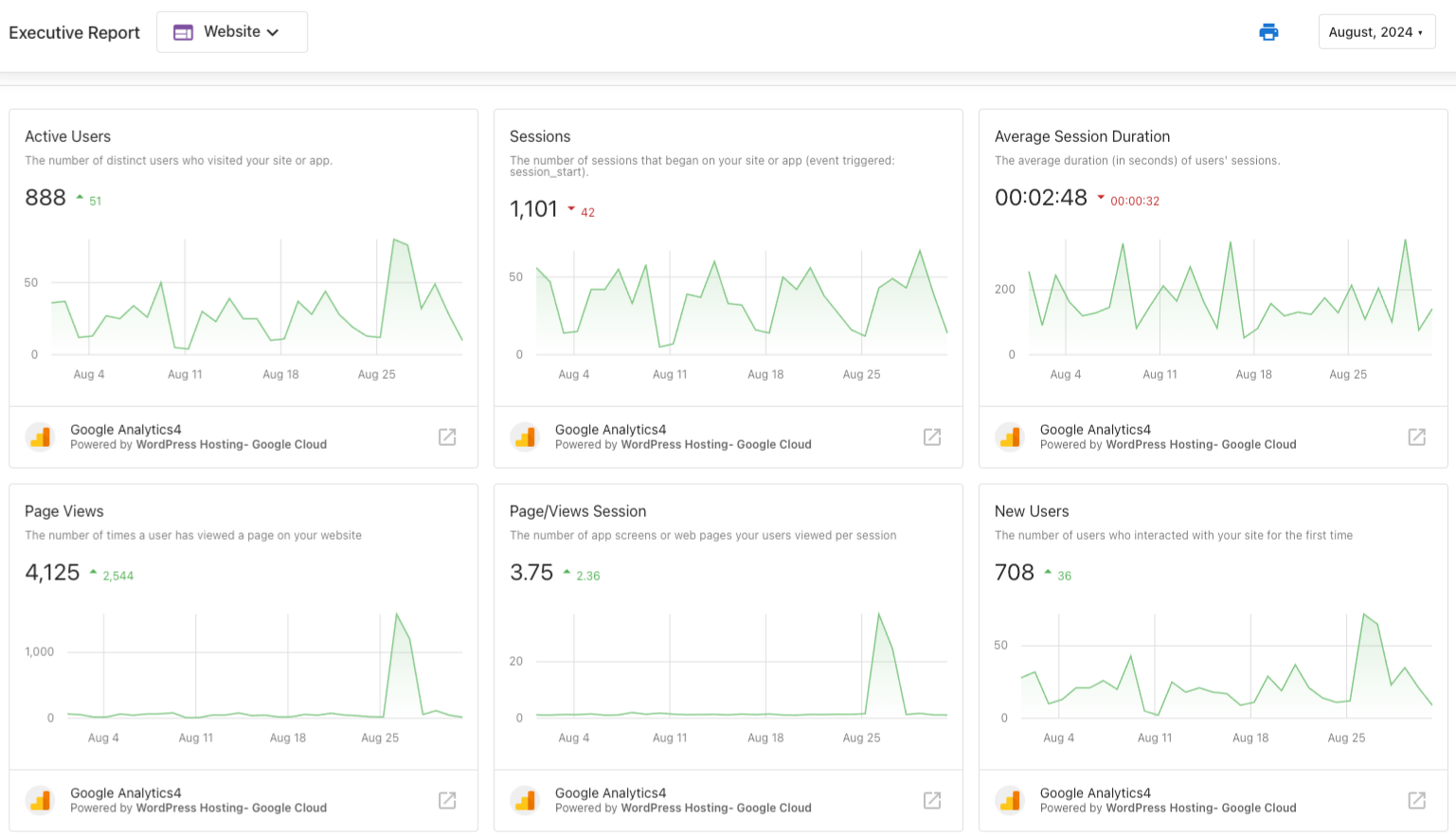
The Website section shows how your website is performing — traffic, engagement, and where visitors come from. Connect Google Analytics to unlock the full set of metrics alongside the rest of your marketing data.
Metrics You Can See
Unique visitors to your site and total visit count for the period.
Total pages viewed and average pages viewed per session.
Average time on site and bounce rate — the percentage of visitors who leave after one page.
How visitors find your site — search, direct, social, referrals — and which sites send the most traffic.
How to Connect Google Analytics
- Go to DFM > Administration > Connections > Browse Integrations.
- Find Google Analytics and click to connect.
- Complete the connection steps.
- Once connected, Google Analytics data appears automatically in the Website section of your Executive Report.
Advertising
If you use Advertising Intelligence, the Executive Report includes performance summaries for your Google Ads and Facebook Ads in one place — with week-over-week or month-over-month comparisons so you can track ROI without switching between ad platforms.
Metrics You Can See
Return on investment and total ad spend across all connected ad accounts.
How many times your ads were displayed across Google and Facebook.
Number of clicks on your ads during the reporting period.
Actions taken after seeing your ads — purchases, sign-ups, calls, etc.
How to Set It Up
- Ensure Advertising Intelligence is active on your DFM account.
- Connect your Facebook Ads and/or Google Ads accounts inside Advertising Intelligence.
- Open the Executive Report and choose a time period — the Advertising section will show performance for all connected ad accounts.
Finance (QuickBooks Online)
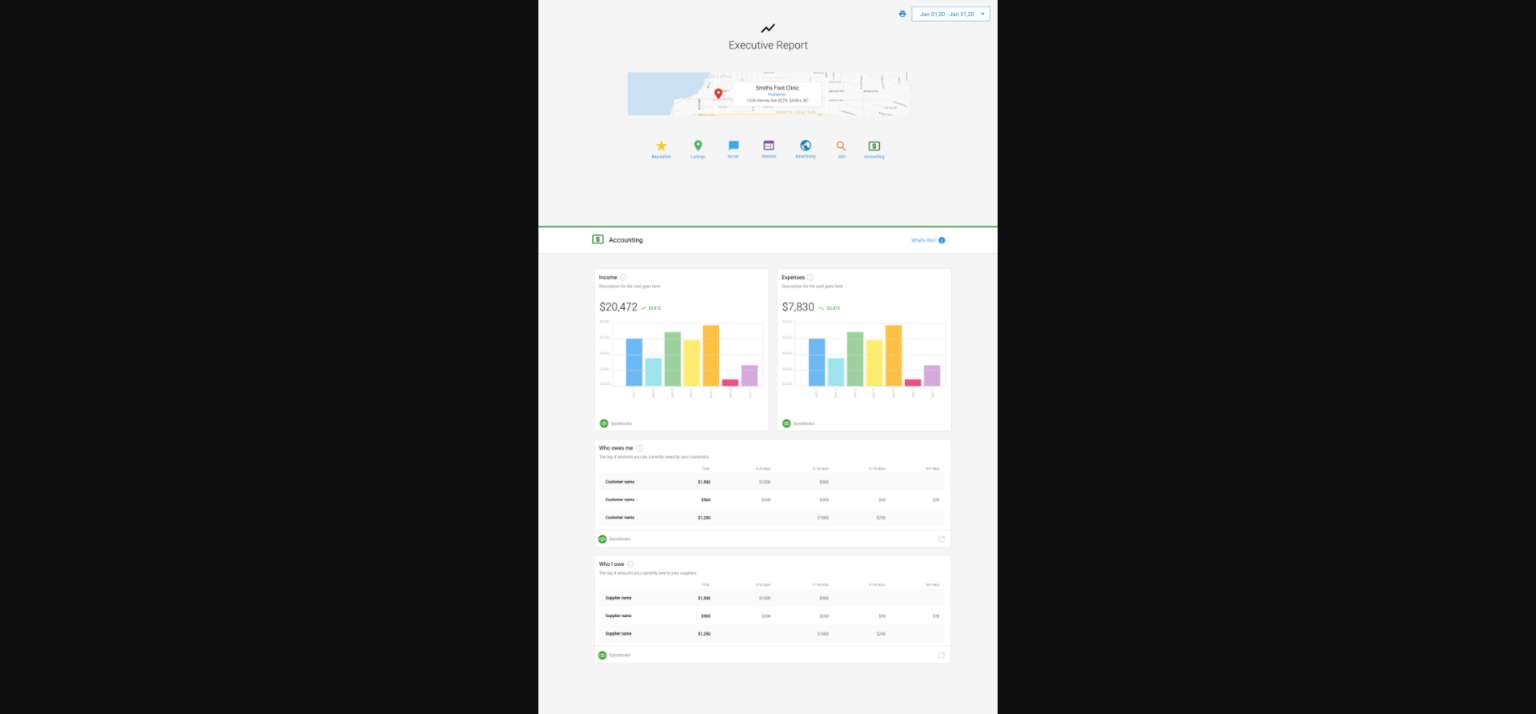
After connecting your QuickBooks Online account, the Executive Report can include financial data so you can see marketing and business performance together in one view.
What's Included
Revenue and earnings from your QuickBooks account for the reporting period.
Business spending and costs tracked in QuickBooks.
In-app and email alerts when QuickBooks Online invoices are paid in full.
See marketing results and financial performance side-by-side to make smarter business decisions.
How to Connect QuickBooks Online
- Go to DFM > Administration > Connections > Browse Integrations.
- Find QuickBooks Online and click to connect.
- Complete the steps to link your QuickBooks account.
- Once connected, financial data will start appearing automatically in your Executive Report.