CRM Guide
DFM's CRM centralizes your contacts, companies, opportunities, activities, and automations—so your team can collaborate, stay organized, and close more deals.
Why use the CRM?
Centralize customer and prospect data across teams.
Track emails, calls, meetings, tasks, and opportunities.
Automate follow-ups and list-based workflows.
Improve visibility and forecasting with shared views.
What's included
- Contacts — Manage people, import/export, and run campaigns
- Companies — Manage organizations, associate contacts and opportunities
- Lists — Segment contacts and companies with static or smart lists
- Forms — Capture leads from your website directly into the CRM
- Tasks — Plan and complete sales activities
- Opportunities — Track and manage deals in table or board views
Get started
- Go to
CRMin DFM. - Import a CSV of contacts in
CRM>Contacts>Import. - Create a
Listfor a segment you want to target. - Build a
Web Formand embed it on your site to capture new leads. - Create an
Opportunityand manage stages inOpportunities. - Set up automations to follow up with new leads automatically.
Frequently Asked Questions
CRM > Contacts to add and update records in bulk.Use Contacts to manage the people you engage with. Create and update contact records, import and export in bulk, associate contacts with companies and opportunities, and take action with campaigns, lists, and tasks.
Why use Contacts?
- Centralize people data for sales and marketing
- Keep profiles up to date with default and custom fields
- Start campaigns and automations from contact segments
- Track activity and tasks to move deals forward
What's Included with Contacts?
- Contacts table and profile — For searching, filtering, and editing records
- Import and export — To manage data at scale
- Default fields — Name, email, phone, lifecycle, UTM, source, etc. and support for custom fields
- Associations — With companies, opportunities, tasks, and lists
- Campaign actions — Including scheduling, pausing, or resuming campaigns
Contacts vs. Users
Contacts are people you track in the CRM—customers, leads, or other individuals. They do not have access to DFM. Users are people who can log in to DFM and use the products available on your account.
Contacts and users are separate. In some cases a user may have a corresponding contact record; the two can be linked by email. Changing a contact's email disassociates that contact from any linked user. Removing a contact does not remove a user.
Where contacts come from
Contacts can be added manually or imported via CSV. They are also created or updated automatically when data syncs from other products:
- Conversations — When a message is sent or received to a new contact
- Customer Voice — When a contact is created in Customer Voice
- Website — When a contact form is submitted on your website
- Constant Contact — When a contact is created there
You can add, edit, and delete contacts to keep your data organized. Create contacts by first name, last name, phone number, or email, or use the import feature for bulk uploads.
How to Use Contacts
View and manage contacts
- Go to
CRM>Contacts. - Search by first name, last name, email, or phone number. Filter by tags and other fields, and sort the table to find the right records.
- Click a contact to open the profile and edit details, log activity, and manage tasks.
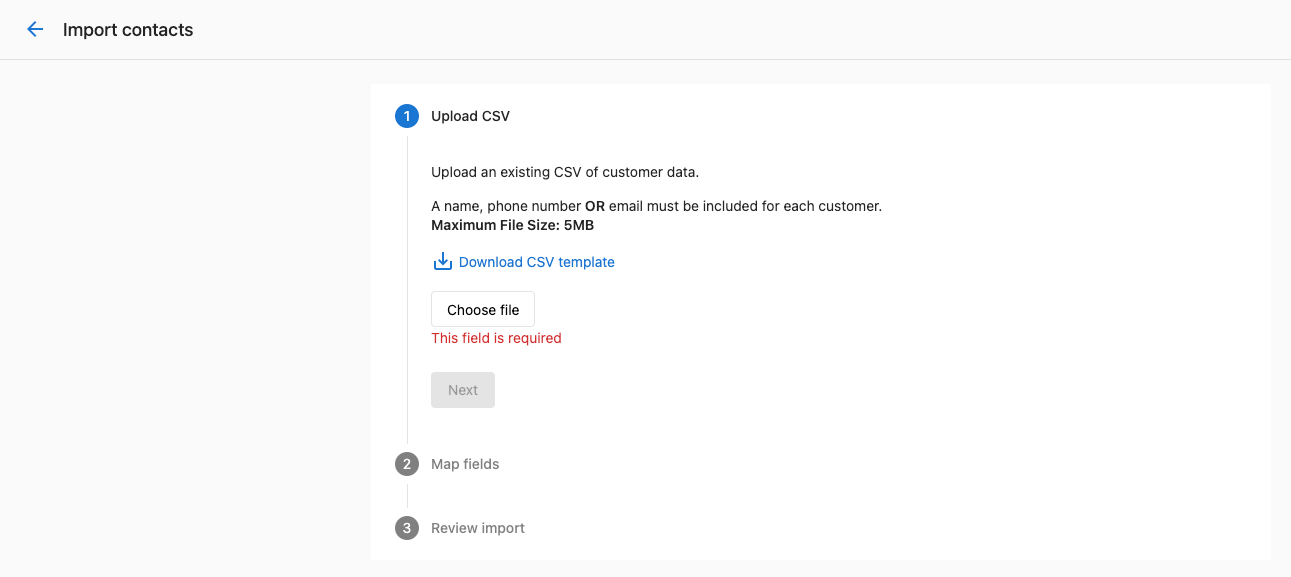
Import contacts (and companies)
- In
CRM>Contacts, clickImport. - Upload a CSV (up to 5 MB) and map columns to contact/company fields. You can add multiple columns as tags during the mapping step.
- Review, choose whether to update existing matches, and finish the import.
If you upload a CSV that includes the same contacts again (matching by ID, external ID, or email), they will not be duplicated; existing records will be updated with the new information.

Export contacts
- In
CRM>Contacts, set filters if needed, then select the checkbox at the top-left of the table. - Choose
Select all…(or select specific rows), thenActions>Export. - A notification is sent when your CSV is ready to download.
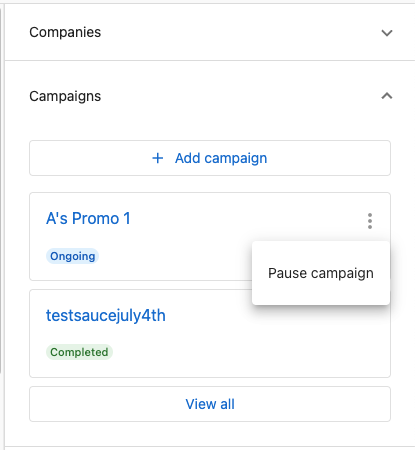
Start, pause, or resume campaigns
- Open a contact profile and go to the
Campaignssection. - Use the action menu to schedule, pause, or resume campaigns for that contact.
Add contacts to lists or automations
- From the Contacts table, select records and use actions to add them to a
List. - Trigger or schedule automations for the selected records. See running automations from the CRM.
Log activity and create tasks
- On a contact profile, use the activity area to log notes, emails, calls, messages, and meetings.
- Create tasks for follow-up and associate them with the contact (and related company or opportunity).
Frequently Asked Questions
CRM > Contacts to see successes, failures, and error details for each row.Use Companies to manage the organizations you sell to and serve. Keep company data accurate, track engagement, and associate contacts, opportunities, tasks, and lists.
Why use Companies?
- Central reference for organization data and relationships
- Track engagement across emails, tasks, and meetings
- Associate contacts and opportunities to see full context
- Enrich with custom fields and segment for targeting
What's Included with Companies?
- Companies table and profile — For searching, filtering, and editing records
- Default fields — Name, website, address, lifecycle, UTM, source, social URLs, etc. and support for custom fields
- Engagement fields — Last activity, campaign interactions, last contact
- Associations — To contacts, opportunities, and tasks
- Activity logging — For notes, emails, calls, meetings, and tasks
- Find Accounts — To discover and add local businesses in bulk
How to Use Companies
View and manage companies
- Go to
CRM>Companies. - Search, sort, and filter the table to find the right records.
- Click a company to open the profile and edit details, review engagement, and manage associations.
Log activity on a company
- Open a company profile.
- In the activity area, choose the activity type: note, email, call, meeting, task, or more.
- Add details, outcomes, and follow-up tasks as needed.
Associate contacts and opportunities
- From a company profile, associate related contacts and opportunities.
- Use associations to get full context when communicating and forecasting.
Discover companies with Find Accounts
- Go to
CRM>Companiesand clickFind Accounts. - Search by business type and location, select new businesses, and click
Create companies. - Open
View companiesto work your new list.
Optional: Lead Scoring
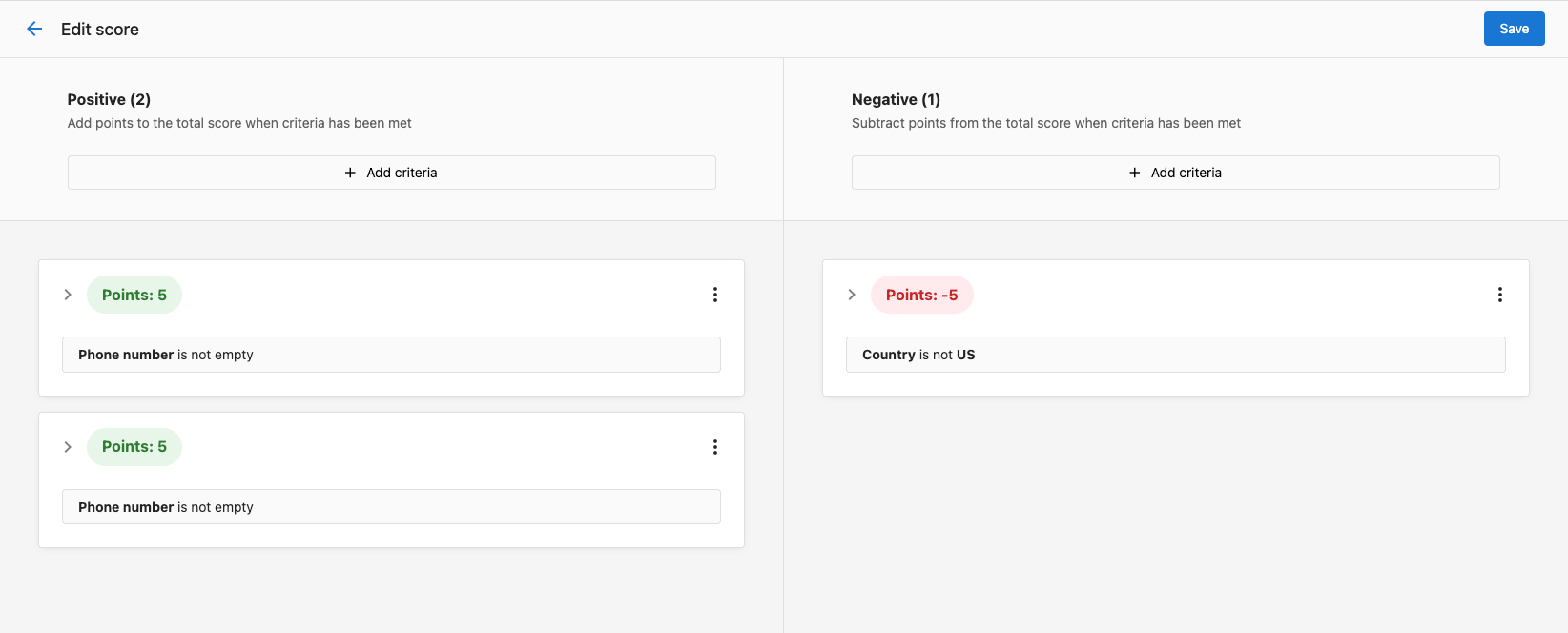
If enabled, configure scoring criteria in Administration > Score and use the score to prioritize outreach in the company table.
Frequently Asked Questions
Find Accounts to search for local businesses and add them in bulk without duplicates.Use the Activity Feed to see real-time updates on sales activities across your teams—emails, notes, calls, meetings, and more—so you can stay informed and coach effectively.
Why use the Activity Feed?
- Get a centralized view of sales activity across contacts and companies
- Search and filter to find relevant work quickly
- Help managers review activity and coach the team
What's included
- Filters and search — By activity type and keywords
- Live updates — Of recent emails, notes, calls, meetings, and tasks
- Links — To the underlying contact or company record for context
- Richer activity details — Like meeting status and call outcomes at-a-glance
How to use the Activity Feed
- Go to
CRM>Activity Feed. - Filter by activity types such as Emails, Notes, Calls, or Meetings.
- Use search to find activities that mention specific keywords.
- Click an item to open the associated record and take action.
Frequently Asked Questions
What is Opportunities?
Opportunities help you track potential revenue throughout your sales process. You can link opportunities to CRM records, including contacts and companies, to keep information organized and up to date.
Why is Opportunities important?
Managing opportunities lets you visualize, organize, and act on deals across different pipeline stages. It helps you monitor progress, forecast revenue, and ensure timely follow-ups with associated contacts or companies.
What's included
- Pipeline View — To manage opportunities by stage
- List View — With sortable and filterable data
- Opportunity Profile Page — With a detailed timeline and linked CRM records
- Manual and Automated Creation — Of opportunities
- Editable Fields — In both profile and table views
- Flexible Closing Options — For won or lost deals
- Value analytics — Total value of opportunities broken down by stage to help you understand your pipeline and forecast revenue
How to access opportunities
- Go to
CRM>Opportunities. - You'll land on the Pipeline View. Use the List icon to switch to a sortable, filterable table.
What's in this section
- Create, edit, and close opportunities — Create from the page or import CSV; edit from profile or table view; close won/lost in pipeline, profile, or stage field.
- Pipeline setup — Set up a pipeline, add and remove stages, add or remove pipelines, and use close probability for forecasting.
- Opportunity automations — Create opportunities from webchat, trigger campaigns by stage, and move opportunities to a stage when a meeting is booked.
Create, edit, and close opportunities
Pipeline and list view
You can manage opportunities in two views:
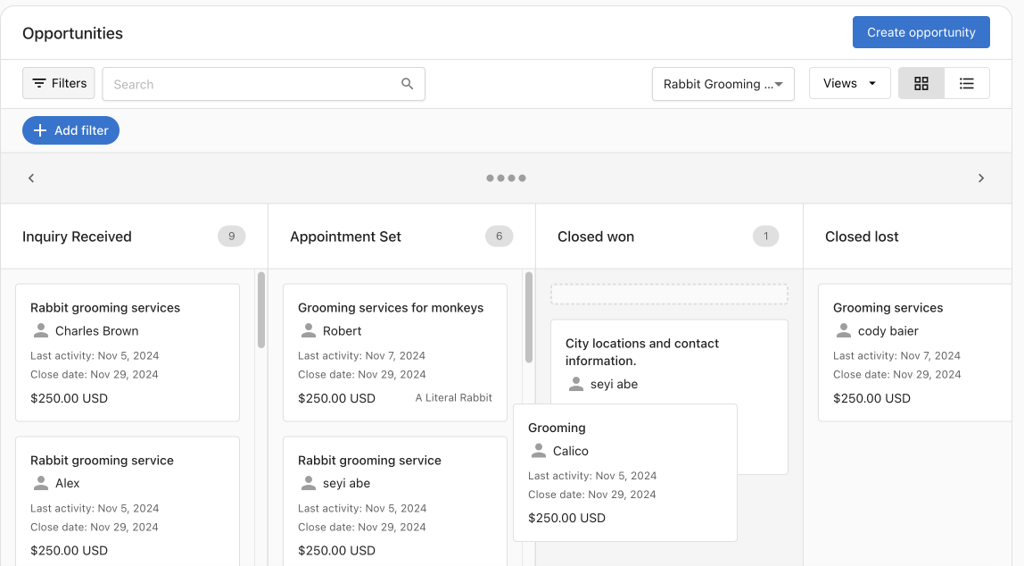
Pipeline View – Manage opportunities visually by stage. Click Set up a pipeline if none exists. Drag and drop opportunities to update their stage. Use filters and search to find records.
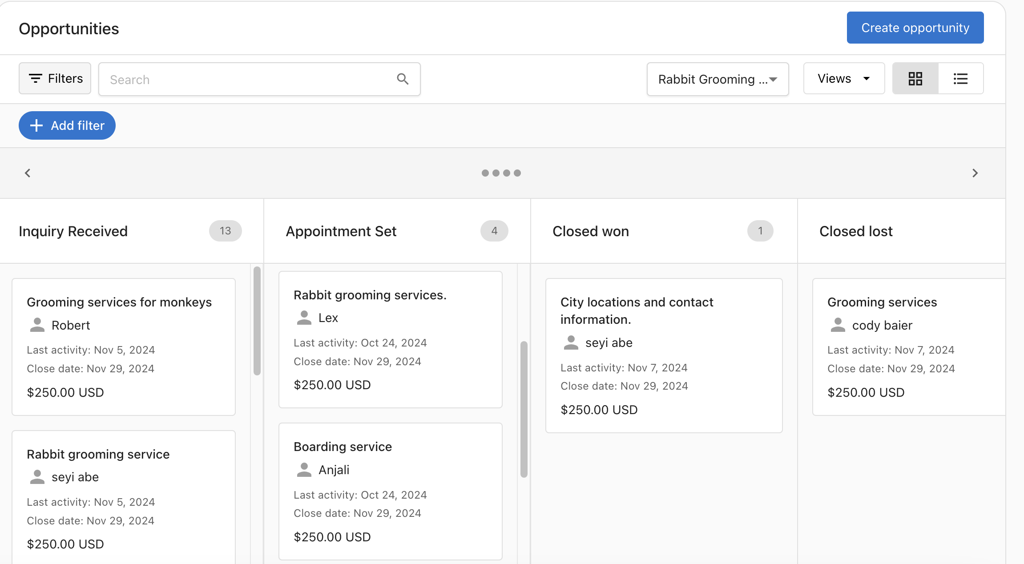
List View – Click the List icon to switch. Configure columns, sort by fields such as expected close date, and use bulk actions.
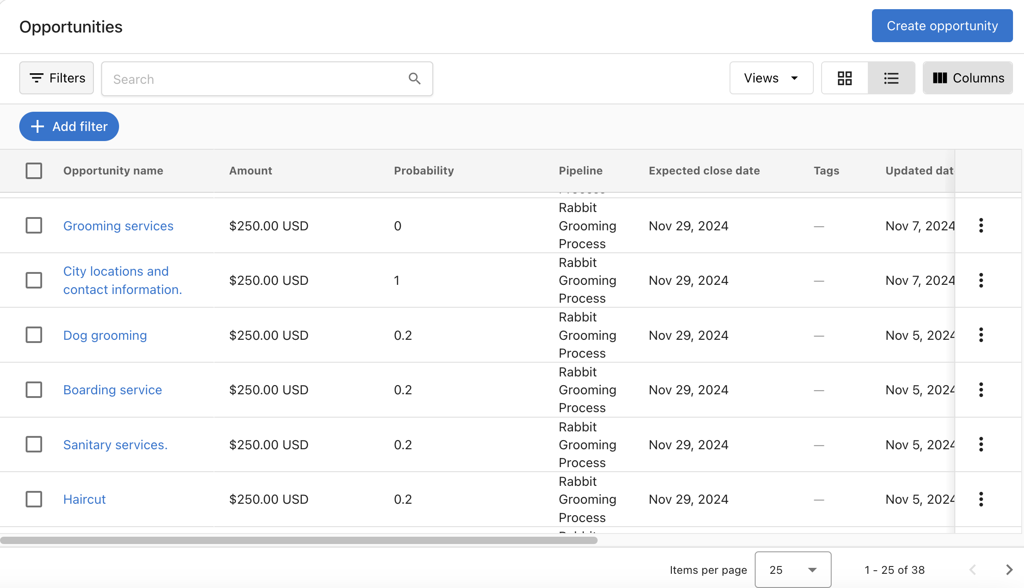
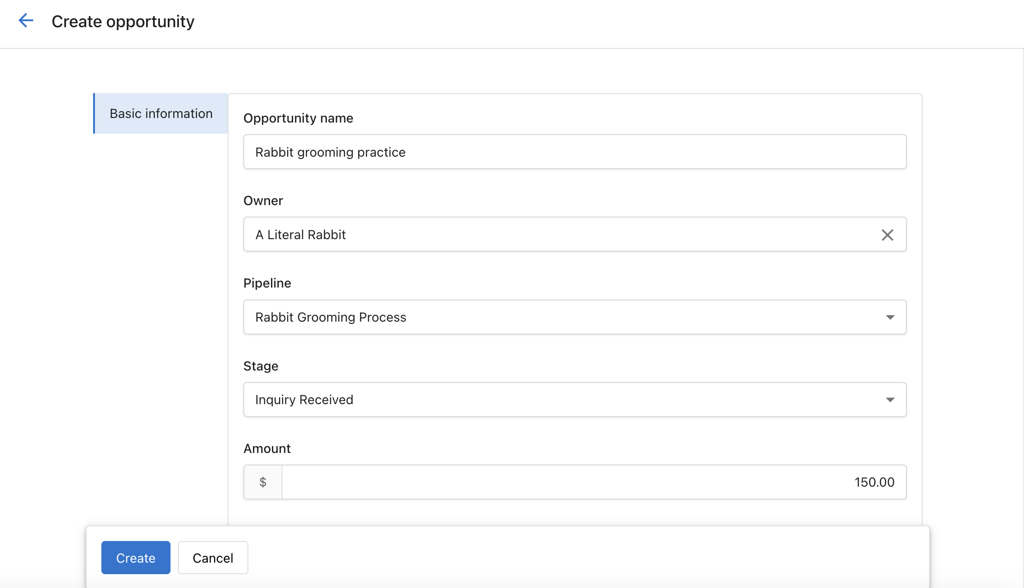
How to create an opportunity
From the opportunity page:
- Navigate to
CRM>Opportunities. - Click
Create Opportunity. - Enter the opportunity details.
- Click
Create.
Import opportunities (CSV):
- In
CRM>Opportunities, clickImport. - Upload a CSV and map columns to opportunity fields.
- Optionally map associations to existing contacts or companies.
- Review choices, then finish the import.
How to edit an opportunity
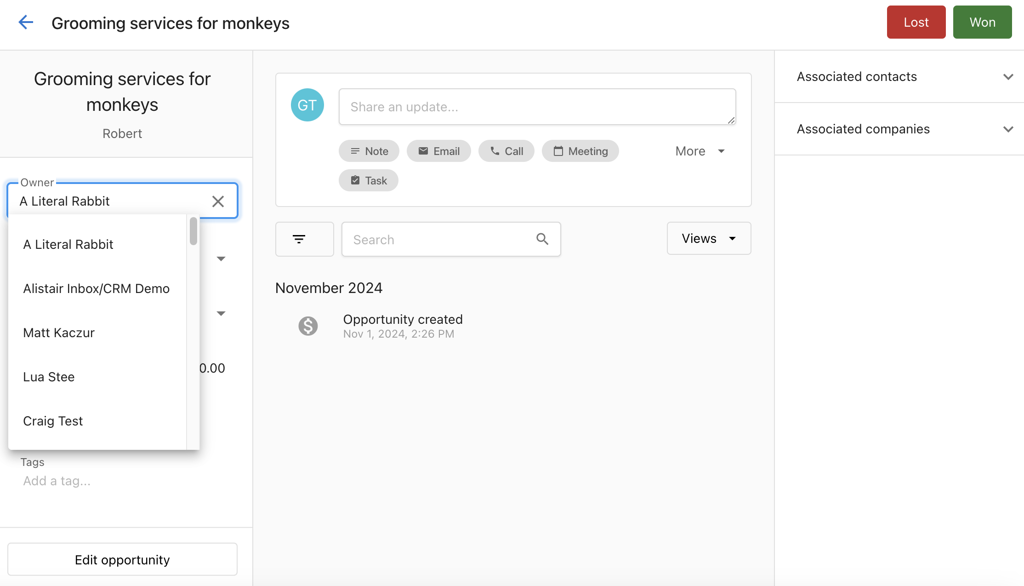
From the profile page:
- Go to
CRM>Opportunities. - Click on the opportunity.
- Click any editable field in the left panel.
- Make changes and click away to save.
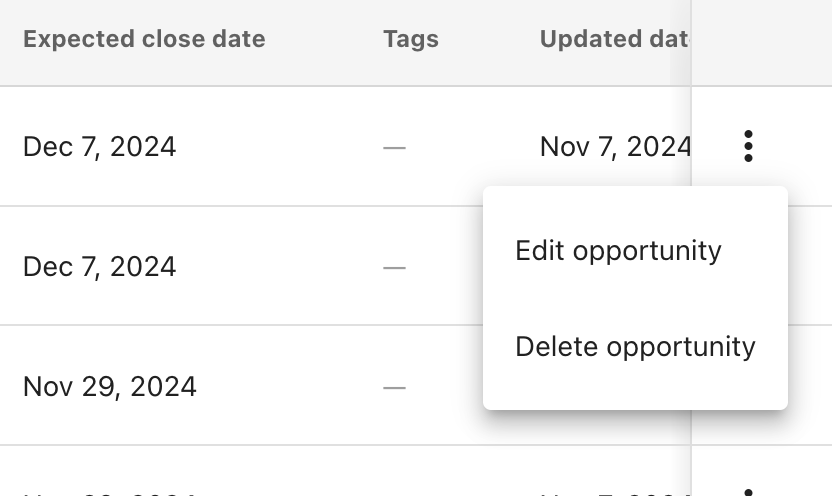
From the table view:
- Go to
CRM>Opportunities. - Switch to the list view.
- Click the action menu for the opportunity.
- Select
Edit opportunity. - Update fields and click
Save.
How to close an opportunity
In pipeline view:
Drag the opportunity to the Closed Won or Closed Lost column.
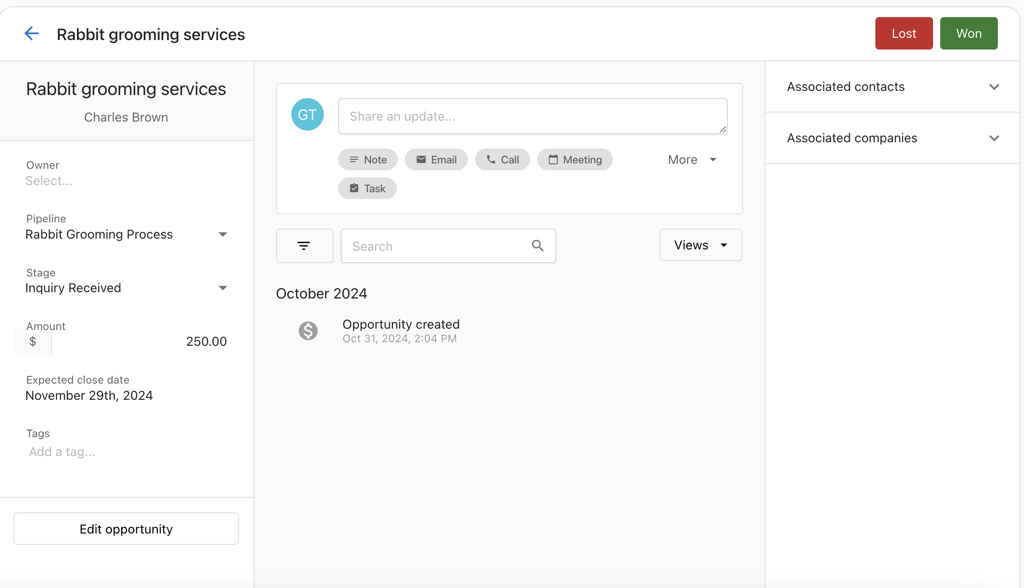
From the profile page:
Open the opportunity and click Closed Won or Closed Lost at the top.
By updating the stage field:
Open the opportunity and change the Stage field to Closed Won or Closed Lost.
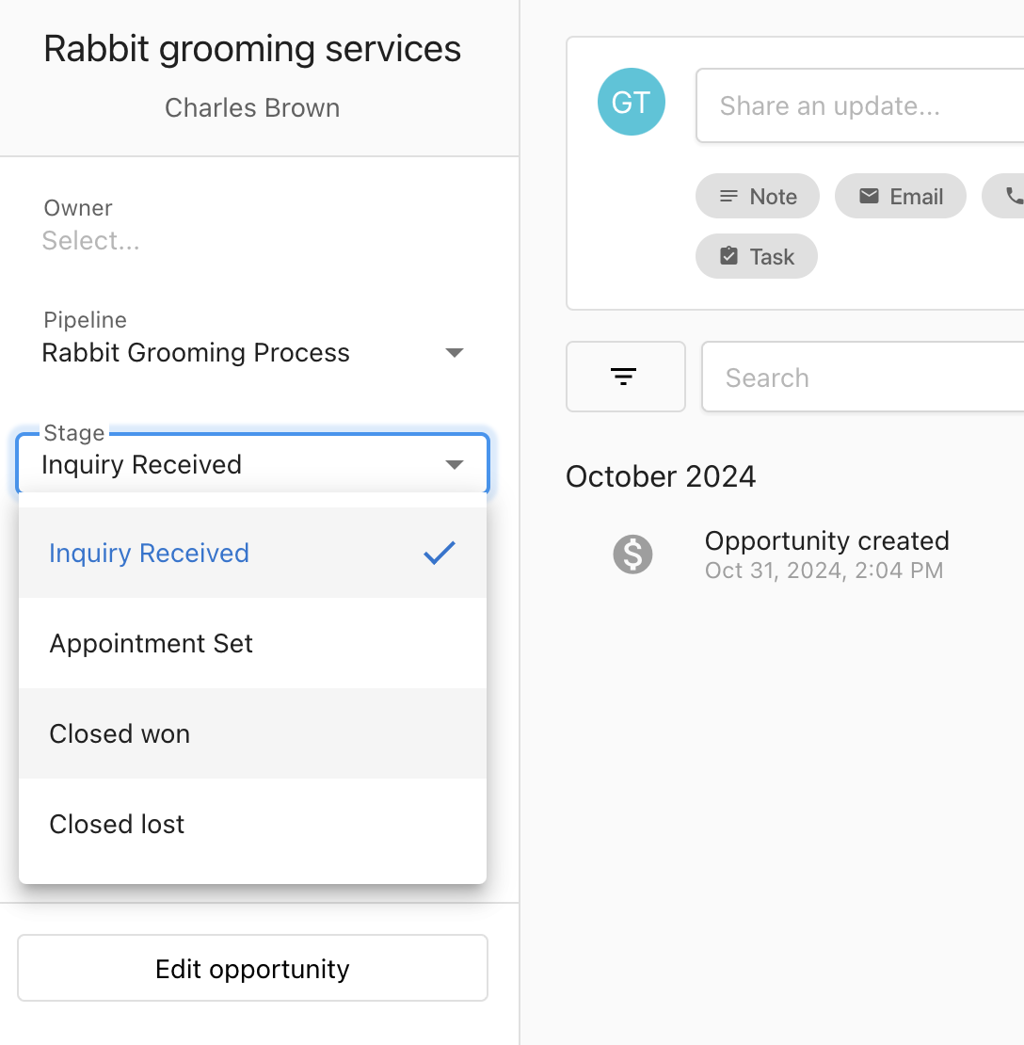
Closed Lost, you may be prompted to provide a reason. Key stage changes (Won, Lost, Reopened) are recorded as activity notes for better history and reporting.Pipeline setup
How to set up a pipeline
- Go to the Opportunities page.
- Click the
Set up a pipelinebutton. This creates a default pipeline. - Use
Add Stageto insert new stages. - Use the X next to a stage to remove it (except for default stages).
- Set a Close Probability for each stage to forecast deal success rates.
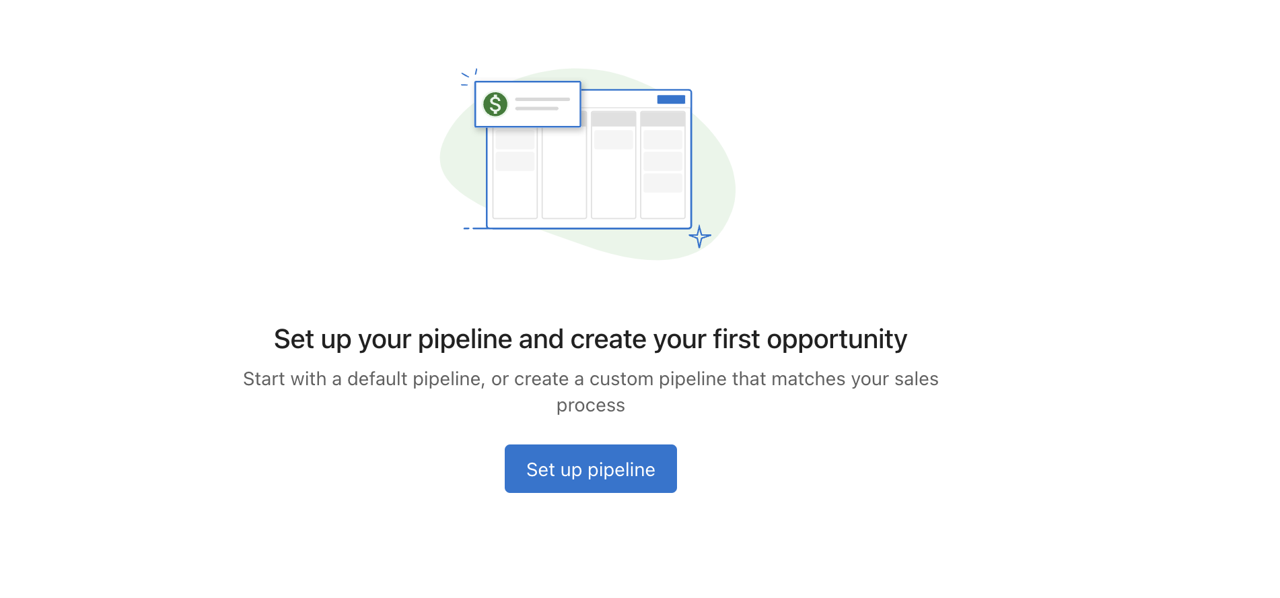
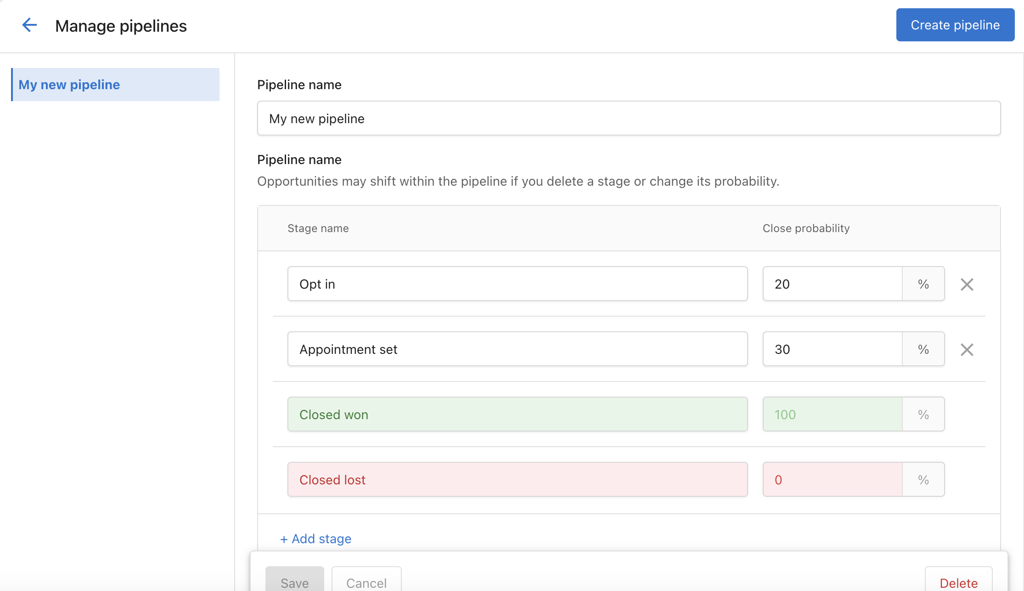
Closed Won and Closed Lost stages. You also cannot set any stage to 0% or 100% Close Probability, as those are reserved for the default stages.Example pipeline stages
Stages represent how an opportunity moves through your sales process. You can name stages to match your workflow. Common examples include:
- Lead — Initial contact or expression of interest
- Qualified — The opportunity has been qualified as a potential sale
- Proposal — A proposal has been presented to the potential customer
- Negotiation — Terms are being negotiated
- Won — The opportunity has resulted in a sale (or use Closed Won)
- Lost — The opportunity did not result in a sale (or use Closed Lost)
Moving opportunities through stages helps you track your sales process and spot bottlenecks. Set close probability per stage so the CRM can help you forecast revenue.
How to add or remove a pipeline
Add a new pipeline:
Click Create Pipeline to add a new one. There is no limit to the number of pipelines you can create.
Remove a pipeline:
Click Delete next to the pipeline you want to remove. Ensure all opportunities are reassigned before deletion. If not, they will remain unattached.
Opportunity automations
These templates are a starting point. For everything you can build, see the Automations Guide.
Create opportunities automatically from webchat
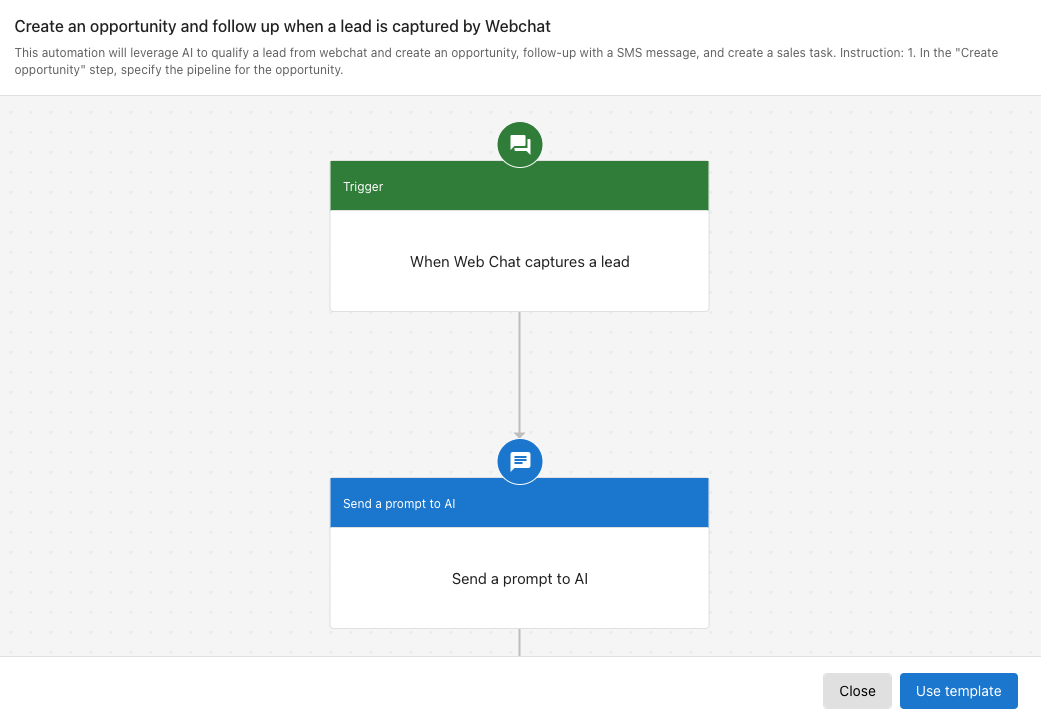
You can create an opportunity when a lead is captured from webchat.
Requirements: Conversation AI must be active.
Automation behavior:
- Triggered when a lead is captured through webchat
- Webchat summary is sent to AI
- AI identifies the requested service and creates an opportunity
- A follow-up SMS message is sent to the contact
- A sales task is created for further follow-up
Steps to set it up:
- Go to
Automationand clickCreate automation. - Search for the template Create an opportunity and follow up when a lead is captured by Webchat.
- In the
Create opportunitystep, choose the appropriate pipeline. - Review and customize the steps to match your workflow.
Automate actions based on opportunity stages
You can start nurturing campaigns or send communications when an opportunity reaches a specific stage.
Requirements: Campaign Pro with SMS credits must be active.
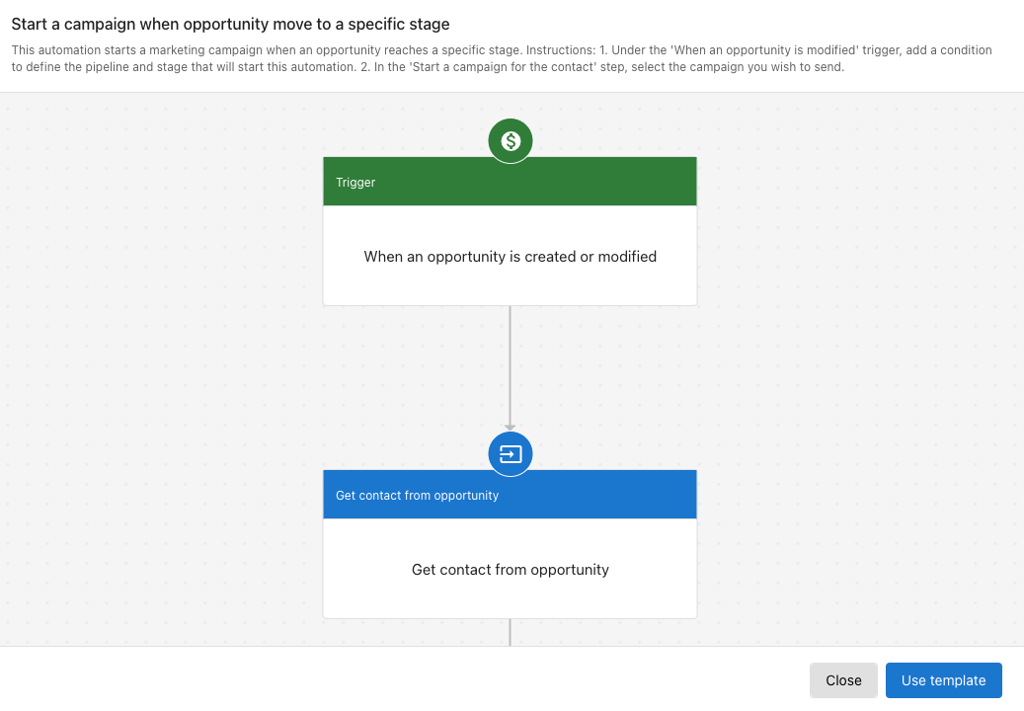
Automation behavior:
- Triggered when an opportunity enters a specified nurturing stage
- Finds the contact associated with the opportunity
- Starts a predefined campaign
Steps to set it up:
- Go to
Automationand clickCreate automation. - Search for the template Start a campaign when opportunity move to a specific stage.
- In the
When an opportunity is created or modifiedstep, set the pipeline and stage conditions. - In the
Start a campaign for contactstep, select the desired campaign. - Review and adjust the automation as needed.
Move opportunities to a stage automatically
You can move an opportunity to a specific stage when a defined trigger occurs, such as booking a meeting.
Automation behavior:
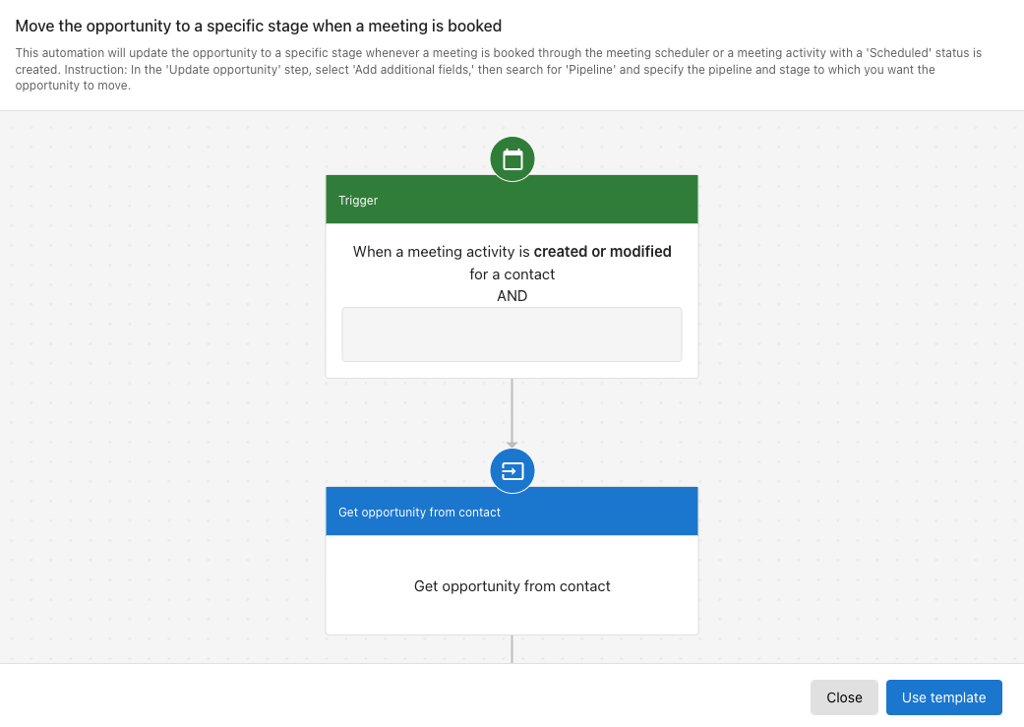
- Triggered when a meeting activity is created or modified
- If the meeting status is
Scheduled, the opportunity is moved to the "Appointment set" stage
Steps to set it up:
- Go to
Automationand clickCreate automation. - Search for the template Move the opportunity to a specific stage when a meeting is booked.
- In the
Update opportunitystep, set the correct pipeline and target stage. - Customize the steps as needed for your process.
See the Automations Guide for more on building and managing automations.
Frequently Asked Questions
CRM > Opportunities > Import and upload a CSV. You can map columns to standard fields (name, amount, stage, expected close date, owner, etc.) and to your custom fields. You can also map associations to existing contacts or companies.CRM > Opportunities, then click Set up a pipeline and follow the prompts.Closed Won or Closed Lost.Tasks help you plan and track the actions required to move deals forward—calls, emails, follow-ups, and more.
Why use Tasks?
- Keep sales activities organized and on schedule
- Prioritize daily work across contacts, companies, and opportunities
- Improve visibility and handoffs across the team
What's Included with Tasks?
- Create from CRM records — Contacts, Companies, Opportunities
- Task table — For pipeline-wide task management
- Fields — For name, instructions, due date/time, type, priority, associations, and tags
- Views and filters — To focus on the most important work
- Task Queue — To complete tasks consecutively
How to Use Tasks
Create from a Contact or Company
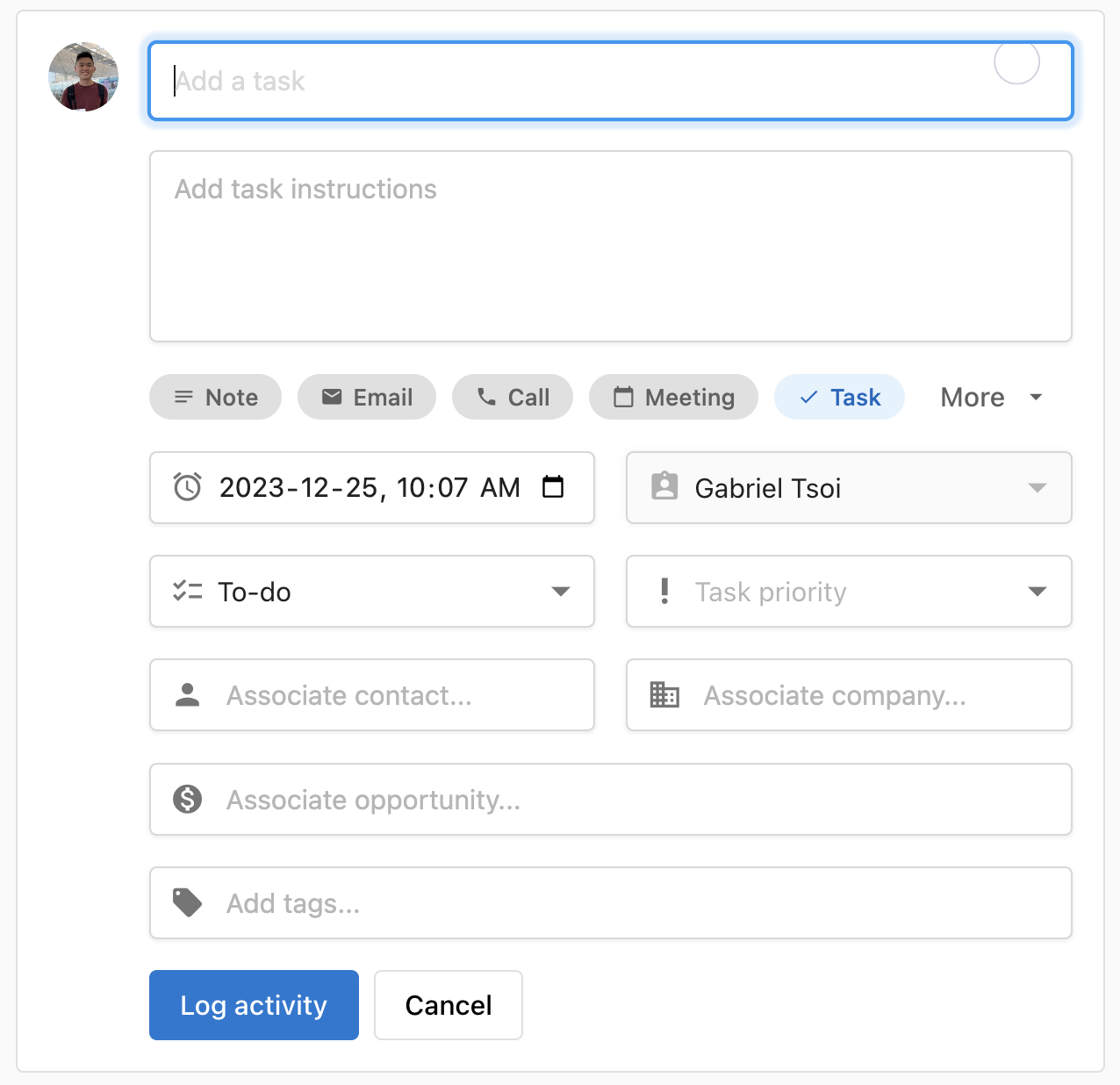
- Go to
CRM>Contacts(orCompanies). - Click the record name to open the profile.
- In the activity area, select
Tasks, fill in details, and save.
Create from the Task Table
- Go to
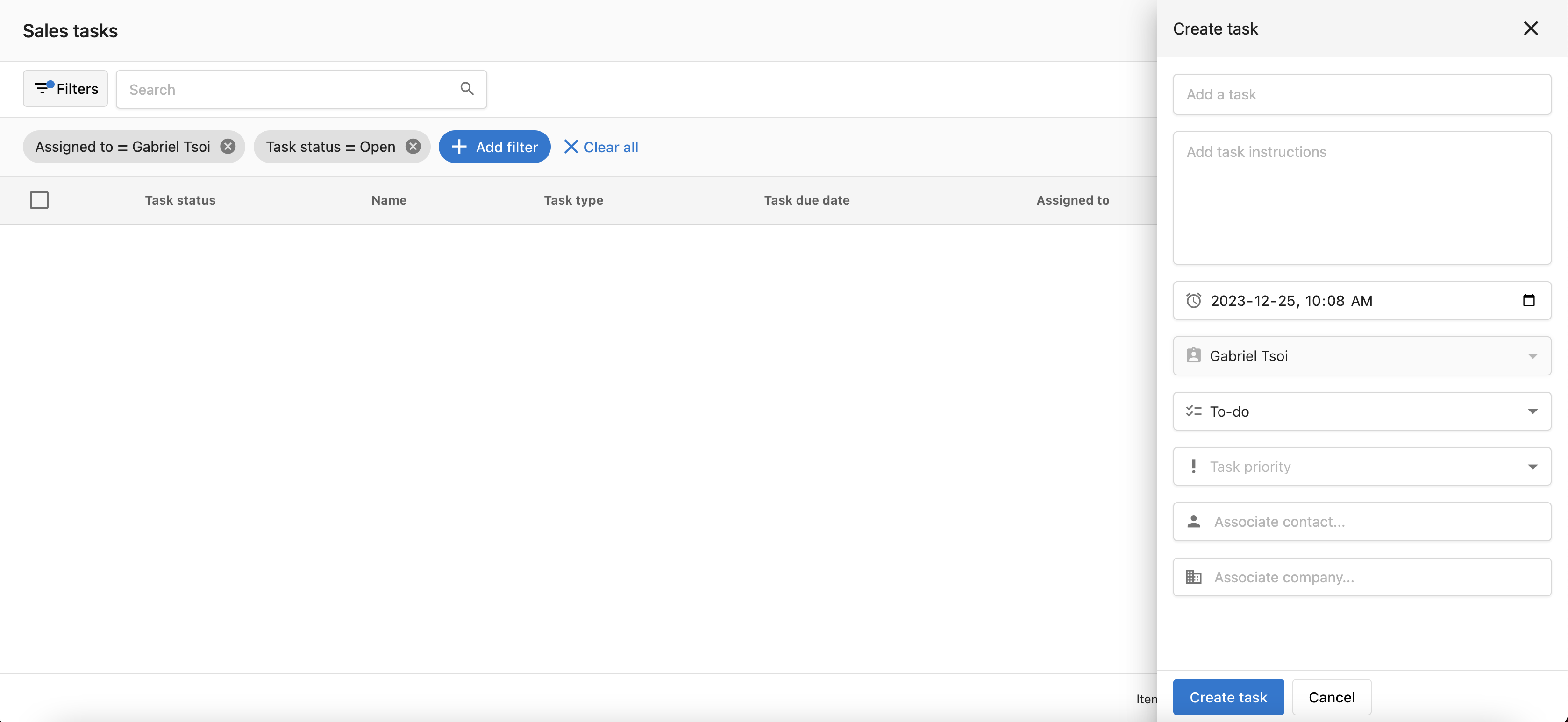
CRM>Tasks. - Click
Create taskand enter details: Name, instructions, due date and time, type (To-do, Email, Call, Message, Connection, LinkedIn), priority (Low, Medium, or High), associations (Opportunity, Contact, Company), and tags. - Click
Create.
View and Filter Tasks
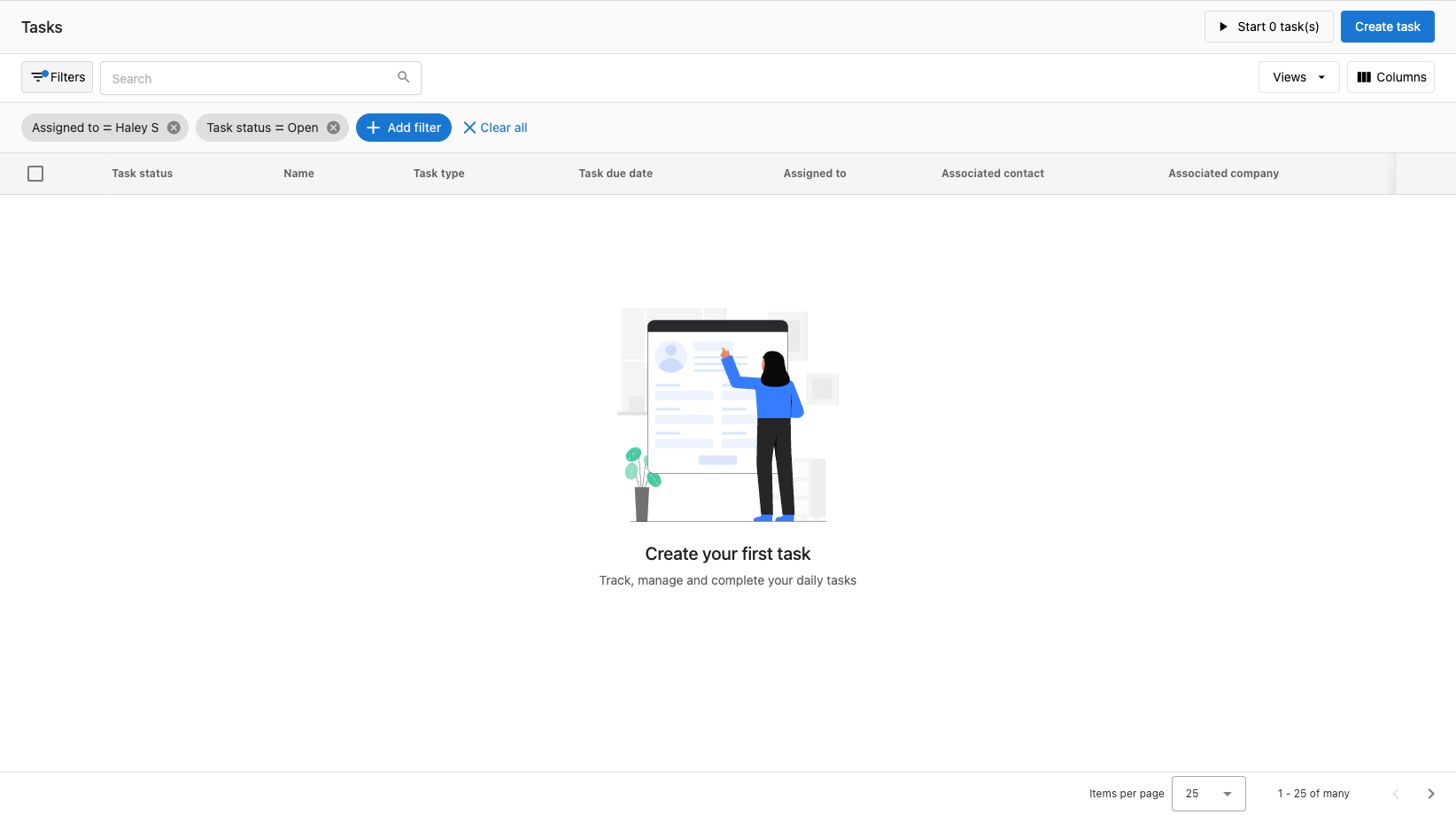
- Go to
CRM>Tasks. - Click
Add filterto filter tasks and save common filters asViews.
Edit, Complete, or Delete Tasks
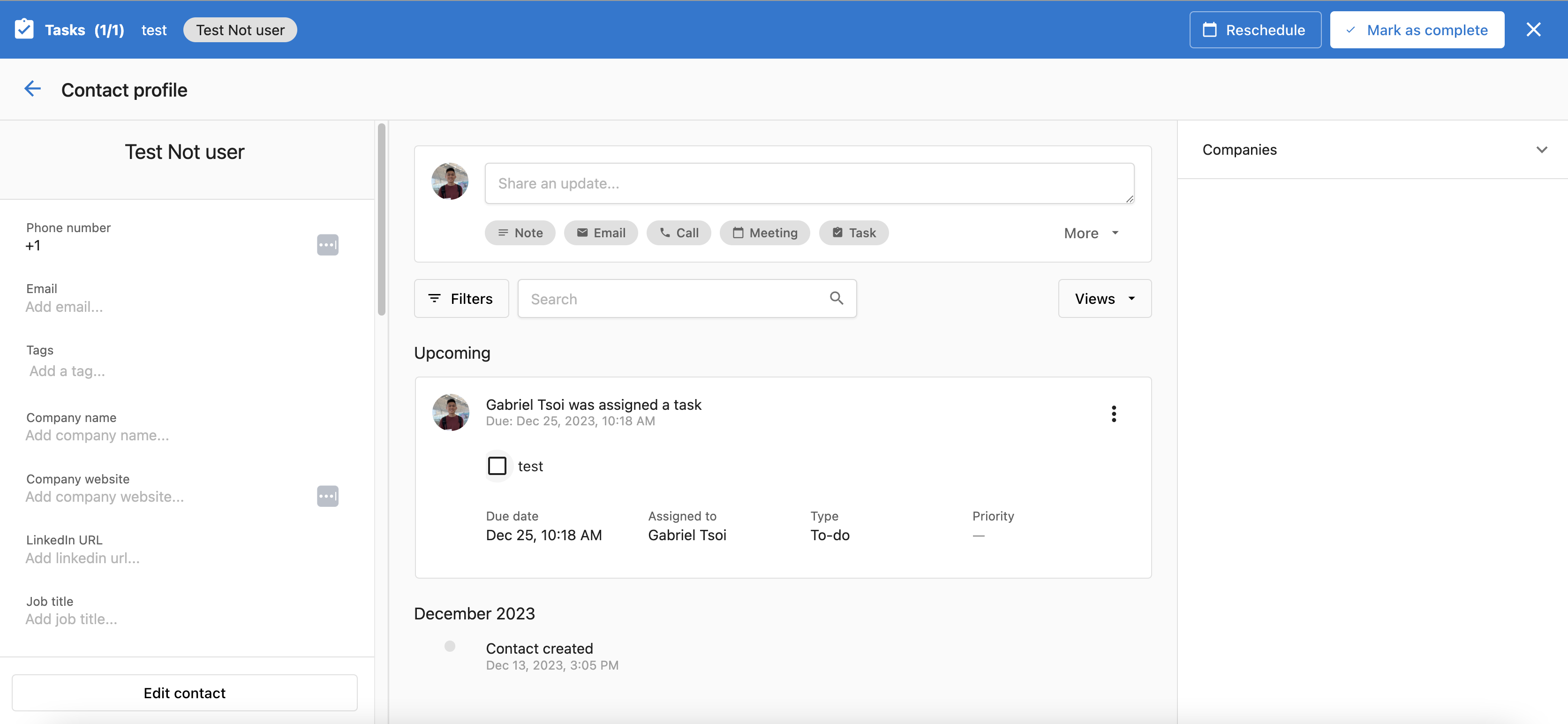
Within a CRM record's activity timeline:
- Complete: Check the task checkbox, or use
Mark as completeif shown. - Edit: Open the task menu (kebab), choose
Edit activity, make changes, and save.
From the task table:
- View: Click the task name.
- Edit: Kebab menu >
Edit task, update fields, and save. - Delete: Kebab menu >
Delete task, and confirm. - Complete: Change status in the
Task statuscolumn.
Work Faster with Task Queue
- Go to
CRM>Tasksand apply filters or open a saved view. - Click
Start [x] tasksto work through them consecutively. - For each task, choose:
Mark as complete,Reschedule, orSkip. Use the association dropdown to jump between linked records. Exit the queue any time and resume from the table.


Frequently Asked Questions
Views to access them quickly.Use Lists to organize contacts and companies into meaningful segments for outreach, automation, and reporting. There are two types:
- Static Lists: You add or remove members manually—ideal for fixed groups such as event attendees.
- Smart Lists: You define rules, and the list updates automatically as data changes (attributes and behaviors).
Why use Lists?
Lists make it easy to target the right audience, kick off automations, and keep teams aligned on who to engage.
- Centralize segmentation for contacts and companies
- Reduce manual work with automatically updating smart lists
- Trigger automations when membership changes
What's Included with Lists?
- Static Lists — For manual curation
- Smart Lists — For rule-based segmentation
- Start Automation — Actions from a list
- Membership Triggers — To automate when contacts/companies are added or removed
How to Use Lists
Create a List
- Go to
CRM>Lists. - Click
Createthen chooseStaticorSmart.
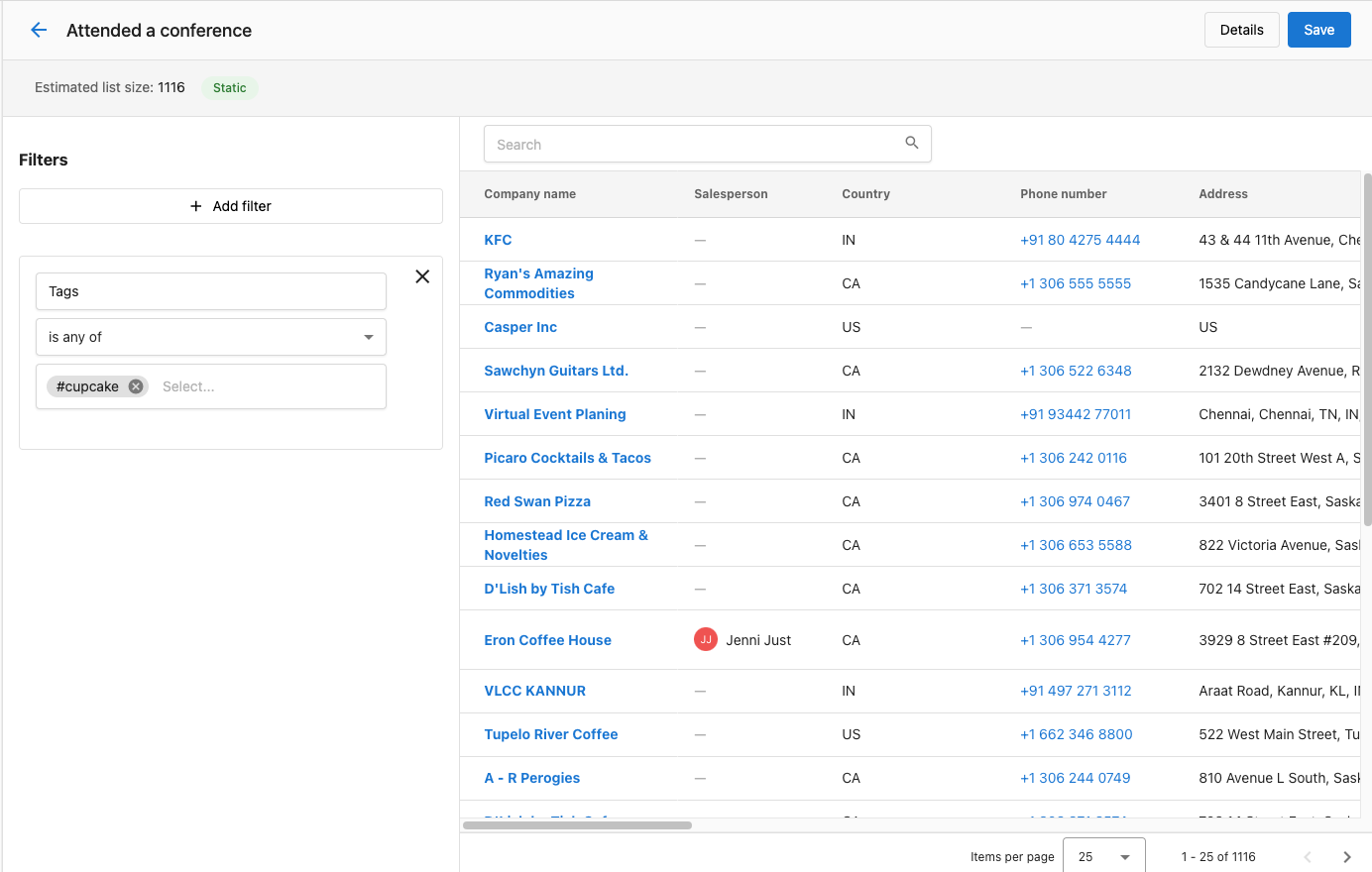
Create a Static List
- Specify filters to select initial members and click
Save. - Add or remove members any time from the
ContactsorCompaniestables.
Create a Smart List
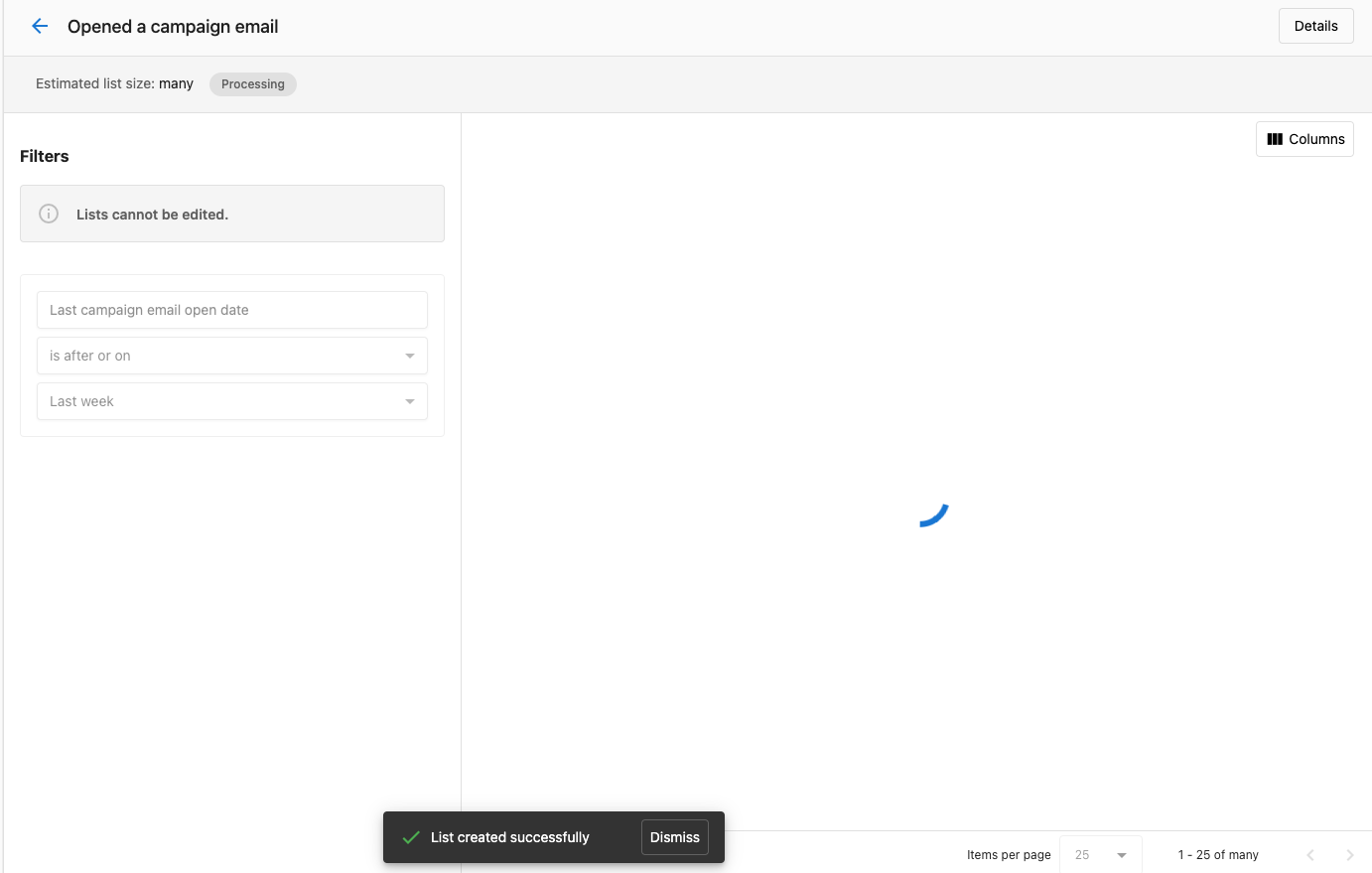
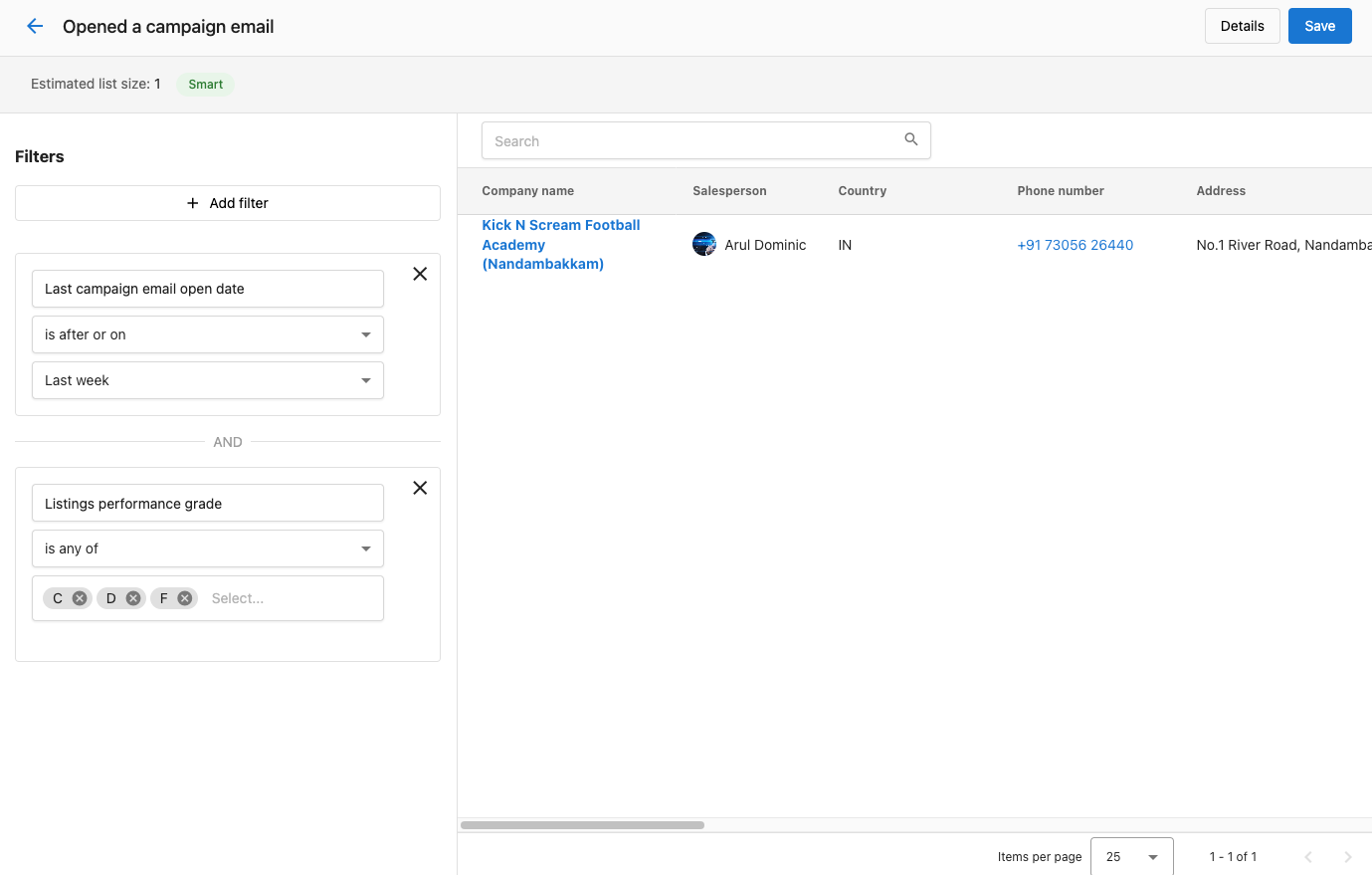
- Define rules (for example, "Companies with a contact who opened a marketing email in the last 2 weeks" or "Companies with listing grade C/D/F").
- Click
Save. Membership updates automatically as data changes.
Start an Automation from a List
- Go to
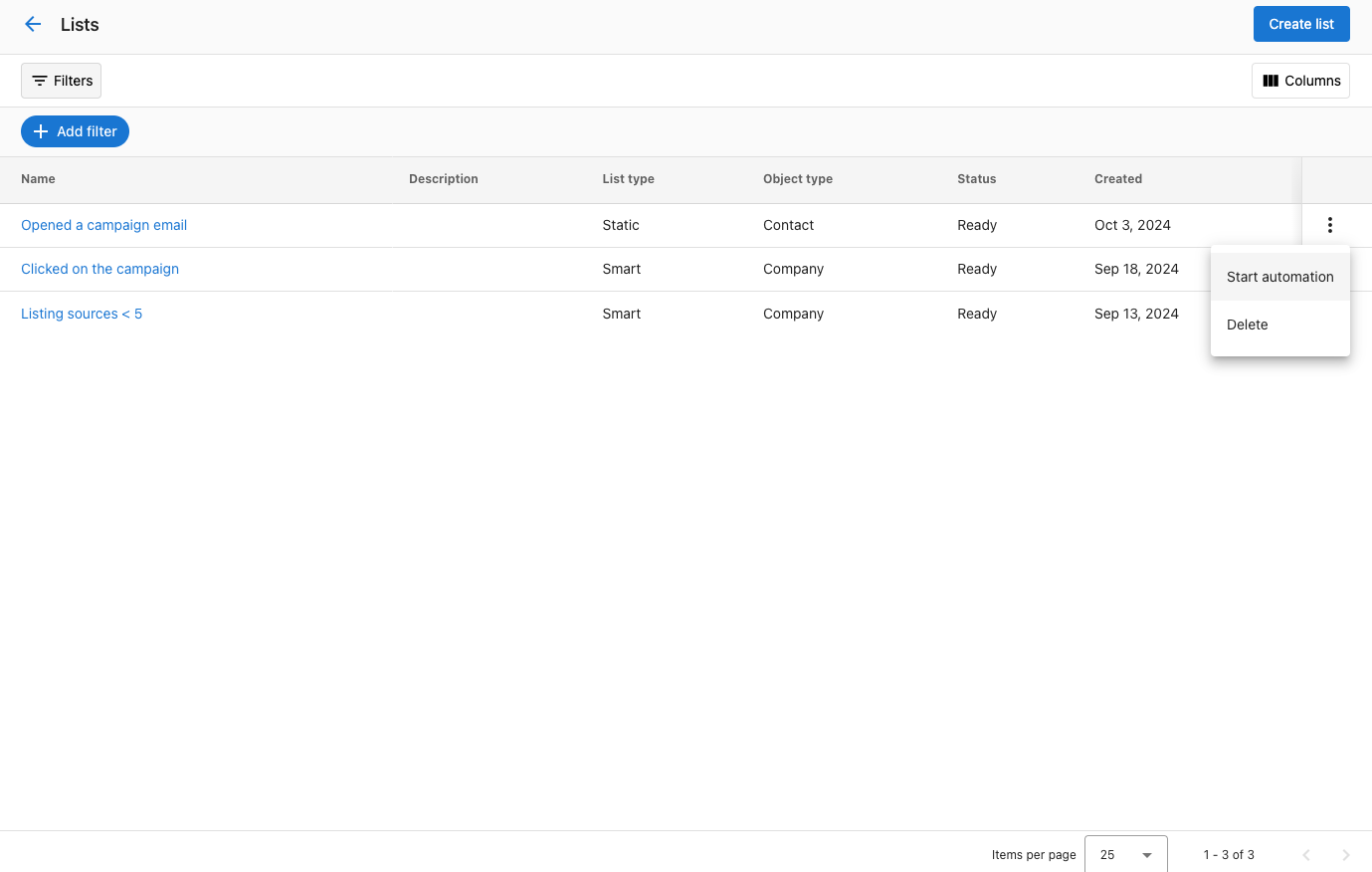
CRM>Listsand locate your list. - Open the action menu (three dots) and select
Start Automation. - Choose an automation for contacts or companies (based on the list type) and run it.
Automate When Membership Changes
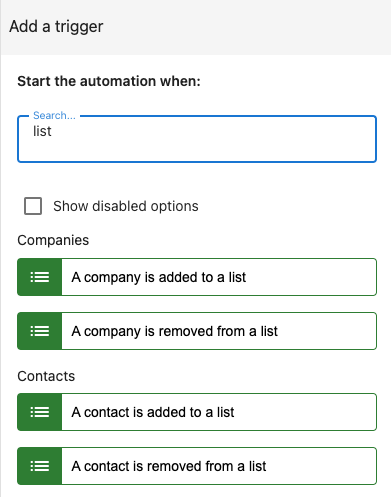
Available triggers:
- When a contact is added to a list
- When a contact is removed from a list
- When a company is added to a list
- When a company is removed from a list
Use these to send follow-ups, notify sales, or update CRM stages automatically. See all automation triggers.
Delete a List
- Go to
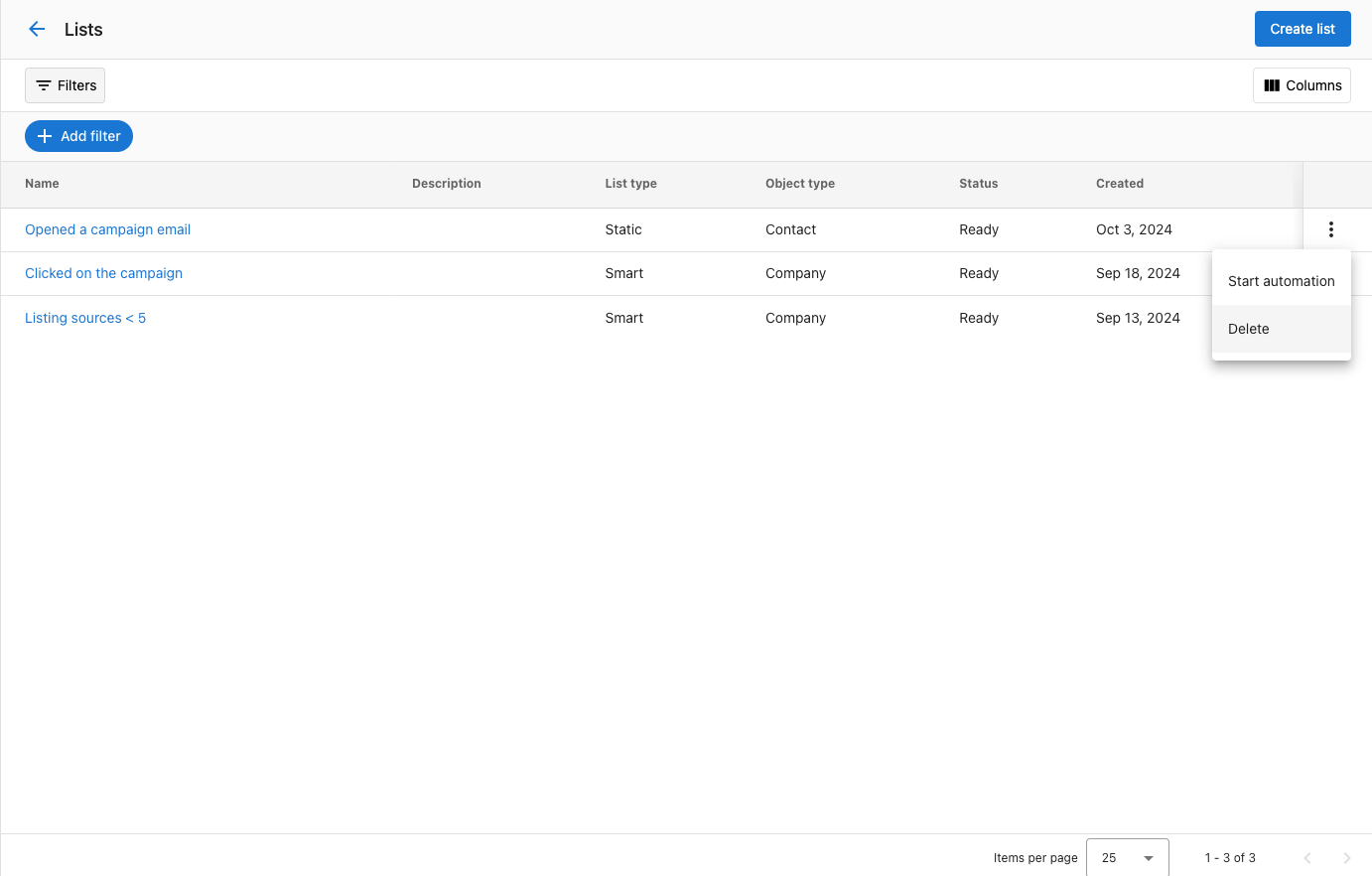
CRM>Lists, find the list. - Open the action menu (three dots) and select
Delete. - Confirm deletion.
Frequently Asked Questions
Use Forms to capture leads from your website directly into the CRM. Embed a form on any page, create the contact automatically, start a conversation in Conversations, and trigger automations for instant follow-up.
Why use Forms?
- Convert website visitors into contacts automatically
- Reduce manual data entry with mapped fields and defaults
- Trigger automations (auto-reply, nurture campaigns, routing)
- Improve data quality with reCAPTCHA and UTM capture
What's included
- Form Builder — With configurable fields and defaults
- Design — Controls for container, fonts, button, and custom CSS
- reCAPTCHA — Integration
- Embed code — For easy installation on any site
- File upload — Field so visitors can attach documents or images
- Form automations — Trigger follow-up from the form's Automation tab
For the full list of contact, company, and generic fields you can add, see the Field Reference section below.
What's in this section
- Build and publish a form — Add fields (including file upload), style with Design and custom CSS, set up reCAPTCHA, embed, and test.
- Automate follow-up from your form — Use the Automation tab to send follow-up emails, add to campaigns, or run multi-step workflows.
- Form field reference — Full list of contact, company, and generic field types.
Build and publish a form
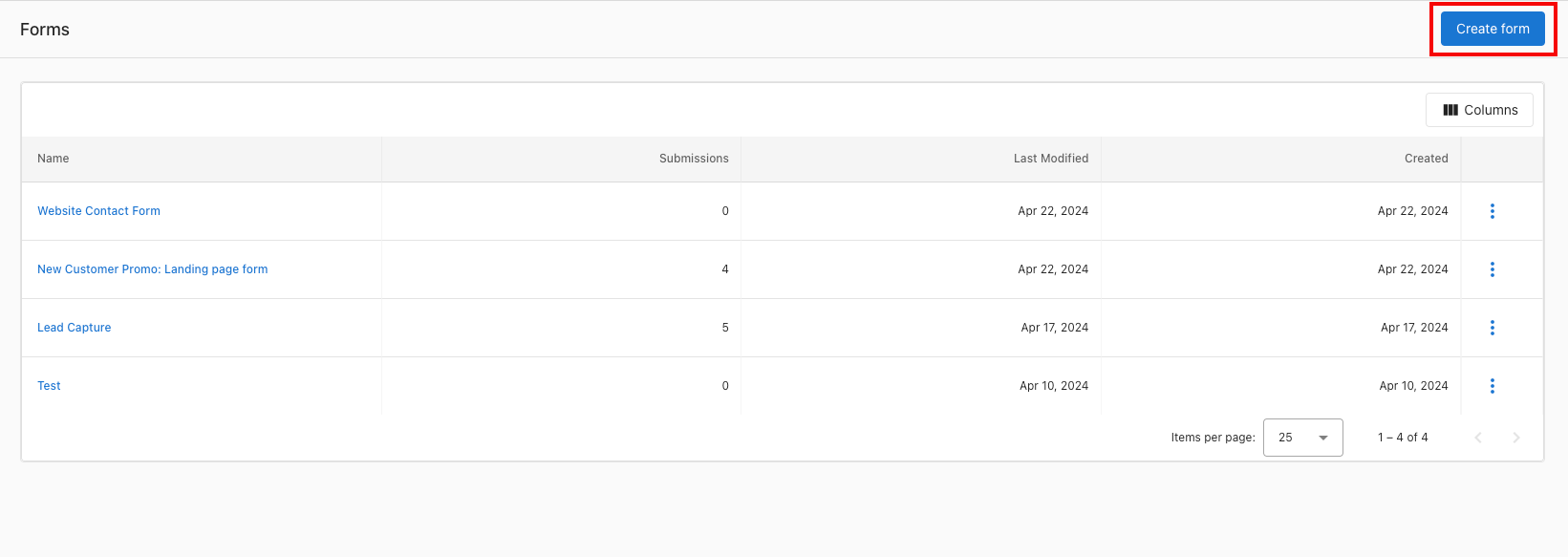
Step 1: Navigate to CRM > Forms
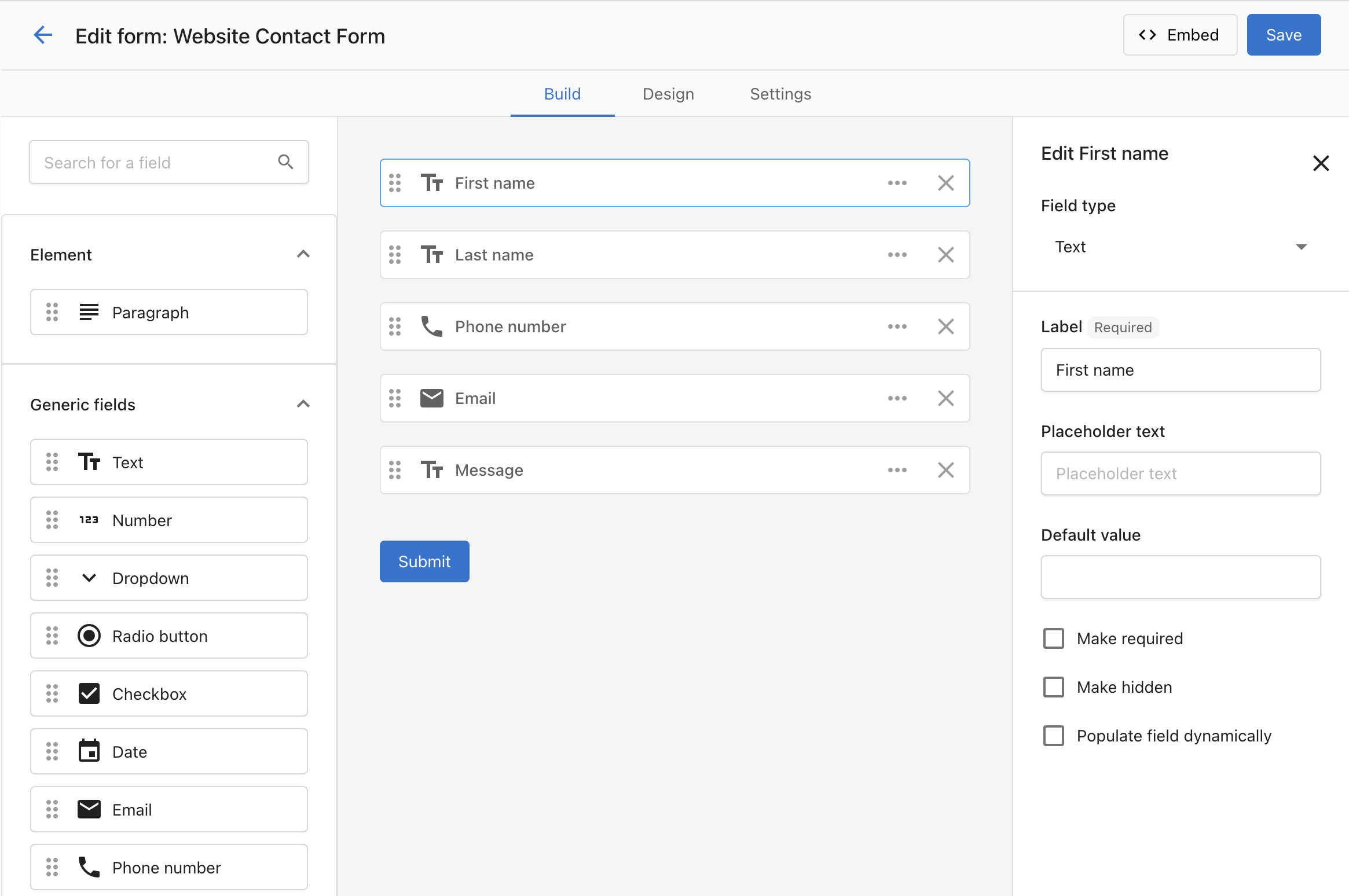
Add the key fields you'd like to capture. Keep forms short—conversion rates drop as fields increase (e.g. forms with 5 fields or fewer tend to convert better than those with 10+).
Field settings
For all field types:
- You can set a default value, which will be submitted when the user submits an empty field.
- You can mark the field as required, and the user can't submit the form without filling in the required field.
- You can make the field hidden, so users won't see the field and can't edit it when they fill out the form.
- You can populate the specific form field dynamically using a query parameter from the URL. Example: a form at
https://www.example.com/form?campaign=spring-promotionwith "campaign" set in the field → the field pre-fills with "spring-promotion" when the user submits.
For the string field: you can switch it to an open text field, drop-down, or radio button options.
Adding a file upload field
You can add a File upload field so visitors can attach a document or image when they submit. Files are attached to the Contact or Company record the form creates and receive an AI-generated summary for easier review.
- In the form builder, choose
Add fieldand selectFile upload. - Configure the field label and whether the file is required.
- Optionally set accepted file types (e.g. PDF, PNG, JPEG, DOCX) and a maximum file size.
- Save the form and test a submission to confirm the file attaches to the created record.
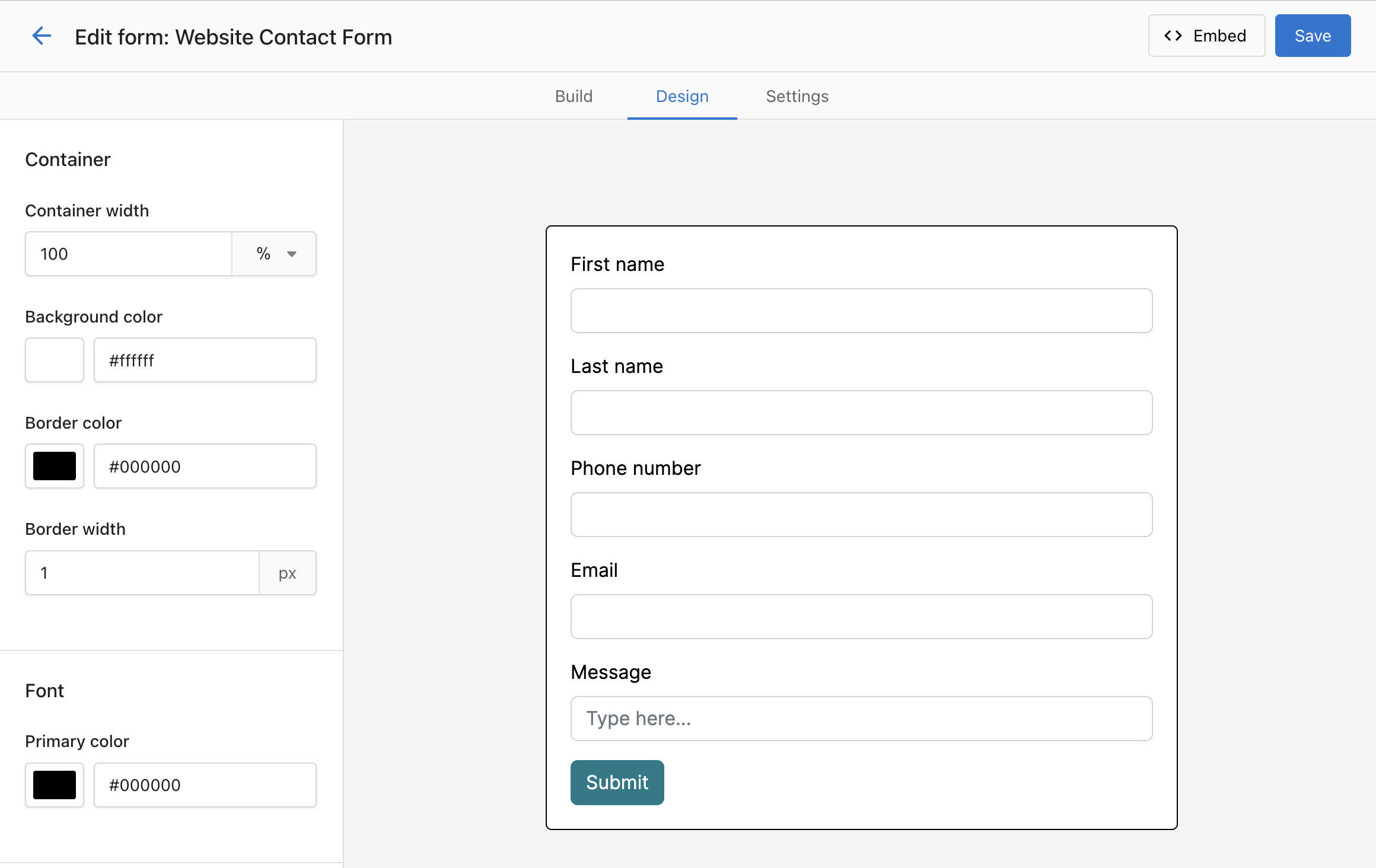
Step 2: Customize the styling
Set the form width (e.g. 100%) and manage the width in your page builder. In the Design tab, style the container, font, and button.
Advanced Styling with Custom CSS
- In the form builder, go to the Design tab.
- Scroll down to the Custom CSS section.
- Add your CSS rules to customize colors, fonts, spacing, and layout.
- Preview changes in real-time.
Example custom CSS:
/* Customize form background */
.form-container {
    background: linear-gradient(135deg, #667eea 0%, #764ba2 100%);
    border-radius: 10px;
    padding: 20px;
}

/* Style input fields */
input[type="text"], input[type="email"] {
    border: 2px solid #4CAF50;
    border-radius: 5px;
    padding: 10px;
}

/* Customize submit button */
.submit-button {
    background-color: #4CAF50;
    color: white;
    border-radius: 25px;
    padding: 12px 30px;
    font-weight: bold;
}Step 3: Set up reCAPTCHA
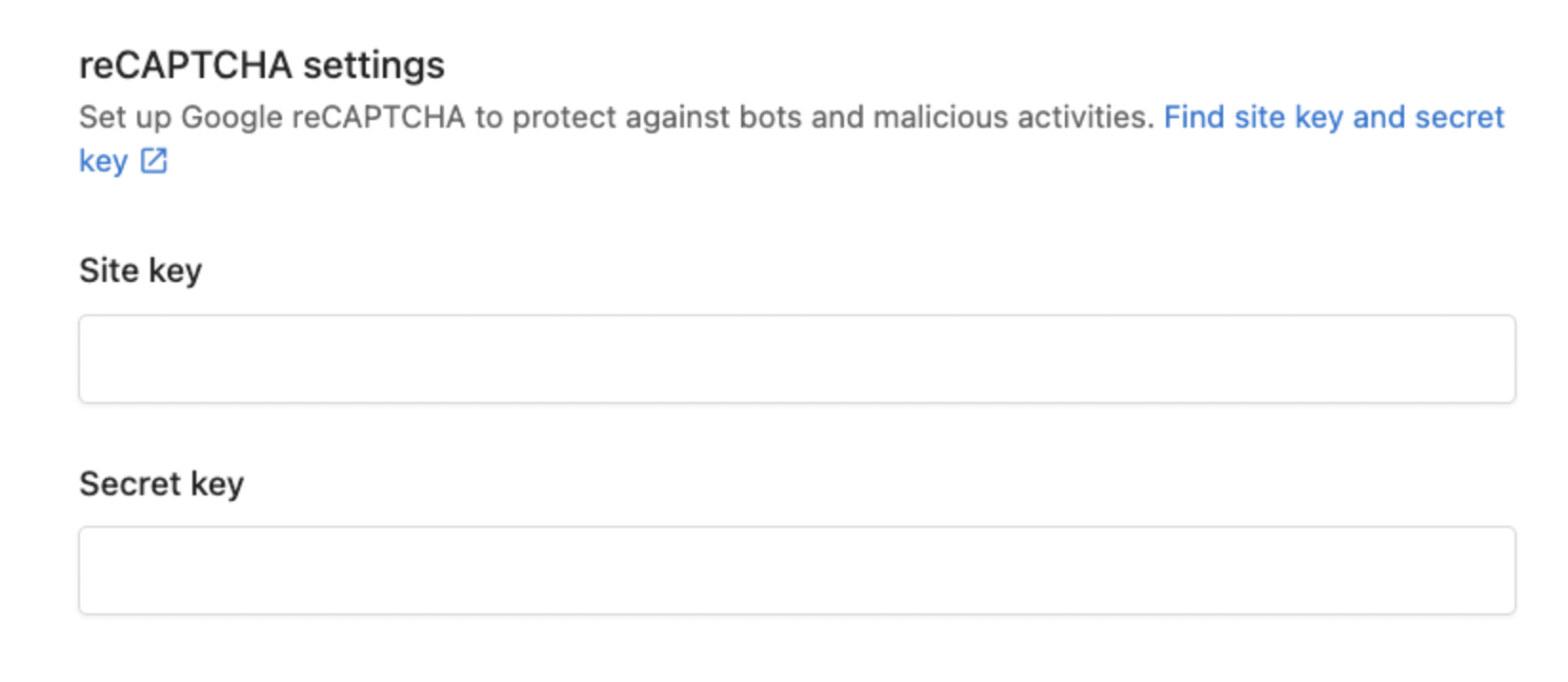
In the form builder, under Settings, use the reCAPTCHA section. After generating the site key and secret key, setup completes automatically (this can take a few minutes).
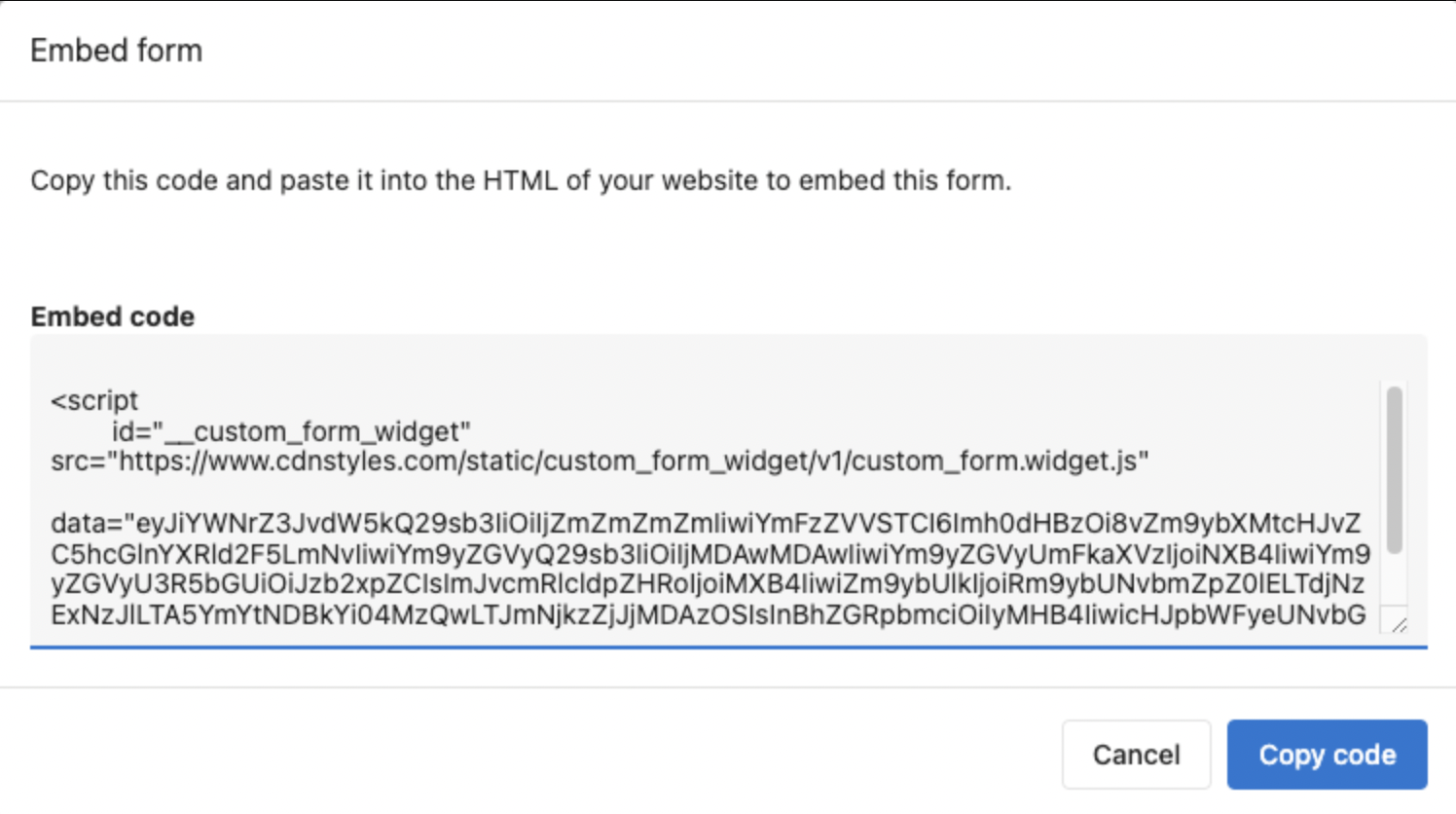
Step 4: Copy the embed code
Copy the embed code and place it on your website landing page or contact page. If using WordPress (e.g., Divi), add a "Code" block and paste the embed code.
Step 5: Test your form
Submit a test response to confirm that a contact is captured in the CRM and any automations run as expected.
Automate follow-up from your form
You can create and manage automations directly from a form using the Automation tab.
Set up a form automation
- Go to
CRM>Formsand open an existing form (or create a new one). - Click the Automation tab in the form editor.
- If no automation exists, choose a template (e.g. "Send follow-up email when a form is submitted") or start from Blank.
- Configure the suggested step (for example, select a campaign for the follow-up email) and click Save.
- Toggle the automation On using the switch in the top-right.
Build more complex workflows
- Click Advanced mode to open the full automation builder.
- Add Conditions and additional Actions (for example, apply a tag, assign a task, send SMS).
See the Automations Guide for the full automation builder and more triggers and actions.
Form field reference
When building a form, you can add fields that map to Contact or Company records, or use generic field types.
Contact fields
- First name, Last name, Email, Phone number, Additional phone number
- Message, Job title, Role, Seniority
- LinkedIn URL
- Lifecycle stage
- Record source, Record source drill down 1, Record source drill down 2
- Original source, Original source drill down 1, Original source drill down 2
- Street address line 1, Street address line 2, City/locality, State/province/region, Zip/postal code, Country
- Timezone, Birth year, Gender
- UTM Campaign, UTM Medium, UTM Source, UTM Content, UTM Term
- Market ID, Owner, Required, External ID
Company fields
- Company name, Website, Phone number, Fax number
- Street address line 1–2, City/locality, State/province/region, Zip/postal code, Country
- Number of employees, Legal structure
- Lifecycle stage
- Record/Original source (and drill downs)
- Timezone
- Facebook, X, Instagram, LinkedIn, TikTok, Pinterest URLs
- UTM fields
- Market ID, Owner, External ID, Google Place ID
Generic field types
These types can be added to any form and are not mapped to a specific Contact or Company field:
- Text, Paragraph, Number
- Dropdown, Radio button, Checkbox
- Date
For how to add and configure fields (required, hidden, defaults, dynamic URL parameters), see the Build and publish a form section above.
Frequently Asked Questions
Automation tab to create or manage a workflow for that specific form. You can also build it from the Automations area by choosing the "When a form is submitted" trigger.CRM > Forms, open a form, and click the Automation tab.Advanced mode to open the full builder and add Conditions and Actions, just like any other automation.Automation tab..form-container, input[type="text"], input[type="email"], .submit-button, and other standard HTML form elements. Use your browser's developer tools to inspect the form structure.Use My Meetings to share booking links, manage availability, and track upcoming meetings.
Why use My Meetings?
- Make it easy for prospects and customers to book time with you
- Reduce back-and-forth and no-shows with automated confirmations
- Keep meetings connected to contacts, companies, and opportunities
What's included
- Personal and team booking links
- Availability settings and buffers
- Calendar connections
- Microsoft Outlook/365 calendar integration
- Microsoft Teams video conferencing integration
- Multi-host events (up to five hosts)
How to use My Meetings
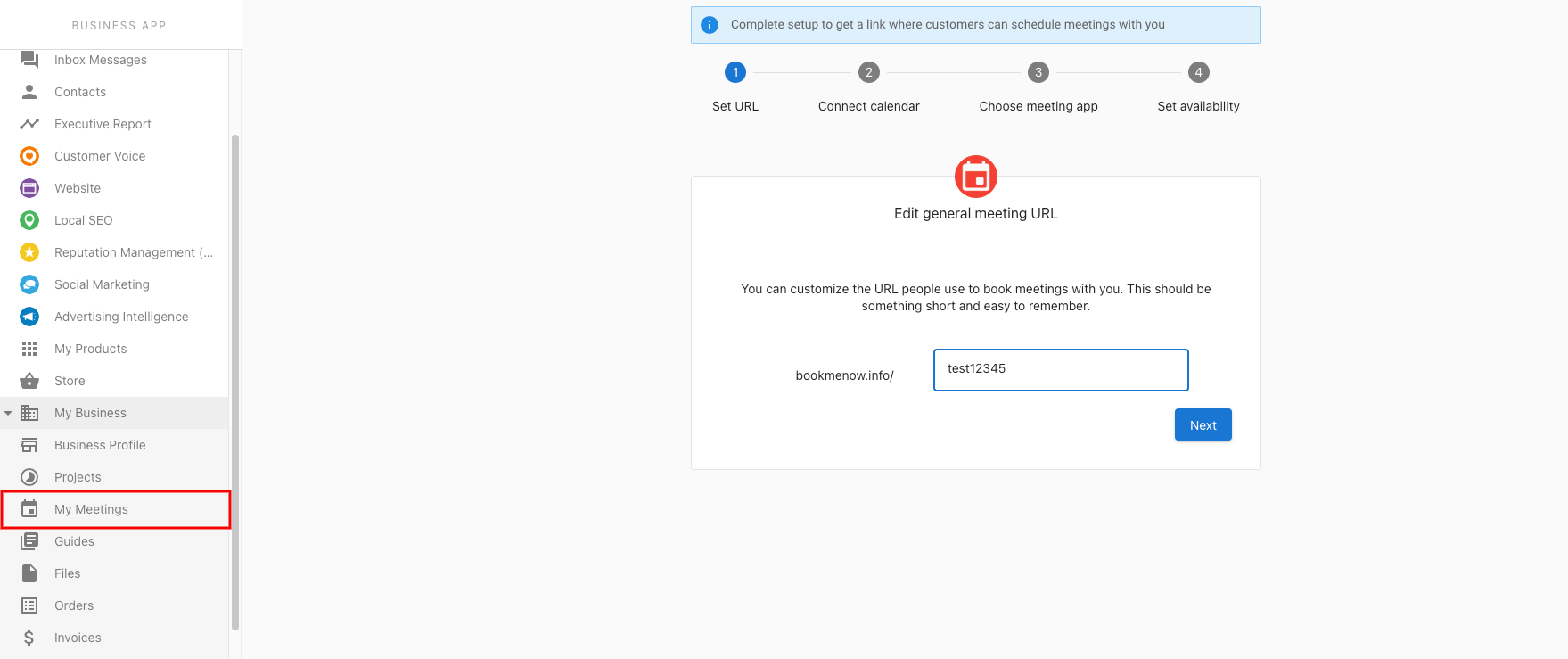
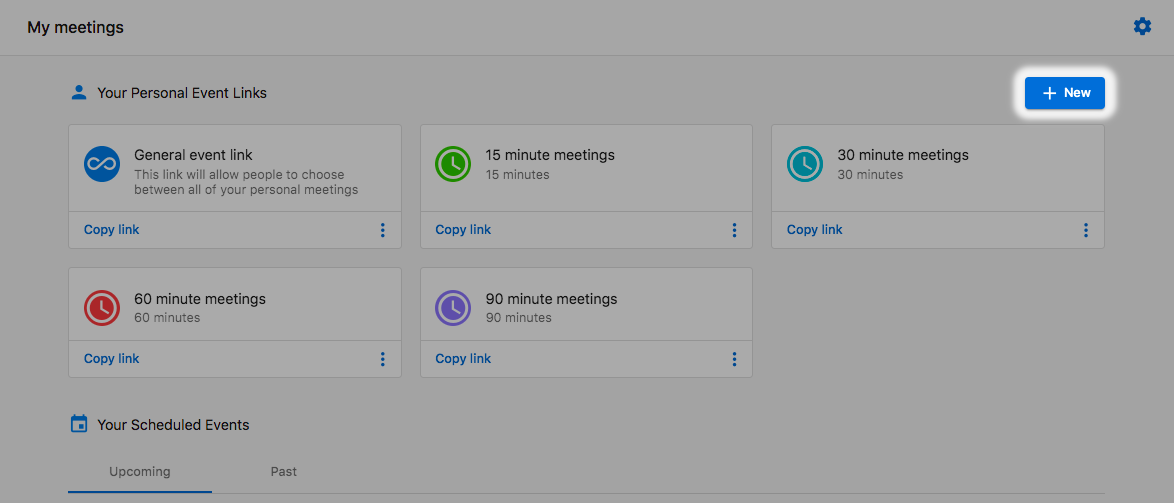
- Go to
CRM>My Meetings. - Connect your calendar and configure availability.
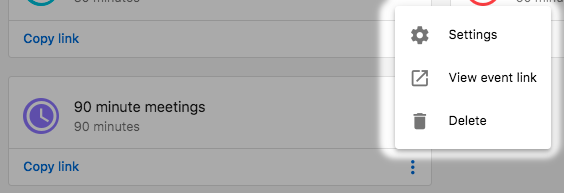
- Create personal or team booking links and share them.
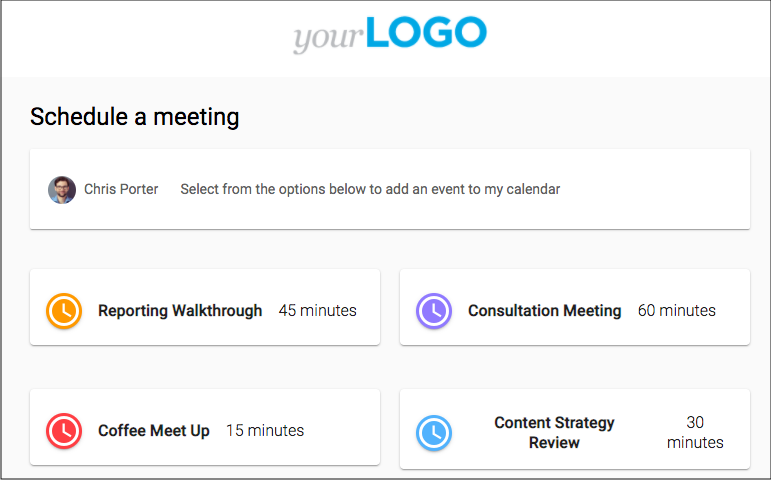
Frequently Asked Questions
Calendar integration
Calendar integration connects your Google Calendar to the platform, enabling automatic meeting scheduling, notetaker functionality, and seamless synchronization of your upcoming meetings.
Prerequisites
Before setting up calendar integration, ensure you have:
- A Google Workspace or personal Google account
- Access to the My Meetings feature in your account
Connecting your Google Calendar
- Navigate to My Meetings from the main menu.
- Click on Meeting Settings.
- Select Connect Calendar.
- Sign in with your Google account and grant the required permissions.
- Once connected, your upcoming calendar events will automatically sync.
What happens after connection
Once your calendar is connected:
- Automatic sync — Your upcoming meetings appear in the My Meetings > Upcoming meetings tab
- Notetaker scheduling — The platform automatically schedules notetakers for your meetings
- Meeting insights — AI-powered summaries and transcripts are generated for recorded meetings
Managing your calendar connection
Viewing connected calendars: Navigate to My Meetings > Meeting Settings to view your connected calendar status.
Disconnecting your calendar:
- Go to My Meetings > Meeting Settings.
- Click on your connected calendar.
- Select Disconnect.
Troubleshooting
- My calendar events aren't syncing — Try disconnecting and reconnecting your calendar. Ensure you've granted all required permissions during the connection process.
- I don't see the Connect Calendar option — Ensure you have the appropriate permissions in your account. Contact your administrator if the option is not available.
Meeting Details page
The Meeting Details page in the CRM brings together everything you need to review a recorded meeting in one place. It includes an AI-generated summary, detailed insights, participant information, a full transcript and more.
What is the Meeting Details page?
The Meeting Details page is a dedicated view for a recorded meeting in the CRM. It consolidates the recording, scores, insights, and supporting data so you can understand what happened in the meeting without rewatching the entire call.
Why is the Meeting Details page important?
The page helps you quickly review past calls, identify next steps, and understand conversation quality. By centralizing summaries, analytics, and transcripts, it reduces the need for manual note-taking and repeated follow-up meetings.
What you can do with the Meeting Details page
- Review an AI-generated summary of the meeting
- Identify action items and discussion topics
- Analyze conversation quality and engagement
- See who attended the meeting
- Read or download the full transcript
- Share meeting details with controlled visibility
How to access the Meeting Details page
- Open the CRM.
- In the left-hand menu, select CRM, then select My Meetings.
- Open the Recordings tab to view recorded meetings.
- Locate the meeting you want to review. The list shows the meeting title, date, duration, guest count, and visibility.
- Click the meeting row or select View to open the Meeting Details page.
Understanding the page layout
The Meeting Details page includes a header and multiple tabs.
Header — Displays meeting title, date and time, participant avatars, quick indicators such as the RAVEN score and Sentiment score, and a video player to watch or rewatch the recording.
Tabs — The page contains four tabs: Summary, Sales Coaching, Guests, and Transcript. You can select any tab to jump directly to that section.
Share button — In the top-right corner, lets you set visibility (Private, All, Anyone with the link) and copy a shareable link to the meeting.
Using the Summary tab
The Summary tab provides an AI-generated recap of the meeting:
- Overview — A short paragraph summarising the meeting's purpose, key themes, and outcomes.
- Action items — A list of tasks identified during the meeting, each with an owner's name and bullet-pointed tasks to complete.
- Topics — A breakdown of major discussion points, often with approximate time markers so you can jump to specific moments in the recording.
Exploring the Sales Coaching tab
The Sales Coaching tab contains detailed analytics generated from the meeting transcript:
- Conversation metrics — Sentiment score, Patience score, Interactivity score, and a donut chart of talk time per speaker
- Clarity report — Scores for pronunciation and pace, language simplicity, structure, active listening, filler usage, and objection handling
- Recommendations — Suggestions to improve future conversations based on the clarity report
- Highlights and lowlights — What went well and any issues such as technical delays or repetitive explanations
- Pain points and selling opportunities — Customer concerns discussed and areas where additional value could be offered
- Scoring frameworks — RAVEN, BANT, MEDDPICC, SANDLER, and Solution selling scores to assess overall meeting effectiveness
Viewing participants in the Guests tab
The Guests tab lists everyone who attended the meeting. Contacts show external attendees with names or email addresses. Team members show internal participants and their roles, such as Host or Creator.
Reading the Transcript tab
The Transcript tab contains the full meeting transcript. Each entry includes speaker name, timestamp, and spoken text. You can scroll to find specific statements or copy text for notes. Select Download transcript to save the transcript as a file.
Sharing meeting details
- Select Share on the Meeting Details page.
- Choose a visibility option: Private (visible to you and internal participants, not logged in CRM), All of your company (visible to internal participants, logged in CRM), or Anyone with the link (visible to anyone with the link internally, not logged in CRM).
- Copy the generated link.
- Optionally, set a custom start time to direct viewers to a specific point in the meeting.
Best practices
- Review meetings soon after they occur — Early review helps capture important details while they are still fresh.
- Follow up on action items — Use the Action Items list to assign tasks in your CRM or project management tools.
- Track recurring patterns — Look across multiple meetings for trends in clarity scores, highlights, or lowlights.
- Share selectively — Choose appropriate visibility settings to protect sensitive information.
Recording settings
This section explains how to access your meeting settings and customize bot-related options, including the note-taker name and the compliance announcement.
What is meeting settings?
Meeting settings is the area where you manage configuration options for your meetings. These settings control how meeting tools, such as bots, behave during your meetings.
Why is meeting settings important?
Meeting settings allows you to control how meetings are recorded and communicated. Adjusting bot behavior helps align meetings with your preferences and compliance needs.
What you can do with meeting settings
- Access bot configuration options
- Change the name of your note-taker
- Turn the compliance announcement on or off
How to set up
How to access meeting settings:
- Navigate to the My Meetings section.
- Select Meeting Settings.
How to locate bot settings:
- Scroll to the bottom of the meeting settings page.
- Locate the Bot Settings section.
How to customize note-taker and compliance announcement: In the Bot Settings section, you can change the name of your note-taker and turn the compliance announcement on or off.
Visibility settings
Visibility Settings enable you to manage access to and control the privacy of sensitive content, including recordings, transcripts, summaries, and AI insights. These settings help safeguard sensitive discussions by applying privacy rules based on whether meetings are internal or external.
This feature lets you categorize meetings as private or publicly accessible within the CRM. It supports trust and enables use cases beyond sales, such as HR, product, and training meetings.
Key benefits
- Balance privacy and collaboration for recorded meetings and summaries
- Protect confidential discussions while preserving CRM automation for non-private discussions
- Empower you to configure, override, and reverse privacy decisions at any time
Key concepts & definitions
- Notetaker — A bot that joins meetings (via Google Meet) to record and transcribe sessions
- Meeting Summary Page — Centralized page showing the meeting recording, transcript, summary, and AI insights
- Internal meeting — A meeting where all invitees have the same email domain
- External meeting — A meeting where at least one invitee has a different email domain
- Visibility Settings — The degree to which meeting recordings and summaries are accessible
- Invitees — People invited to the Google Calendar event by the Organizer
- Host and Co-hosts — The Organizer is automatically the main Host of the Meet call
- Ad-hoc Meeting — A meeting where a Notetaker was not scheduled automatically
How Visibility Settings work
- When you connect your Google Calendar, the platform scans for upcoming calendar events. Notetakers are automatically scheduled for these meetings.
- Once the Notetaker is approved in Google Meet, the meeting is recorded and transcribed.
- The platform uses AI infrastructure to summarize the meeting and log activities in the CRM based on your default Visibility Settings.
- All recordings and summaries are accessible on the My Meetings Page, subject to accessibility for the meeting.
The 3 Visibility Settings
- Private — Only meeting invitees in the same namespace/Partner ID can view the Meeting Recording or Meeting Summary Page.
- All — Anyone in the same namespace/Partner ID can view the Meeting Recording or Meeting Summary Page. A CRM activity is logged.
- Anyone with the link — Anyone in the same namespace/Partner ID with access to the link can view it. The meeting will not appear in the CRM.
Configure default Visibility Settings
You can configure default settings for two meeting types: Internal meetings (all invitees share the same email domain) and External meetings (at least one invitee has a different email domain). Configure defaults under: My Meetings > Meeting Settings > Recording Settings. This is a user-level setting and does not affect others.
Default logic
- External meeting — Visibility: All, CRM logging: Logged
- Internal meeting — Visibility: Private, CRM logging: Not Logged
- Ad-hoc meeting — Visibility: Private, CRM logging: Not Logged
Overriding Default Visibility Settings
Before the meeting:
- Navigate to My Meetings > Recordings > Upcoming.
- Select the meeting and choose the preferred Visibility Setting: Use default or Override defaults.
- The platform indicates whether the meeting will be recorded and logged.
After the meeting: In the Recorded Meetings tab, switch between grid and table views to adjust settings. On the Meeting Summary Page, change Visibility Settings as needed.
Retroactive changes & CRM logging logic
When Visibility Settings are changed retroactively, CRM logging updates automatically:
- Private → All — Meeting logged retroactively in CRM
- All → Private — CRM activity deleted
- All → Anyone with the link — CRM activity deleted
The Recordings tab
Upcoming meetings — Displays all meetings from your Google Calendar, including meetings not booked via BookMeNow. These are meetings where a Notetaker has been scheduled to join. Includes indicators for Visibility Settings with ability to modify before the meeting starts.
Past meetings — Shows all meeting recordings where you are an organizer or invitee. This is the default view for reviewing your recorded meetings. Please use the CRM Activity Feed for team-related activities.
Frequently Asked Questions
Automations
Automations run workflows on their own when something happens in DFM — like texting your sales rep when a lead comes in, creating a task when a form is submitted, or requesting a review after a visit.
Jump to a topic
How automations work, creating one, and turning it on or off.
Every event that can start an automation, plus AND/OR filters.
Delays, If/Else branches, and the full list of actions.
Entry settings, error handling, and the Activity log.
Send review requests automatically after every visit.
New lead alerts, welcome emails, paused campaigns, and more.
Administration Settings
The Administration section is the control center for your DFM account. Find it at DFM > Administration. This tab covers Conversations Settings, CRM Objects, and Score. For Email and SMS configuration see the Email & SMS tab.
Conversations Settings
Conversations Settings is where you configure all your messaging channels — phone, SMS, web chat, email, and social. Go to Administration > Conversations Settings. Each channel has a card showing its status and a Configure button.
| Channel | What you configure |
|---|---|
| Phone & SMS | Assign your Conversations phone number, enable AI handling, set up missed-call text back |
| Web Chat | Install and configure the website widget, set availability, enable AI options |
| Facebook Messenger | Connect a verified Facebook Page so messages appear in your inbox |
| Instagram Messages | Connect via Facebook to enable DMs in your inbox |
| WhatsApp Business | Connect via Facebook to enable WhatsApp in your inbox |
| Set sender name and address, connect the inbox | |
| Messaging Templates | Create reusable replies for common questions |
Phone & SMS
- Choose your primary phone number for calling and texting
- Configure call forwarding and voicemail
- Enable Missed-Call Text Back to automatically text callers you couldn't answer
AI Replies
From Conversations Settings you can assign an AI Employee to automatically respond on specific channels. Set guardrails and escalation rules so complex messages are handed off to a person. See the AI Workforce guide for full setup details.
CRM Objects & Fields
CRM Objects are the building blocks of your DFM CRM — Contacts, Companies, and Opportunities. CRM Fields let you add custom data fields to contact and company records so you're not limited to the default setup. Go to Administration > CRM Objects.
Individual people you communicate with. Support phone, email, SMS, tasks, and marketing lists.
Businesses, locations, or accounts that own contacts and opportunities.
Pipeline stages for tracking sales deals or service projects.
Create your own object types — service contracts, equipment, project milestones, and more.
How to Create a Custom Field
- Go to Administration > CRM Objects.
- Click Create to open the new field form.
- Choose the Object — Contact or Company.
- Enter a Field name (e.g. "Birthday" or "Preferred contact method").
- Select the Field type — Text, Number, Date, True/False, Email, Phone, etc.
- Click Create to save.
Score
Score covers two areas: performance grades in your Executive Report (Review Grade, Listing Score) and contact lead scoring in your CRM. Go to Administration > Score.
Review Grade
A letter grade (A–F) summarizing your online review presence vs your industry — based on average score, number of sources, total reviews, and reviews per month. Appears in your Executive Report.
- A — Top 10% in your industry
- B — 75th–89th percentile
- C — 50th–74th percentile
- D — 30th–49th percentile
- F — Bottom 30%
Contact Lead Score
Assign a numeric score to each contact to track engagement, prioritize follow-ups, and segment contacts for campaigns. The score appears on each contact's profile and can be updated manually or via integrations.
To filter contacts by lead score in the CRM: go to CRM > Contacts, click Add Filter, and choose Lead Score.
Frequently Asked Questions
Email & SMS Configuration
This section covers everything you need to set up email deliverability, manage subscription preferences, and register your business for SMS messaging.
Email Configuration
By default, emails are sent using a shared DFM domain. For better deliverability and to build your own sender reputation, set up your own custom email domain by authenticating it with SPF, DKIM, and DMARC records — essentially showing an ID that proves to email providers your messages are genuine.
Warm Up Your Domain
After setting up a custom domain, warm it up gradually. Start with around 50 emails and increase slowly — avoid more than a 10x jump per day. Warming up can take 30–60 days. If your emails are performing well, you can speed up; if you hit issues, slow down.
Email Deliverability Best Practices
- Write trustworthy subject lines — Avoid spam trigger phrases like "Urgent!", "FREE!!!", or "Act now". Convey real value without being aggressive.
- Keep your list clean — Stop sending to contacts who haven't opened or clicked any emails in a long time. Filter on "Last campaign opened date" in the CRM.
- Avoid spam traps — Never purchase email lists. Only send to contacts who have opted in.
- Monitor performance — High open and click rates improve your sender reputation. High bounce rates, unsubscribes, and spam complaints hurt it.
Email Subscription Preferences
Contacts can manage email preferences by category — so they don't accidentally unsubscribe from everything at once. When a contact clicks Unsubscribe in any eligible email, they're taken to a preference page where they can opt out of individual categories.
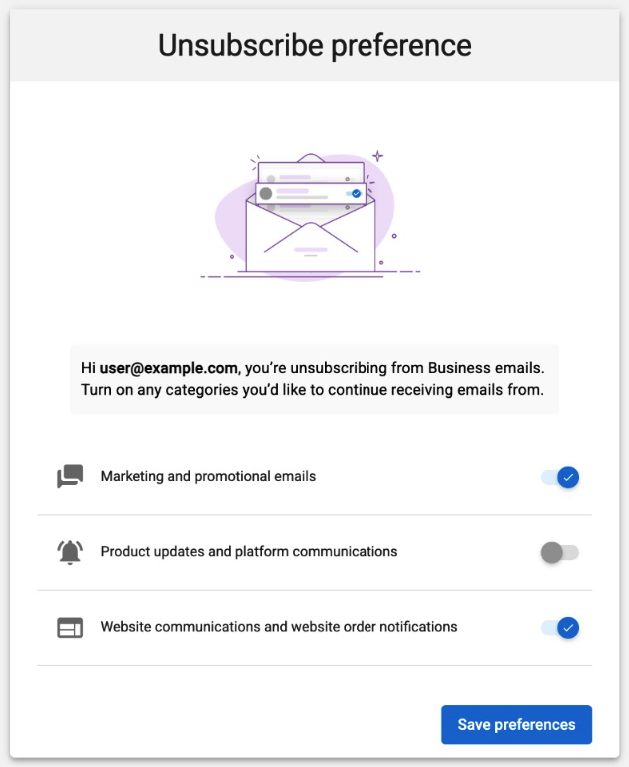
| Category | What's included |
|---|---|
| Marketing | Campaigns, newsletters, and promotions |
| Product notifications | Platform and product updates |
| Website communications | Website messages and order notifications |
| Transactional | Account, billing, contact form submissions, and lead notifications — always delivered, cannot be disabled |
Consent status syncs to contact records in the CRM within 5–10 minutes of any subscription change.
SMS Registration (US Businesses)
To send text messages to US customers, your business must complete A2P 10DLC registration. This is a carrier requirement that verifies your business identity and checks your website for compliance before approving SMS messaging.
Before You Submit — Website Requirements
Complete all four steps before submitting or your registration may be rejected:
- Update your Privacy Policy — Must explicitly state that mobile info won't be shared, include opt-in disclosure, STOP/HELP instructions, and "Message and data rates may apply."
- Update your Terms of Service — Must describe your SMS program, include standard phrases, and STOP/HELP instructions.
- Add opt-in checkboxes to web forms — Every form collecting a phone number needs an unchecked-by-default consent checkbox with the text "I agree to receive automated messages from [Your Business Name]. Message & data rates may apply. Reply STOP to opt out."
- Enable AI Chat consent (if applicable) — If you use the AI Chat Receptionist, a consent question is automatically added to the Lead Capture capability.
Submitting Your Registration
- Go to Administration > Conversations Settings > Phone & SMS.
- Click Register now and complete the form.
- Enter your EIN (Employer Identification Number).
- Click Submit information. Approval typically takes 1–4 weeks.
Common Rejection Reasons
| Issue | Fix |
|---|---|
| Privacy policy doesn't mention SMS | Add the required opt-in, opt-out, and rates language |
| Web forms missing consent checkbox | Add unchecked-by-default checkbox to all forms with phone fields |
| Business info doesn't match IRS records | Ensure name, address, and EIN exactly match IRS records |
| Newly issued EIN | Wait 30–90 days for your EIN to appear in verification databases, then resubmit |
Frequently Asked Questions
Leaderboard
The sales leaderboard is a powerful tool for you and your team to compare performance metrics and encourage healthy competition. This comprehensive performance tracking system showcases all of your salespeople and important revenue metrics in an easy-to-understand format. With advanced filtering options and export capabilities, the leaderboard provides valuable insights into team performance and individual achievements — serving as both a motivational tool and a data source for strategic sales management decisions.
Why Use the Leaderboard?
Transform your sales team performance with visual metrics that drive competition and accountability. The leaderboard eliminates guesswork in performance evaluation and provides clear, measurable insights that help sales managers coach their teams more effectively while motivating salespeople to achieve better results.
What's Included
Track and compare revenue metrics across your entire sales team in one place.
Filter by sales teams and markets to focus on the groups that matter most.
Analyze performance across any specific time period with custom date range selection.
Export leaderboard data into CSV format to leverage in your own reporting systems.
Getting Started
- Navigate to the Leaderboard — Go to DFM > CRM > Leaderboard to access your sales performance dashboard.
- Review team performance — View all salespeople and their revenue metrics, and compare performance across your entire team.
- Apply filters — Filter by sales teams and markets, and adjust for custom date ranges to analyze specific periods.
- Export data — Export the leaderboard into CSV format and use the data in your own reporting systems.
Performance Metrics & Features
Your leaderboard showcases all of your salespeople and important revenue metrics. Filter by sales teams and markets, adjust for custom date ranges to analyze specific periods, and export everything into a CSV to leverage in your own reporting.
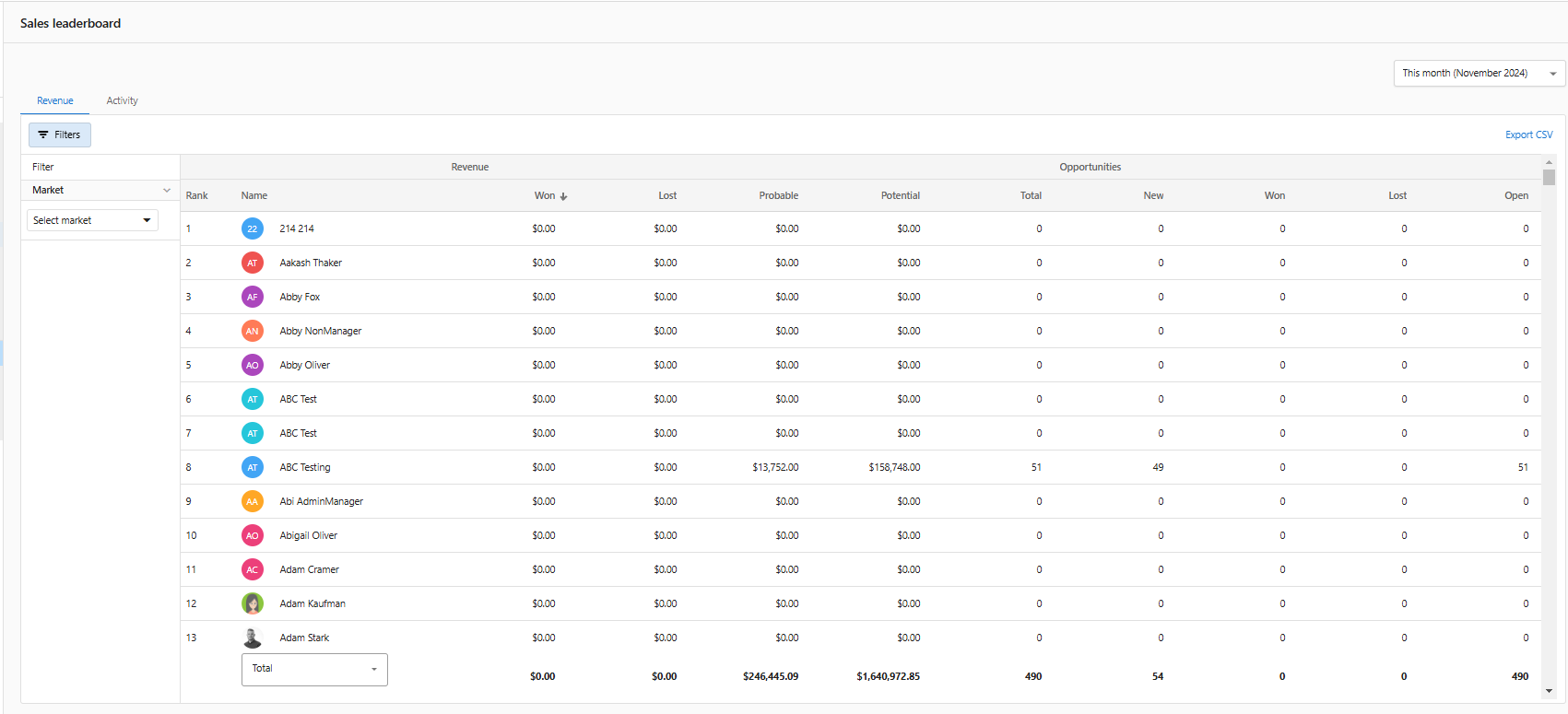
Team Comparison Capabilities
The leaderboard provides comprehensive visibility into your team's sales performance with the ability to compare metrics across different team members, time periods, and market segments. This powerful tool helps identify top performers, track progress over time, and ensure accountability across your entire sales organization.
Campaigns
Campaigns are multi-step email marketing sequences you can design, schedule, and send to targeted CRM contacts and lists. Personalize content, automate timing, and measure performance — all from within DFM.
Why Use Campaigns?
- Reach the right audience with targeted, list-based sends
- Automate multi-step email sequences without manual follow-ups
- Personalize content with merge fields and dynamic logic
- Track performance with sends, opens, clicks, and unsubscribes
What You Can Do
Create emails in a visual editor using templates and content blocks.
Create multi-step campaigns with delays and branching logic.
Send to specific contacts and lists associated with your companies.
Monitor sends, opens, clicks, and unsubscribes to improve results over time.
Getting Started
- Go to DFM > Campaigns.
- Click Create campaign.
- Choose a template or start from blank.
- Add your emails, delays, and audience.
- Preview, then publish when ready.
SMS Campaigns
In addition to email, you can send SMS campaigns directly from DFM to reach your audience with text messages. SMS is great for short reminders, appointment confirmations, and urgent follow-ups.
Creating an SMS Campaign
- Go to DFM > Campaigns and click Create Campaign.
- Choose SMS as the campaign type.
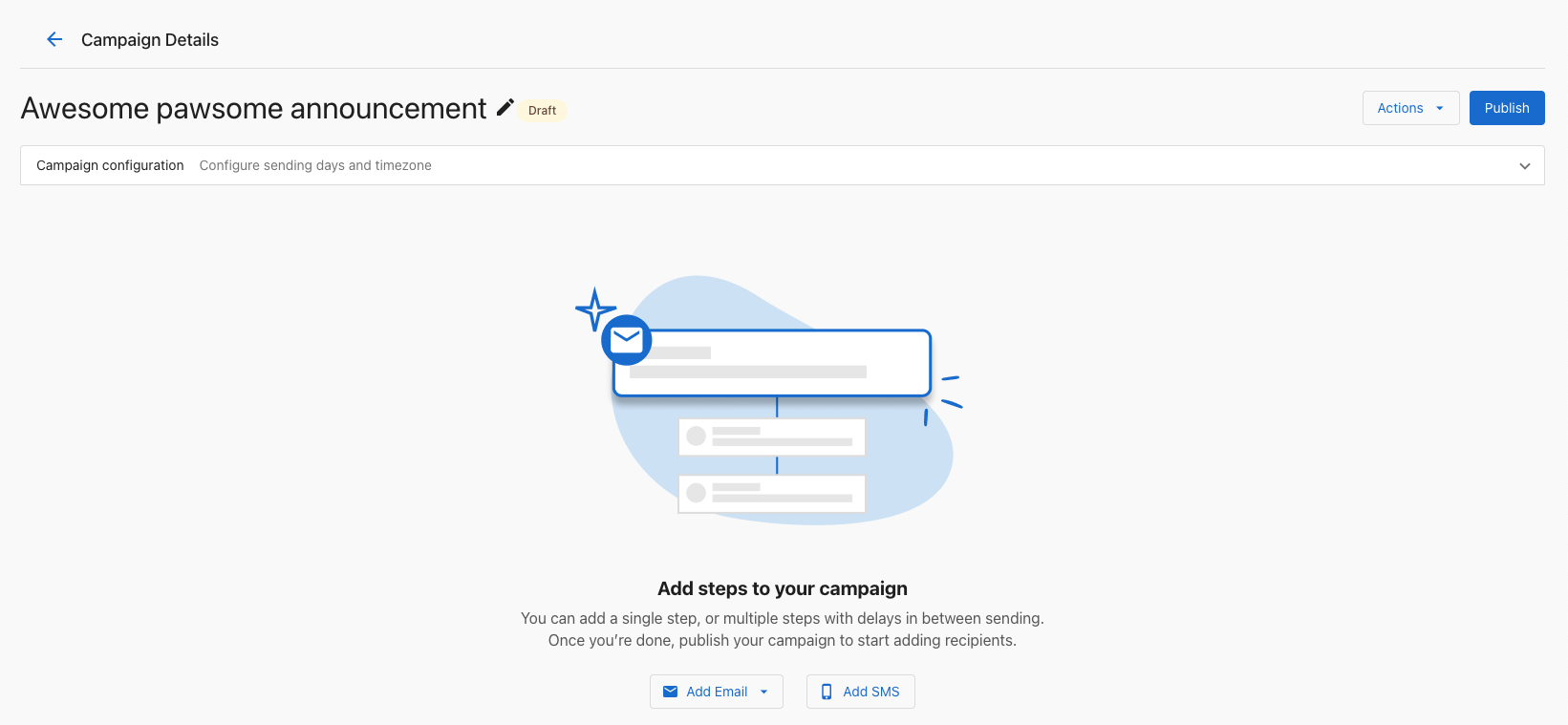
Campaign Details
- Enter a Campaign Name for your reference.
- Select a Category that fits your campaign.
- Choose One-Time Campaign or Recurring Campaign.
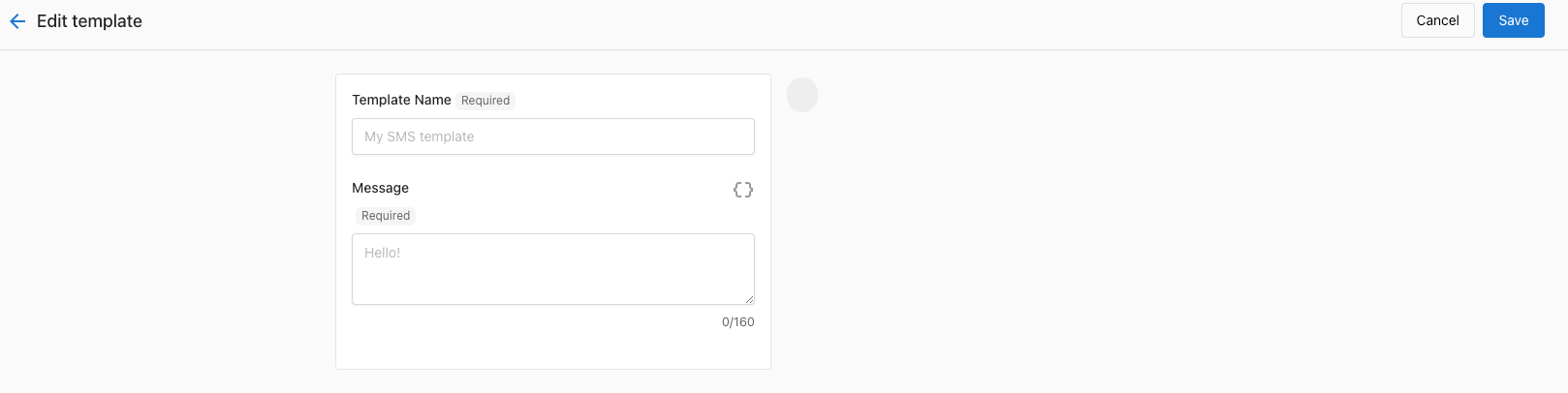
SMS Content
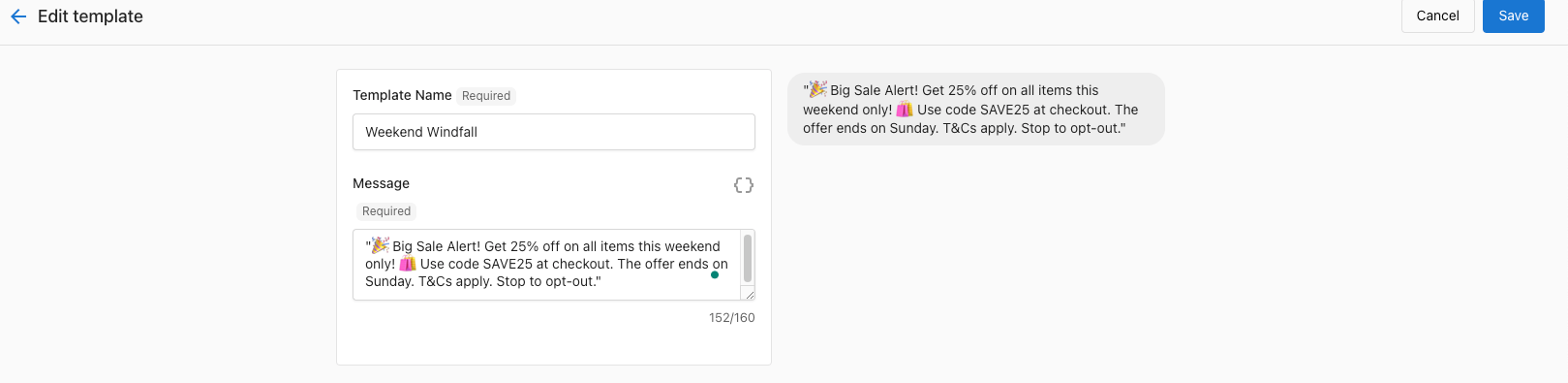
- Enter your Message Text. Keep SMS character limits in mind.
- Use the preview to see how the message looks on mobile.
Audience Selection
- Select the contacts or list that will receive the campaign.
- Use filters to narrow the audience if needed.
- Check the estimated recipient count before sending.
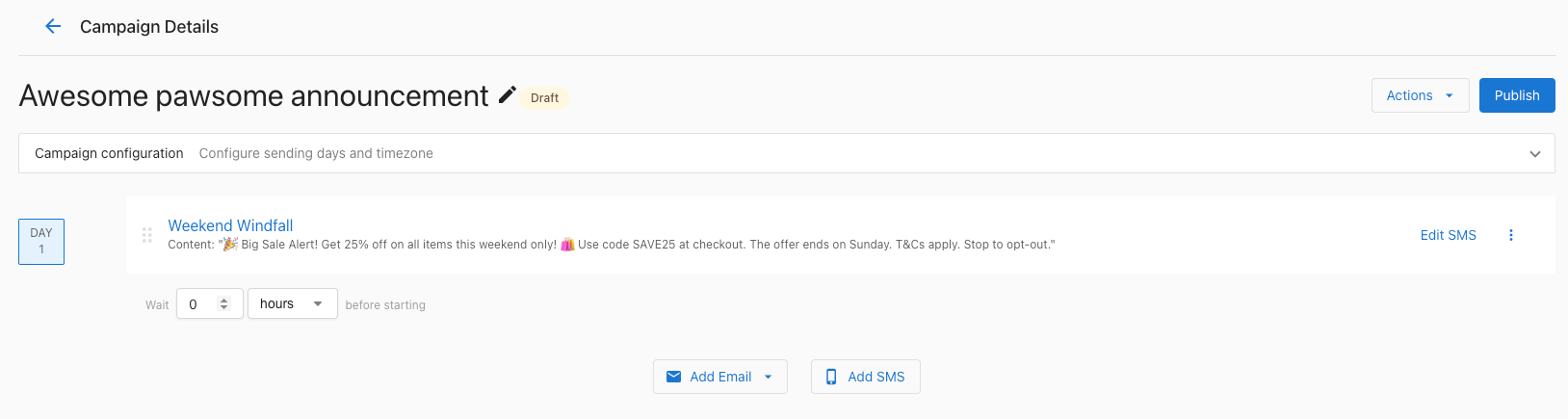
Scheduling
- Choose the date and time to send.
- For recurring campaigns, set the frequency — daily, weekly, or monthly.
- Consider your audience's time zone when scheduling.
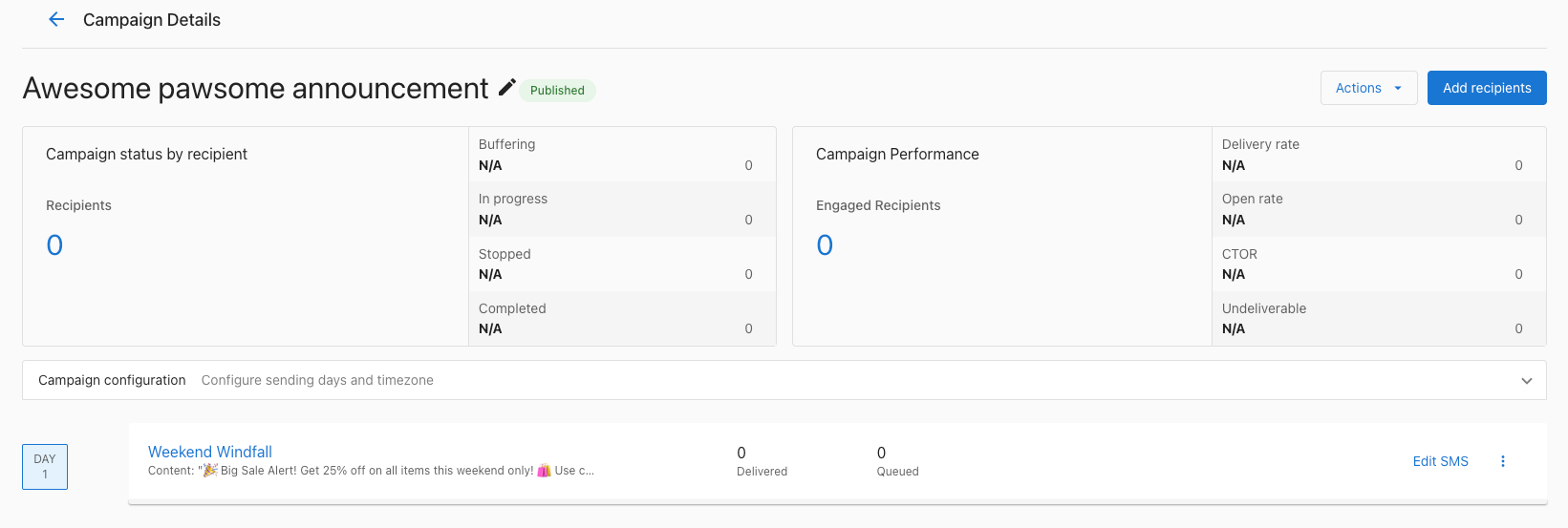
Tips for Successful SMS Campaigns
- Keep messages short and clear
- Include a clear call-to-action
- Schedule sends at reasonable times — avoid very early or very late
- Always include an opt-out option to stay compliant
- Test with a small group before sending to your full list
Campaign Examples
These examples follow a proven 4-email nurture structure: Introduction → Education → Social Proof → Call-to-Action. Use them as a starting point and customize the messaging, timing, and CTAs to match your brand.
Home Services — 15-Day Sequence
| Day | Purpose | Subject | CTA |
|---|---|---|---|
| 1 | Intro | Keep your home running smoothly, year-round | Book your service |
| 5 | Education | Did you know most systems need seasonal maintenance? | Schedule maintenance |
| 10 | Proof | See why homeowners trust us | Read customer stories |
| 15 | CTA | Ready for your next service call? | Book today |
Pet Services — 15-Day Sequence
| Day | Purpose | Subject | CTA |
|---|---|---|---|
| 1 | Intro | Treat your pets to 5-star care | Book your appointment |
| 5 | Education | Did you know most pets need monthly grooming? | Reserve your spot |
| 10 | Proof | See how our clients' pets shine | Read reviews |
| 15 | CTA | Ready for your pet's next visit? | Book today |
Automotive Services — 15-Day Sequence
| Day | Purpose | Subject | CTA |
|---|---|---|---|
| 1 | Intro | Keep your car road-ready | Schedule service |
| 5 | Education | 30% of repairs are booked after hours | Book now |
| 10 | Proof | Customers rate us 5 stars for convenience | See testimonials |
| 15 | CTA | Don't miss your service window | Book service |
Personal Services — 15-Day Sequence
| Day | Purpose | Subject | CTA |
|---|---|---|---|
| 1 | Intro | Book your next pampering session | Book now |
| 5 | Education | Why clients love instant booking | Try it today |
| 10 | Proof | See why guests keep coming back | Read reviews |
| 15 | CTA | Your perfect time is waiting | Reserve your spot |
Agent & Broker — 15-Day Sequence
| Day | Purpose | Subject | CTA |
|---|---|---|---|
| 1 | Intro | Find your next home with us | Browse listings |
| 5 | Education | Why timing matters in real estate | Get in touch |
| 10 | Proof | How our clients found their dream home | Read success stories |
| 15 | CTA | Ready to take the next step? | Contact us today |
General Business — 15-Day Template
| Day | Purpose | Subject | CTA |
|---|---|---|---|
| 1 | Intro | Make life easier with [Business Name] | Book your service |
| 5 | Education | Don't let [common problem] slow you down | Schedule now |
| 10 | Proof | Why local customers choose us | Read reviews |
| 15 | CTA | Ready for your next [service]? | Reserve today |
Customization Tips
- Adjust timing — Shorten or extend the sequence based on your typical sales cycle
- Personalize messaging — Use merge fields to include contact names, business names, or custom data
- Test CTAs — Try different call-to-action buttons to see what resonates
- Add your voice — Rewrite messaging to match your brand personality and tone
- Track performance — Monitor open rates, click rates, and conversions to refine your approach
Troubleshooting
Setup
- Ensure campaigns are enabled for your account
- Set your business mailing address in Administration > Business Profile
- Configure sender settings in Administration > Email Configuration
Delivery
- Check statuses in Administration > Email History
- Authenticate a custom domain (SPF/DKIM/DMARC) for better inbox placement
- Reduce image-to-text ratio and simplify templates and links
- Send to engaged segments and clean unengaged contacts
Testing
- Send a test email and verify links and merge fields before publishing
- Preview as a specific contact to confirm dynamic fields look correct
Frequently Asked Questions
Yesware Email Campaigns
Yesware lets you start email sequences (also known as drip campaigns) directly from your DFM CRM Contacts table. Select contacts, add them to an existing Yesware campaign, and optionally trigger additional actions using DFM Automations.
Prerequisites
Before you can send contacts a Yesware campaign, make sure that:
- Your DFM account includes access to Yesware (available in select packages)
- The Yesware Chrome (Gmail) or Outlook add-in is installed and connected to your mailbox
- A Yesware campaign already exists in the Yesware platform
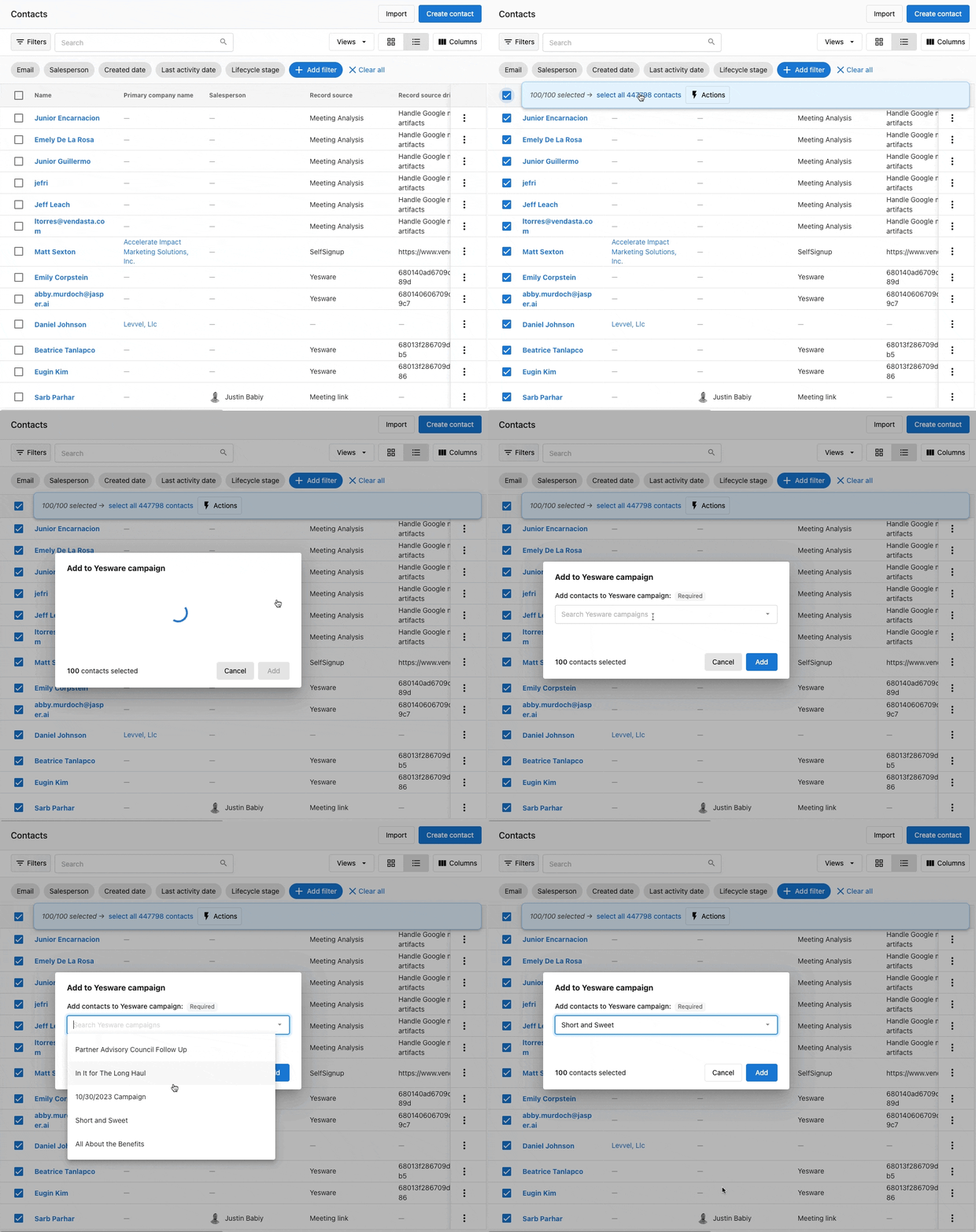
How to Launch a Yesware Campaign from Contacts
- Go to DFM > CRM > Contacts.
- Select one or more contacts in the table.
- Click Actions > Add to Yesware Campaign.
- Choose the desired Yesware campaign from the dropdown.
- Confirm to add the selected contacts to the campaign.
Email Deliverability Best Practices
- Verify your email domain and review your sending reputation in your email provider
- Keep daily volumes within Gmail/Outlook limits to avoid deferrals
- Use clear subject lines and relevant content — avoid spam trigger phrases like "free", "limited time", "exclusive"
Launch Yesware Campaigns via Automations
You can also trigger Yesware campaigns through DFM Automations using the Start a Yesware campaign for the contact step. This lets you enroll contacts automatically based on events rather than manually selecting them.
Example Triggers
- When a contact is added to a specific list
- When a contact fills out a specific form
- When a contact opens a specific email
- When a contact replies to a specific email